> ## Documentation Index
> Fetch the complete documentation index at: https://docs.typewise.app/llms.txt
> Use this file to discover all available pages before exploring further.
# Email Configuration
> Customize and configure incoming and outgoing emails
Haven't set up email yet? Follow our [email setup
guide](/guides/channels/setup-email) to configure sending and receiving.
## Guidance
Use the [Guidance](https://platform.typewise.app/channels/email/guidance)
section to define how Typewise AI should behave during email interactions and
under which conditions a human should take over.
### Channel Guidelines
Describe what Typewise AI should always do when managing email tickets. For
example:
* Greet the end customer politely and introduce itself.
* Ask for all required information at once to avoid a lot of back and forth.
* Use emojis sparingly, only when appropriate.
* Ask clarifying questions if the end customer's request isn't clear.
* Always summarize the resolution before closing the ticket.
### Handoff Conditions
Define when the ticket should be handed over to a Human Agent. Common examples
include:
* The end customer expresses frustration or asks for a supervisor.
* Sensitive topics like billing, refunds, or legal concerns arise.
### Automation
Fine-tune the automatic behavior inside the ticket with timing and review rules.
* **Automatically follow up after:**
Send a follow-up email after a specified number of minutes/hours/days without
receiving a reply from the end customer. The timer starts after the last
customer message.
When triggered, Typewise AI generates a contextual follow-up email based on
the conversation history, following your channel guidelines and company voice.
For example, the AI might send something like: "Dear \[Customer], we wanted to
follow up on your recent inquiry regarding \[topic]. Please let us know if you
still need assistance or if there's anything else we can help you with."
If auto-close is also enabled, the follow-up email may mention when the ticket
will close due to inactivity. If "Require human review" is enabled, the
follow-up email waits for approval before being sent.
* **Automatically close tickets after:**
Automatically close email tickets after a specified number of
minutes/hours/days without a reply from the end customer. The timer starts
from the last customer message.
When the timer expires, the ticket is automatically closed. If follow-up is
enabled with a shorter timer, the follow-up email will be sent before the
ticket closes.
* **Require human review before sending a message:**
Enable this option if you want every AI-generated email to be reviewed by a
human before being sent to the end customer.
When enabled, all AI-generated emails (including follow-ups) go to a pending
state. Human Agents see the drafted email in their inbox and can approve,
edit, or reject it before sending. This provides oversight for sensitive or
important conversations where you want tighter control over what the AI sends.
* **Automatically unassign ticket on human agent reply:**
When enabled, a ticket is automatically unassigned as soon as a Human Agent
sends a reply. The conversation timeline records that the assignee was removed
automatically. Once the end customer replies, the ticket returns to the shared
unassigned queue instead of staying in the original agent's **My tickets**.
This is useful for teams working in shifts or part-time: agents don't have to
remember to unassign themselves after every reply, so urgent customer
responses don't get stuck with someone who is offline. The setting is opt-in
and disabled by default.
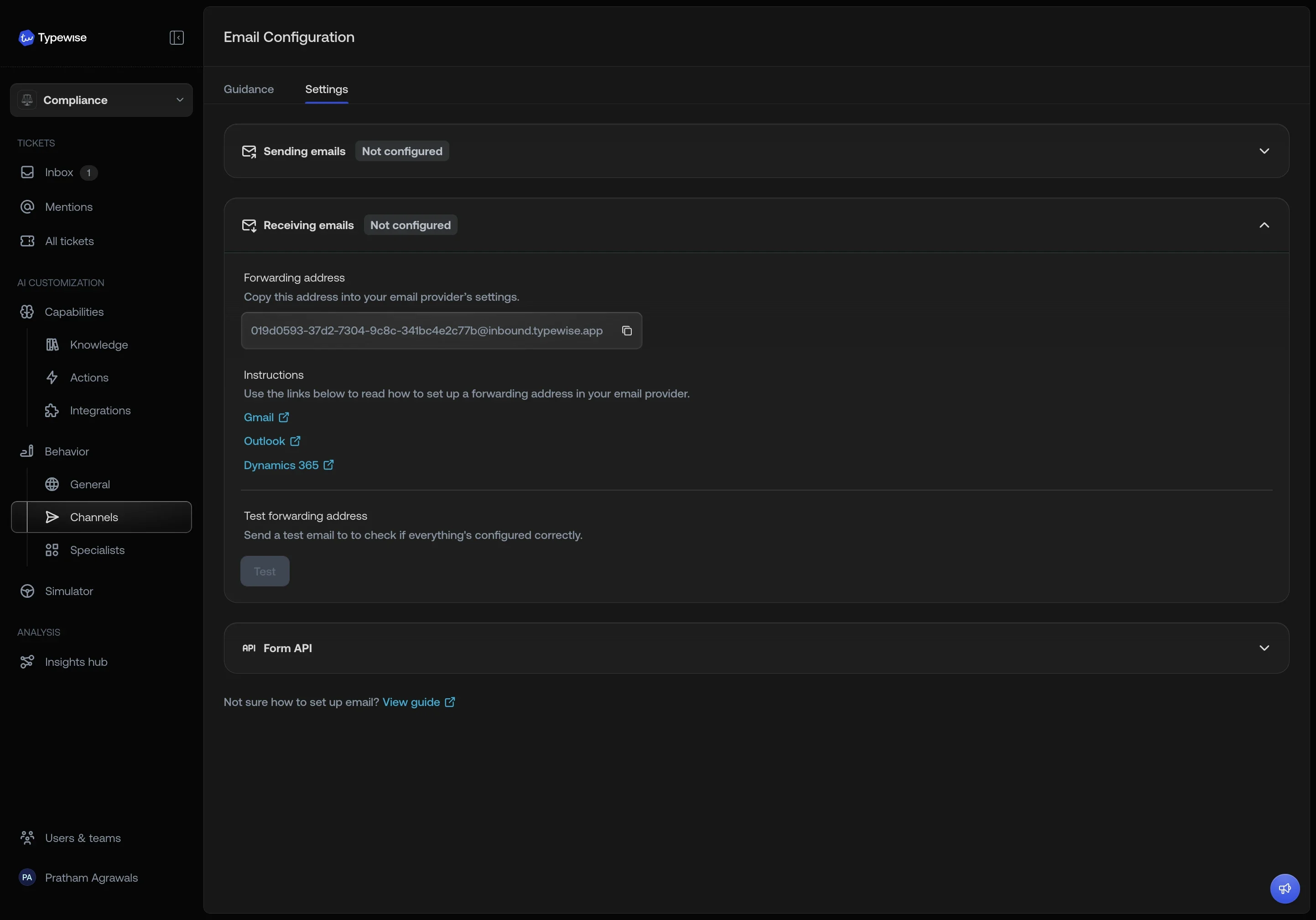
## Email forwarding and workspaces
When your account has more than one
[workspace](/documentation/workspaces/overview), each workspace gets its own
unique forwarding email address. The address shown in channel settings always
reflects the currently active workspace.
If a domain has already been verified in one workspace, you do not need to
verify it again in another workspace within the same account.
 ***
## Signatures
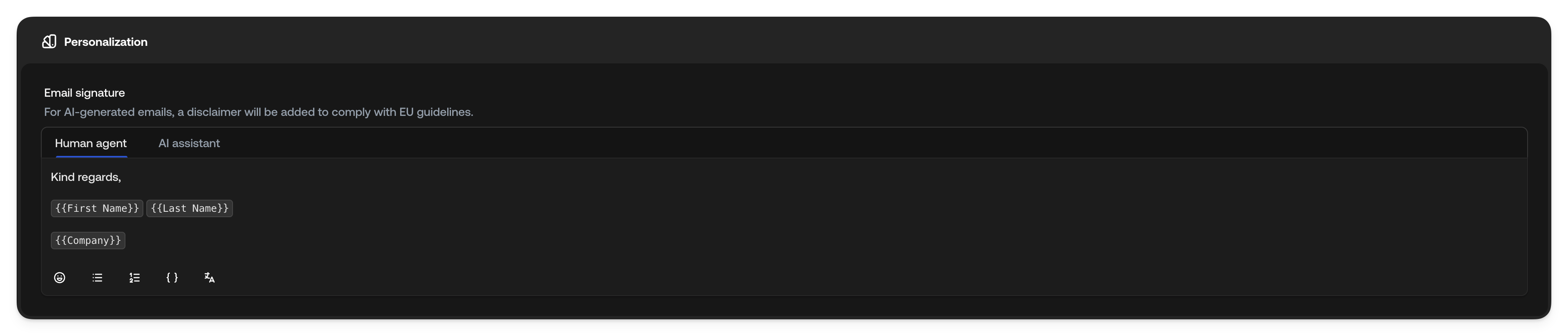
Here you can configure a signature that automatically gets appended to all the
emails that the end customer receives. You can configure separate signatures for
both emails written by Human Agents, and emails generated by the AI Agent. We
have default signatures defined for both types.
### Using Variables in Signatures
You can use pre-defined variables that are automatically replaced with their
value when they're applied. To insert a variable, type `{{` to see a list of
available variables, and select one to insert it into the editor.
***
## Signatures
Here you can configure a signature that automatically gets appended to all the
emails that the end customer receives. You can configure separate signatures for
both emails written by Human Agents, and emails generated by the AI Agent. We
have default signatures defined for both types.
### Using Variables in Signatures
You can use pre-defined variables that are automatically replaced with their
value when they're applied. To insert a variable, type `{{` to see a list of
available variables, and select one to insert it into the editor.
 Available variables:
* **First Name:** The sending agent's first name
* **Last Name:** The sending agent's last name
* **Avatar:** The sending agent's profile picture, inserted as an image
* **Company:** Your company name
* **Workspace:** The name of the workspace the message is sent from
* Every [user property](/documentation/settings/user-properties) your
organization has defined, listed by its name
Variables resolve against the **agent sending the email**, not against whoever
wrote the signature. One template therefore covers your whole team, and someone
who joins next month is signed correctly as soon as they fill in their
[profile](/documentation/settings/profile).
The **AI assistant** signature offers only **Company** and **Workspace**: the AI
Agent has no profile, so agent details and user properties don't apply to it.
Put each optional detail on its own line. A property an agent left empty
resolves to nothing, but anything you typed around it stays, so ` {{ job_title }} | {{ department }}` leaves a stray `|` for an agent who filled
in neither.
### Previewing a signature
The preview next to the editor shows the signature as a customer would receive
it, with the variables filled in from **your own** profile. Switch between the
**Human agent** and **AI assistant** tabs to preview each one.
Since the preview uses your details, a colleague's signature can look different:
longer name, no photo, a job title you don't have. Use it to check the layout,
and keep in mind that empty values shift the result.
### Signature Translations
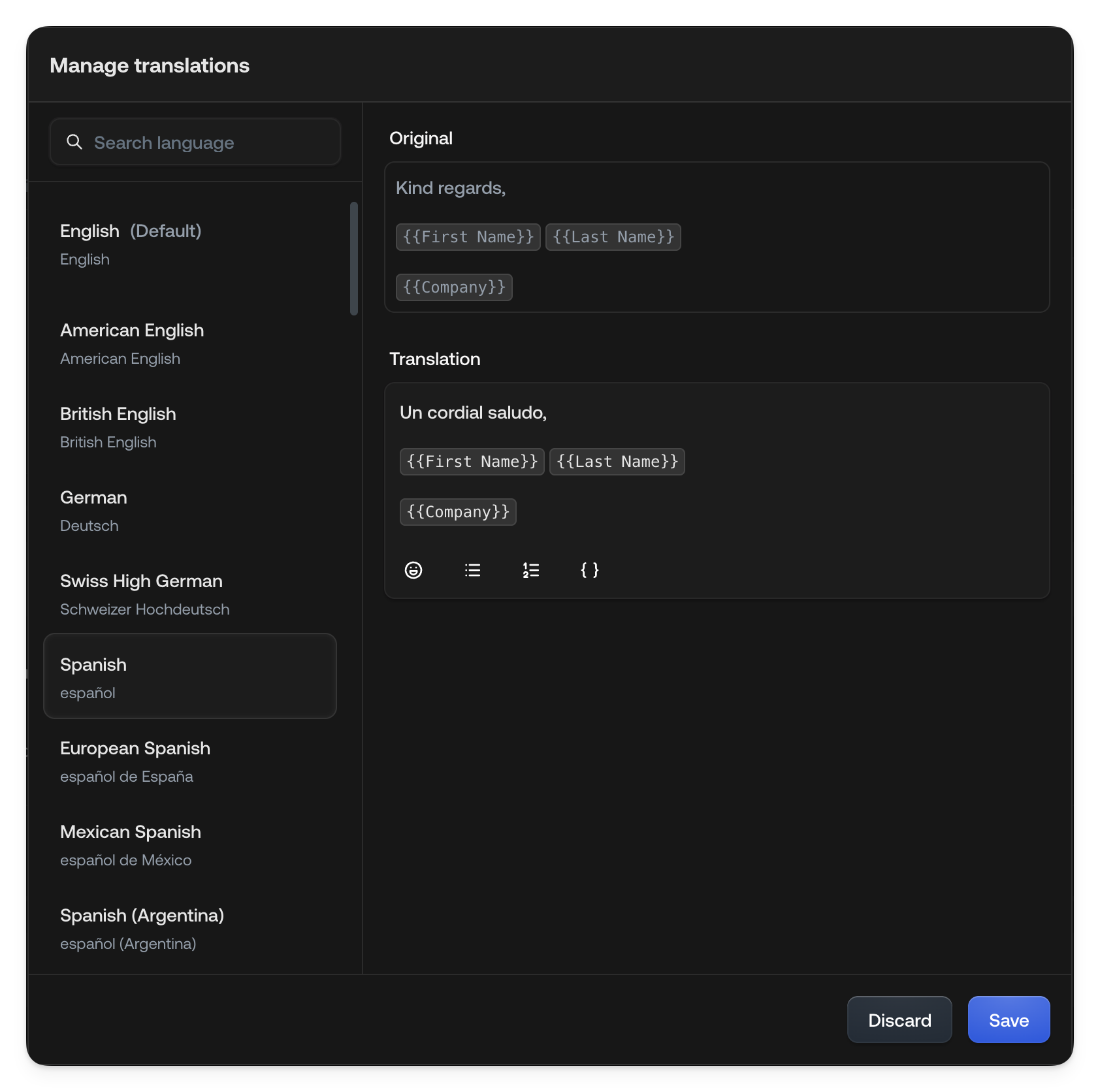
By default, all signatures are automatically translated to match the language of
the email they're attached to. You can view all the default translations by
clicking on the translation icon ().
However, sometimes you might want to override a translation for a particular
language. To do so:
Click on .
Choose the language for which you want to override the translation.
Make your changes to the translation text.
Click save.
The next time an email is sent in that particular language, the override you
provided will be used instead.
Available variables:
* **First Name:** The sending agent's first name
* **Last Name:** The sending agent's last name
* **Avatar:** The sending agent's profile picture, inserted as an image
* **Company:** Your company name
* **Workspace:** The name of the workspace the message is sent from
* Every [user property](/documentation/settings/user-properties) your
organization has defined, listed by its name
Variables resolve against the **agent sending the email**, not against whoever
wrote the signature. One template therefore covers your whole team, and someone
who joins next month is signed correctly as soon as they fill in their
[profile](/documentation/settings/profile).
The **AI assistant** signature offers only **Company** and **Workspace**: the AI
Agent has no profile, so agent details and user properties don't apply to it.
Put each optional detail on its own line. A property an agent left empty
resolves to nothing, but anything you typed around it stays, so ` {{ job_title }} | {{ department }}` leaves a stray `|` for an agent who filled
in neither.
### Previewing a signature
The preview next to the editor shows the signature as a customer would receive
it, with the variables filled in from **your own** profile. Switch between the
**Human agent** and **AI assistant** tabs to preview each one.
Since the preview uses your details, a colleague's signature can look different:
longer name, no photo, a job title you don't have. Use it to check the layout,
and keep in mind that empty values shift the result.
### Signature Translations
By default, all signatures are automatically translated to match the language of
the email they're attached to. You can view all the default translations by
clicking on the translation icon ().
However, sometimes you might want to override a translation for a particular
language. To do so:
Click on .
Choose the language for which you want to override the translation.
Make your changes to the translation text.
Click save.
The next time an email is sent in that particular language, the override you
provided will be used instead.
 #### Translated user properties
A [user property](/documentation/settings/user-properties) with **Translate**
set to Yes is translated separately from the signature text, so each agent's own
value follows the customer's language too. A job title stored as "Kundenberater"
reaches an English-speaking customer in English.
Because the value belongs to the agent, the override does as well: each agent
corrects the translations of their own value from their
[profile](/documentation/settings/profile), and the correction applies only to
them. Properties with **Translate** set to No are inserted exactly as entered.
## Spam classification
Typewise automatically filters out spam, marketing mail, automated
notifications, and out-of-office replies, so your team only sees real customer
messages. Senders who already have an ongoing conversation with you skip
filtering and always reach the inbox.
### Customizing spam rules
Open the **Spam classification** section on the
[Email Guidance](https://platform.typewise.app/channels/email/guidance#spam-classification)
page to fine-tune what gets filtered. Write rules in plain language: allow
trusted senders, block ones you never want to see, or describe categories of
mail that matter (or don't) for your business.
Example rules:
```
Allow emails from @partner-domain.ch and @notifications.provider.com.
Block emails from no-reply@old-vendor.com.
Always allow compliance check emails, even if they look automated.
Filter out monthly billing summaries from billing@example.com.
```
Your [Company
description](/documentation/behavior/company#company-description) is also used
as context, so keeping it accurate helps Typewise tell legitimate partners and
industry-specific topics apart from generic bulk mail.
### Reviewing filtered tickets
Filtered tickets stay accessible from
[All tickets](/documentation/tickets/all-tickets). On a filtered ticket the
conversation shows why it was filtered, with a **Configure** link that jumps to
the Spam classification settings so you can add a rule for next time.
If a real customer message was filtered by mistake, use **Mark as relevant** on
the message. The ticket reopens and processing resumes.
## Customer Satisfaction (CSAT)
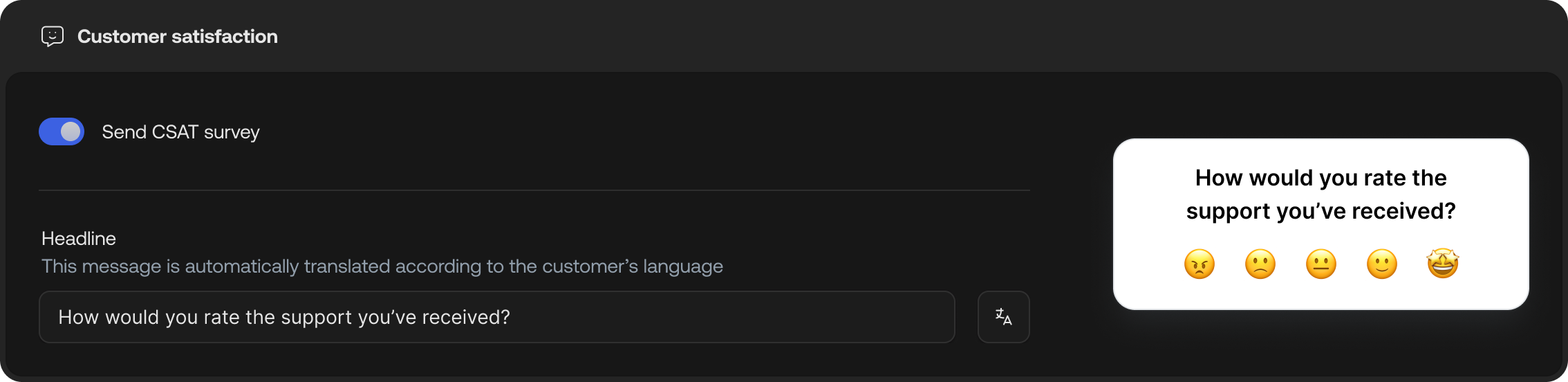
Here you can configure customer satisfaction surveys. Once enabled, the survey
is automatically sent after a ticket is closed. This allows the end customer to
submit qualitative and quantitative feedback.
#### Translated user properties
A [user property](/documentation/settings/user-properties) with **Translate**
set to Yes is translated separately from the signature text, so each agent's own
value follows the customer's language too. A job title stored as "Kundenberater"
reaches an English-speaking customer in English.
Because the value belongs to the agent, the override does as well: each agent
corrects the translations of their own value from their
[profile](/documentation/settings/profile), and the correction applies only to
them. Properties with **Translate** set to No are inserted exactly as entered.
## Spam classification
Typewise automatically filters out spam, marketing mail, automated
notifications, and out-of-office replies, so your team only sees real customer
messages. Senders who already have an ongoing conversation with you skip
filtering and always reach the inbox.
### Customizing spam rules
Open the **Spam classification** section on the
[Email Guidance](https://platform.typewise.app/channels/email/guidance#spam-classification)
page to fine-tune what gets filtered. Write rules in plain language: allow
trusted senders, block ones you never want to see, or describe categories of
mail that matter (or don't) for your business.
Example rules:
```
Allow emails from @partner-domain.ch and @notifications.provider.com.
Block emails from no-reply@old-vendor.com.
Always allow compliance check emails, even if they look automated.
Filter out monthly billing summaries from billing@example.com.
```
Your [Company
description](/documentation/behavior/company#company-description) is also used
as context, so keeping it accurate helps Typewise tell legitimate partners and
industry-specific topics apart from generic bulk mail.
### Reviewing filtered tickets
Filtered tickets stay accessible from
[All tickets](/documentation/tickets/all-tickets). On a filtered ticket the
conversation shows why it was filtered, with a **Configure** link that jumps to
the Spam classification settings so you can add a rule for next time.
If a real customer message was filtered by mistake, use **Mark as relevant** on
the message. The ticket reopens and processing resumes.
## Customer Satisfaction (CSAT)
Here you can configure customer satisfaction surveys. Once enabled, the survey
is automatically sent after a ticket is closed. This allows the end customer to
submit qualitative and quantitative feedback.
 Configuration options:
* **Send CSAT survey**\
You can enable/disable the CSAT survey. If enabled, the survey is sent to the
end customer 24 hours after a ticket is closed.
* **Headline**\
The message that's sent in the email asking the end customer for feedback. The
headline is translated automatically to the language detected in the ticket.
You can override the translations by clicking on the
icon.
Once enabled, admins can start analyzing the feedback in the Insights Hub. They
can either see CSAT scores over time, or dive deeper by looking at the granular
ticket-wise feedback.
Satisfaction feedback submitted by end customers is never visible to agents
working on the platform, and is only visible to administrators inside the
Insights Hub.
## See also
* [Chat Configuration](/documentation/behavior/chat): Configure chat channel
behavior
* [Specialists](/documentation/behavior/specialists): Create topic-specific AI
behavior
* [Company configuration](/documentation/behavior/company): Set global
guidelines and the company description used by the spam classifier
* [Context Variables](/documentation/settings/context-variables): How
`user_email` is auto-populated from the email sender after proof of receipt
* [Ticket conversation](/documentation/tickets/conversation-view/ticket-conversation):
How spam decisions and the "Mark as relevant" action appear in the timeline
Configuration options:
* **Send CSAT survey**\
You can enable/disable the CSAT survey. If enabled, the survey is sent to the
end customer 24 hours after a ticket is closed.
* **Headline**\
The message that's sent in the email asking the end customer for feedback. The
headline is translated automatically to the language detected in the ticket.
You can override the translations by clicking on the
icon.
Once enabled, admins can start analyzing the feedback in the Insights Hub. They
can either see CSAT scores over time, or dive deeper by looking at the granular
ticket-wise feedback.
Satisfaction feedback submitted by end customers is never visible to agents
working on the platform, and is only visible to administrators inside the
Insights Hub.
## See also
* [Chat Configuration](/documentation/behavior/chat): Configure chat channel
behavior
* [Specialists](/documentation/behavior/specialists): Create topic-specific AI
behavior
* [Company configuration](/documentation/behavior/company): Set global
guidelines and the company description used by the spam classifier
* [Context Variables](/documentation/settings/context-variables): How
`user_email` is auto-populated from the email sender after proof of receipt
* [Ticket conversation](/documentation/tickets/conversation-view/ticket-conversation):
How spam decisions and the "Mark as relevant" action appear in the timeline