> ## Documentation Index
> Fetch the complete documentation index at: https://docs.typewise.app/llms.txt
> Use this file to discover all available pages before exploring further.
# Publishing changes
> Review, select, tweak, and publish changes to your AI Agent's behavior, knowledge, and actions.
All changes to your AI Agent's configuration, including
[Behavior](/documentation/behavior/company),
[Knowledge](/documentation/knowledge/overview), and
[Actions](/documentation/actions/overview), require a publish action before they
take effect. This gives you control over when updates go live and lets you
review, tweak, or discard changes before deployment.
You can publish or discard **all** pending changes, or only the ones you choose.
Related drafts that must go together are included automatically, and deletes that
would break live configuration stay blocked until you fix the references.
## How publishing works
When you make changes in the platform, they're saved as a draft. Drafts don't
affect your customers until you explicitly publish them.
Edit behavior settings, add knowledge sources, or configure actions. Nothing
is served to your customers until you publish.
Use the [Simulator](/documentation/testing-and-feedback/simulator) to
preview your drafts against real conversations.
Click **Review** in the unpublished changes bar to open the review dialog.
Every eligible change is selected by default. Uncheck anything that should
stay as a draft, optionally tweak a change inline, then confirm with
**Publish N changes** (or leave everything selected to publish all eligible
changes).
***
## Unpublished changes bar
A floating bar appears at the bottom of the platform whenever someone on your
team has pending changes.
 The bar shows:
* Stacked avatars of every teammate who contributed to the pending changes.
Hover an avatar to see "Name made some changes".
* A **Review** button to open the publish review dialog.
* A **Discard** button to open the discard review dialog (you choose what to
throw away).
To keep it out of the way during support work, the bar is hidden on the Inbox,
Mentions, and ticket pages.
***
## Testing changes in the simulator
You can test your unpublished changes in the
[Simulator](/documentation/testing-and-feedback/simulator). This helps you
confirm your changes behave as expected before publishing them to your
customers.
Click **+ New conversation** and make sure **Include unpublished changes**
is enabled. You can use this toggle to switch between the live and
unpublished configurations.
The bar shows:
* Stacked avatars of every teammate who contributed to the pending changes.
Hover an avatar to see "Name made some changes".
* A **Review** button to open the publish review dialog.
* A **Discard** button to open the discard review dialog (you choose what to
throw away).
To keep it out of the way during support work, the bar is hidden on the Inbox,
Mentions, and ticket pages.
***
## Testing changes in the simulator
You can test your unpublished changes in the
[Simulator](/documentation/testing-and-feedback/simulator). This helps you
confirm your changes behave as expected before publishing them to your
customers.
Click **+ New conversation** and make sure **Include unpublished changes**
is enabled. You can use this toggle to switch between the live and
unpublished configurations.
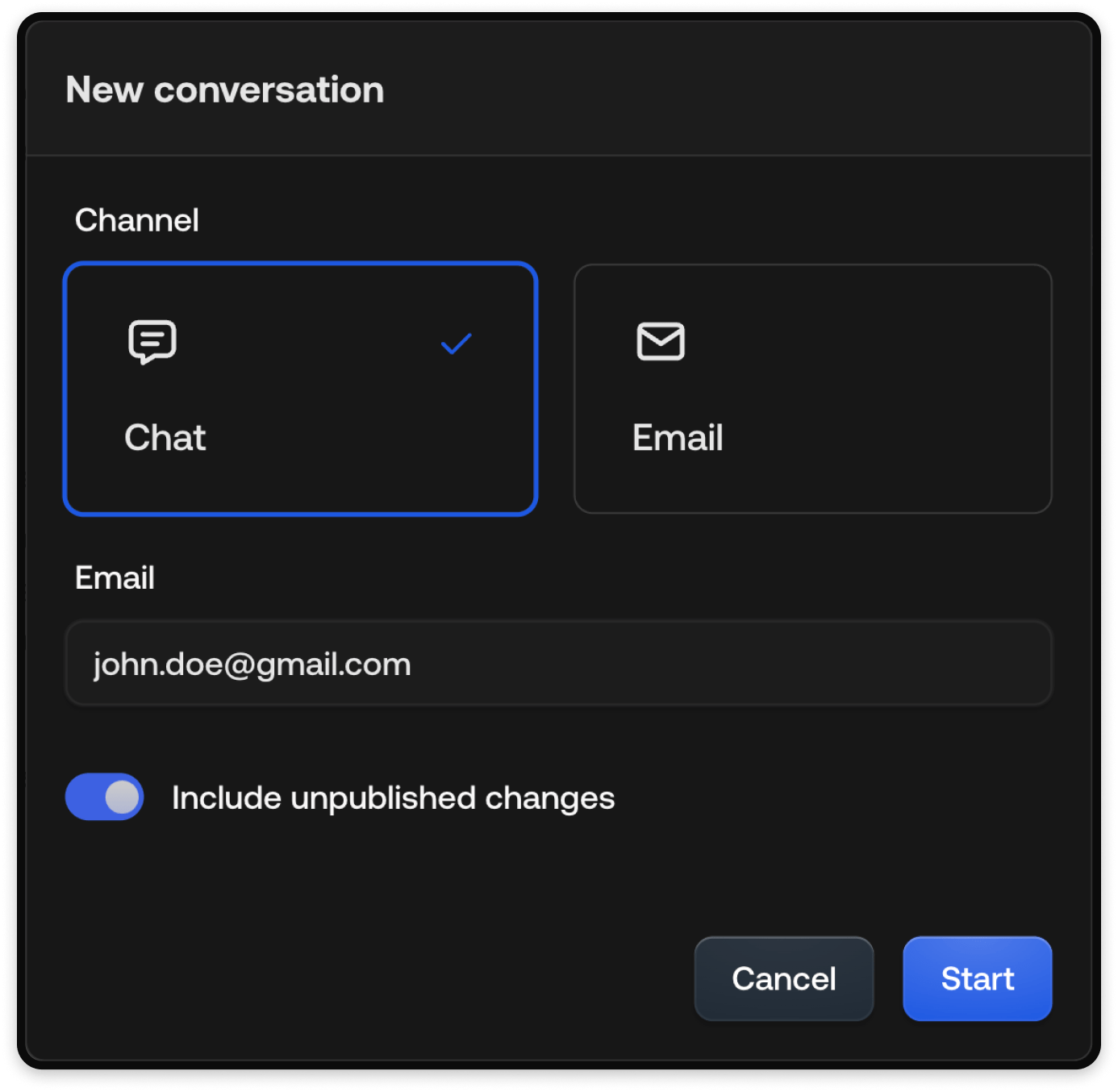 Send messages to your AI Agent and watch how your drafts behave in
real-time.
Always run a simulator session before publishing, especially after changes to
a Specialist or a Knowledge source.
***
## Reviewing changes
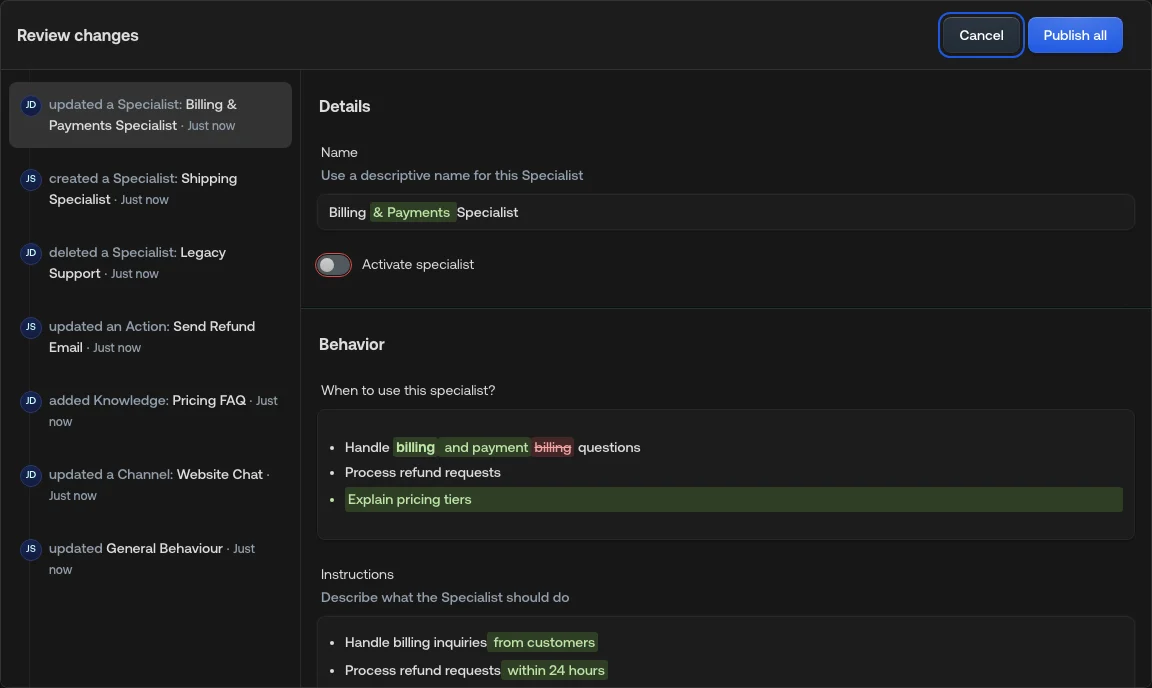
Clicking **Review** opens the review dialog. It uses a two-pane layout so you
can see what changed at a glance, choose what to publish, and act without
leaving the dialog.
Send messages to your AI Agent and watch how your drafts behave in
real-time.
Always run a simulator session before publishing, especially after changes to
a Specialist or a Knowledge source.
***
## Reviewing changes
Clicking **Review** opens the review dialog. It uses a two-pane layout so you
can see what changed at a glance, choose what to publish, and act without
leaving the dialog.
 ### Two-pane layout
* **Left pane**: one row per changed entity (Company configuration, Chat
guidelines, Email guidelines, Specialist, Action, Knowledge source). Entities
edited multiple times appear once, with the avatars of every contributor and
a relative timestamp. Hover the timestamp to see the exact date and time.
Each row has a checkbox so you can include or exclude it from this publish.
* **Right pane**: the selected entity rendered exactly as it looks on its own
page, with changes highlighted in place.
* A green bar at the top marks new entities.
* A red bar marks deleted entities.
* Updated entities have no bar.
The first row is selected for viewing automatically when the dialog opens. Every
**eligible** change is checked by default so a full publish is one click away.
### Choosing what to publish
* Uncheck changes that should remain drafts (for example, a teammate's unfinished
work).
* Use **Select all** at the bottom of the left pane to restore every eligible
change. The control is disabled when everything eligible is already selected.
* The primary action shows how many changes you chose, for example
**Publish 2 changes** or **Publish 1 change**. Auto-included related changes
(see below) don't inflate that count.
* If nothing is selected, **Publish** stays disabled.
Unselected drafts stay unpublished after you confirm. They remain in the
unpublished changes bar for a later publish or discard.
### Related changes that must go together
Some drafts depend on each other. When you select a change that needs related
unpublished work, Typewise includes that work automatically and locks those
checkboxes so the set stays valid.
Typical cases:
* A Specialist, channel, or general behaviour that uses a **new** Action or
Knowledge source is published together with that Action or source.
* Discarding a **new** Action or Knowledge source also discards draft changes
that still use it.
Hover or focus a locked checkbox to see why it's included (for example, "It's
needed by changes made in 1 other place") and to highlight the change(s) that
require it.
### Blocked deletes
You can't publish a **delete** while something that is already live still
references that entity. The checkbox stays disabled and unchecked, with guidance
to edit the referring configuration first (for example, remove the Action from a
published Specialist, then publish that edit together with the delete).
Blocked deletes can still be **discarded** if you decide not to remove the
entity after all.
### How diffs are shown
The right pane highlights changes at the field level. The exact styling depends
on the type of control.
Word-level inline diff. Removed text is struck through in red, added text is
highlighted in green.
### Two-pane layout
* **Left pane**: one row per changed entity (Company configuration, Chat
guidelines, Email guidelines, Specialist, Action, Knowledge source). Entities
edited multiple times appear once, with the avatars of every contributor and
a relative timestamp. Hover the timestamp to see the exact date and time.
Each row has a checkbox so you can include or exclude it from this publish.
* **Right pane**: the selected entity rendered exactly as it looks on its own
page, with changes highlighted in place.
* A green bar at the top marks new entities.
* A red bar marks deleted entities.
* Updated entities have no bar.
The first row is selected for viewing automatically when the dialog opens. Every
**eligible** change is checked by default so a full publish is one click away.
### Choosing what to publish
* Uncheck changes that should remain drafts (for example, a teammate's unfinished
work).
* Use **Select all** at the bottom of the left pane to restore every eligible
change. The control is disabled when everything eligible is already selected.
* The primary action shows how many changes you chose, for example
**Publish 2 changes** or **Publish 1 change**. Auto-included related changes
(see below) don't inflate that count.
* If nothing is selected, **Publish** stays disabled.
Unselected drafts stay unpublished after you confirm. They remain in the
unpublished changes bar for a later publish or discard.
### Related changes that must go together
Some drafts depend on each other. When you select a change that needs related
unpublished work, Typewise includes that work automatically and locks those
checkboxes so the set stays valid.
Typical cases:
* A Specialist, channel, or general behaviour that uses a **new** Action or
Knowledge source is published together with that Action or source.
* Discarding a **new** Action or Knowledge source also discards draft changes
that still use it.
Hover or focus a locked checkbox to see why it's included (for example, "It's
needed by changes made in 1 other place") and to highlight the change(s) that
require it.
### Blocked deletes
You can't publish a **delete** while something that is already live still
references that entity. The checkbox stays disabled and unchecked, with guidance
to edit the referring configuration first (for example, remove the Action from a
published Specialist, then publish that edit together with the delete).
Blocked deletes can still be **discarded** if you decide not to remove the
entity after all.
### How diffs are shown
The right pane highlights changes at the field level. The exact styling depends
on the type of control.
Word-level inline diff. Removed text is struck through in red, added text is
highlighted in green.
 The previous and the new state are both visible, with added and removed
styling so you can tell which one is new.
The previous and the new state are both visible, with added and removed
styling so you can tell which one is new.
 Radio buttons and radio cards keep both the previous selection and the new
selection visible, with added and removed styling.
Radio buttons and radio cards keep both the previous selection and the new
selection visible, with added and removed styling.
 The old label is struck through and the new label is highlighted directly
on the dropdown's trigger.
The old label is struck through and the new label is highlighted directly
on the dropdown's trigger.
 * Added rows are highlighted as new.
* Removed rows stay visible as greyed-out ghost rows with values struck
through.
* Edited cells show a per-cell word-level diff.
* Added rows are highlighted as new.
* Removed rows stay visible as greyed-out ghost rows with values struck
through.
* Edited cells show a per-cell word-level diff.
 ### Editing changes inline
You can tweak any field directly in the right pane without leaving the dialog.
Inline edits compound onto the existing diff immediately, so you can see the
combined result before publishing.
### Editing changes inline
You can tweak any field directly in the right pane without leaving the dialog.
Inline edits compound onto the existing diff immediately, so you can see the
combined result before publishing.
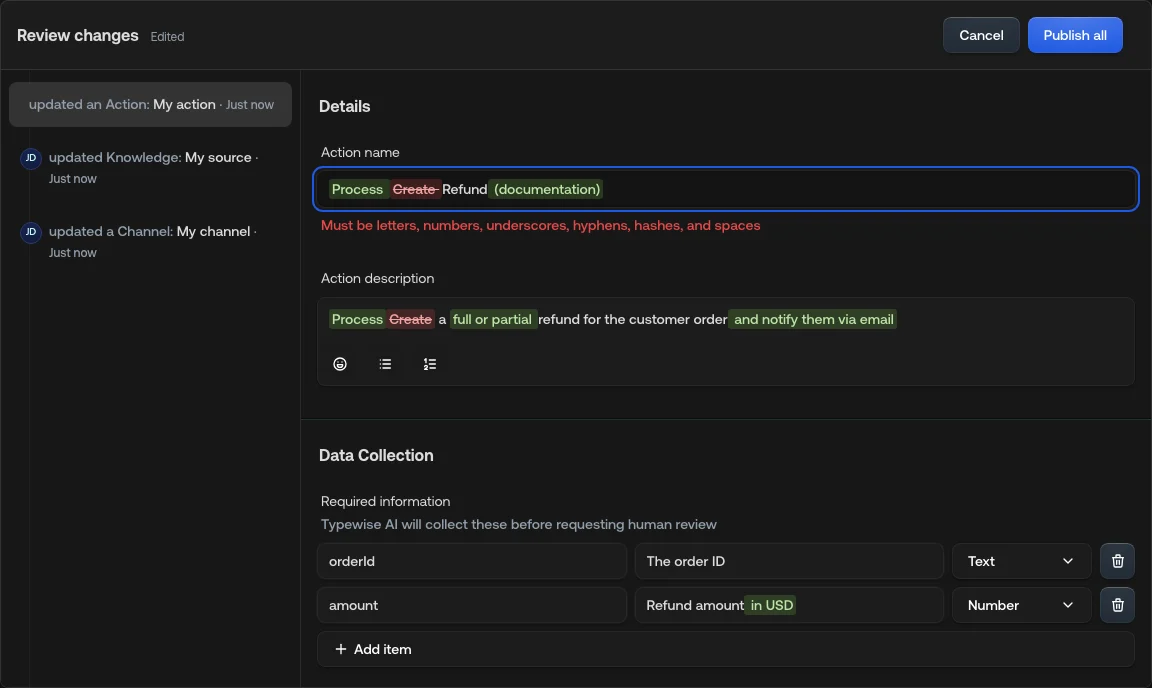 * The dialog title shows an **Edited** indicator once you've tweaked anything in
the dialog.
* You can move between changes on the left while keeping inline edits on other
entities.
* **Save** persists inline tweaks without publishing.
* Confirming publish saves any remaining inline tweaks, then publishes only the
changes you selected.
Deleted entities are read-only in the detail pane. You can't tweak something
that's about to be removed.
### Closing with unsaved inline edits
Closing the dialog (the **X** control) with no inline edits closes immediately.
Closing after you've made inline edits opens a confirmation.
* The dialog title shows an **Edited** indicator once you've tweaked anything in
the dialog.
* You can move between changes on the left while keeping inline edits on other
entities.
* **Save** persists inline tweaks without publishing.
* Confirming publish saves any remaining inline tweaks, then publishes only the
changes you selected.
Deleted entities are read-only in the detail pane. You can't tweak something
that's about to be removed.
### Closing with unsaved inline edits
Closing the dialog (the **X** control) with no inline edits closes immediately.
Closing after you've made inline edits opens a confirmation.
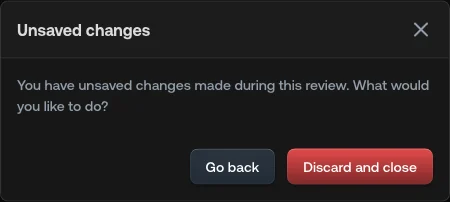 * **Go back**: return to the review dialog with your inline edits preserved.
* **Discard and close**: drop the inline tweaks and close the dialog. The
original pending changes (from before you opened the dialog) are kept.
### Troubleshooting
Only certain change types qualify for publishing. See the table in [What
changes require publishing?](#what-changes-require-publishing) below. Chat
widget appearance, email delivery settings, and user and team management
changes apply instantly and don't flow through the review dialog.
Automated and system-only updates (where no user is attached) and Knowledge
Hub crawl-status updates don't show up in the review list. Every other
contribution appears with the teammate's avatar.
That change is required by another selected change. Hover the checkbox for
the reason, or uncheck the change that needs it first. Related drafts are
kept together so you don't publish a broken configuration.
Something that is already live still mentions that entity. Edit the
referring Specialist, channel, or general behaviour to remove the reference,
then publish that edit with the delete (or discard the delete if you no
longer want to remove the entity).
***
## Discarding changes
Clicking **Discard** on the unpublished changes bar opens a "Review changes to
discard" dialog. It uses the same two-pane layout and selection controls as the
publish review, so you can throw away only what you mean to.
* Every visible change is selected by default.
* Uncheck drafts you want to keep, then confirm with **Discard N changes**.
* Related new items that would leave broken drafts are discarded together when
needed (same dependency rules as publish, from the discard direction).
* Unselected drafts stay unpublished.
* Closing the dialog keeps your drafts.
***
## What changes require publishing?
Any configuration change that affects the AI Agent's behavior, knowledge, or
actions requires a publish action before it takes effect. Some changes are
immediate and don't require publishing.
#### Changes that require publishing
| Area | Examples |
| ------------- | ----------------------------------------------------------------------------- |
| **Behavior** | Adding, editing, or removing Company configuration, channels, and Specialists |
| **Knowledge** | Adding, editing, or removing knowledge sources |
| **Actions** | Adding, editing, or removing AI actions and manual actions |
#### Changes that don't require publishing
| Area | Examples |
| -------------------------------------- | ------------------------------------------------- |
| **Chat appearance** | Changing the chat widget appearance |
| **Email sending & receiving settings** | Changing the email sending and receiving settings |
| **Users & teams** | Adding, editing, or removing users and teams |
## See also
Configure your AI Agent's overall behavior.
Configure chat channel settings.
Configure email channel settings.
Configure Specialist instructions.
Add knowledge sources.
Configure AI and manual actions.
* **Go back**: return to the review dialog with your inline edits preserved.
* **Discard and close**: drop the inline tweaks and close the dialog. The
original pending changes (from before you opened the dialog) are kept.
### Troubleshooting
Only certain change types qualify for publishing. See the table in [What
changes require publishing?](#what-changes-require-publishing) below. Chat
widget appearance, email delivery settings, and user and team management
changes apply instantly and don't flow through the review dialog.
Automated and system-only updates (where no user is attached) and Knowledge
Hub crawl-status updates don't show up in the review list. Every other
contribution appears with the teammate's avatar.
That change is required by another selected change. Hover the checkbox for
the reason, or uncheck the change that needs it first. Related drafts are
kept together so you don't publish a broken configuration.
Something that is already live still mentions that entity. Edit the
referring Specialist, channel, or general behaviour to remove the reference,
then publish that edit with the delete (or discard the delete if you no
longer want to remove the entity).
***
## Discarding changes
Clicking **Discard** on the unpublished changes bar opens a "Review changes to
discard" dialog. It uses the same two-pane layout and selection controls as the
publish review, so you can throw away only what you mean to.
* Every visible change is selected by default.
* Uncheck drafts you want to keep, then confirm with **Discard N changes**.
* Related new items that would leave broken drafts are discarded together when
needed (same dependency rules as publish, from the discard direction).
* Unselected drafts stay unpublished.
* Closing the dialog keeps your drafts.
***
## What changes require publishing?
Any configuration change that affects the AI Agent's behavior, knowledge, or
actions requires a publish action before it takes effect. Some changes are
immediate and don't require publishing.
#### Changes that require publishing
| Area | Examples |
| ------------- | ----------------------------------------------------------------------------- |
| **Behavior** | Adding, editing, or removing Company configuration, channels, and Specialists |
| **Knowledge** | Adding, editing, or removing knowledge sources |
| **Actions** | Adding, editing, or removing AI actions and manual actions |
#### Changes that don't require publishing
| Area | Examples |
| -------------------------------------- | ------------------------------------------------- |
| **Chat appearance** | Changing the chat widget appearance |
| **Email sending & receiving settings** | Changing the email sending and receiving settings |
| **Users & teams** | Adding, editing, or removing users and teams |
## See also
Configure your AI Agent's overall behavior.
Configure chat channel settings.
Configure email channel settings.
Configure Specialist instructions.
Add knowledge sources.
Configure AI and manual actions.