> ## Documentation Index
> Fetch the complete documentation index at: https://docs.typewise.app/llms.txt
> Use this file to discover all available pages before exploring further.
# MCP
> Add custom integrations by connecting your own Model Context Protocol (MCP) server.
Use MCP when you want to integrate a system that isn't supported out of the box.
MCP lets you expose tools (lookups and actions) from your own services so
Typewise agents can use them with controlled inputs, permissions, and
auditability.
## When to use MCP
Use MCP if you want Typewise to interact with:
* Internal systems (for example, an ERP, warehouse system, or billing backend)
* A third-party tool that isn’t supported yet
* A custom workflow that requires a company-specific action
If a system is supported out of the box (for example, Salesforce or Zendesk),
prefer the supported integration to minimize maintenance.
## Connect an MCP server in Typewise
Connecting an MCP server makes its tools available so you can configure them as:
* **Lookups** (read-only tools): used to fetch up-to-date information during a
conversation
* **Actions** (state-changing tools): used to perform approved tasks in your
systems
At a high level:
Go to [Integrations](/documentation/integrations/overview) and add an MCP
integration.
Enter the MCP server URL and configure authentication (if needed).
Save and verify the server is reachable.
Configure tools: - For lookups, see
[Lookups](/documentation/knowledge/integrations/lookups) - For actions, see
[Actions](/documentation/actions/overview)
Once you connect your MCP server, you can’t change its URL. If the URL
changes, add a new MCP integration.
## How Typewise uses MCP tools (Lookups vs Actions)
Typewise uses official MCP specification tool metadata (especially
[ToolAnnotations](https://modelcontextprotocol.io/specification/2025-06-18/schema#toolannotations))
to help categorize tools and present them in the right place in the platform.
Typewise only supports MCP **tools** (not resources or prompts). Each tool
should be designed as either:
* **Lookup**: reads data without side effects (recommended `readOnlyHint: true`)
* **Action**: changes state (recommended `readOnlyHint: false`)
## Capabilities
* Tool discovery and schema inspection
* Tool execution with structured inputs/outputs
* Streaming responses where supported
## Requirements
* **Transport**: Streamable HTTP (no SSE or stdio)
* **Authentication**: None, Token (header-based), or OAuth
* **Capabilities**: Tools only (resources and prompts not supported)
* **Hosting**: Your MCP server must be reachable over HTTPS from Typewise and
allow auth callback to:
[https://platform-api.typewise.app/api/mcp/oauth/callback](https://platform-api.typewise.app/api/mcp/oauth/callback)
## Limits
* Request/response size limits per environment
* Execution timeouts; retries on transient errors
## Security
* Transport: HTTPS required
* Authentication: None, Token (header-based), or OAuth
* Approvals: actions can require human approval when configured in Typewise
## Observability
* Logs include tool name, inputs (redacted), outputs summary, and status
* Errors surface in timeline and monitoring
## Updating your MCP safely
* **Adding** new tools is fully supported. You can immediately add them to
Knowledge or Action Hub once they become available.
* **Deleting** a tool: remove all tool references in the Typewise platform
before deleting it from your server. Otherwise, agents that reference it can
hand off unexpectedly.
* **Modifying** an existing tool signature or return shape can confuse agents.
Avoid changes whenever possible.
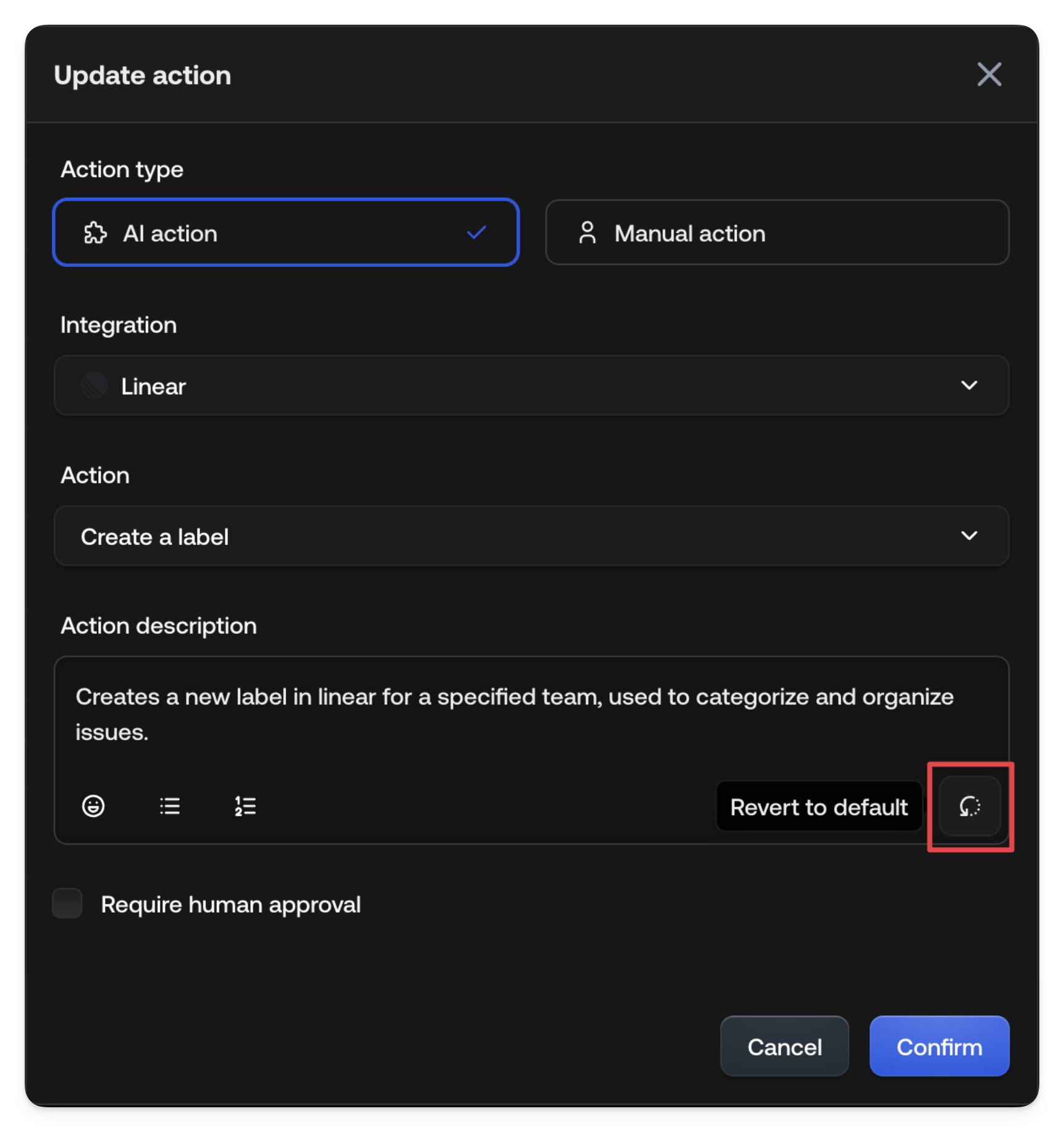
If you do change a tool, update the tool’s description in Typewise by reverting
it to the new default.
 ## Developer guide
> **Audience: Backend engineers building or adapting MCP servers**
>
> This section is for implementing, testing, and maintaining MCP tools.
### Building an MCP server
For a step-by-step tutorial, see how to build and MCP server using:
* [Official Model Context Protocol SDK](https://modelcontextprotocol.io/docs/develop/build-server).
* [Popular FastMCP SDK](https://gofastmcp.com/getting-started/quickstart).
### Testing your server
You can test your server locally with the MCP Inspector:
```bash theme={null}
# install node lts and execute
npx @modelcontextprotocol/inspector
```
### Best practices
* Use concise, descriptive tool names.
* Provide clear descriptions for inputs and outputs.
* Use
[ToolAnnotations](https://modelcontextprotocol.io/specification/2025-06-18/schema#toolannotations)
(especially `readOnlyHint` and `title`) so tools are categorized correctly.
* Return appropriate HTTP error codes (for example, 401 for expired tokens) so
agents can react correctly.
### Example tool schema
```json theme={null}
{
"name": "notion-search",
"description": "Perform a search over your workspace content. Supports internal search and user lookup.",
"inputSchema": {
"type": "object",
"properties": {
"query": {
"type": "string",
"minLength": 1,
"description": "Search query."
},
"query_type": {
"type": "string",
"enum": ["internal", "user"],
"description": "Type of query."
},
"page_url": {
"type": "string",
"description": "Optional: restrict search within a page."
},
"filters": {
"type": "object",
"properties": {
"created_date_range": {
"type": "object",
"properties": {
"start_date": { "type": "string", "format": "date" },
"end_date": { "type": "string", "format": "date" }
},
"additionalProperties": false
}
},
"additionalProperties": false
}
},
"required": ["query"],
"additionalProperties": false
},
"annotations": {
"title": "Search Notion and connected sources",
"readOnlyHint": true
}
}
```
### Resources
* [Official MCP Site](https://modelcontextprotocol.io/) (also
[GitHub](https://github.com/modelcontextprotocol))
* [Official FastMCP Site](https://gofastmcp.com/getting-started/welcome) (also
[Github](https://github.com/PrefectHQ/fastmcp))
## Troubleshooting
If your MCP integration isn’t responding or tools aren’t showing up as expected,
see [MCP tools troubleshooting](/documentation/troubleshooting/mcp-tools).
## See also
* [What is an integration?](/documentation/integrations/overview)
* [Lookups](/documentation/knowledge/integrations/lookups)
* [Actions](/documentation/actions/overview)
## Developer guide
> **Audience: Backend engineers building or adapting MCP servers**
>
> This section is for implementing, testing, and maintaining MCP tools.
### Building an MCP server
For a step-by-step tutorial, see how to build and MCP server using:
* [Official Model Context Protocol SDK](https://modelcontextprotocol.io/docs/develop/build-server).
* [Popular FastMCP SDK](https://gofastmcp.com/getting-started/quickstart).
### Testing your server
You can test your server locally with the MCP Inspector:
```bash theme={null}
# install node lts and execute
npx @modelcontextprotocol/inspector
```
### Best practices
* Use concise, descriptive tool names.
* Provide clear descriptions for inputs and outputs.
* Use
[ToolAnnotations](https://modelcontextprotocol.io/specification/2025-06-18/schema#toolannotations)
(especially `readOnlyHint` and `title`) so tools are categorized correctly.
* Return appropriate HTTP error codes (for example, 401 for expired tokens) so
agents can react correctly.
### Example tool schema
```json theme={null}
{
"name": "notion-search",
"description": "Perform a search over your workspace content. Supports internal search and user lookup.",
"inputSchema": {
"type": "object",
"properties": {
"query": {
"type": "string",
"minLength": 1,
"description": "Search query."
},
"query_type": {
"type": "string",
"enum": ["internal", "user"],
"description": "Type of query."
},
"page_url": {
"type": "string",
"description": "Optional: restrict search within a page."
},
"filters": {
"type": "object",
"properties": {
"created_date_range": {
"type": "object",
"properties": {
"start_date": { "type": "string", "format": "date" },
"end_date": { "type": "string", "format": "date" }
},
"additionalProperties": false
}
},
"additionalProperties": false
}
},
"required": ["query"],
"additionalProperties": false
},
"annotations": {
"title": "Search Notion and connected sources",
"readOnlyHint": true
}
}
```
### Resources
* [Official MCP Site](https://modelcontextprotocol.io/) (also
[GitHub](https://github.com/modelcontextprotocol))
* [Official FastMCP Site](https://gofastmcp.com/getting-started/welcome) (also
[Github](https://github.com/PrefectHQ/fastmcp))
## Troubleshooting
If your MCP integration isn’t responding or tools aren’t showing up as expected,
see [MCP tools troubleshooting](/documentation/troubleshooting/mcp-tools).
## See also
* [What is an integration?](/documentation/integrations/overview)
* [Lookups](/documentation/knowledge/integrations/lookups)
* [Actions](/documentation/actions/overview)