> ## Documentation Index
> Fetch the complete documentation index at: https://docs.typewise.app/llms.txt
> Use this file to discover all available pages before exploring further.
# Google Drive
> Connect Google Drive and import a shared folder into the Knowledge Hub.
Connect Google Drive to import the documents in a folder you choose into the
[Knowledge Hub](/documentation/knowledge/overview). Typewise re-imports the
folder on a schedule, so the AI Agent answers from the current version of your
files.
Typewise reads only what you share with it, and it never edits, moves, or
deletes your files.
## On this page
* [How it works](#how-it-works)
* [Before you start](#before-you-start)
* [Connect](#connect)
* [Next steps](#next-steps)
* [Frequently asked questions](#frequently-asked-questions)
## How it works
Google Drive connects through a **service account**. That's a Google account
made for software instead of a person. You create it in your own Google Cloud
project, and it comes with an email address and a key file.
You share a folder with that email address, the same way you'd share it with a
colleague. You give Typewise the key, and Typewise uses it to read the folder.
| Step | Where | What you do |
| :- | :- | :- |
| 1 | Google Cloud console | Create a service account and download its key. |
| 2 | Google Drive | Share your folder with the service account as **Viewer**. |
| 3 | Typewise Integrations | Install Google Drive and paste the key. |
| 4 | Typewise Knowledge Hub | Add the folder as a knowledge source. |
This page covers steps 1 to 3. For step 4, see
[Google Drive files](/documentation/knowledge/integrations/google-drive-files).
## Before you start
You need:
* **Google Cloud access**: a Google account that can open the
[Google Cloud console](https://console.cloud.google.com/) and create a
project. In a company Google Workspace, your IT admin can do this part.
* **Drive access**: permission to share the folder you want to import.
* **Typewise access**: permission to open **Integrations**.
Collect everything the AI Agent should know in one folder. Subfolders are
included. Keep drafts and files that shouldn't shape customer replies outside
of it. One source imports up to 500 supported files. See
[Limits](/documentation/knowledge/integrations/google-drive-files#limits).
## Connect
Go to the [Google Cloud console](https://console.cloud.google.com/). Select
a project in the project picker at the top, or
[create a new one](https://console.cloud.google.com/projectcreate), for
example "Typewise".
A new, empty project is fine. It only holds the service account.
Open the
[Google Drive API page](https://console.cloud.google.com/apis/library/drive.googleapis.com),
check that your project is selected at the top, and click **Enable**.
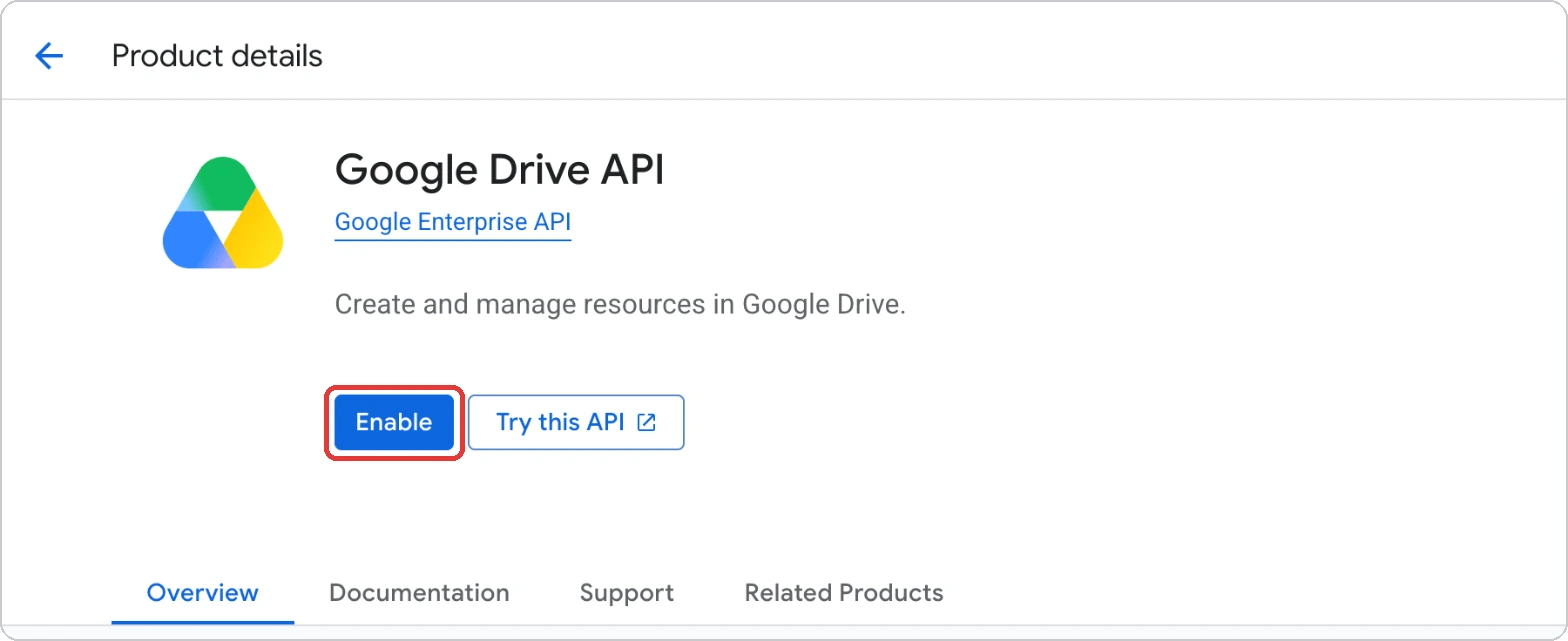 You can also find this page under **APIs & Services** → **Library** by
searching for "Google Drive API".
Open
[Service Accounts](https://console.cloud.google.com/iam-admin/serviceaccounts)
(**IAM & Admin** → **Service Accounts**) and click **Create service
account**.
Enter a name, for example `typewise-drive`, and click **Create and close**.
The two optional steps aren't needed, because the service account needs no
roles. If you clicked **Create and continue** instead, skip them and click
**Done**.
You can also find this page under **APIs & Services** → **Library** by
searching for "Google Drive API".
Open
[Service Accounts](https://console.cloud.google.com/iam-admin/serviceaccounts)
(**IAM & Admin** → **Service Accounts**) and click **Create service
account**.
Enter a name, for example `typewise-drive`, and click **Create and close**.
The two optional steps aren't needed, because the service account needs no
roles. If you clicked **Create and continue** instead, skip them and click
**Done**.
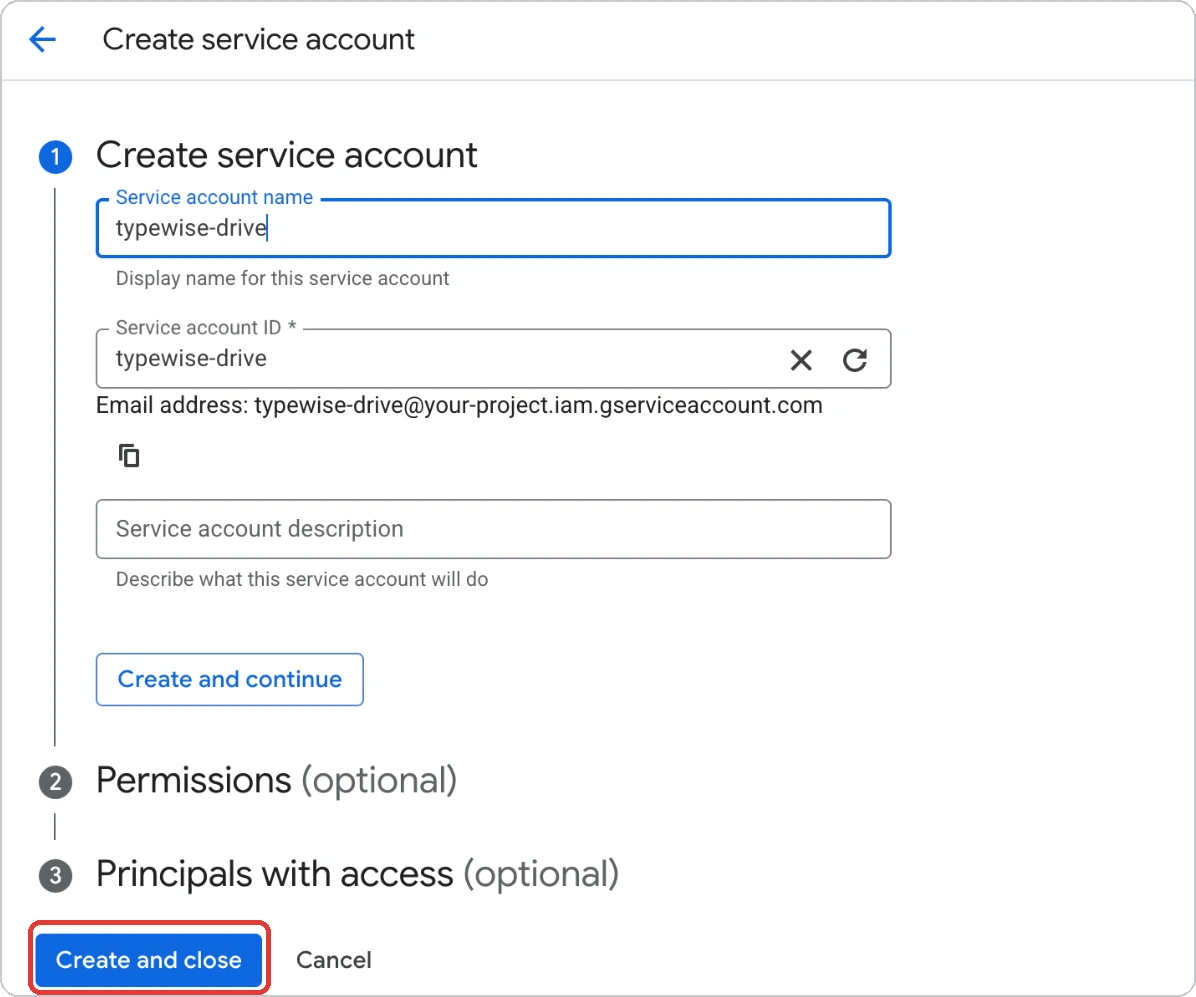 Google gives the service account an email address that ends in
`.iam.gserviceaccount.com`, for example
`typewise-drive@your-project.iam.gserviceaccount.com`. You see it below the
name while you create the account, and in the list of service accounts
afterwards. Copy this address. You need it to share the folder.
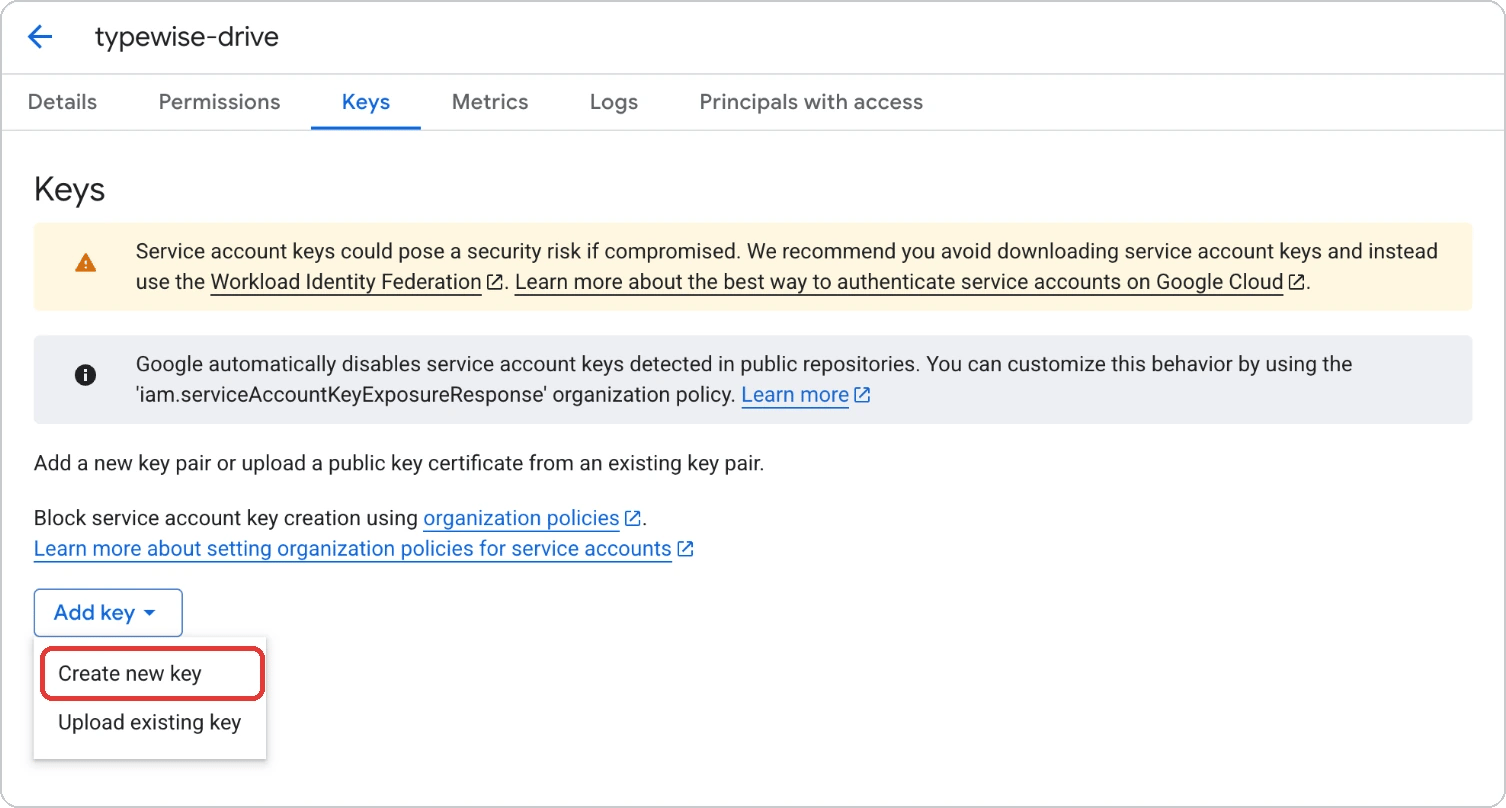
In the list of service accounts, click the email address of the one you
created. Open the **Keys** tab and click **Add key** → **Create new key**.
Google gives the service account an email address that ends in
`.iam.gserviceaccount.com`, for example
`typewise-drive@your-project.iam.gserviceaccount.com`. You see it below the
name while you create the account, and in the list of service accounts
afterwards. Copy this address. You need it to share the folder.
In the list of service accounts, click the email address of the one you
created. Open the **Keys** tab and click **Add key** → **Create new key**.
 Select **JSON** and click **Create**.
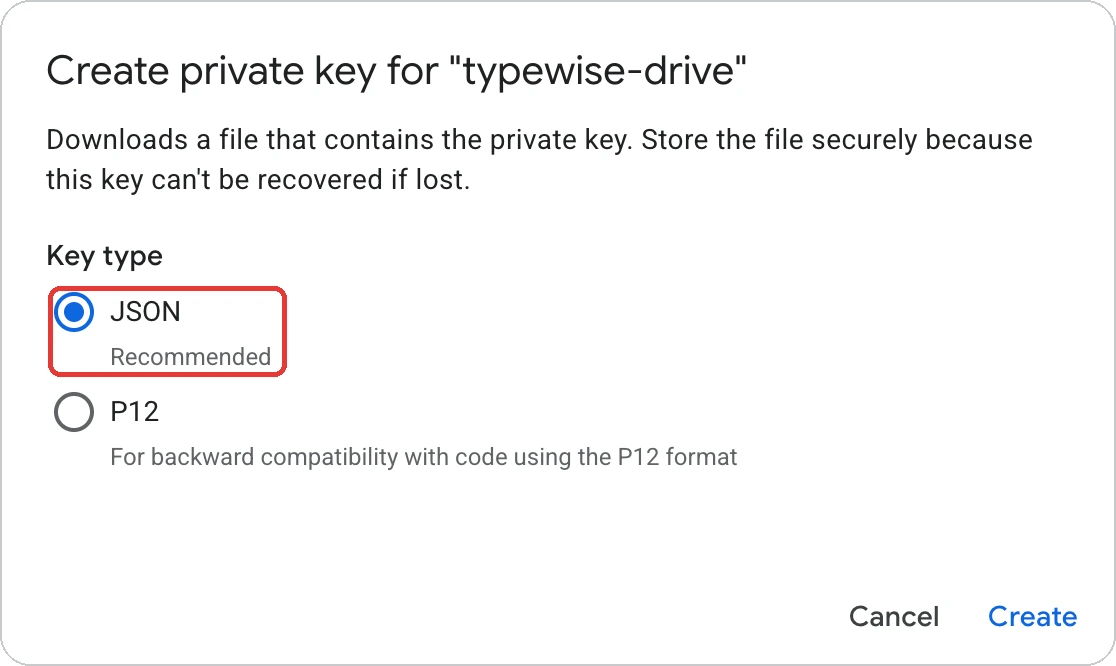 Your browser downloads a `.json` file. That file is the key.
Treat the key like a password. Whoever has it can read every folder shared
with the service account. Don't send it by email or chat.
If Google says that key creation is disabled, see
[Key creation is disabled](#key-creation-is-disabled).
In [Google Drive](https://drive.google.com/), right-click the folder you
want to import and select **Share**. Paste the service account's email
address, set the role to **Viewer**, clear **Notify people**, and click
**Share**.
The service account can now read this folder and its subfolders. It can't
read anything else in your Drive.
A folder in a shared drive is shared the same way. If your organization
doesn't allow that, you can add the service account as a member of the
shared drive with the **Viewer** role. A member can read the whole shared
drive, not only one folder.
In Typewise, go to
[Integrations](https://platform.typewise.app/integrations), find **Google
Drive**, and click **Install**.
Open the `.json` file you downloaded in a text editor, such as Notepad or
TextEdit. Copy the whole content, from the first `{` to the last `}`, and
paste it into **Service account key (JSON)**. Then click **Install**.
Your browser downloads a `.json` file. That file is the key.
Treat the key like a password. Whoever has it can read every folder shared
with the service account. Don't send it by email or chat.
If Google says that key creation is disabled, see
[Key creation is disabled](#key-creation-is-disabled).
In [Google Drive](https://drive.google.com/), right-click the folder you
want to import and select **Share**. Paste the service account's email
address, set the role to **Viewer**, clear **Notify people**, and click
**Share**.
The service account can now read this folder and its subfolders. It can't
read anything else in your Drive.
A folder in a shared drive is shared the same way. If your organization
doesn't allow that, you can add the service account as a member of the
shared drive with the **Viewer** role. A member can read the whole shared
drive, not only one folder.
In Typewise, go to
[Integrations](https://platform.typewise.app/integrations), find **Google
Drive**, and click **Install**.
Open the `.json` file you downloaded in a text editor, such as Notepad or
TextEdit. Copy the whole content, from the first `{` to the last `}`, and
paste it into **Service account key (JSON)**. Then click **Install**.
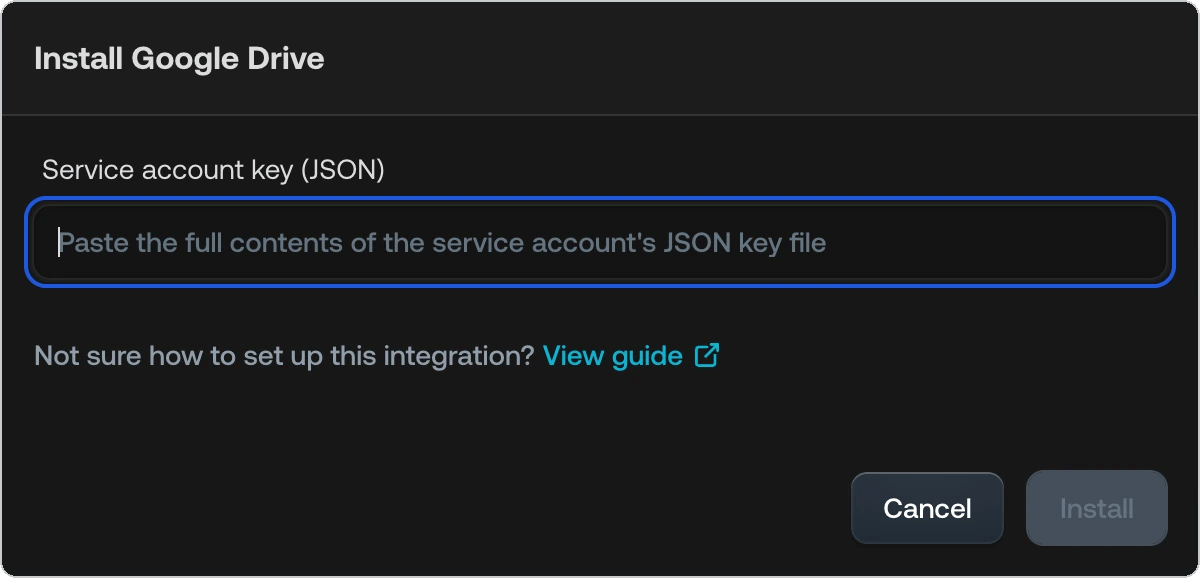 The field hides what you paste, like a password field. Google Drive now
appears under **Installed**.
Typewise tests the key during the first import, not when you click
**Install**. If something is wrong with the key, the knowledge source
shows **Failed** with the reason.
## Next steps
Link the folder, pick an import frequency, and check the first import.
Tell the AI Agent when to look up answers in your Drive files.
## Frequently asked questions
### What can Typewise see in my Drive?
Only the folders and files you share with the service account, including their
subfolders. If you add the service account as a member of a shared drive, it can
read that whole shared drive.
Access is read-only, so Typewise can't change your files. Typewise stores the
key encrypted.
### Key creation is disabled
If Google says that service account key creation is disabled, your Google Cloud
organization blocks keys with the `iam.disableServiceAccountKeyCreation` policy.
Google turns this policy on by default for organizations created on or after May
3, 2024.
Ask a colleague with the **Organization Policy Administrator** role to turn the
policy off for your project under
[Organization Policies](https://console.cloud.google.com/iam-admin/orgpolicies)
(**IAM & Admin** → **Organization Policies**). Then create the key again.
### Drive blocks sharing with the service account
The service account's email address is outside your company's domain. If your
Google Workspace only allows sharing inside the organization, Drive refuses to
add it.
Ask your Google Workspace admin to allow sharing outside the organization for
the folder's owner. They can change this in the Drive sharing settings of the
Google Admin console.
### How do I replace the key?
1. In Google Cloud, create a new JSON key for the same service account.
2. In Typewise, go to **Integrations**, open the menu on **Google Drive**, and
select **Reconnect**. Paste the new key and click **Reconnect**.
3. In Google Cloud, delete the old key.
### How do I stop Typewise from reading my Drive?
Remove the service account from the folder's sharing settings in Google Drive.
If you added it as a member of a shared drive, remove it there. Typewise loses
access right away.
Deleting the key in Google Cloud also cuts access, but an import that is already
running can continue for up to an hour.
Content that was already imported stays in Typewise until you delete the
knowledge source in the Knowledge Hub and publish the change. After that, you
can uninstall Google Drive under **Integrations**.
### Can I import more than one folder?
Yes. Share each folder with the same service account, then add one knowledge
source per folder. You install Google Drive only once.
### Does Google charge for this?
Google doesn't charge for standard use of the Google Drive API. See Google's
[usage limits](https://developers.google.com/workspace/drive/api/guides/limits)
for details.
This documentation is built and hosted on [Mintlify](https://mintlify.com), a developer documentation platform.
The field hides what you paste, like a password field. Google Drive now
appears under **Installed**.
Typewise tests the key during the first import, not when you click
**Install**. If something is wrong with the key, the knowledge source
shows **Failed** with the reason.
## Next steps
Link the folder, pick an import frequency, and check the first import.
Tell the AI Agent when to look up answers in your Drive files.
## Frequently asked questions
### What can Typewise see in my Drive?
Only the folders and files you share with the service account, including their
subfolders. If you add the service account as a member of a shared drive, it can
read that whole shared drive.
Access is read-only, so Typewise can't change your files. Typewise stores the
key encrypted.
### Key creation is disabled
If Google says that service account key creation is disabled, your Google Cloud
organization blocks keys with the `iam.disableServiceAccountKeyCreation` policy.
Google turns this policy on by default for organizations created on or after May
3, 2024.
Ask a colleague with the **Organization Policy Administrator** role to turn the
policy off for your project under
[Organization Policies](https://console.cloud.google.com/iam-admin/orgpolicies)
(**IAM & Admin** → **Organization Policies**). Then create the key again.
### Drive blocks sharing with the service account
The service account's email address is outside your company's domain. If your
Google Workspace only allows sharing inside the organization, Drive refuses to
add it.
Ask your Google Workspace admin to allow sharing outside the organization for
the folder's owner. They can change this in the Drive sharing settings of the
Google Admin console.
### How do I replace the key?
1. In Google Cloud, create a new JSON key for the same service account.
2. In Typewise, go to **Integrations**, open the menu on **Google Drive**, and
select **Reconnect**. Paste the new key and click **Reconnect**.
3. In Google Cloud, delete the old key.
### How do I stop Typewise from reading my Drive?
Remove the service account from the folder's sharing settings in Google Drive.
If you added it as a member of a shared drive, remove it there. Typewise loses
access right away.
Deleting the key in Google Cloud also cuts access, but an import that is already
running can continue for up to an hour.
Content that was already imported stays in Typewise until you delete the
knowledge source in the Knowledge Hub and publish the change. After that, you
can uninstall Google Drive under **Integrations**.
### Can I import more than one folder?
Yes. Share each folder with the same service account, then add one knowledge
source per folder. You install Google Drive only once.
### Does Google charge for this?
Google doesn't charge for standard use of the Google Drive API. See Google's
[usage limits](https://developers.google.com/workspace/drive/api/guides/limits)
for details.
This documentation is built and hosted on [Mintlify](https://mintlify.com), a developer documentation platform.