> ## Documentation Index
> Fetch the complete documentation index at: https://docs.typewise.app/llms.txt
> Use this file to discover all available pages before exploring further.
# Salesforce
> Connect Salesforce and use available lookups and actions.
Connect Salesforce to let the AI retrieve customer and case details (lookups)
and perform approved updates (actions).
## On this page
* [Connect](#connect)
* [Frequently asked questions](#frequently-asked-questions)
* [Supported tools](#supported-tools)
* [Lookups](#lookups)
* [Actions](#actions)
## Connect
You need permissions to access Platform Tools on Salesforce in the Setup page.
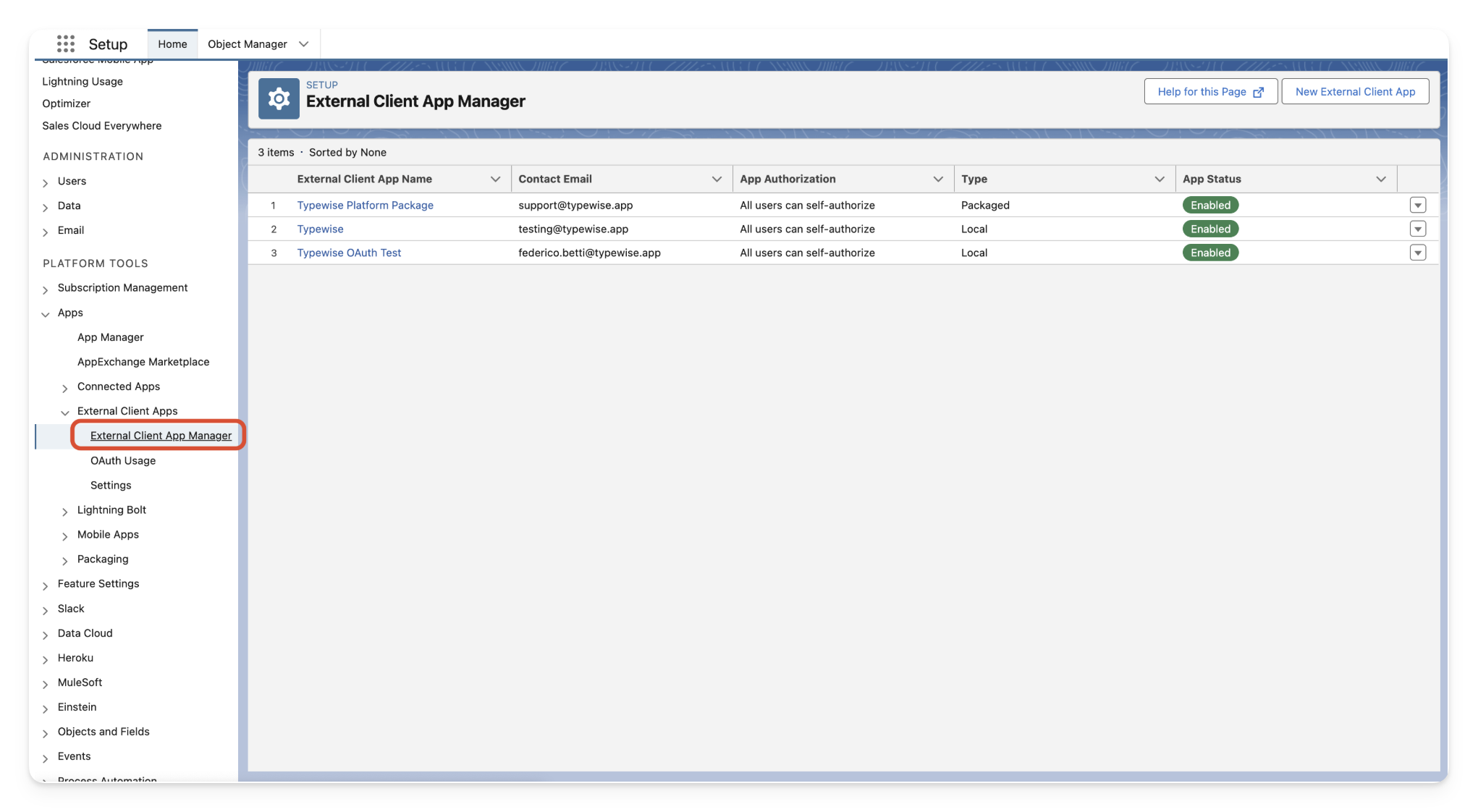
Navigate to `Apps` → `External Client Apps` → `External Client App Manager`

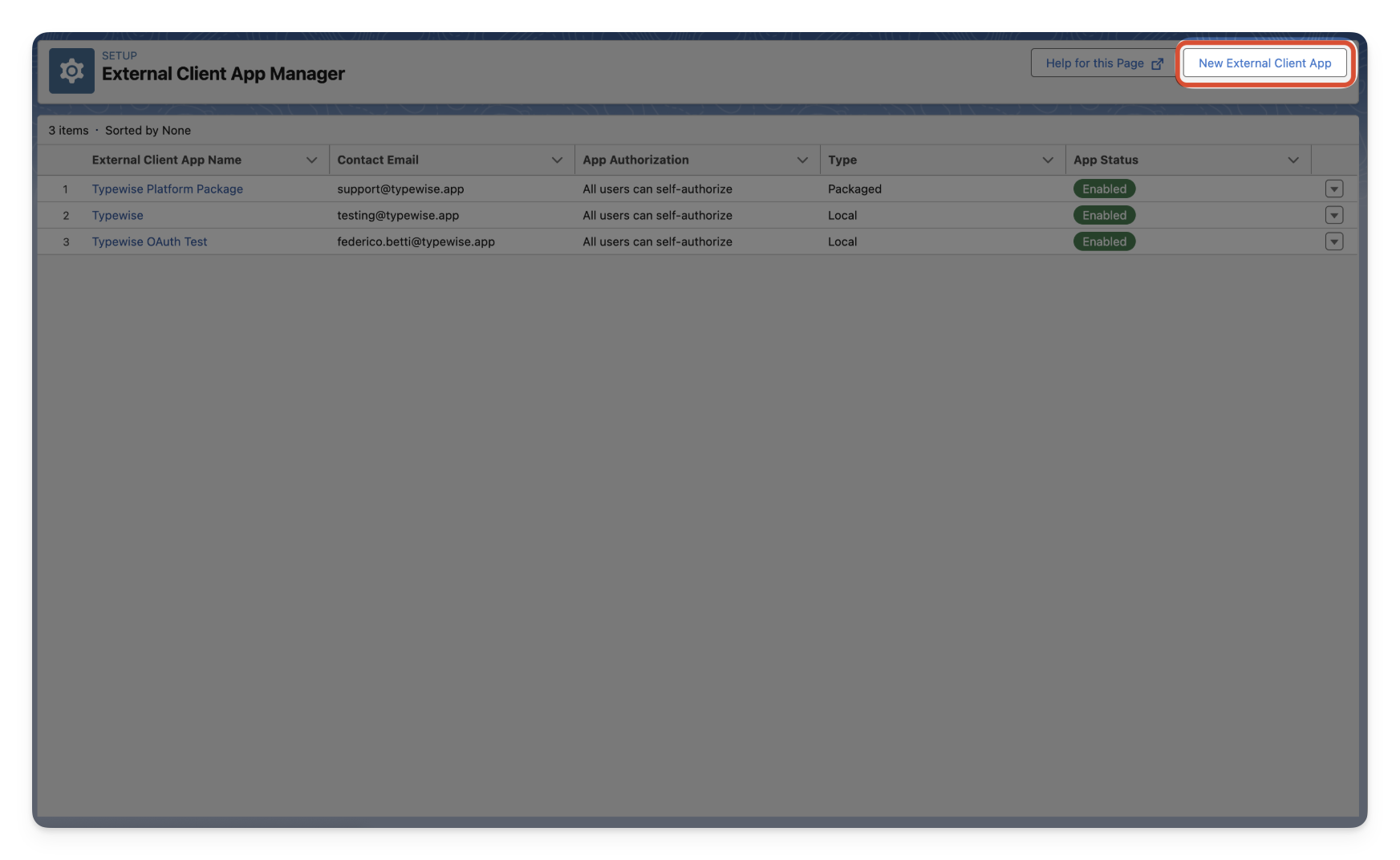 * Enter a Name (for example, “Typewise OAuth”)
* Provide your preferred Email address
* You can leave the rest of the basic information blank
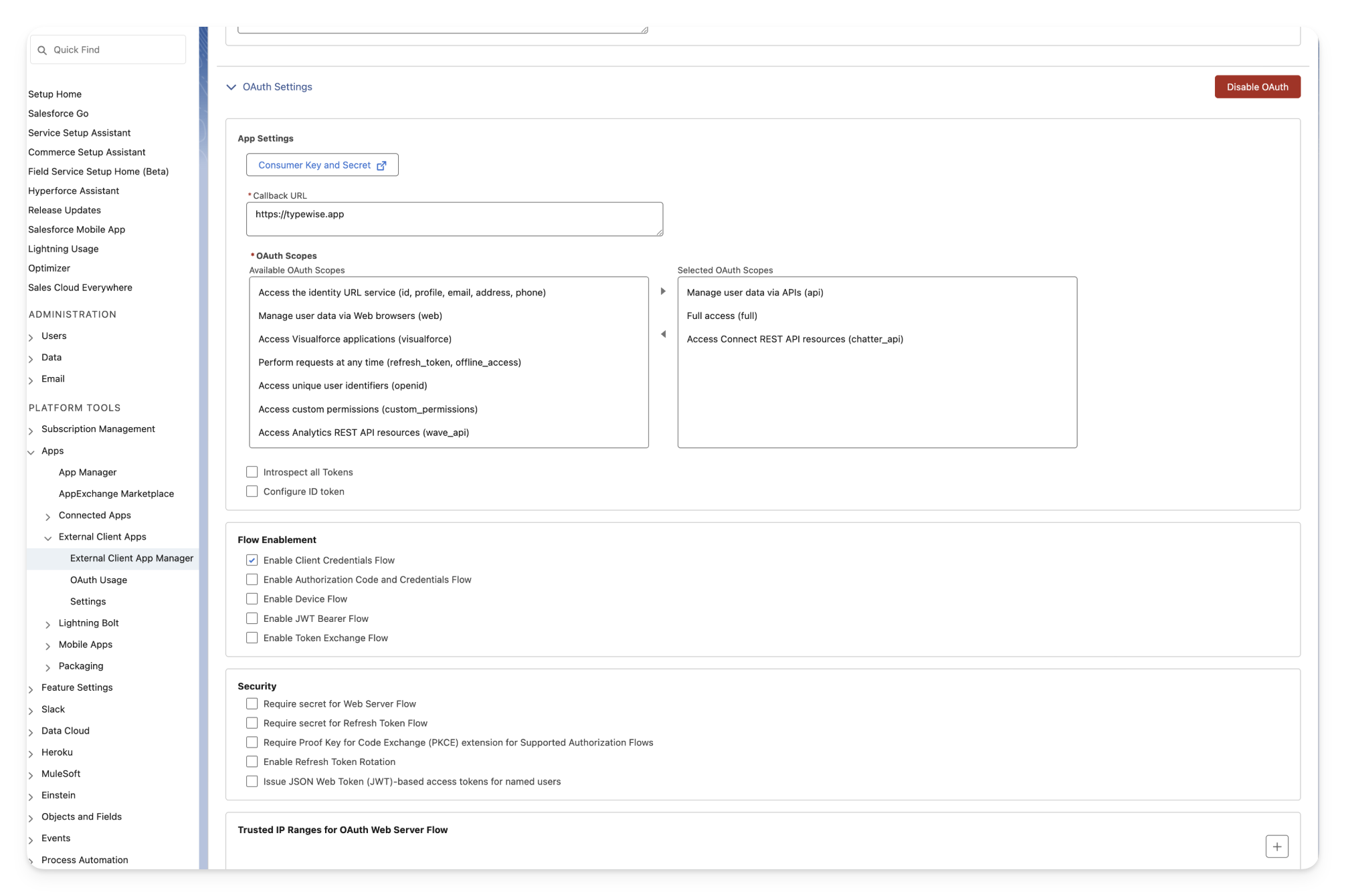
* Under API → `Enable OAuth`
* Enter a random callback URL (this won't be used)
* Select and add the necessary scopes. Make sure to add the `api` scope.
* Make sure `Enable Client Credentials Flow` is selected
* Ensure all other checkboxes are disabled
* Enter a Name (for example, “Typewise OAuth”)
* Provide your preferred Email address
* You can leave the rest of the basic information blank
* Under API → `Enable OAuth`
* Enter a random callback URL (this won't be used)
* Select and add the necessary scopes. Make sure to add the `api` scope.
* Make sure `Enable Client Credentials Flow` is selected
* Ensure all other checkboxes are disabled
 Once you're done, click `Create` to create the client.
After creating the new app:
* Navigate to the newly created app
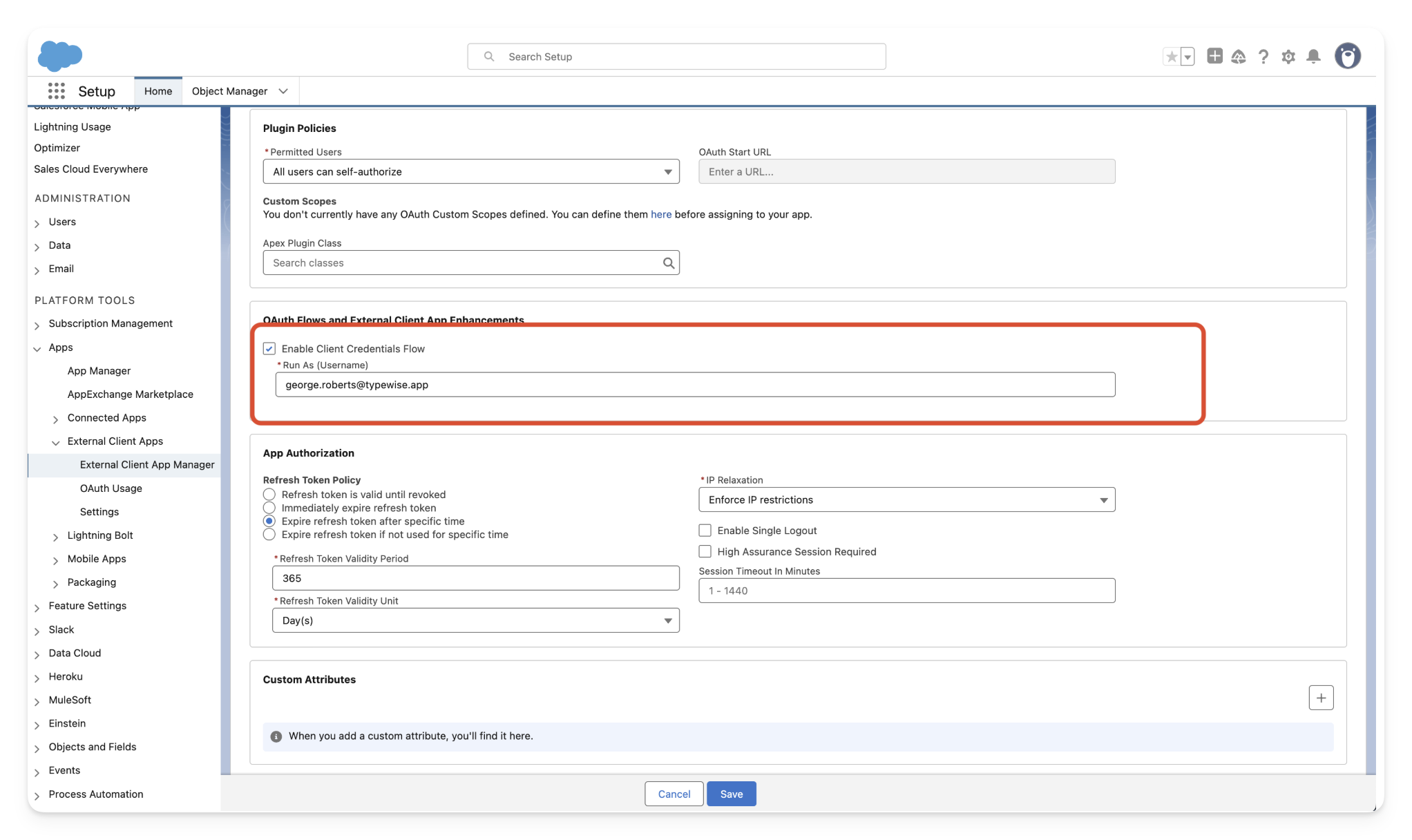
* Under policies, enable client credentials flow
* Assign a user to run as (this user will be attributed to all actions/reads performed by this app)
Once you're done, click `Create` to create the client.
After creating the new app:
* Navigate to the newly created app
* Under policies, enable client credentials flow
* Assign a user to run as (this user will be attributed to all actions/reads performed by this app)
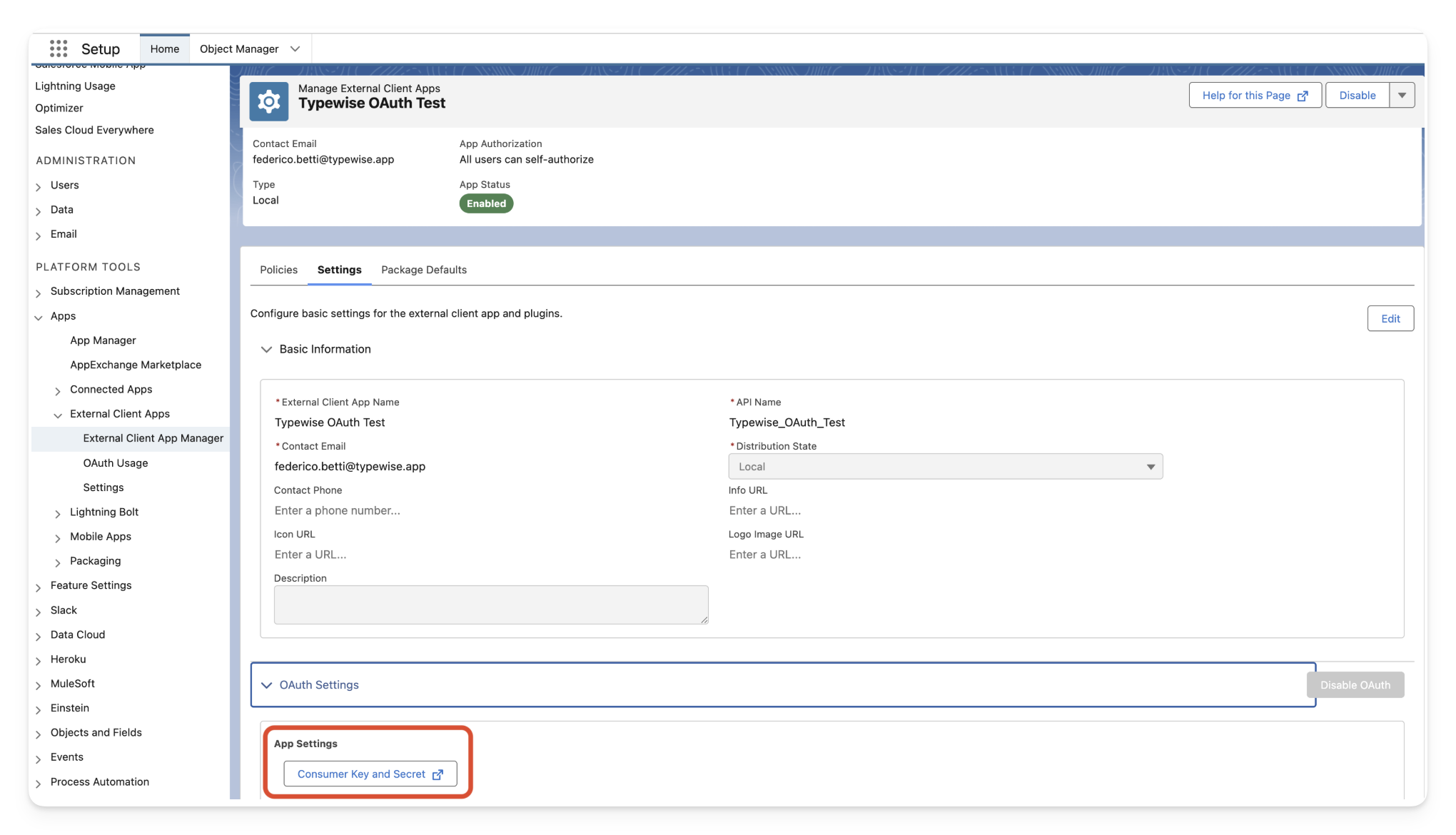
 You’ll need the consumer key and secret to enable the integration.
 ## Frequently asked questions
### How do I whitelist the Typewise platform if I have IP restrictions in place?
If you have organizational or user login IP restrictions, then you need to
whitelist Typewise’s IP addresses to ensure we can authenticate and connect to
Salesforce.
Under the newly created app, navigate to policies. Inside the App
Authorization section, make sure **IP Relaxation** is set to **Relax IP
restrictions**
## Frequently asked questions
### How do I whitelist the Typewise platform if I have IP restrictions in place?
If you have organizational or user login IP restrictions, then you need to
whitelist Typewise’s IP addresses to ensure we can authenticate and connect to
Salesforce.
Under the newly created app, navigate to policies. Inside the App
Authorization section, make sure **IP Relaxation** is set to **Relax IP
restrictions** 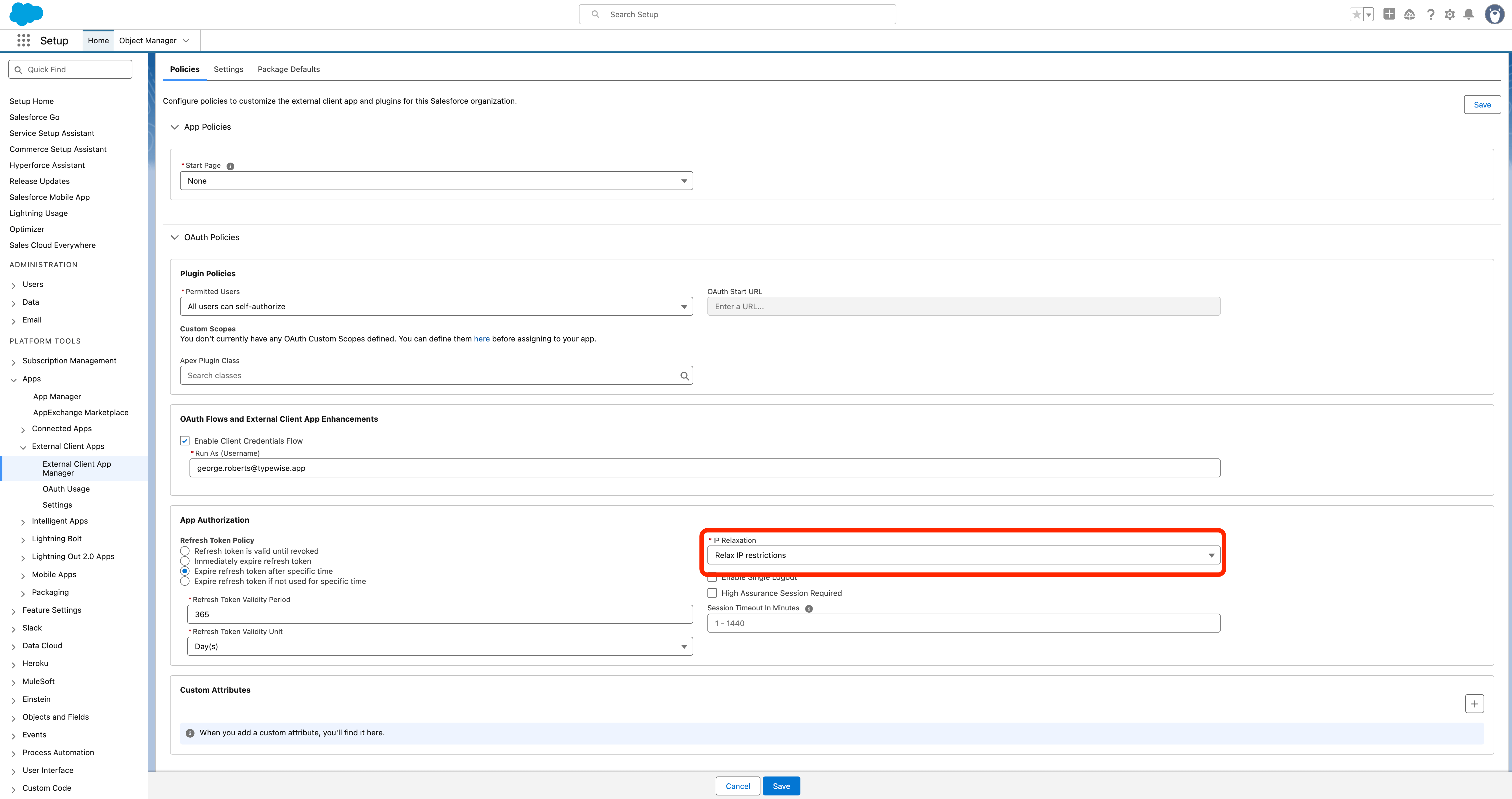 Go to Administration → Users. Click on the Profile assigned to the user that
you selected as the run as user.
Go to Administration → Users. Click on the Profile assigned to the user that
you selected as the run as user. 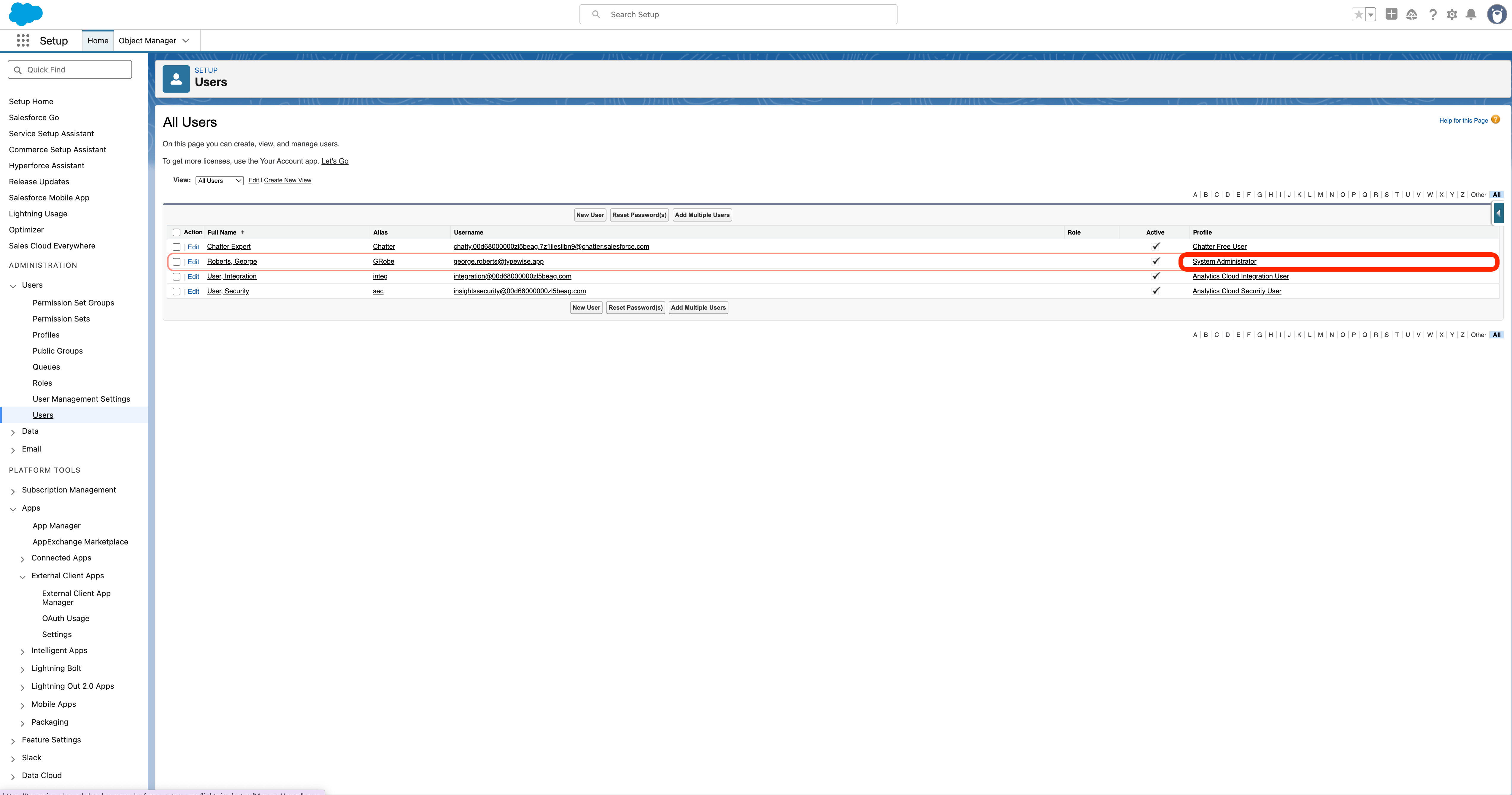 Once the Profile settings open, scroll down to the **Login IP Ranges**
section.
Once the Profile settings open, scroll down to the **Login IP Ranges**
section.  Add the following IP addresses to the list: `json 3.69.200.242 3.78.134.40
3.123.85.62 16.63.211.71 16.63.85.45 `
Add the following IP addresses to the list: `json 3.69.200.242 3.78.134.40
3.123.85.62 16.63.211.71 16.63.85.45 `  Use the same IP as the start and end IP addresses.
If you plan to use this user’s profile for other profiles, make sure to
add your own IP address to maintain access.
You should now be able to successfully connect to Salesforce.
***
## Supported tools
The following is a selection of commonly used tools available through the
Salesforce integration. Additional lookups and actions are available. Contact us
if you need a tool that isn't listed here.
### Lookups
Retrieve all fields of a Salesforce case by its ID.
| Parameter | Description | Required | Default |
| :-------- | :------------------------------ | :------: | :------ |
| `case_id` | The ID of the case to retrieve. | Yes | |
Retrieve only the `Description` field of a Salesforce case by its ID.
| Parameter | Description | Required | Default |
| :-------- | :--------------------------- | :------: | :------ |
| `case_id` | The ID of the case to query. | Yes | |
Retrieve customer details including name, email, phone, and mailing address.
| Parameter | Description | Required | Default |
| :----------- | :----------------------------------------------------- | :------: | :------ |
| `user_email` | Email address of the customer to retrieve details for. | Yes | |
Get all open Salesforce cases for a customer (excluding `Closed` / `Resolved`).
| Parameter | Description | Required | Default |
| :----------- | :----------------------------------------------------- | :------: | :------ |
| `user_email` | Email address of the customer to retrieve tickets for. | Yes | |
| `limit` | Maximum number of results to return. | No | `100` |
Get the status and key information of a Salesforce case.
| Parameter | Description | Required | Default |
| :---------------- | :--------------------------------------------------------- | :------: | :------ |
| `case_identifier` | The Case ID (starts with `500`) or Case Number to look up. | Yes | |
Additional Salesforce lookup tools are available. Contact us to enable lookups not listed here.
### Actions
Update a customer's Salesforce Contact fields. You must provide `user_email` and at least one field to update.
| Parameter | Description | Required | Default |
| :-------------------- | :--------------------------------------- | :------: | :------ |
| `user_email` | Email address of the customer to update. | Yes | |
| `first_name` | First name. | No | |
| `last_name` | Last name. | No | |
| `phone` | Primary phone number. | No | |
| `mobile_phone` | Mobile phone number. | No | |
| `mailing_street` | Mailing street address. | No | |
| `mailing_city` | Mailing city. | No | |
| `mailing_state` | Mailing state or province. | No | |
| `mailing_postal_code` | Mailing postal or ZIP code. | No | |
| `mailing_country` | Mailing country. | No | |
Create a new customer profile (Contact) in Salesforce.
| Parameter | Description | Required | Default |
| :-------------------- | :------------------------------------------ | :------: | :------ |
| `user_email` | Email address for the new customer profile. | Yes | |
| `last_name` | Customer’s last name. | Yes | |
| `first_name` | Customer’s first name. | No | |
| `phone` | Primary phone number. | No | |
| `mobile_phone` | Mobile phone number. | No | |
| `mailing_street` | Mailing street address. | No | |
| `mailing_city` | Mailing city. | No | |
| `mailing_state` | Mailing state/province. | No | |
| `mailing_postal_code` | Mailing postal/ZIP code. | No | |
| `mailing_country` | Mailing country. | No | |
Write a comment to an existing Salesforce case.
| Parameter | Description | Required | Default |
| :---------------- | :------------------------------------------------------------------ | :------: | :------ |
| `case_identifier` | The Case ID (starts with `500`) or Case Number to add a comment to. | Yes | |
| `comment_text` | The comment text to add. | Yes | |
| `is_public` | Whether the comment should be public. | No | `true` |
Additional Salesforce action tools are available. Contact us to enable actions not listed here.
Use the same IP as the start and end IP addresses.
If you plan to use this user’s profile for other profiles, make sure to
add your own IP address to maintain access.
You should now be able to successfully connect to Salesforce.
***
## Supported tools
The following is a selection of commonly used tools available through the
Salesforce integration. Additional lookups and actions are available. Contact us
if you need a tool that isn't listed here.
### Lookups
Retrieve all fields of a Salesforce case by its ID.
| Parameter | Description | Required | Default |
| :-------- | :------------------------------ | :------: | :------ |
| `case_id` | The ID of the case to retrieve. | Yes | |
Retrieve only the `Description` field of a Salesforce case by its ID.
| Parameter | Description | Required | Default |
| :-------- | :--------------------------- | :------: | :------ |
| `case_id` | The ID of the case to query. | Yes | |
Retrieve customer details including name, email, phone, and mailing address.
| Parameter | Description | Required | Default |
| :----------- | :----------------------------------------------------- | :------: | :------ |
| `user_email` | Email address of the customer to retrieve details for. | Yes | |
Get all open Salesforce cases for a customer (excluding `Closed` / `Resolved`).
| Parameter | Description | Required | Default |
| :----------- | :----------------------------------------------------- | :------: | :------ |
| `user_email` | Email address of the customer to retrieve tickets for. | Yes | |
| `limit` | Maximum number of results to return. | No | `100` |
Get the status and key information of a Salesforce case.
| Parameter | Description | Required | Default |
| :---------------- | :--------------------------------------------------------- | :------: | :------ |
| `case_identifier` | The Case ID (starts with `500`) or Case Number to look up. | Yes | |
Additional Salesforce lookup tools are available. Contact us to enable lookups not listed here.
### Actions
Update a customer's Salesforce Contact fields. You must provide `user_email` and at least one field to update.
| Parameter | Description | Required | Default |
| :-------------------- | :--------------------------------------- | :------: | :------ |
| `user_email` | Email address of the customer to update. | Yes | |
| `first_name` | First name. | No | |
| `last_name` | Last name. | No | |
| `phone` | Primary phone number. | No | |
| `mobile_phone` | Mobile phone number. | No | |
| `mailing_street` | Mailing street address. | No | |
| `mailing_city` | Mailing city. | No | |
| `mailing_state` | Mailing state or province. | No | |
| `mailing_postal_code` | Mailing postal or ZIP code. | No | |
| `mailing_country` | Mailing country. | No | |
Create a new customer profile (Contact) in Salesforce.
| Parameter | Description | Required | Default |
| :-------------------- | :------------------------------------------ | :------: | :------ |
| `user_email` | Email address for the new customer profile. | Yes | |
| `last_name` | Customer’s last name. | Yes | |
| `first_name` | Customer’s first name. | No | |
| `phone` | Primary phone number. | No | |
| `mobile_phone` | Mobile phone number. | No | |
| `mailing_street` | Mailing street address. | No | |
| `mailing_city` | Mailing city. | No | |
| `mailing_state` | Mailing state/province. | No | |
| `mailing_postal_code` | Mailing postal/ZIP code. | No | |
| `mailing_country` | Mailing country. | No | |
Write a comment to an existing Salesforce case.
| Parameter | Description | Required | Default |
| :---------------- | :------------------------------------------------------------------ | :------: | :------ |
| `case_identifier` | The Case ID (starts with `500`) or Case Number to add a comment to. | Yes | |
| `comment_text` | The comment text to add. | Yes | |
| `is_public` | Whether the comment should be public. | No | `true` |
Additional Salesforce action tools are available. Contact us to enable actions not listed here.