> ## Documentation Index
> Fetch the complete documentation index at: https://docs.typewise.app/llms.txt
> Use this file to discover all available pages before exploring further.
# Zendesk
> Connect Zendesk and use available lookups and actions.
Connect Zendesk to let the AI retrieve ticket/user details (lookups) and perform
approved updates (actions).
## On this page
* [Connect](#connect)
* [Supported tools](#supported-tools)
* [Lookups](#lookups)
* [Actions](#actions)
## Connect
You need permissions to access the admin section and create OAuth clients.
Navigate to `Apps and Integrations` → `APIs` → `OAuth clients`
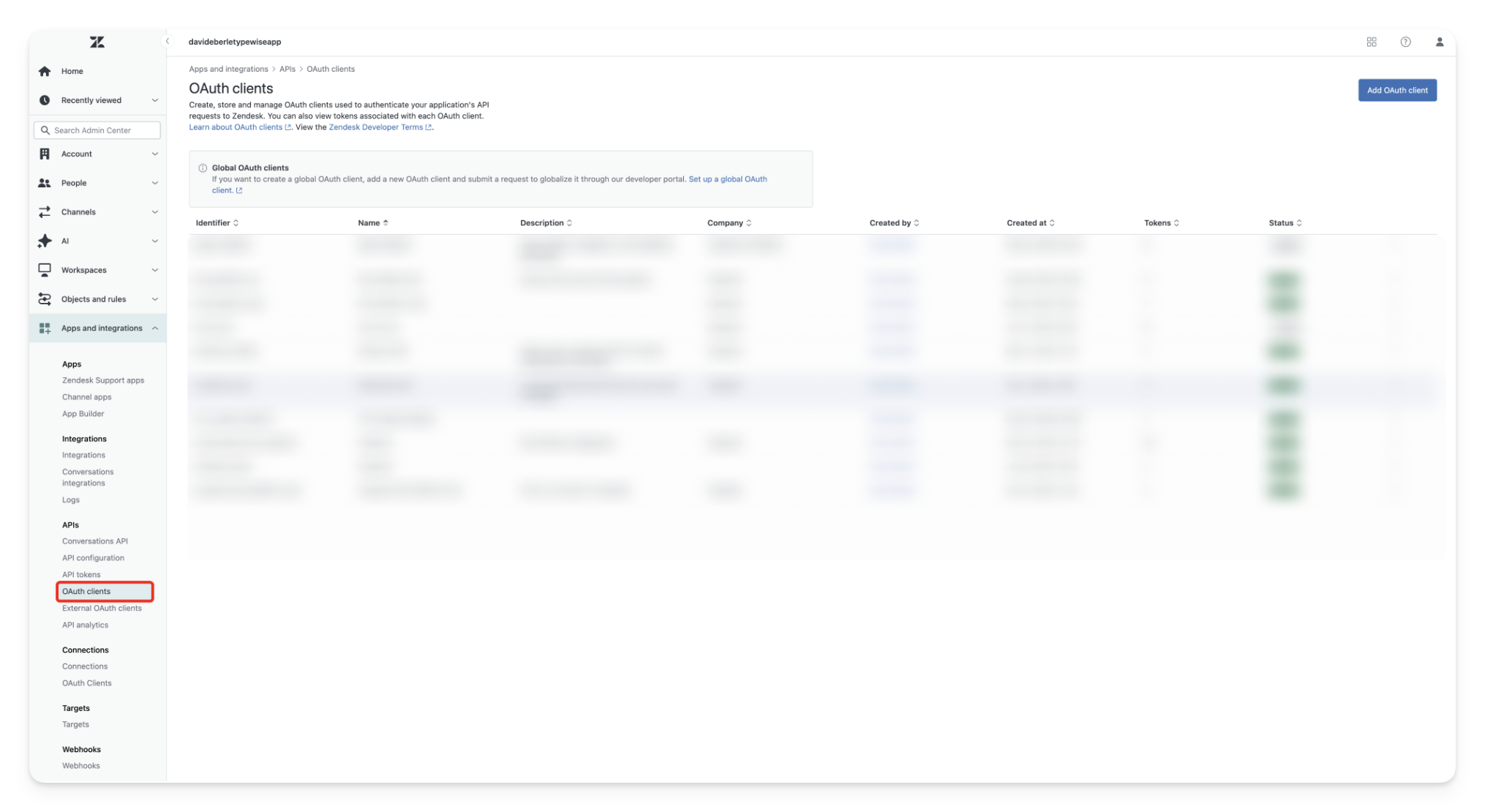 Click `Add OAuth client` and fill out the details.
Make sure to set **Client kind** to **Confidential**.
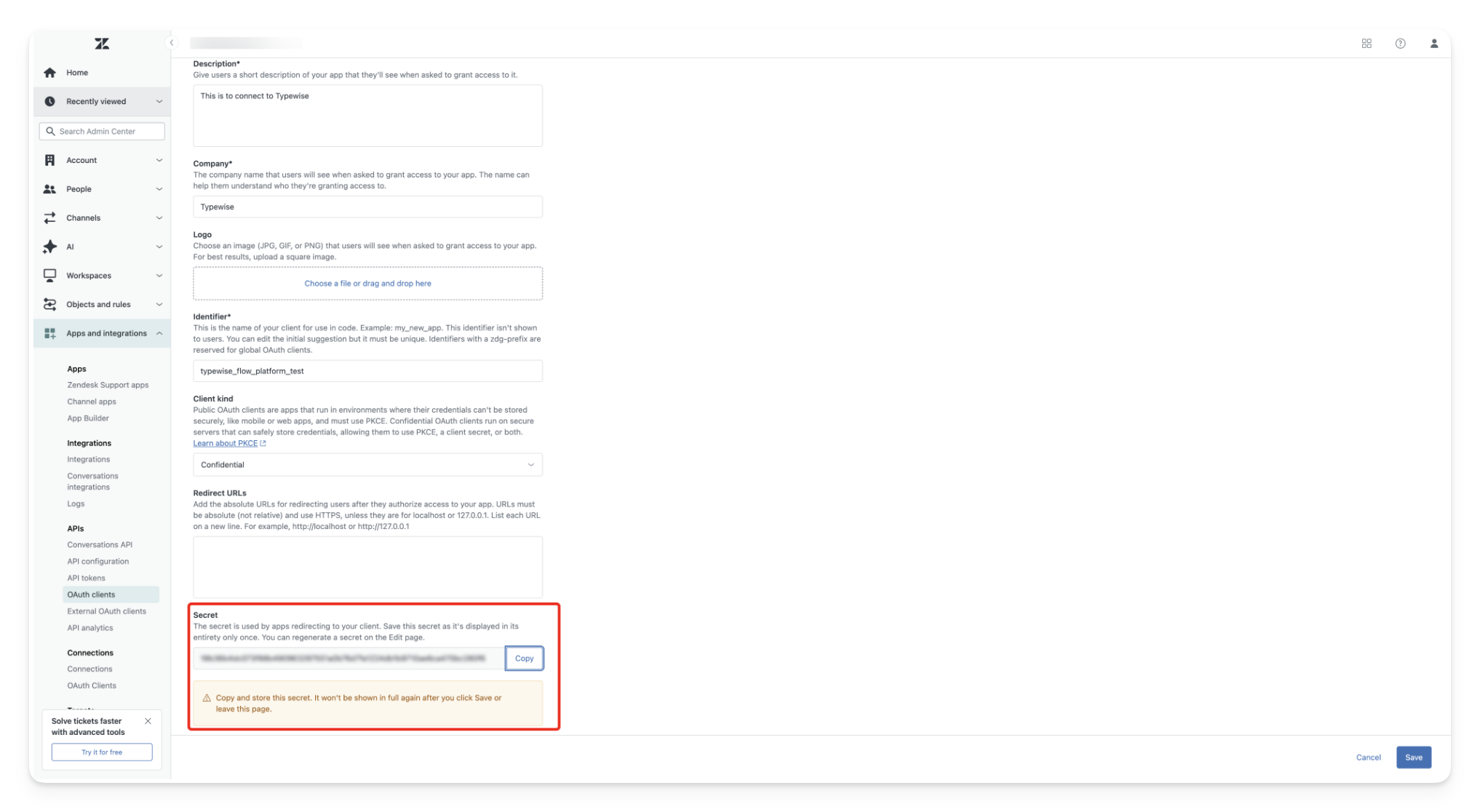
After you click `Save`, you’ll be shown a secret at the end of the page. It’s only shown once, so copy and store it securely.
In Typewise, go to **Integrations**, find Zendesk, and click **Connect**. You’ll need:
Click `Add OAuth client` and fill out the details.
Make sure to set **Client kind** to **Confidential**.
After you click `Save`, you’ll be shown a secret at the end of the page. It’s only shown once, so copy and store it securely.
In Typewise, go to **Integrations**, find Zendesk, and click **Connect**. You’ll need:
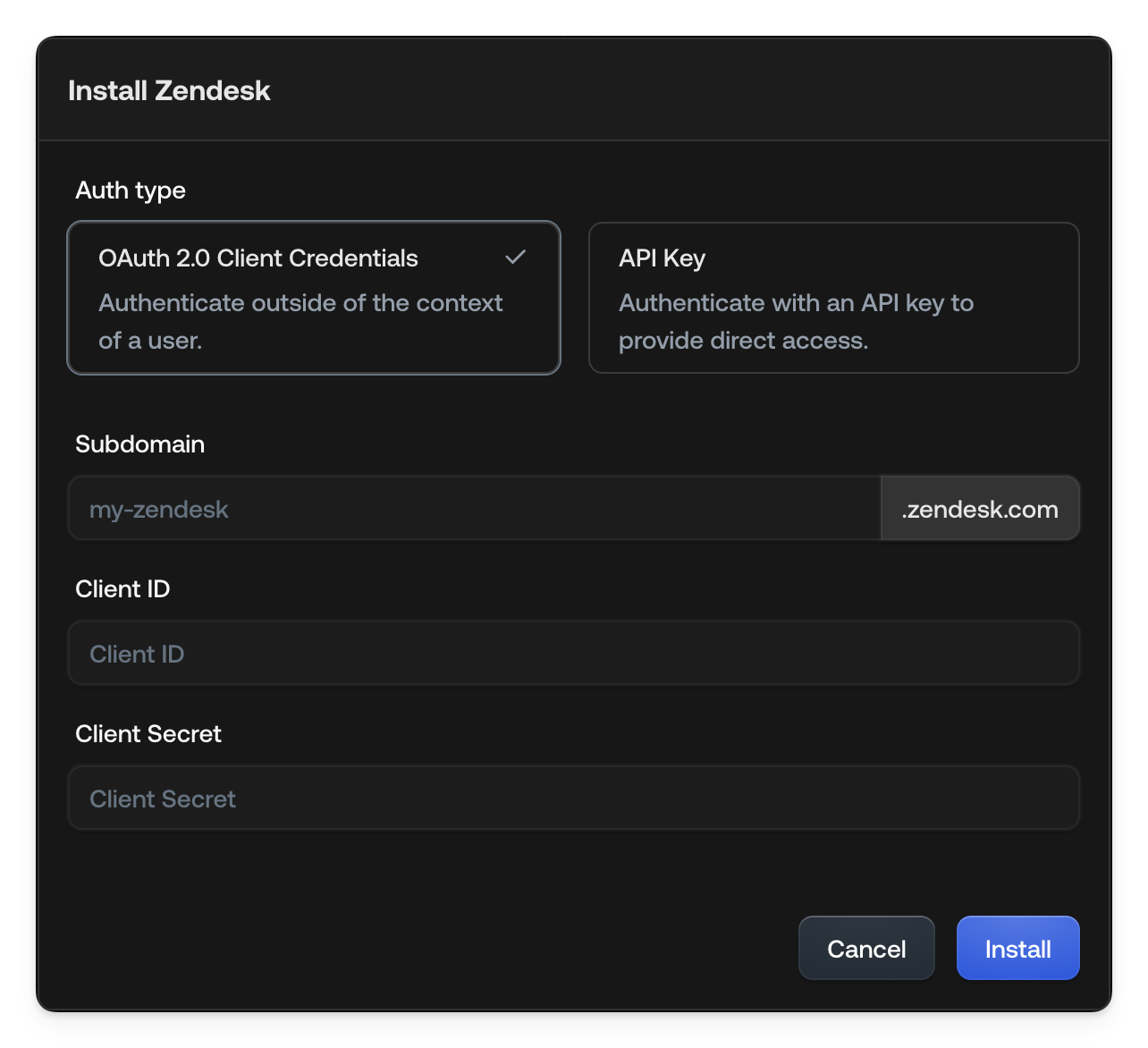 * **Subdomain:** The first part of your Zendesk URL. For example, for `https://acme.zendesk.com/admin/home`, the subdomain is `acme`.
* **Client ID:** The identifier you set when creating the OAuth client.
* **Subdomain:** The first part of your Zendesk URL. For example, for `https://acme.zendesk.com/admin/home`, the subdomain is `acme`.
* **Client ID:** The identifier you set when creating the OAuth client.
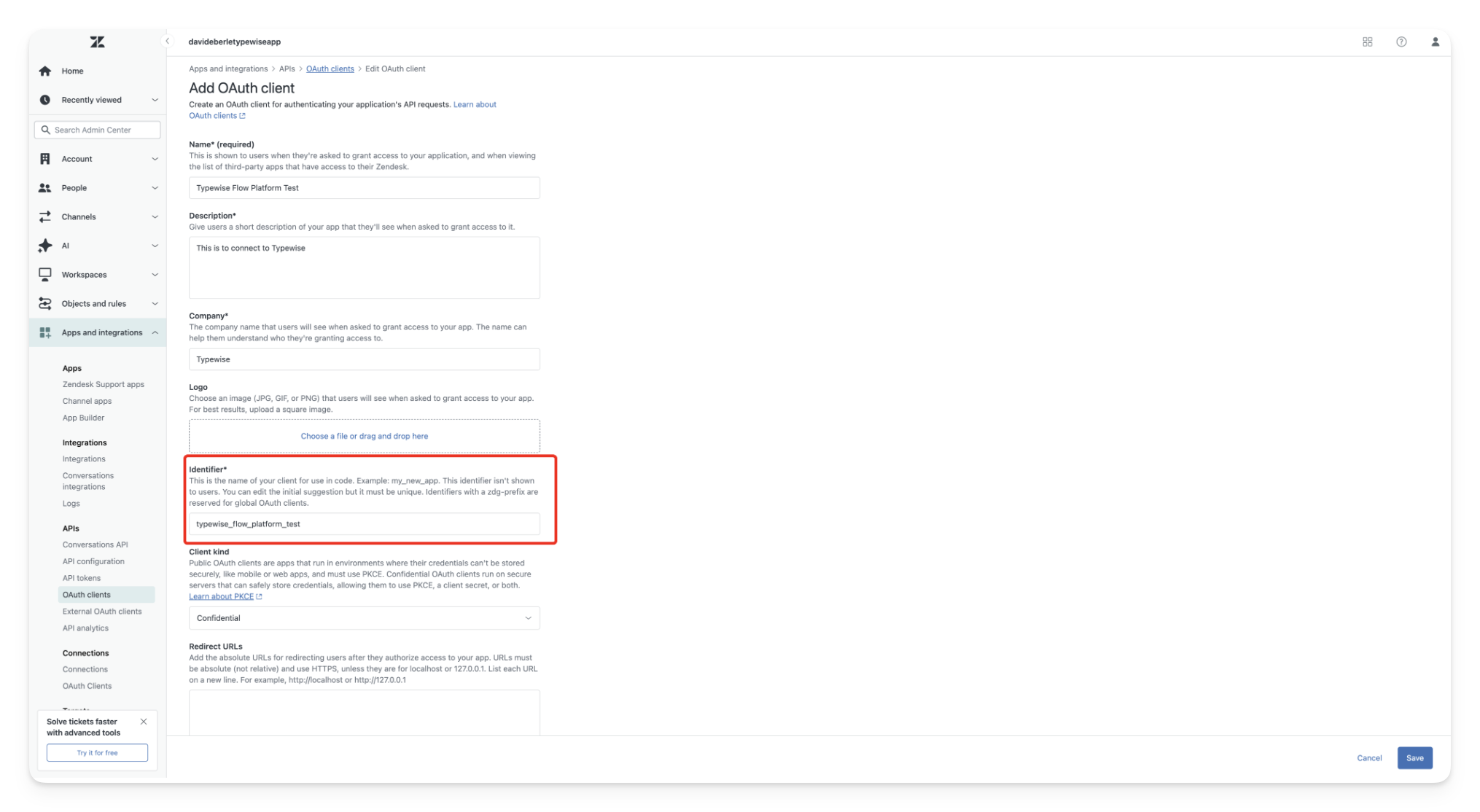 * **Client Secret:** The secret shown once after saving the OAuth client.
 After you click `Install`, Zendesk should be connected successfully.
## Supported tools
The following is a selection of commonly used tools available through the
Zendesk integration. Additional lookups and actions are available. Contact us if
you need a tool that isn't listed here.
### Lookups
Retrieve a Zendesk ticket by its ID.
| Parameter | Description | Required | Default |
| :---------- | :-------------------------------- | :------: | :------ |
| `ticket_id` | The ID of the ticket to retrieve. | Yes | |
Retrieve all comments for a Zendesk ticket.
| Parameter | Description | Required | Default |
| :---------- | :---------------------------------------- | :------: | :------ |
| `ticket_id` | The ID of the ticket to get comments for. | Yes | |
Search for Zendesk Help Center articles.
| Parameter | Description | Required | Default |
| :------------ | :----------------------------------- | :------: | :------ |
| `query` | The search query. | Yes | |
| `max_results` | Maximum number of results to return. | No | `5` |
Get information about a Zendesk user.
| Parameter | Description | Required | Default |
| :-------- | :---------------------------------------------- | :------: | :------ |
| `user_id` | The ID of the user to retrieve information for. | Yes | |
Additional Zendesk lookup tools are available. Contact us to enable lookups not listed here.
### Actions
Update the email address of a Zendesk sender.
| Parameter | Description | Required | Default |
| :---------- | :------------------------------------- | :------: | :------ |
| `sender_id` | The ID of the sender to update. | Yes | |
| `new_email` | The new email to update the sender to. | Yes | |
Additional Zendesk action tools are available. Contact us to enable actions not listed here.
After you click `Install`, Zendesk should be connected successfully.
## Supported tools
The following is a selection of commonly used tools available through the
Zendesk integration. Additional lookups and actions are available. Contact us if
you need a tool that isn't listed here.
### Lookups
Retrieve a Zendesk ticket by its ID.
| Parameter | Description | Required | Default |
| :---------- | :-------------------------------- | :------: | :------ |
| `ticket_id` | The ID of the ticket to retrieve. | Yes | |
Retrieve all comments for a Zendesk ticket.
| Parameter | Description | Required | Default |
| :---------- | :---------------------------------------- | :------: | :------ |
| `ticket_id` | The ID of the ticket to get comments for. | Yes | |
Search for Zendesk Help Center articles.
| Parameter | Description | Required | Default |
| :------------ | :----------------------------------- | :------: | :------ |
| `query` | The search query. | Yes | |
| `max_results` | Maximum number of results to return. | No | `5` |
Get information about a Zendesk user.
| Parameter | Description | Required | Default |
| :-------- | :---------------------------------------------- | :------: | :------ |
| `user_id` | The ID of the user to retrieve information for. | Yes | |
Additional Zendesk lookup tools are available. Contact us to enable lookups not listed here.
### Actions
Update the email address of a Zendesk sender.
| Parameter | Description | Required | Default |
| :---------- | :------------------------------------- | :------: | :------ |
| `sender_id` | The ID of the sender to update. | Yes | |
| `new_email` | The new email to update the sender to. | Yes | |
Additional Zendesk action tools are available. Contact us to enable actions not listed here.