> ## Documentation Index
> Fetch the complete documentation index at: https://docs.typewise.app/llms.txt
> Use this file to discover all available pages before exploring further.
# Google Drive files
> Import the files in a shared Google Drive folder as a knowledge source.
Use this to bring the documents in a Google Drive folder into Typewise so the AI
Agent can rely on them when replying to tickets. Typewise re-imports the folder
on the schedule you choose, so you don't upload anything by hand.
To import from Google Drive, you first need to connect the Google Drive
integration and share the folder with your service account. See [Google Drive
integration setup](/documentation/integrations/supported/google-drive).
## Add a folder as a knowledge source
Open the folder in Google Drive and copy the address from your browser's
address bar. It looks like `https://drive.google.com/drive/folders/1AbC...`.
You can also use the link of a single file. Typewise then imports only that
file.
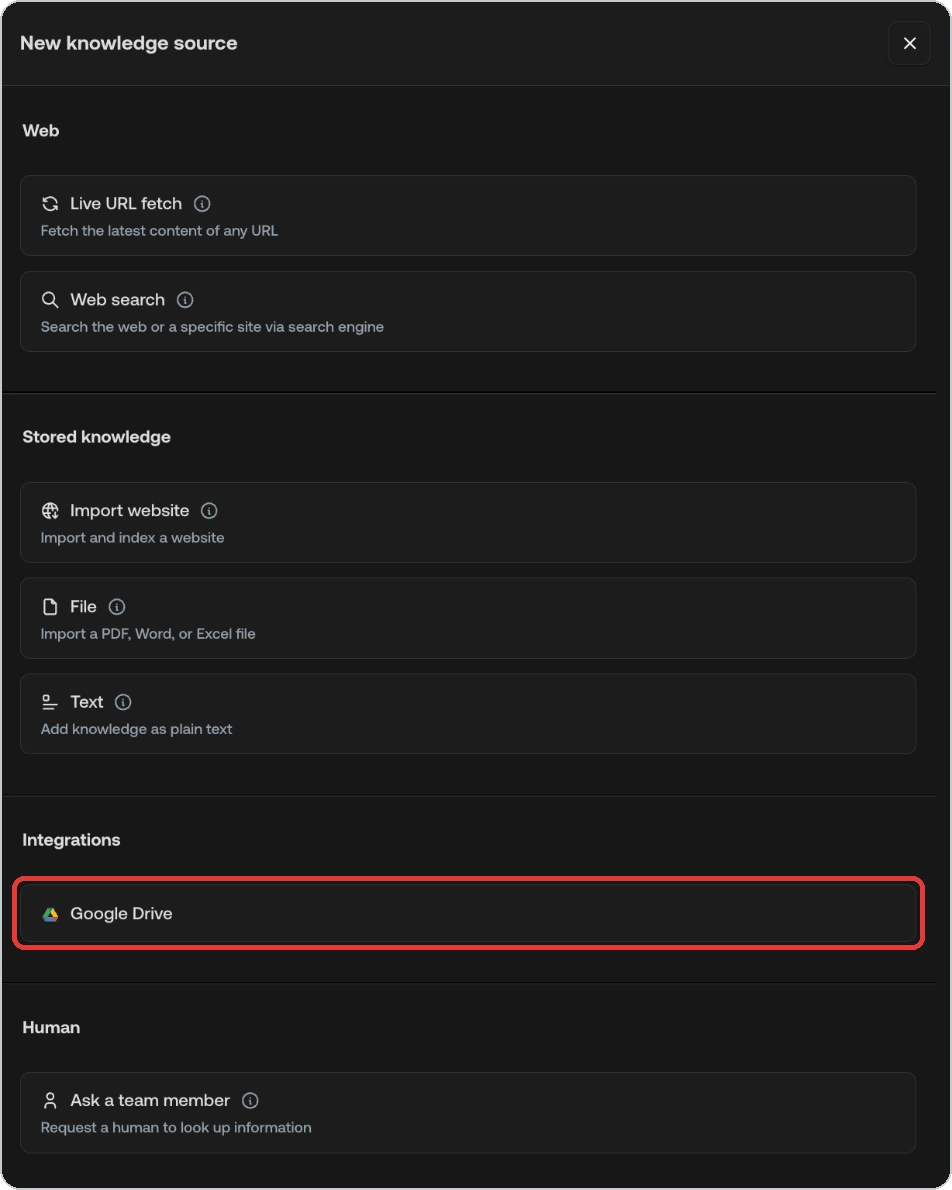
Go to [Knowledge Hub](https://platform.typewise.app/knowledge-hub) and click
**Add source**. Under **Integrations**, select **Google Drive**.
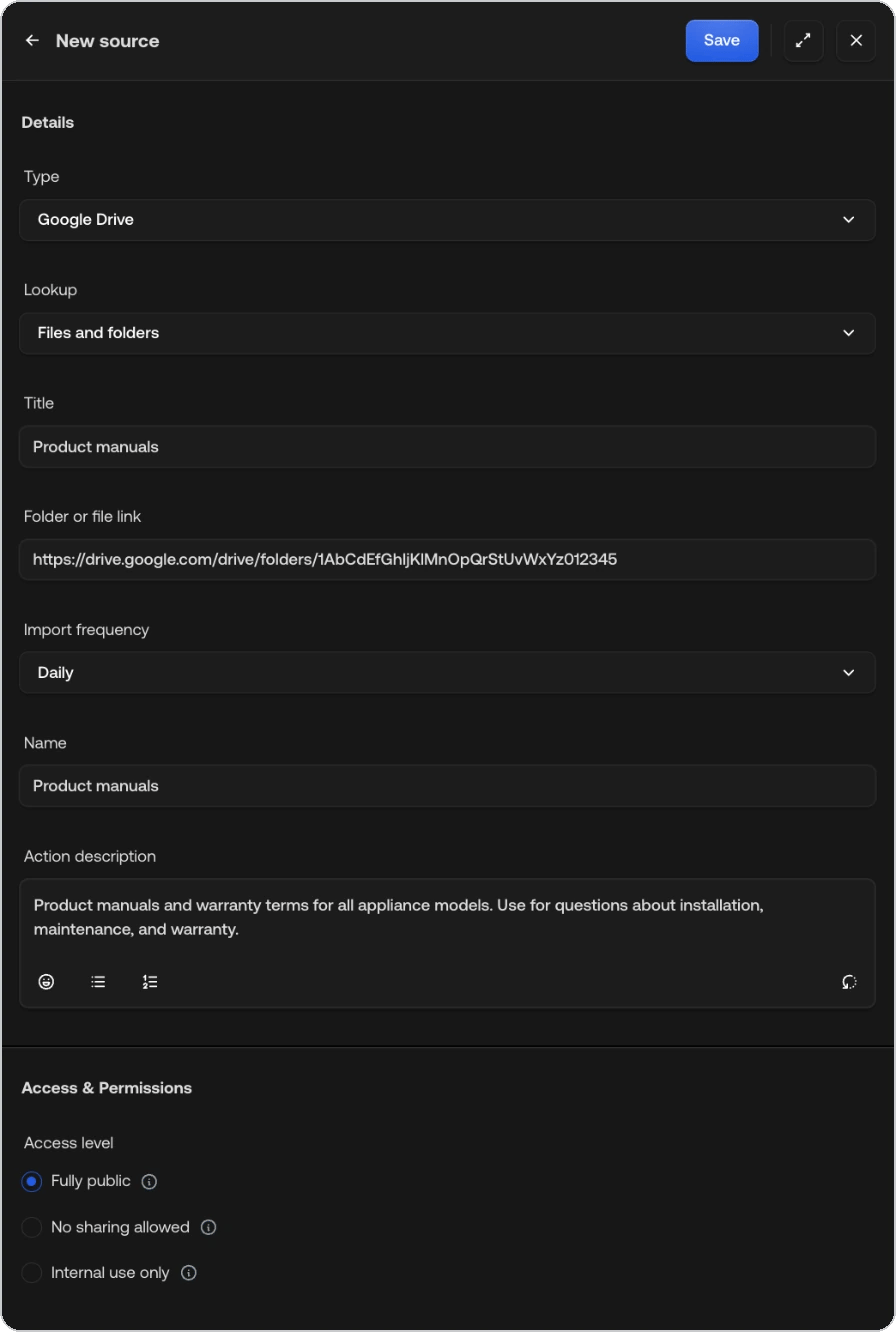
 In **Lookup**, select **Files and folders**.
Paste the link into **Folder or file link**, fill in the other fields
described in [Configuration](#configuration), and click **Save**.
In **Lookup**, select **Files and folders**.
Paste the link into **Folder or file link**, fill in the other fields
described in [Configuration](#configuration), and click **Save**.
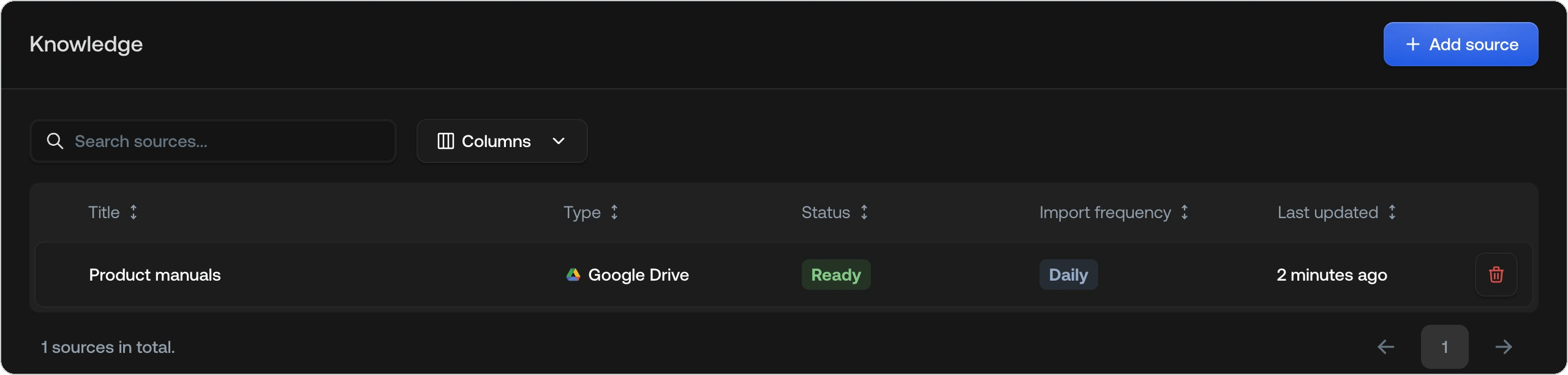
 The import starts right away. In the Sources table, the status shows
**Analyzing** and changes to **Ready** when the import is done. Large
folders can take an hour or more.
The import starts right away. In the Sources table, the status shows
**Analyzing** and changes to **Ready** when the import is done. Large
folders can take an hour or more.
 If the status shows **Failed**, hover over it to read the reason, then see
[Troubleshooting](#troubleshooting). A warning icon next to **Ready** means
the folder holds more files than one source imports. See [Limits](#limits).
A new source is a draft until you publish it. Click **Review** in the
unpublished changes bar and publish the source. See
[Publishing changes](/documentation/behavior/publishing).
## Configuration
| Field | Description |
| :- | :- |
| **Type** | The kind of source. It's already set to **Google Drive**. |
| **Lookup** | Select **Files and folders** from the Google Drive integration. |
| **Title** | A label for the imported content (for example, "Product manuals"). Use the same text as in **Name**. |
| **Folder or file link** | The link of the Drive folder or file to import. It must be shared with your service account. |
| **Import frequency** | `Daily`, `Weekly`, `Monthly`, or `Once`. Determines how often Typewise re-imports the folder. The default is `Daily`. |
| **Name** | The name of this source in the Knowledge Hub and in the `@` picker. |
| **Action description** | What the folder contains and when to search it. Helps the AI Agent decide when to use this source. |
| **Access level** | Controls how imported content can be used and shared. See [Access levels](/documentation/knowledge/access-levels). |
Replace the default **Action description** with specifics, for example
"Product manuals and warranty terms for all appliance models. Use for
questions about installation, maintenance, and warranty."
The access level applies to every file in the folder. To give files different
access levels, put them in separate folders and add one source per folder.
## Use the source in a Specialist
Go to [Specialists](https://platform.typewise.app/specialists) and open the
Specialist that should use your Drive files, or create one.
In **Instructions**, type `@` and select your Google Drive source. It
appears as a pill. Say when to use it, for example:
```
When the customer asks how to install or maintain a product, find the
answer in @Product manuals. If the manuals don't cover it, hand off to a
Human Agent.
```
Try it in the [Simulator](/documentation/testing-and-feedback/simulator)
with **Include unpublished changes** enabled, then publish.
You can mention the source the same way in global guidelines and channel
guidelines. For more on writing instructions, see
[Writing good Specialists](/guides/best-practices/writing-specialists).
The AI Agent answers from the text of your files. It doesn't send the files or
their Drive links to customers. To send a file as an attachment, upload it as
a [File](/documentation/knowledge/file#send-a-file-to-customers) source.
## Supported files
| Type | Formats |
| :- | :- |
| Google formats | Google Docs, Google Sheets, Google Slides |
| Documents | pdf, doc, docx, odt, rtf, epub, txt, md, rst, org, html |
| Spreadsheets | xls, xlsx, csv, tsv |
| Presentations | ppt, pptx |
| Images | png, jpg, jpeg (the text in the image is read) |
The format limitations of [uploaded files](/documentation/knowledge/file) apply
here too. For example, scanned PDFs have no readable text, so nothing is
imported from them.
Typewise skips everything else in the folder:
* Videos, audio, archives, Google Forms, and Google Drawings
* Code and configuration files, such as `.py`, `.js`, `.json`, `.xml`, and
`.yaml`
* Hidden files and folders, such as `.git`
* Tooling folders, such as `node_modules`
## How syncing works
* **First import**: starts when you save the source.
* **Later imports**: run automatically on the **Import frequency** you chose.
With `Once`, the folder is imported a single time.
* **New and edited files**: picked up at the next import.
* **Deleted files**: files you delete or move out of the folder are removed from
the AI Agent's knowledge at the next import.
* **Unchanged files**: Typewise reads every file again but only updates what
changed, so later imports are faster than the first one.
* **Subfolders**: included. A subfolder with limited access is imported only if
you share it with the service account too.
* **Shortcuts**: followed, if the file or folder they point to is also shared
with the service account.
* **Failed imports**: Typewise keeps the content of the last successful import,
and the source shows **Failed** with the reason.
Changes in Drive reach the AI Agent at the next import, not immediately.
## Limits
These limits apply to each Google Drive source.
| Limit | Value | What happens above it |
| :- | :- | :- |
| Supported files per source | 500 | Only the first 500 files are imported. |
| Size per file | 50 MB | The file is skipped, not downloaded. |
| Google Docs, Sheets, and Slides | 10 MB (Google's export limit) | The file is skipped. |
| Folder depth | 20 levels | Deeper folders are skipped. |
If a folder holds more than 500 supported files, the import still finishes. The
source shows **Ready** with a warning icon next to it. Hover over the icon to
read the message.
Typewise takes the files directly in the folder first, then the files in its
subfolders, level by level. Within a folder, files are taken in order of name.
To import the rest, link a subfolder instead, or split the folder into several
sources.
Text in images is read again at every import. A folder with many images takes
longer to import.
## Troubleshooting
A failed import shows **Failed** in the Sources table. Hover over the status to
read the reason. After you fix the cause, click **Retry processing** next to the
status to import again.
The titles below are the reasons Typewise shows.
The pasted key is incomplete, or it was deleted in Google Cloud.
In Typewise, go to **Integrations**, open the menu on **Google Drive**, and
select **Reconnect**. Paste the whole content of the `.json` file. If the
key was deleted, [create a new one](/documentation/integrations/supported/google-drive#connect)
first.
The folder isn't shared with the service account, or the link points
somewhere else.
* In Google Drive, check that the service account's email address is listed
under **Share** as **Viewer**.
* Check that **Folder or file link** holds the link of that folder.
Enable the Google Drive API in the Google Cloud project that holds the service
account. See
[Connect](/documentation/integrations/supported/google-drive#connect). Wait a
few minutes, then retry.
The folder is empty, or it only holds file types that Typewise skips. Check
[Supported files](#supported-files), and check that the link points to the
right folder.
Typewise found supported files but couldn't read any text from them. This
happens with scanned PDFs and empty files. Add files with readable text, then
retry.
Your Google Cloud project reached its request limit for the Google Drive API.
Typewise tries again at the next scheduled import.
Google Drive didn't respond in time. Retry. If it keeps failing, reconnect the
integration under **Integrations**.
### The source is Ready, but the AI Agent doesn't use a file
* **File limit**: a source imports only the first 500 supported files. A warning
icon next to **Ready** tells you when files were left out. See
[Limits](#limits).
* **File type**: check [Supported files](#supported-files) and
[Limits](#limits). Scanned PDFs have no readable text.
* **Access**: a subfolder with limited access, or the target of a shortcut, must
be shared with the service account too.
* **Timing**: a file added after the last import is picked up at the next one.
* **Publishing**: check that the source and the Specialist are published.
* **Instructions**: check that the Specialist mentions the source with `@`.
## See also
* [Google Drive integration setup](/documentation/integrations/supported/google-drive):
create the service account and connect Google Drive
* [Access levels](/documentation/knowledge/access-levels): control data sharing
and visibility
* [File](/documentation/knowledge/file): upload single files and send them as
attachments
* [Specialists](/documentation/behavior/specialists): tell the AI Agent when to
use a source
* [Publishing changes](/documentation/behavior/publishing): make new sources
live
This documentation is built and hosted on [Mintlify](https://mintlify.com), a developer documentation platform.
If the status shows **Failed**, hover over it to read the reason, then see
[Troubleshooting](#troubleshooting). A warning icon next to **Ready** means
the folder holds more files than one source imports. See [Limits](#limits).
A new source is a draft until you publish it. Click **Review** in the
unpublished changes bar and publish the source. See
[Publishing changes](/documentation/behavior/publishing).
## Configuration
| Field | Description |
| :- | :- |
| **Type** | The kind of source. It's already set to **Google Drive**. |
| **Lookup** | Select **Files and folders** from the Google Drive integration. |
| **Title** | A label for the imported content (for example, "Product manuals"). Use the same text as in **Name**. |
| **Folder or file link** | The link of the Drive folder or file to import. It must be shared with your service account. |
| **Import frequency** | `Daily`, `Weekly`, `Monthly`, or `Once`. Determines how often Typewise re-imports the folder. The default is `Daily`. |
| **Name** | The name of this source in the Knowledge Hub and in the `@` picker. |
| **Action description** | What the folder contains and when to search it. Helps the AI Agent decide when to use this source. |
| **Access level** | Controls how imported content can be used and shared. See [Access levels](/documentation/knowledge/access-levels). |
Replace the default **Action description** with specifics, for example
"Product manuals and warranty terms for all appliance models. Use for
questions about installation, maintenance, and warranty."
The access level applies to every file in the folder. To give files different
access levels, put them in separate folders and add one source per folder.
## Use the source in a Specialist
Go to [Specialists](https://platform.typewise.app/specialists) and open the
Specialist that should use your Drive files, or create one.
In **Instructions**, type `@` and select your Google Drive source. It
appears as a pill. Say when to use it, for example:
```
When the customer asks how to install or maintain a product, find the
answer in @Product manuals. If the manuals don't cover it, hand off to a
Human Agent.
```
Try it in the [Simulator](/documentation/testing-and-feedback/simulator)
with **Include unpublished changes** enabled, then publish.
You can mention the source the same way in global guidelines and channel
guidelines. For more on writing instructions, see
[Writing good Specialists](/guides/best-practices/writing-specialists).
The AI Agent answers from the text of your files. It doesn't send the files or
their Drive links to customers. To send a file as an attachment, upload it as
a [File](/documentation/knowledge/file#send-a-file-to-customers) source.
## Supported files
| Type | Formats |
| :- | :- |
| Google formats | Google Docs, Google Sheets, Google Slides |
| Documents | pdf, doc, docx, odt, rtf, epub, txt, md, rst, org, html |
| Spreadsheets | xls, xlsx, csv, tsv |
| Presentations | ppt, pptx |
| Images | png, jpg, jpeg (the text in the image is read) |
The format limitations of [uploaded files](/documentation/knowledge/file) apply
here too. For example, scanned PDFs have no readable text, so nothing is
imported from them.
Typewise skips everything else in the folder:
* Videos, audio, archives, Google Forms, and Google Drawings
* Code and configuration files, such as `.py`, `.js`, `.json`, `.xml`, and
`.yaml`
* Hidden files and folders, such as `.git`
* Tooling folders, such as `node_modules`
## How syncing works
* **First import**: starts when you save the source.
* **Later imports**: run automatically on the **Import frequency** you chose.
With `Once`, the folder is imported a single time.
* **New and edited files**: picked up at the next import.
* **Deleted files**: files you delete or move out of the folder are removed from
the AI Agent's knowledge at the next import.
* **Unchanged files**: Typewise reads every file again but only updates what
changed, so later imports are faster than the first one.
* **Subfolders**: included. A subfolder with limited access is imported only if
you share it with the service account too.
* **Shortcuts**: followed, if the file or folder they point to is also shared
with the service account.
* **Failed imports**: Typewise keeps the content of the last successful import,
and the source shows **Failed** with the reason.
Changes in Drive reach the AI Agent at the next import, not immediately.
## Limits
These limits apply to each Google Drive source.
| Limit | Value | What happens above it |
| :- | :- | :- |
| Supported files per source | 500 | Only the first 500 files are imported. |
| Size per file | 50 MB | The file is skipped, not downloaded. |
| Google Docs, Sheets, and Slides | 10 MB (Google's export limit) | The file is skipped. |
| Folder depth | 20 levels | Deeper folders are skipped. |
If a folder holds more than 500 supported files, the import still finishes. The
source shows **Ready** with a warning icon next to it. Hover over the icon to
read the message.
Typewise takes the files directly in the folder first, then the files in its
subfolders, level by level. Within a folder, files are taken in order of name.
To import the rest, link a subfolder instead, or split the folder into several
sources.
Text in images is read again at every import. A folder with many images takes
longer to import.
## Troubleshooting
A failed import shows **Failed** in the Sources table. Hover over the status to
read the reason. After you fix the cause, click **Retry processing** next to the
status to import again.
The titles below are the reasons Typewise shows.
The pasted key is incomplete, or it was deleted in Google Cloud.
In Typewise, go to **Integrations**, open the menu on **Google Drive**, and
select **Reconnect**. Paste the whole content of the `.json` file. If the
key was deleted, [create a new one](/documentation/integrations/supported/google-drive#connect)
first.
The folder isn't shared with the service account, or the link points
somewhere else.
* In Google Drive, check that the service account's email address is listed
under **Share** as **Viewer**.
* Check that **Folder or file link** holds the link of that folder.
Enable the Google Drive API in the Google Cloud project that holds the service
account. See
[Connect](/documentation/integrations/supported/google-drive#connect). Wait a
few minutes, then retry.
The folder is empty, or it only holds file types that Typewise skips. Check
[Supported files](#supported-files), and check that the link points to the
right folder.
Typewise found supported files but couldn't read any text from them. This
happens with scanned PDFs and empty files. Add files with readable text, then
retry.
Your Google Cloud project reached its request limit for the Google Drive API.
Typewise tries again at the next scheduled import.
Google Drive didn't respond in time. Retry. If it keeps failing, reconnect the
integration under **Integrations**.
### The source is Ready, but the AI Agent doesn't use a file
* **File limit**: a source imports only the first 500 supported files. A warning
icon next to **Ready** tells you when files were left out. See
[Limits](#limits).
* **File type**: check [Supported files](#supported-files) and
[Limits](#limits). Scanned PDFs have no readable text.
* **Access**: a subfolder with limited access, or the target of a shortcut, must
be shared with the service account too.
* **Timing**: a file added after the last import is picked up at the next one.
* **Publishing**: check that the source and the Specialist are published.
* **Instructions**: check that the Specialist mentions the source with `@`.
## See also
* [Google Drive integration setup](/documentation/integrations/supported/google-drive):
create the service account and connect Google Drive
* [Access levels](/documentation/knowledge/access-levels): control data sharing
and visibility
* [File](/documentation/knowledge/file): upload single files and send them as
attachments
* [Specialists](/documentation/behavior/specialists): tell the AI Agent when to
use a source
* [Publishing changes](/documentation/behavior/publishing): make new sources
live
This documentation is built and hosted on [Mintlify](https://mintlify.com), a developer documentation platform.