> ## Documentation Index
> Fetch the complete documentation index at: https://docs.typewise.app/llms.txt
> Use this file to discover all available pages before exploring further.
# API keys
> Create and manage API keys for programmatic access to your workspace data.
API keys let external systems access your workspace through the
[Tickets API](/guides/integrations/tickets-api). Each key is scoped to a single
workspace and carries a fixed set of permissions.
Only **Admin** users can create and manage API keys.
***
## Create a key
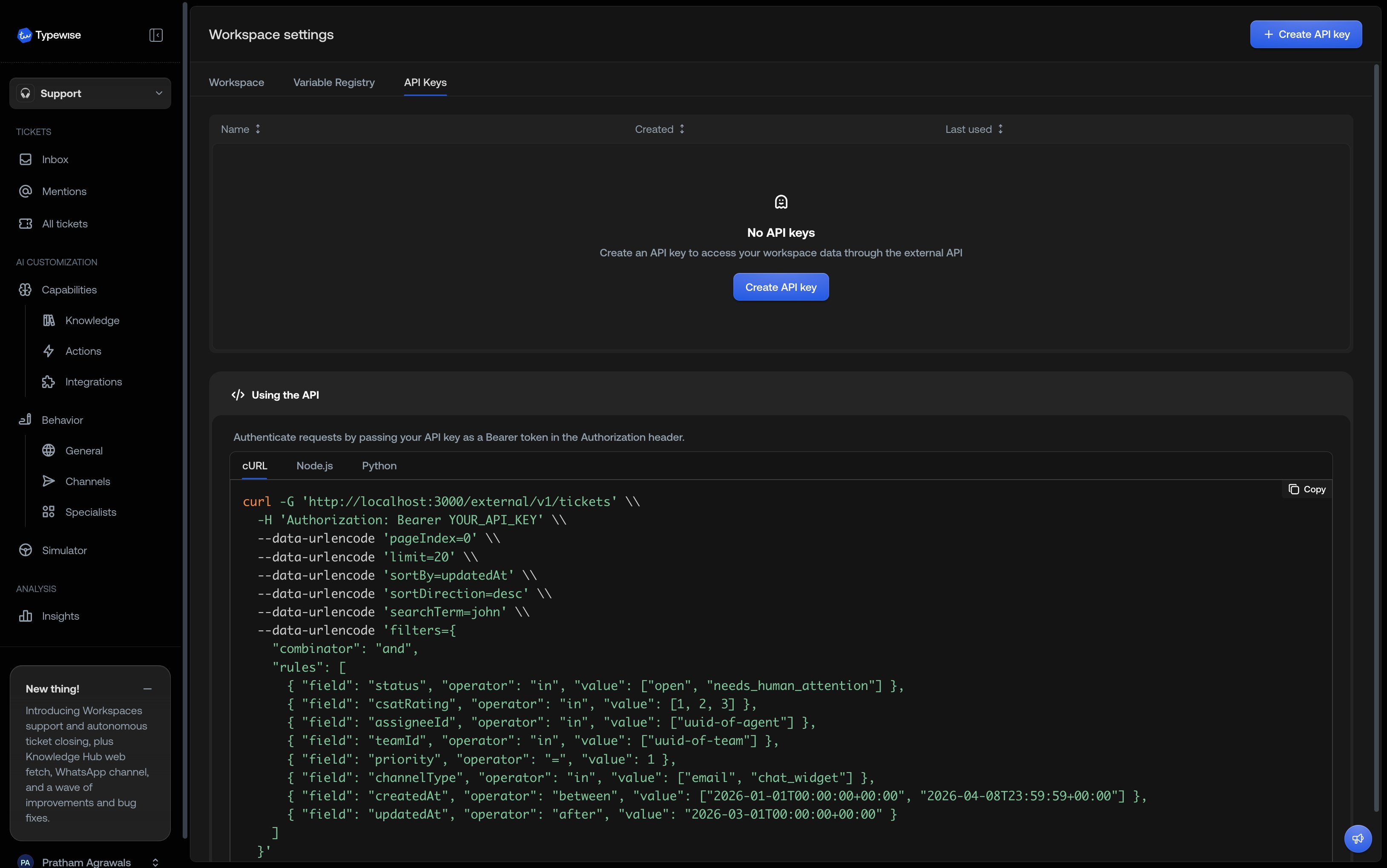
Go to **Workspace Settings** and select the **API Keys** tab.
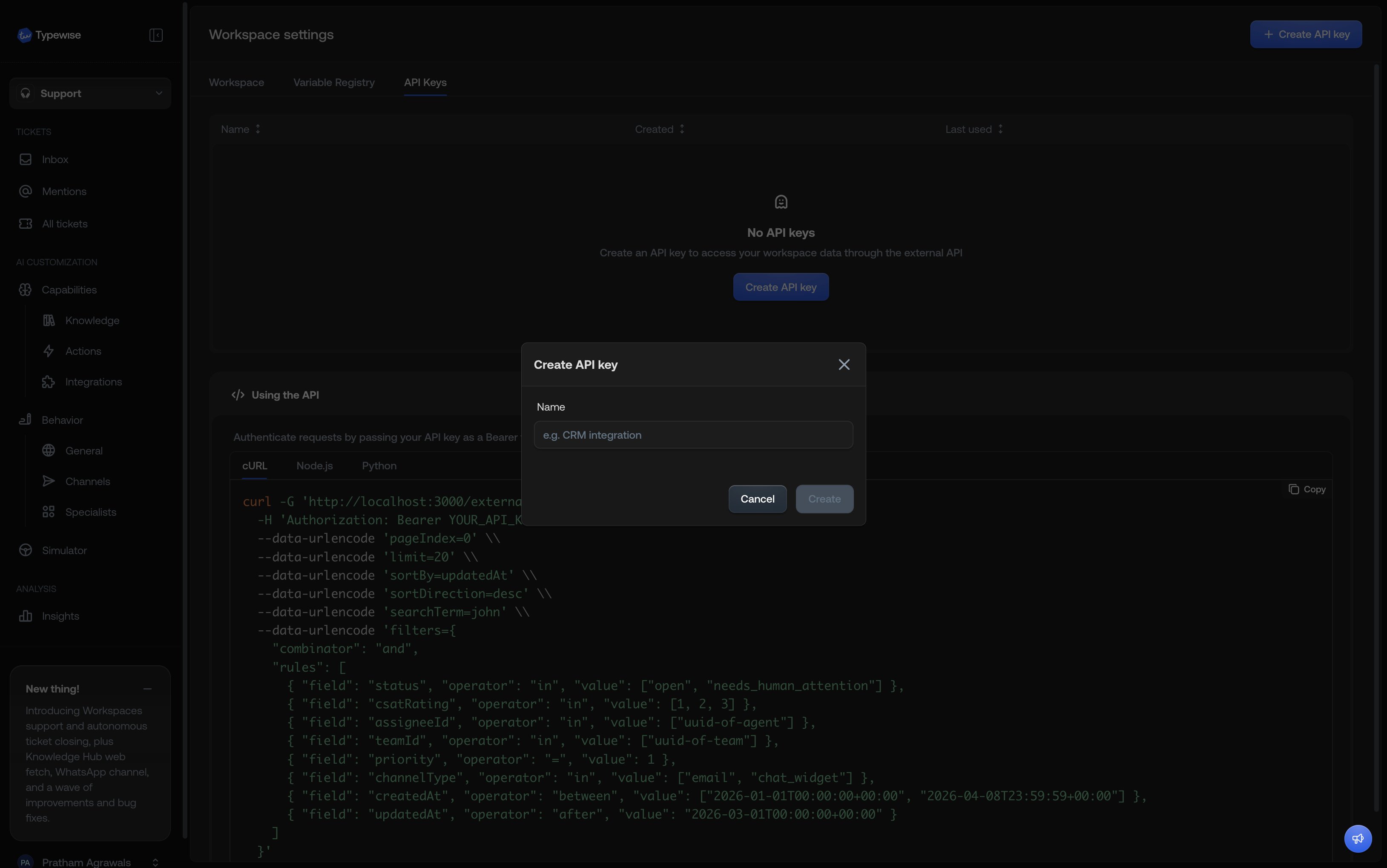
Click **Create API key** and enter a descriptive name (e.g. "Zapier
integration" or "Reporting pipeline").
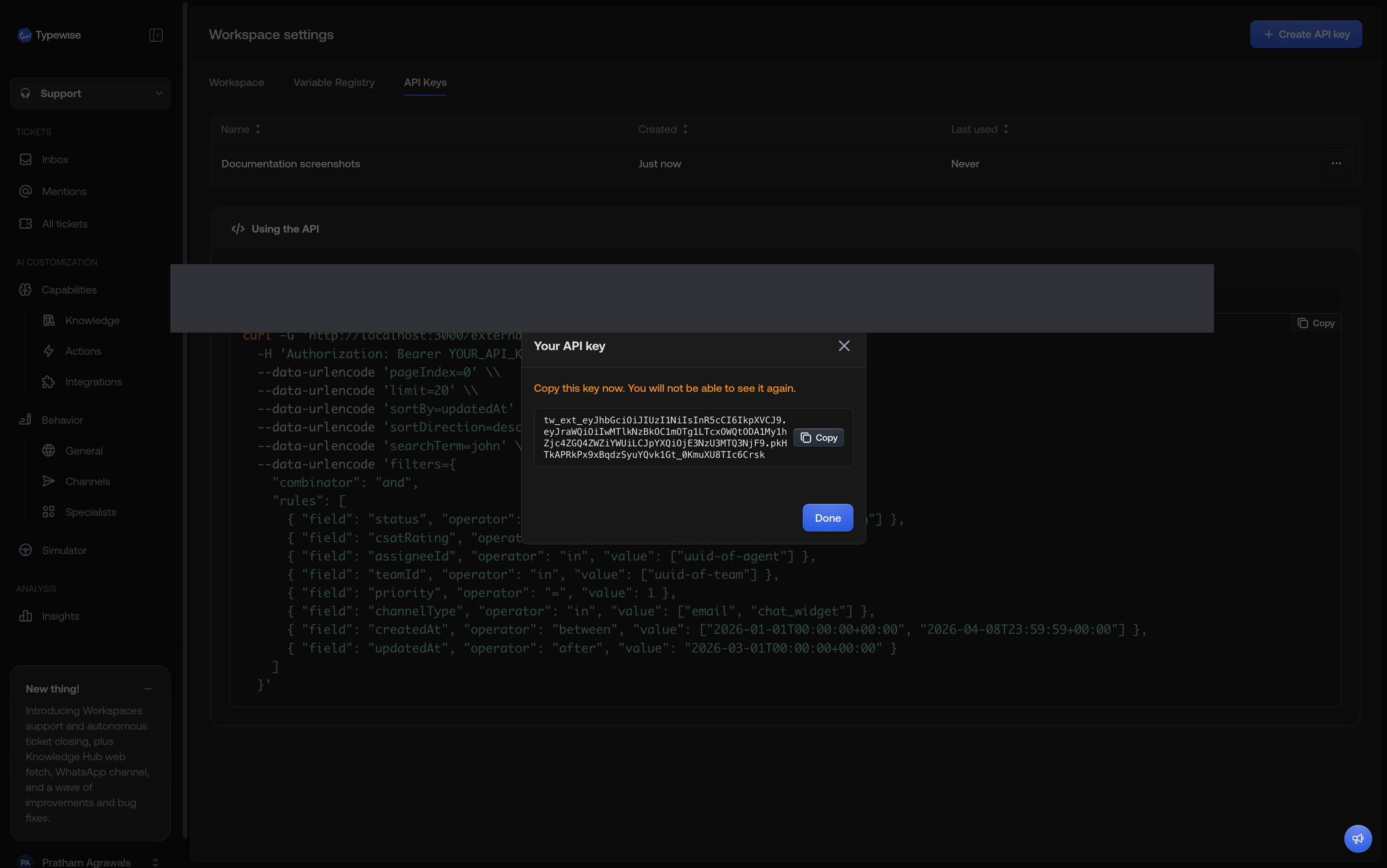
The full key is displayed **once**. Copy it immediately and store it in a
secure location. You won't be able to view it again.
 ***
## Rotate a key
Rotating replaces the current key with a new one.
The old key stops working immediately after rotation. Update your
integrations before rotating to avoid service disruption.
In the **API Keys** tab, locate the key you want to rotate.
Open the key's action menu and select **Rotate**. Confirm the action.
Copy the new key and update any integrations that use it.
***
## Rotate a key
Rotating replaces the current key with a new one.
The old key stops working immediately after rotation. Update your
integrations before rotating to avoid service disruption.
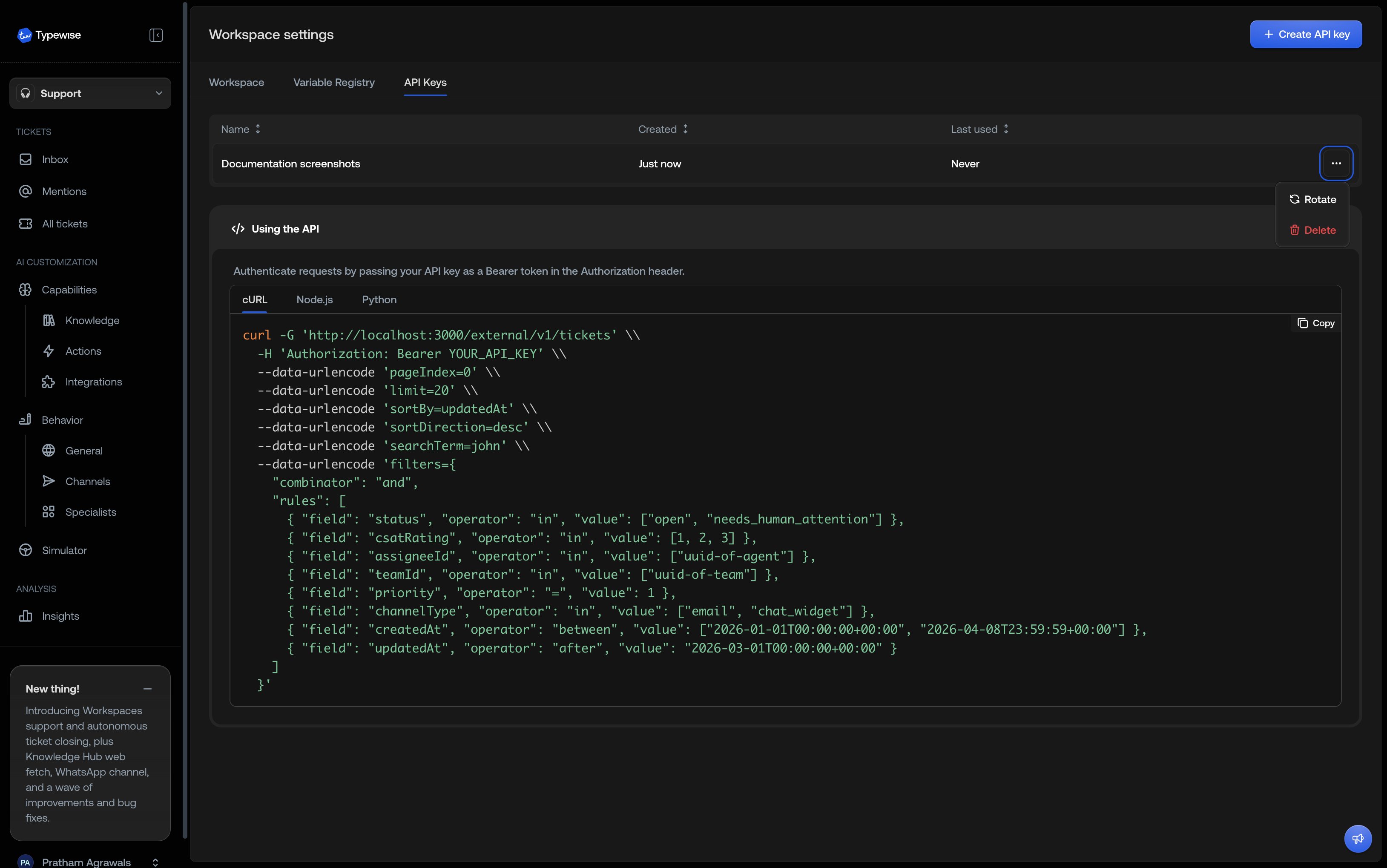
In the **API Keys** tab, locate the key you want to rotate.
Open the key's action menu and select **Rotate**. Confirm the action.
Copy the new key and update any integrations that use it.
 ***
## Delete a key
Deleting a key revokes it permanently. Any integration using the key will
receive `401 Unauthorized` responses.
In the **API Keys** tab, locate the key you want to delete.
Open the key's action menu and select **Delete**. Confirm the action.
***
## Permissions
Each key is created with the `tickets:read` permission, which grants read-only
access to the [Tickets API](/guides/integrations/tickets-api).
***
## See also
* [Tickets API](/guides/integrations/tickets-api): Query tickets
programmatically with filtering, sorting, and pagination
* [User Management](/documentation/settings/user-management): Manage user access
and roles
***
## Delete a key
Deleting a key revokes it permanently. Any integration using the key will
receive `401 Unauthorized` responses.
In the **API Keys** tab, locate the key you want to delete.
Open the key's action menu and select **Delete**. Confirm the action.
***
## Permissions
Each key is created with the `tickets:read` permission, which grants read-only
access to the [Tickets API](/guides/integrations/tickets-api).
***
## See also
* [Tickets API](/guides/integrations/tickets-api): Query tickets
programmatically with filtering, sorting, and pagination
* [User Management](/documentation/settings/user-management): Manage user access
and roles