> ## Documentation Index
> Fetch the complete documentation index at: https://docs.typewise.app/llms.txt
> Use this file to discover all available pages before exploring further.
# Context Variables
> Tell Typewise which customer data your app sends, and use it to fill action and lookup inputs
Context Variables tell Typewise which pieces of customer data from your app it can see and use. Examples: `user_email`, `order_id`, `account_id`.
Without declaring them here, the AI Agent doesn't see those values, and your actions can't enforce who a request is for.
Typewise forwards only what you declare on this page. If your app sends a variable that isn't on the list, Typewise filters it out: the value never reaches the ticket, the AI Agent, webhooks, or the API.
For the trust model, see [Security and verification](/documentation/actions/security).
***
## Declare a variable
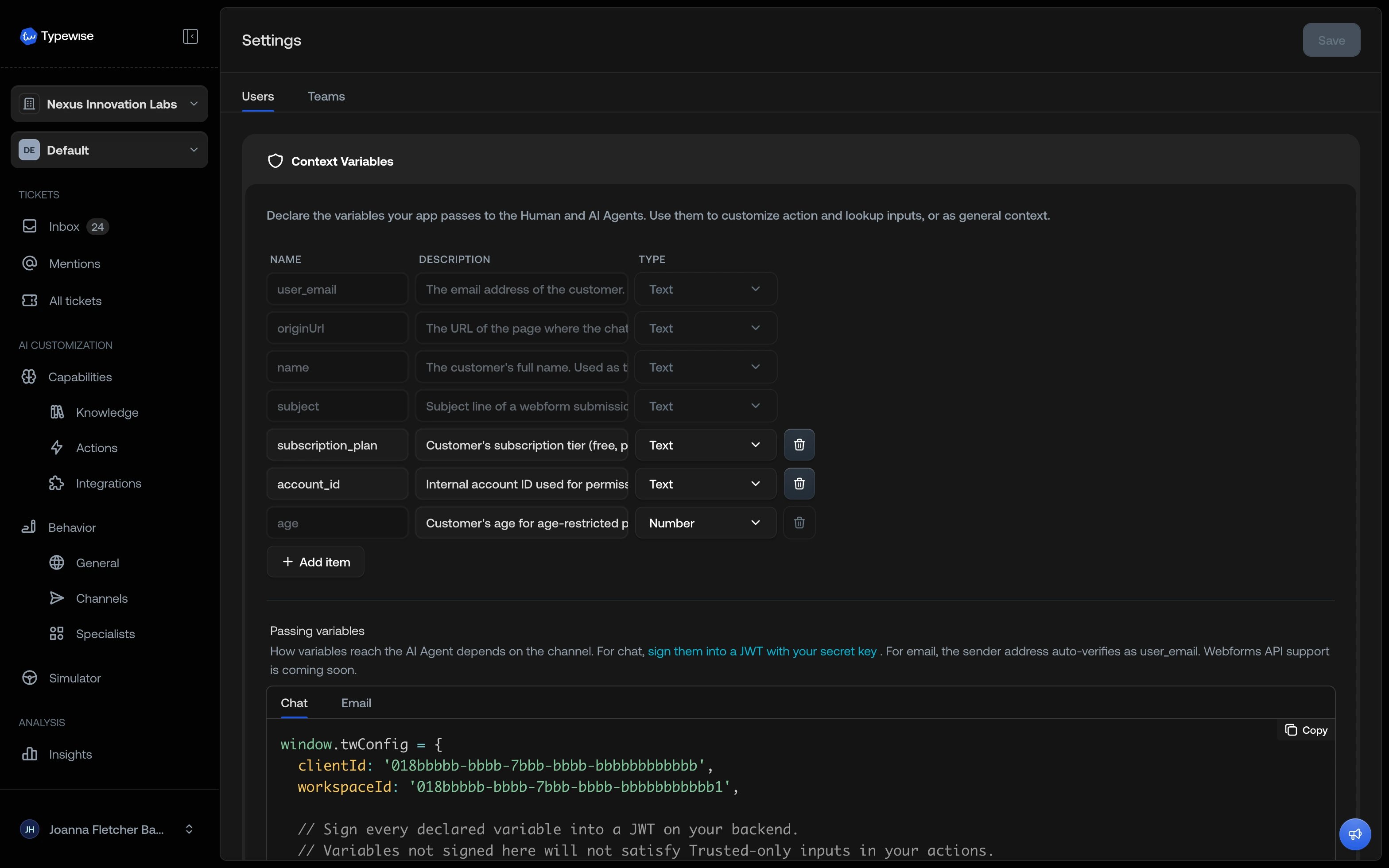
Go to **Settings > Workspace > *your workspace* > Context variables**. Each workspace declares its own set.
Click **Add item** and fill in the fields below.
Save the page. The variable becomes available when you customize inputs on actions and integration lookups.
| Field | Description |
| :-------------- | :----------------------------------------------------------------------------------------- |
| **Name** | Key used in the payload (for example, `user_email`, `vip_customer`). |
| **Description** | What this variable represents. The AI Agent reads this when deciding how to use the value. |
| **Type** | Text, Number, or Yes/No. Action and lookup inputs must match this type. |
 ## Built-in variables
Every workspace ships with variables Typewise pre-declares and populates automatically, such as the customer's email and name. You can't edit or delete them, and they coexist with your own declared variables. The workspace's **Context variables** page shows the current set alongside your custom ones.
## Where declared variables appear
After Typewise drops undeclared variables, every declared variable surfaces in four places:
| Surface | What appears |
| :------------------- | :--------------------------------------------------------------------------------------------------------- |
| **Ticket sidebar** | Admins see the variable name and value on each ticket. |
| **AI Agent context** | The AI Agent reads the variable name, value, and description when generating replies and choosing actions. |
| **Webhooks** | Outbound webhook payloads include declared variables. Undeclared values are stripped before send. |
| **API** | The ticket-detail endpoint returns the same declared set. |
The sidebar shows exactly what the AI Agent sees. If a variable does not appear in the sidebar, it has not been declared, and the AI Agent does not see it either.
***
## Use variables in actions and lookups
**Actions** are tasks the AI Agent performs in your connected systems (refund an order, update a CRM contact). **Lookups** read data from those systems. Both can take inputs that you fill from declared context variables.
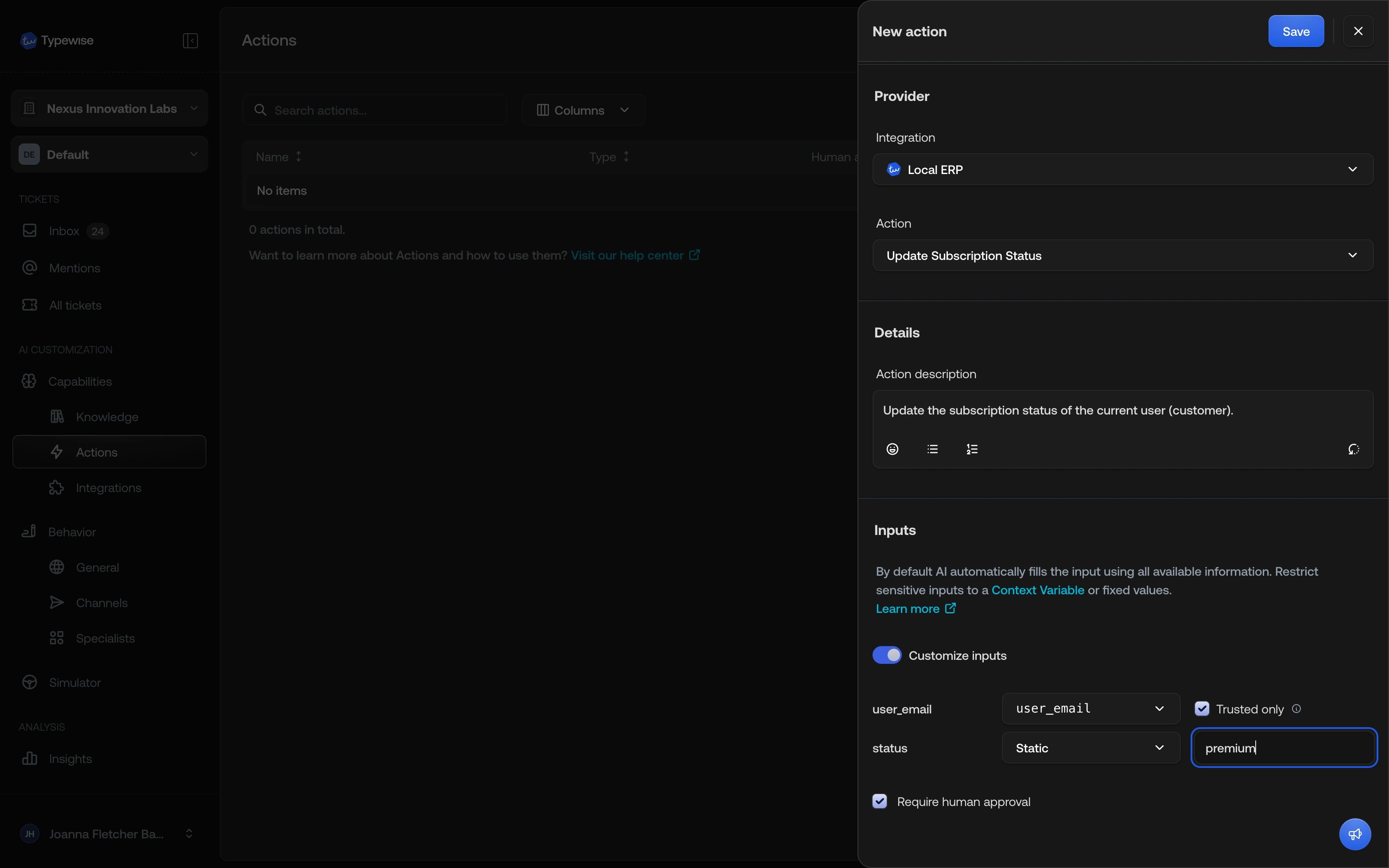
Open any integration action or integration lookup and turn on **Customize inputs**.
### Pick a source for each input
For every input the action or lookup accepts, the picker offers:
| Source | Behavior |
| :--------------------- | :------------------------------------------------------------------------------------------------------------------------------------- |
| **Auto** (default) | The AI Agent fills the input from the conversation. |
| **Static** | A fixed value you set. The AI Agent can't override it. |
| **A context variable** | The value of a declared variable, taken from this conversation. The picker lists every declared variable whose type matches the input. |
When you map an input to a variable, an optional **Trusted only** checkbox appears next to the picker.
### The Trusted-only check
**Trusted only** is a per-input check that runs at the moment Typewise is about to call the tool. With it on, the AI Agent runs the tool only when the mapped variable's value arrived through a verified path on the current conversation. When the value can't be trusted, the tool doesn't run: for `user_email` the AI Agent asks the customer to prove the address (a one-time code on chat, or a reply on email). For any other variable, the conversation hands off to a Human Agent.
Use **Trusted only** on every input that decides *who* the action runs for: `user_email`, `tenant_id`, `account_id`. Leaving it off lets the AI Agent run the tool with any value the variable has, including one that arrived unsigned over the chat widget.
| Trusted only | The tool runs when... |
| :---------------- | :---------------------------------------------------------------- |
| **Off** (default) | The variable has any value, verified or not. |
| **On** | The variable's value is verified. Otherwise the tool doesn't run. |
## Built-in variables
Every workspace ships with variables Typewise pre-declares and populates automatically, such as the customer's email and name. You can't edit or delete them, and they coexist with your own declared variables. The workspace's **Context variables** page shows the current set alongside your custom ones.
## Where declared variables appear
After Typewise drops undeclared variables, every declared variable surfaces in four places:
| Surface | What appears |
| :------------------- | :--------------------------------------------------------------------------------------------------------- |
| **Ticket sidebar** | Admins see the variable name and value on each ticket. |
| **AI Agent context** | The AI Agent reads the variable name, value, and description when generating replies and choosing actions. |
| **Webhooks** | Outbound webhook payloads include declared variables. Undeclared values are stripped before send. |
| **API** | The ticket-detail endpoint returns the same declared set. |
The sidebar shows exactly what the AI Agent sees. If a variable does not appear in the sidebar, it has not been declared, and the AI Agent does not see it either.
***
## Use variables in actions and lookups
**Actions** are tasks the AI Agent performs in your connected systems (refund an order, update a CRM contact). **Lookups** read data from those systems. Both can take inputs that you fill from declared context variables.
Open any integration action or integration lookup and turn on **Customize inputs**.
### Pick a source for each input
For every input the action or lookup accepts, the picker offers:
| Source | Behavior |
| :--------------------- | :------------------------------------------------------------------------------------------------------------------------------------- |
| **Auto** (default) | The AI Agent fills the input from the conversation. |
| **Static** | A fixed value you set. The AI Agent can't override it. |
| **A context variable** | The value of a declared variable, taken from this conversation. The picker lists every declared variable whose type matches the input. |
When you map an input to a variable, an optional **Trusted only** checkbox appears next to the picker.
### The Trusted-only check
**Trusted only** is a per-input check that runs at the moment Typewise is about to call the tool. With it on, the AI Agent runs the tool only when the mapped variable's value arrived through a verified path on the current conversation. When the value can't be trusted, the tool doesn't run: for `user_email` the AI Agent asks the customer to prove the address (a one-time code on chat, or a reply on email). For any other variable, the conversation hands off to a Human Agent.
Use **Trusted only** on every input that decides *who* the action runs for: `user_email`, `tenant_id`, `account_id`. Leaving it off lets the AI Agent run the tool with any value the variable has, including one that arrived unsigned over the chat widget.
| Trusted only | The tool runs when... |
| :---------------- | :---------------------------------------------------------------- |
| **Off** (default) | The variable has any value, verified or not. |
| **On** | The variable's value is verified. Otherwise the tool doesn't run. |
 Manual actions and manual lookups don't expose Customize inputs. Their inputs are filled by the AI Agent from the conversation.
### How a value becomes verified
A value is *verified* on a given conversation only when it arrived through a trusted path. The path depends on the channel.
#### Chat widget
On chat, a value your app sends counts as verified only when your backend signs it. Unsigned values from the browser (locale, theme) stay untrusted, so any input mapped to them fails the **Trusted only** check. Sign every variable you use as a Trusted-only input on a chat action or lookup. For the signing secret, the code, and where the token goes, see [Chat identity verification](/guides/channels/chat-identity-verification).
`user_email` has a second path: the customer verifies it in the chat itself with a one-time code. The code prompt appears when a **Trusted only** check fails or when the AI Agent runs the [Verify email address](/documentation/actions/system-actions#verify-email-address) system action, and it replaces the message box until the customer verifies.
#### Email
For email, only the sender's address can be verified, and only after they reply to a Typewise message. Email headers like `From:` can be spoofed, so Typewise doesn't trust them on their own. A reply proves the sender controls the inbox.
1. A sender becomes verified the first time they reply to a Typewise message on this conversation.
2. If a **Trusted only** input mapped to `user_email` runs before the sender is verified, the AI Agent asks the customer to reply.
3. On the next inbound message, Typewise marks the sender verified and the action proceeds.
#### WhatsApp
On WhatsApp, **Trusted only** inputs always hand the conversation to a Human Agent: there is no verification flow on this channel.
### When a Trusted-only input is not satisfied
| Situation | Behavior |
| :--------------------------------------------------------------------------- | :------------------------------------------------------------------------------------------------------------------------------------------------ |
| `user_email` mapped Trusted only, email sender not yet verified | AI Agent asks the customer to reply, then verifies on receipt. |
| `user_email` mapped Trusted only, chat session without verified `user_email` | AI Agent asks the customer to confirm via a one-time code ([what the customer sees](/documentation/actions/system-actions#verify-email-address)). |
| Any Trusted-only input on WhatsApp | Conversation hands off to a Human Agent. |
| Any other variable mapped Trusted only, value missing or unverified | Conversation hands off to a Human Agent. |
## Checklist
1. Declare every variable your app sends, including identity and authorization variables. Typewise drops anything you don't declare.
2. On every integration action and integration lookup that depends on identity, enable **Customize inputs**, map the identity inputs to context variables, and turn on **Trusted only**.
3. On chat, sign identity variables so they arrive trusted (see [Chat identity verification](/guides/channels/chat-identity-verification)). On email, the sender's address becomes verified after their first reply.
4. Declaring a variable doesn't enforce trust. The Trusted-only check on the input applies it at runtime.
## See also
* [Security and verification](/documentation/actions/security): the trust model behind input customization
* [Verify email address](/documentation/actions/system-actions#verify-email-address): trigger email verification from instructions, without a gated input
* [AI actions](/documentation/actions/ai-actions): configure actions
* [Lookups](/documentation/knowledge/integrations/lookups): configure integration lookups
* [Knowledge](/documentation/knowledge/overview): add knowledge sources
Manual actions and manual lookups don't expose Customize inputs. Their inputs are filled by the AI Agent from the conversation.
### How a value becomes verified
A value is *verified* on a given conversation only when it arrived through a trusted path. The path depends on the channel.
#### Chat widget
On chat, a value your app sends counts as verified only when your backend signs it. Unsigned values from the browser (locale, theme) stay untrusted, so any input mapped to them fails the **Trusted only** check. Sign every variable you use as a Trusted-only input on a chat action or lookup. For the signing secret, the code, and where the token goes, see [Chat identity verification](/guides/channels/chat-identity-verification).
`user_email` has a second path: the customer verifies it in the chat itself with a one-time code. The code prompt appears when a **Trusted only** check fails or when the AI Agent runs the [Verify email address](/documentation/actions/system-actions#verify-email-address) system action, and it replaces the message box until the customer verifies.
#### Email
For email, only the sender's address can be verified, and only after they reply to a Typewise message. Email headers like `From:` can be spoofed, so Typewise doesn't trust them on their own. A reply proves the sender controls the inbox.
1. A sender becomes verified the first time they reply to a Typewise message on this conversation.
2. If a **Trusted only** input mapped to `user_email` runs before the sender is verified, the AI Agent asks the customer to reply.
3. On the next inbound message, Typewise marks the sender verified and the action proceeds.
#### WhatsApp
On WhatsApp, **Trusted only** inputs always hand the conversation to a Human Agent: there is no verification flow on this channel.
### When a Trusted-only input is not satisfied
| Situation | Behavior |
| :--------------------------------------------------------------------------- | :------------------------------------------------------------------------------------------------------------------------------------------------ |
| `user_email` mapped Trusted only, email sender not yet verified | AI Agent asks the customer to reply, then verifies on receipt. |
| `user_email` mapped Trusted only, chat session without verified `user_email` | AI Agent asks the customer to confirm via a one-time code ([what the customer sees](/documentation/actions/system-actions#verify-email-address)). |
| Any Trusted-only input on WhatsApp | Conversation hands off to a Human Agent. |
| Any other variable mapped Trusted only, value missing or unverified | Conversation hands off to a Human Agent. |
## Checklist
1. Declare every variable your app sends, including identity and authorization variables. Typewise drops anything you don't declare.
2. On every integration action and integration lookup that depends on identity, enable **Customize inputs**, map the identity inputs to context variables, and turn on **Trusted only**.
3. On chat, sign identity variables so they arrive trusted (see [Chat identity verification](/guides/channels/chat-identity-verification)). On email, the sender's address becomes verified after their first reply.
4. Declaring a variable doesn't enforce trust. The Trusted-only check on the input applies it at runtime.
## See also
* [Security and verification](/documentation/actions/security): the trust model behind input customization
* [Verify email address](/documentation/actions/system-actions#verify-email-address): trigger email verification from instructions, without a gated input
* [AI actions](/documentation/actions/ai-actions): configure actions
* [Lookups](/documentation/knowledge/integrations/lookups): configure integration lookups
* [Knowledge](/documentation/knowledge/overview): add knowledge sources