> ## Documentation Index
> Fetch the complete documentation index at: https://docs.typewise.app/llms.txt
> Use this file to discover all available pages before exploring further.
# Notifications
> Stay informed about new tickets, messages, and mentions in real time
Notifications alert you when something needs your attention: new tickets,
customer messages, assignment changes, or colleague mentions. They work across
browser popups, sound alerts, and visual indicators so you never miss an urgent
conversation.
***
## Notification categories
Typewise sends notifications for the following events:
| Category | Trigger |
| :----------------------------------------- | :------------------------------------------------------------------------------ |
| **New unassigned tickets** | A ticket requires a Human Agent and has no assignee |
| **New messages in assigned conversations** | A customer sends a message in a conversation assigned to you |
| **New assigned ticket** | A ticket is assigned to you |
| **Mentioned in notes** | A colleague mentions you in an internal [note](/documentation/tickets/mentions) |
Each category can be toggled on or off independently.
***
## How notifications are delivered
Notifications reach you through three channels, depending on whether the
Typewise tab is active or in the background.
### Browser notifications
When the tab is in the background, you receive native OS notifications. Click a
notification to bring Typewise into focus and navigate to your
[Inbox](/documentation/tickets/inbox).
### Sound alerts
A sound plays each time a notification arrives. The sound varies by context:
* **Subtle tone** when the Typewise tab is visible
* **Stronger tone** when the tab is in the background
### Visual indicators
* **Tab-title badge**: the browser tab shows an unread count, e.g. "(3)
Typewise"
* **Inbox dot**: a red dot appears on the Inbox sidebar item
* **Unread tickets**: tickets with new activity are highlighted in the inbox
list
The inbox dot clears when you open the Inbox. Per-ticket highlights clear when
you select the ticket.
Notifications that arrive within a short window are grouped together to reduce
noise. Instead of multiple popups, you'll see a single aggregated
notification.
***
## Configure notification preferences
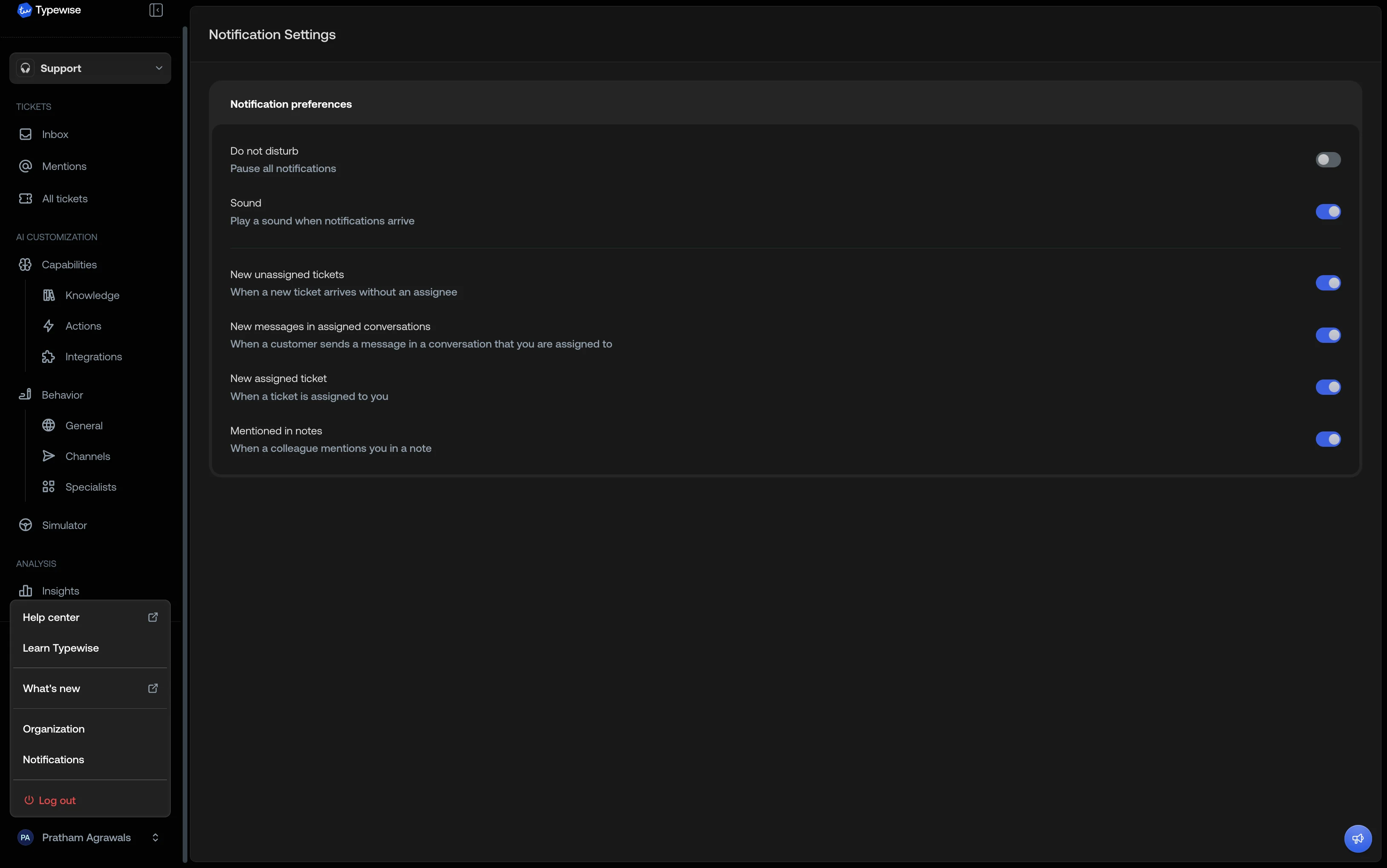
Click your avatar in the bottom-left corner of the sidebar to open the user
menu, then select **Notifications**.
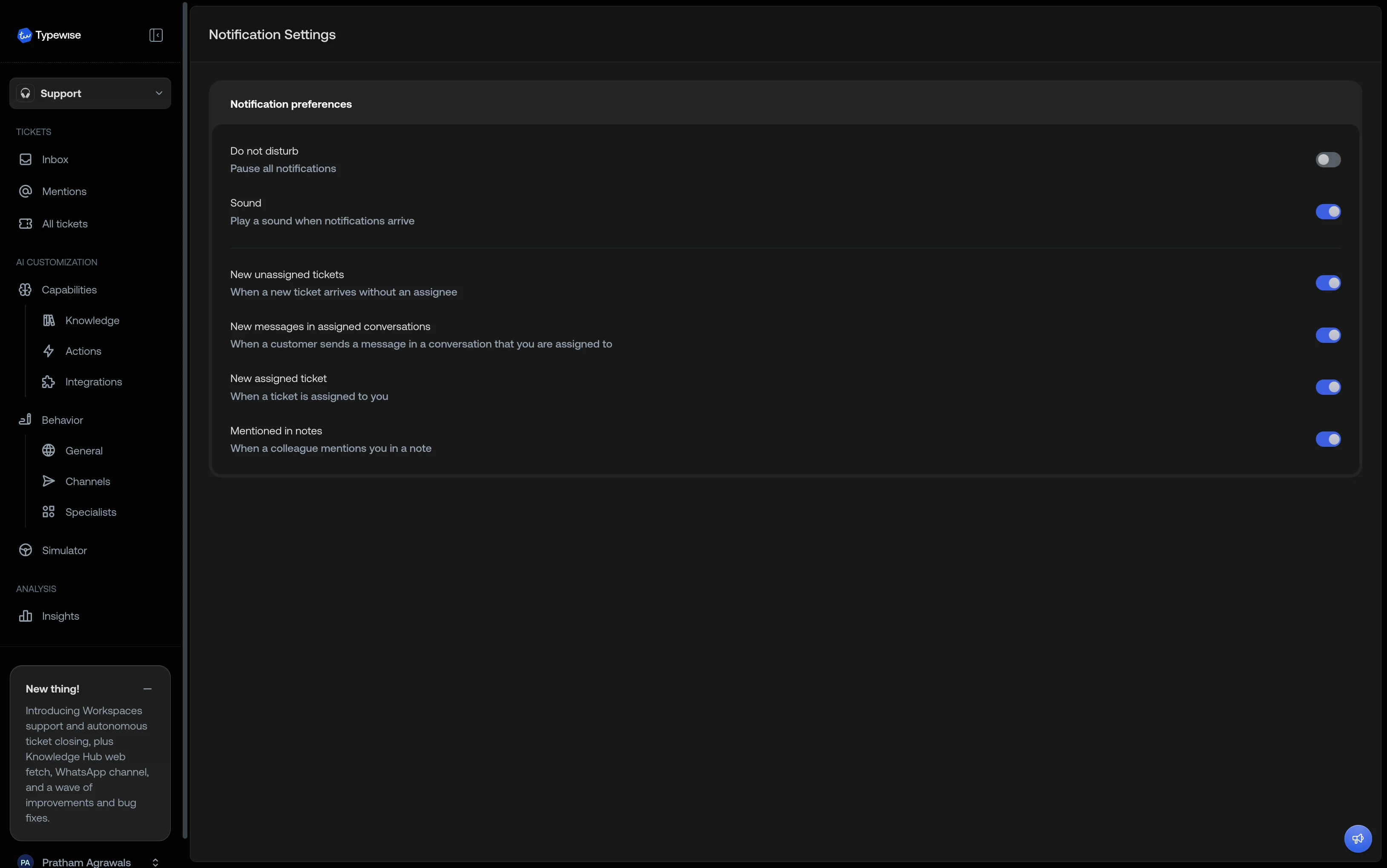
Enable **Do not disturb** to pause all notifications. While active, no
sounds, browser popups, or visual indicators are triggered. Disable it to
resume.
Use the **Sound** toggle to control whether a sound plays when notifications
arrive. This toggle is disabled while Do Not Disturb is active.
Toggle each notification category on or off based on your workflow.
Categories are disabled while Do Not Disturb is active.
 Notification preferences are saved per user and sync across sessions. Changes
take effect immediately.
***
## Enable browser notifications
The first time you visit the Notification Settings page, a banner appears if
browser notifications aren't enabled yet.
* **Permission not yet requested**: click **Enable** on the banner to allow
notifications. Your browser shows a permission prompt.
* **Permission denied**: the banner explains that notifications are blocked.
Open your browser's site settings for `platform.typewise.app` and change
notifications to **Allow**, then reload the page.
Browser notifications only fire when the Typewise tab is in the background. If
the tab is active, you'll still hear sounds and see visual indicators.
***
## Troubleshooting
Check the following in order:
1. Open **Notification Settings** and confirm **Do not disturb** is off
2. Verify the relevant category is toggled on
3. Ensure browser notifications are allowed (see "Enable browser
notifications" above)
4. Check that your browser or OS isn't suppressing notifications (e.g.,
Focus mode on macOS, Quiet hours on Windows)
Sound alerts don't require browser permission, but popups do. Open your
browser settings for `platform.typewise.app` and set notifications to
**Allow**. Reload the page after changing the setting.
The dot clears when you visit the Inbox. Navigate to **Inbox** and the dot
resets. Individual ticket highlights clear when you select that ticket.
***
## See also
* [Inbox](/documentation/tickets/inbox): Understanding the Inbox and its
sections
* [Mentions](/documentation/tickets/mentions): Mention colleagues in internal
notes
* [User Management](/documentation/settings/user-management): Manage user
access and roles
Notification preferences are saved per user and sync across sessions. Changes
take effect immediately.
***
## Enable browser notifications
The first time you visit the Notification Settings page, a banner appears if
browser notifications aren't enabled yet.
* **Permission not yet requested**: click **Enable** on the banner to allow
notifications. Your browser shows a permission prompt.
* **Permission denied**: the banner explains that notifications are blocked.
Open your browser's site settings for `platform.typewise.app` and change
notifications to **Allow**, then reload the page.
Browser notifications only fire when the Typewise tab is in the background. If
the tab is active, you'll still hear sounds and see visual indicators.
***
## Troubleshooting
Check the following in order:
1. Open **Notification Settings** and confirm **Do not disturb** is off
2. Verify the relevant category is toggled on
3. Ensure browser notifications are allowed (see "Enable browser
notifications" above)
4. Check that your browser or OS isn't suppressing notifications (e.g.,
Focus mode on macOS, Quiet hours on Windows)
Sound alerts don't require browser permission, but popups do. Open your
browser settings for `platform.typewise.app` and set notifications to
**Allow**. Reload the page after changing the setting.
The dot clears when you visit the Inbox. Navigate to **Inbox** and the dot
resets. Individual ticket highlights clear when you select that ticket.
***
## See also
* [Inbox](/documentation/tickets/inbox): Understanding the Inbox and its
sections
* [Mentions](/documentation/tickets/mentions): Mention colleagues in internal
notes
* [User Management](/documentation/settings/user-management): Manage user
access and roles