> ## Documentation Index
> Fetch the complete documentation index at: https://docs.typewise.app/llms.txt
> Use this file to discover all available pages before exploring further.
# Team Management
> Organize users into teams for better collaboration and routing
Teams help organize users into groups, so that tickets are routed efficiently
and responsibilities are clear.
***
## Instructions
Go to [Team Management](https://platform.typewise.app/settings/teams) and
click **Create Team**.
In the Name field, enter a clear and descriptive team name.
Add a short Description to explain the team's purpose or scope.
In Team members, select the users you want to add to this team.
Click **Create Team**.
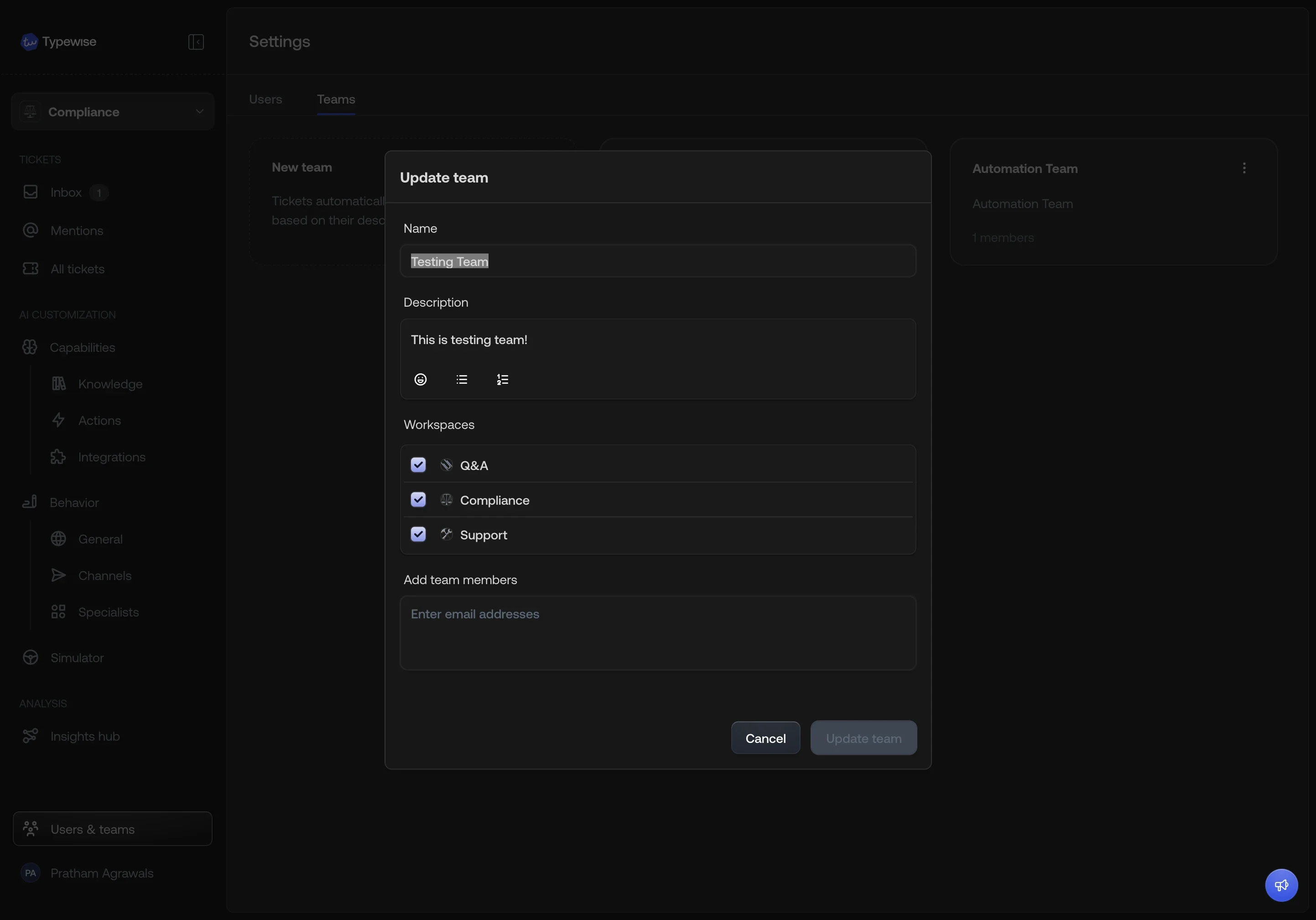
## Workspace assignment
When your account has more than one
[workspace](/documentation/workspaces/overview), a **Workspaces** checklist
appears in the create and edit team dialogs. Each workspace is shown with its
avatar and name.
* By default, a new team is assigned to **all workspaces**.
* Uncheck workspaces to restrict the team to specific ones.
* When a ticket needs to be routed to a team (e.g., during human agent
escalation), only teams linked to that ticket's workspace are considered. This
ensures workspace isolation in routing.
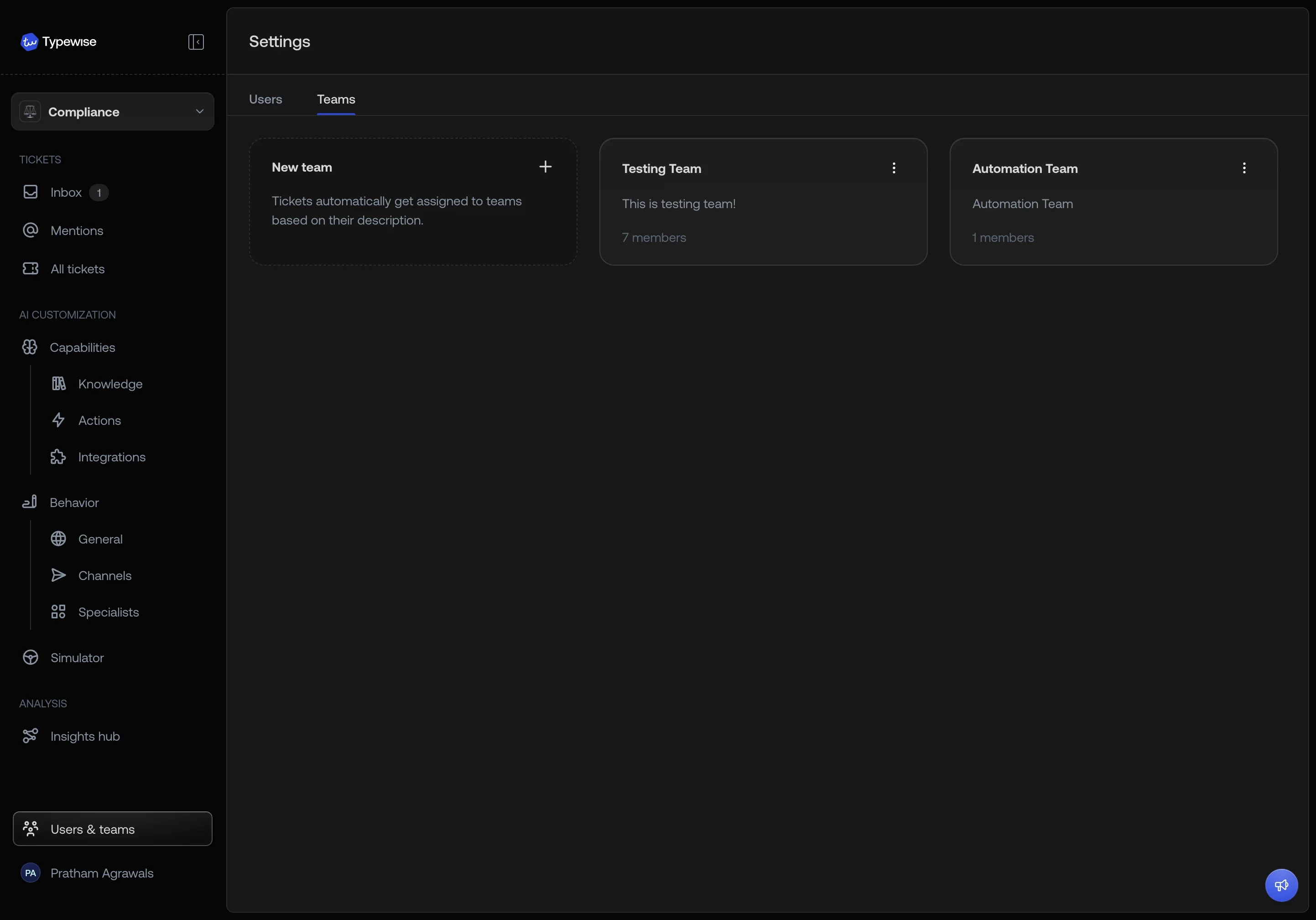
Team cards display the workspace avatars for the workspaces they belong to.
 ## Tips
* You can edit a team anytime to add or remove members.
* Combine **Teams** with **Mentions** for quick internal collaboration.
## Tips
* You can edit a team anytime to add or remove members.
* Combine **Teams** with **Mentions** for quick internal collaboration.
 ## See also
* [User Management](/documentation/settings/user-management): Manage user access
and roles
* [Company configuration](/documentation/behavior/company): Set global
guidelines
## See also
* [User Management](/documentation/settings/user-management): Manage user access
and roles
* [Company configuration](/documentation/behavior/company): Set global
guidelines