> ## Documentation Index
> Fetch the complete documentation index at: https://docs.typewise.app/llms.txt
> Use this file to discover all available pages before exploring further.
# Automated Tests
> Create test scenarios with assertions to validate your AI Agent's behavior automatically
Automated Tests let you define repeatable test scenarios that validate your AI
Agent's behavior. Unlike the
[Playground](/documentation/testing-and-feedback/simulator), which is
designed for ad-hoc manual conversations, Tests run automatically and evaluate
results against assertions you define.
Use Tests to catch regressions, verify Specialist routing, and ensure your AI
Agent handles key scenarios correctly, before and after publishing changes.
 ## Test list
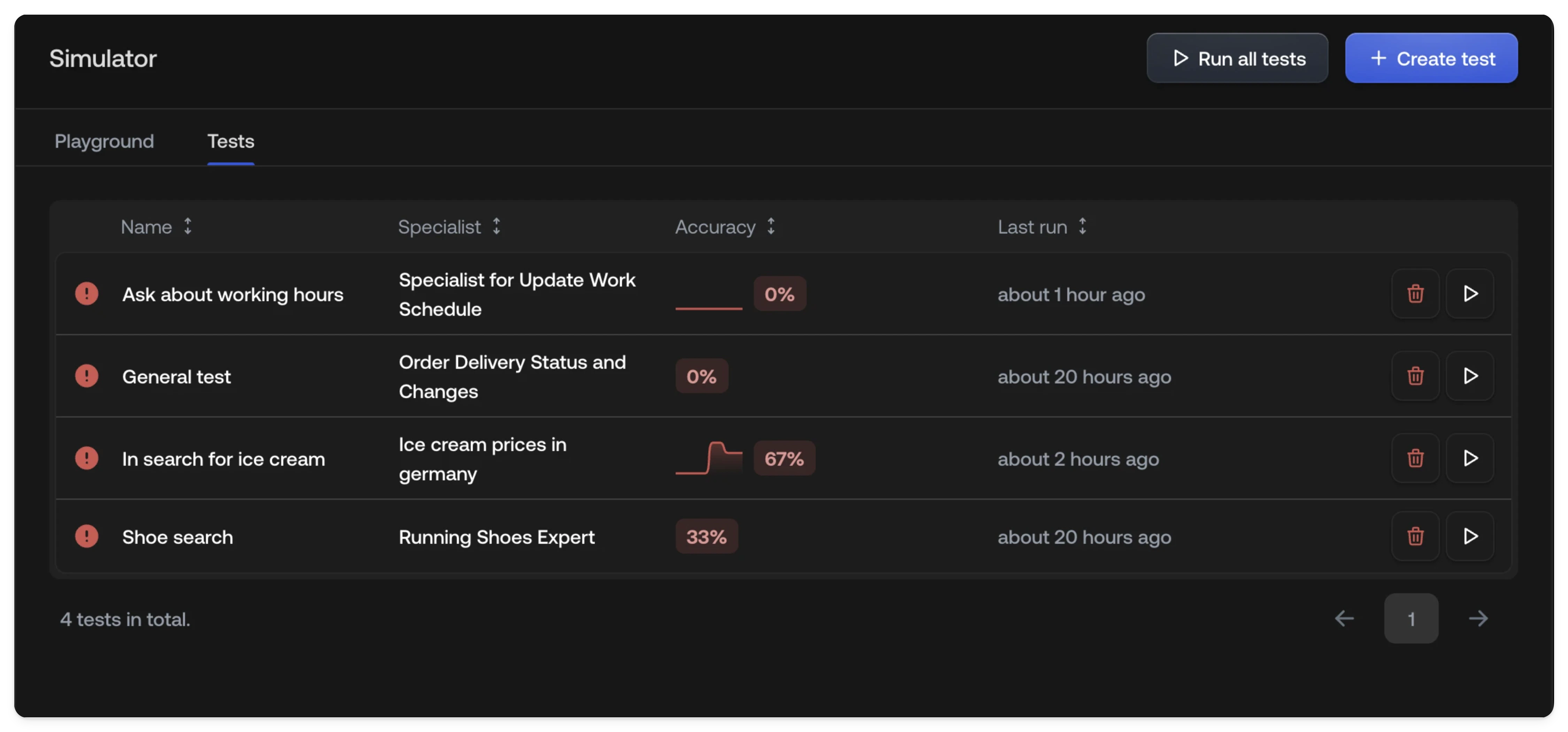
The test list table gives you an at-a-glance overview of every test and its recent performance.
| Column | Description |
| :----------- | :--------------------------------------------------------------------------------------------------------------- |
| **Name** | The label you gave the test when creating it. |
| **Channels** | Which channels (Chat, Email, or both) the test runs on. |
| **Accuracy** | The pass rate from the **most recent run only**: not a cumulative average across all runs. |
| **History** | A sparkline chart showing accuracy over the **last 10 runs**, so you can spot trends or regressions at a glance. |
## Creating a test
Navigate to the [Simulator](https://platform.typewise.app/simulator) and
select the **Tests** tab.
Click **+ Create test** to open the test configuration form.
Enter a name and description for the test scenario. The description tells
the simulated customer what to say and how to behave.
Choose which channels (Chat, Email, or both) the test should run on. Each
channel produces a separate conversation per run.
Define what the AI Agent should do during the conversation, which
Specialist it should use, which tools it should call, the expected outcome,
and whether it should trigger a handoff.
Click **Save** to add the test to your test list.
## Test configuration
### Scenario
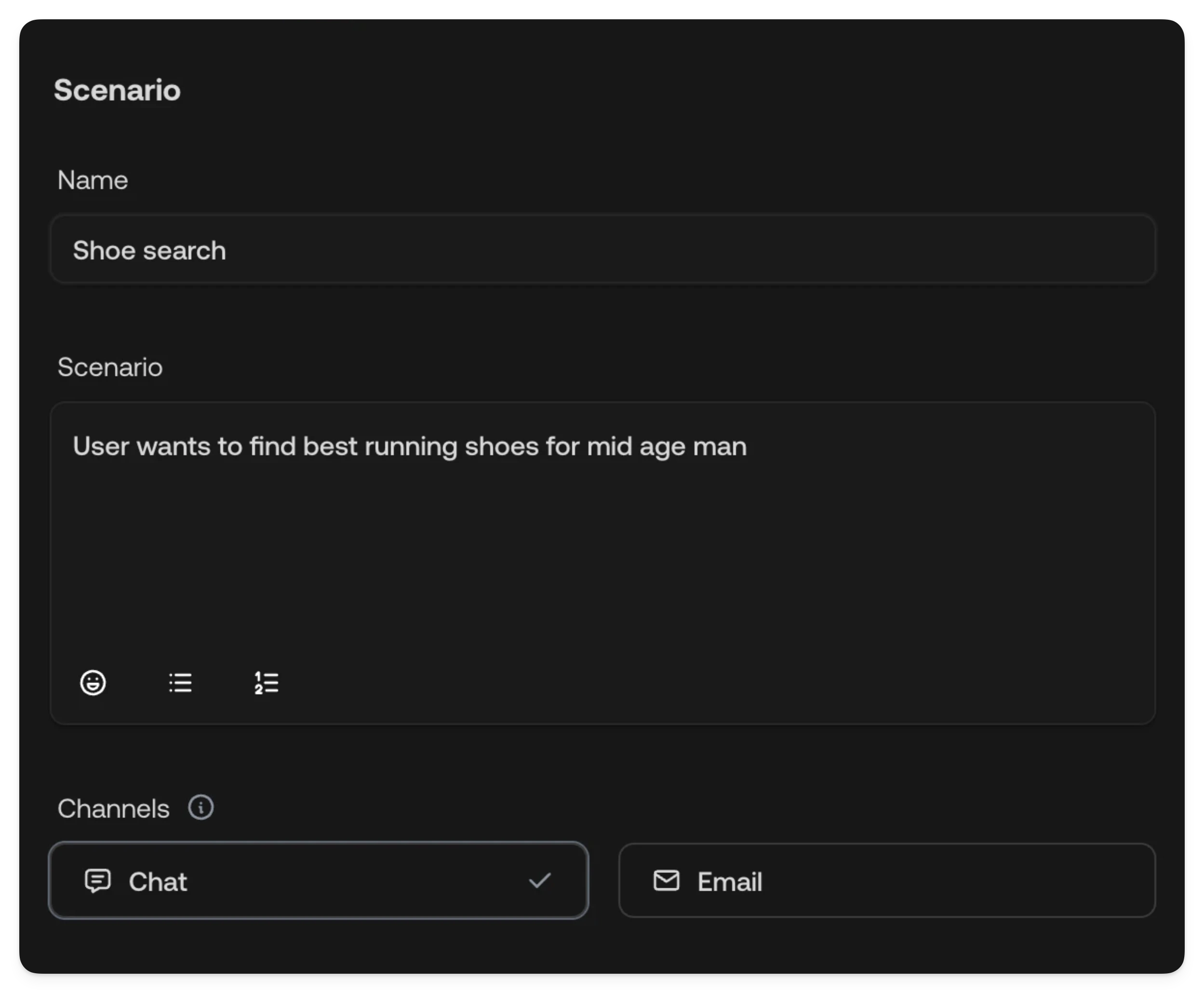
The scenario defines what the simulated customer will say to your AI Agent.
| Field | Description |
| :-------------- | :---------------------------------------------------------------------------------------------------------- |
| **Name** | A short label for the test, shown in the test list. |
| **Description** | A detailed prompt describing the customer's situation, intent, and how they should interact with the agent. |
Write descriptions as if you're briefing a role-player. Include the customer's
problem, tone, any specific details (e.g., order numbers, account info) they
would mention, and when they should consider the conversation complete. Clear
completion criteria help produce repeatable results.
**Example:** *"John ([john@gmail.com](mailto:john@gmail.com)) wants a refund for the shoes he ordered
last week because they don't fit. He's only happy once the refund is
confirmed."*
## Test list
The test list table gives you an at-a-glance overview of every test and its recent performance.
| Column | Description |
| :----------- | :--------------------------------------------------------------------------------------------------------------- |
| **Name** | The label you gave the test when creating it. |
| **Channels** | Which channels (Chat, Email, or both) the test runs on. |
| **Accuracy** | The pass rate from the **most recent run only**: not a cumulative average across all runs. |
| **History** | A sparkline chart showing accuracy over the **last 10 runs**, so you can spot trends or regressions at a glance. |
## Creating a test
Navigate to the [Simulator](https://platform.typewise.app/simulator) and
select the **Tests** tab.
Click **+ Create test** to open the test configuration form.
Enter a name and description for the test scenario. The description tells
the simulated customer what to say and how to behave.
Choose which channels (Chat, Email, or both) the test should run on. Each
channel produces a separate conversation per run.
Define what the AI Agent should do during the conversation, which
Specialist it should use, which tools it should call, the expected outcome,
and whether it should trigger a handoff.
Click **Save** to add the test to your test list.
## Test configuration
### Scenario
The scenario defines what the simulated customer will say to your AI Agent.
| Field | Description |
| :-------------- | :---------------------------------------------------------------------------------------------------------- |
| **Name** | A short label for the test, shown in the test list. |
| **Description** | A detailed prompt describing the customer's situation, intent, and how they should interact with the agent. |
Write descriptions as if you're briefing a role-player. Include the customer's
problem, tone, any specific details (e.g., order numbers, account info) they
would mention, and when they should consider the conversation complete. Clear
completion criteria help produce repeatable results.
**Example:** *"John ([john@gmail.com](mailto:john@gmail.com)) wants a refund for the shoes he ordered
last week because they don't fit. He's only happy once the refund is
confirmed."*
 ### Assertions
Assertions define what you expect the AI Agent to do during the test. Each
assertion is evaluated after the conversation completes.
### Assertions
Assertions define what you expect the AI Agent to do during the test. Each
assertion is evaluated after the conversation completes.
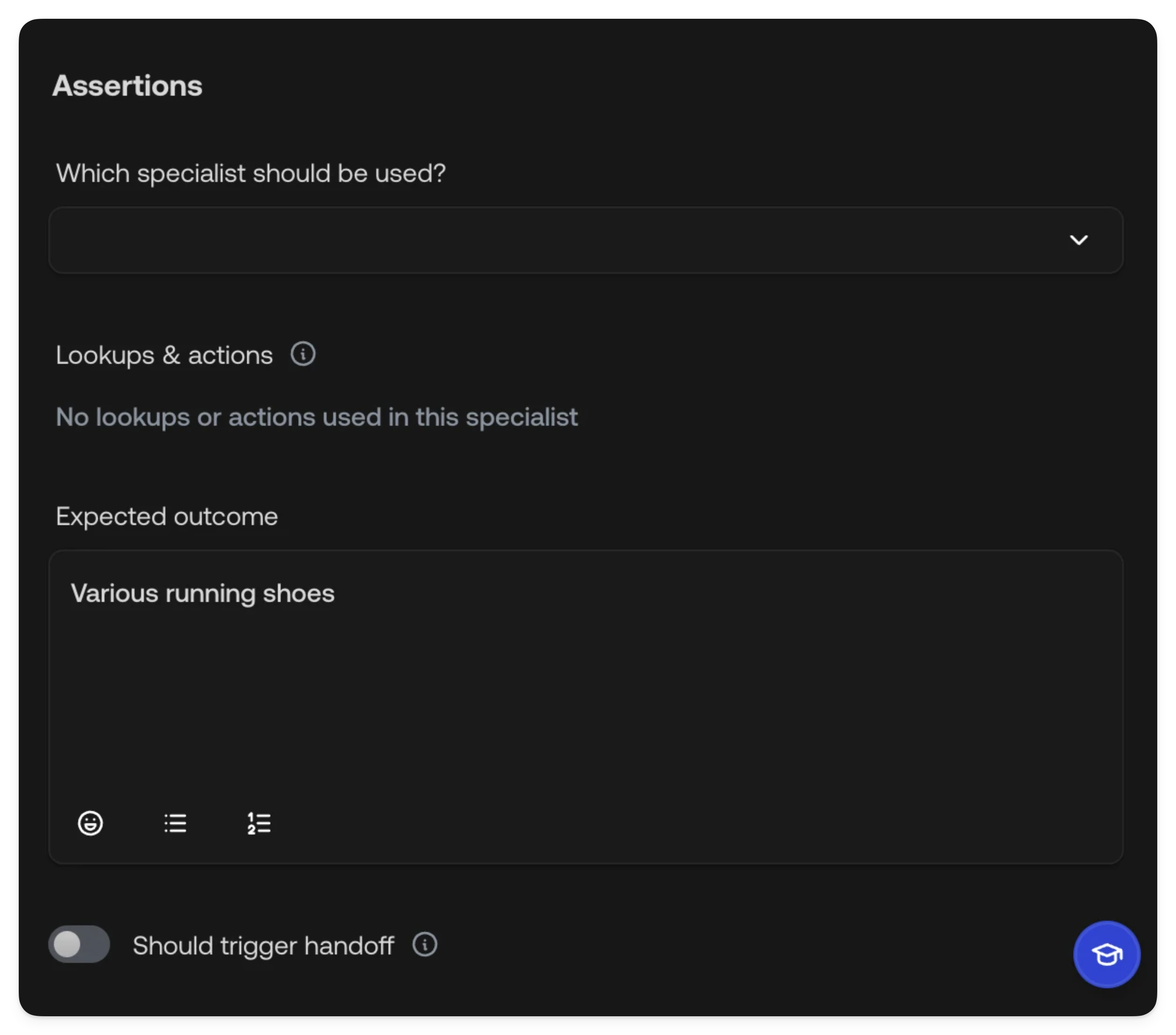 | Assertion | Description |
| :---------------------------------- | :----------------------------------------------------------------------------------------------------------------------------------------------------------------------------------------------------------------------------------------------------------------------- |
| **Which specialist should be used** | Select the Specialist you expect the Supervisor to route this conversation to. Leave empty to skip this check. |
| **Lookups & actions** | For each tool, set an **Assertion** (*Optional*, *Should always be called*, or *Should never be called*) and an optional **Response** to control the mocked return value. See [Tool mocking](#tool-mocking) below. |
| **Expected outcome** | A free-text description of what the AI Agent should accomplish. This is evaluated by AI. |
| **Should trigger handoff** | Toggle whether the conversation should result in a [handoff](/documentation/tickets/conversation-view/ticket-conversation#ai-handoff-requests) to a Human Agent. This includes both partial handoffs (e.g., action approval, information needed) and complete takeovers. |
The available lookups and actions in the assertion dropdown depend on which
Specialist is selected. Choose the expected Specialist first, then configure
the tool assertions.
### Tool mocking
During test runs, tool calls are mocked so your tests don't affect real systems. The mocking behavior depends on the tool type:
| Tool type | Mocking behavior |
| :----------------------------------------------------- | :--------------------------------------------------------------------------------------------- |
| **Actions** (including manual actions) | Always mocked. |
| **Integration lookups** | Always mocked. |
| **Manual lookups** | Always mocked. |
| **Live web search** | Always mocked. |
| **Live URL fetch, Import website, Text, File sources** | Only mocked if a **Response** is provided in the assertion. Otherwise the real source is used. |
Use the **Response** field to provide a specific mocked return value. Write a natural-language description of the expected output, for example, *"Order #12345, status: shipped, estimated delivery: March 5, 2025"*.
| Assertion | Description |
| :---------------------------------- | :----------------------------------------------------------------------------------------------------------------------------------------------------------------------------------------------------------------------------------------------------------------------- |
| **Which specialist should be used** | Select the Specialist you expect the Supervisor to route this conversation to. Leave empty to skip this check. |
| **Lookups & actions** | For each tool, set an **Assertion** (*Optional*, *Should always be called*, or *Should never be called*) and an optional **Response** to control the mocked return value. See [Tool mocking](#tool-mocking) below. |
| **Expected outcome** | A free-text description of what the AI Agent should accomplish. This is evaluated by AI. |
| **Should trigger handoff** | Toggle whether the conversation should result in a [handoff](/documentation/tickets/conversation-view/ticket-conversation#ai-handoff-requests) to a Human Agent. This includes both partial handoffs (e.g., action approval, information needed) and complete takeovers. |
The available lookups and actions in the assertion dropdown depend on which
Specialist is selected. Choose the expected Specialist first, then configure
the tool assertions.
### Tool mocking
During test runs, tool calls are mocked so your tests don't affect real systems. The mocking behavior depends on the tool type:
| Tool type | Mocking behavior |
| :----------------------------------------------------- | :--------------------------------------------------------------------------------------------- |
| **Actions** (including manual actions) | Always mocked. |
| **Integration lookups** | Always mocked. |
| **Manual lookups** | Always mocked. |
| **Live web search** | Always mocked. |
| **Live URL fetch, Import website, Text, File sources** | Only mocked if a **Response** is provided in the assertion. Otherwise the real source is used. |
Use the **Response** field to provide a specific mocked return value. Write a natural-language description of the expected output, for example, *"Order #12345, status: shipped, estimated delivery: March 5, 2025"*.
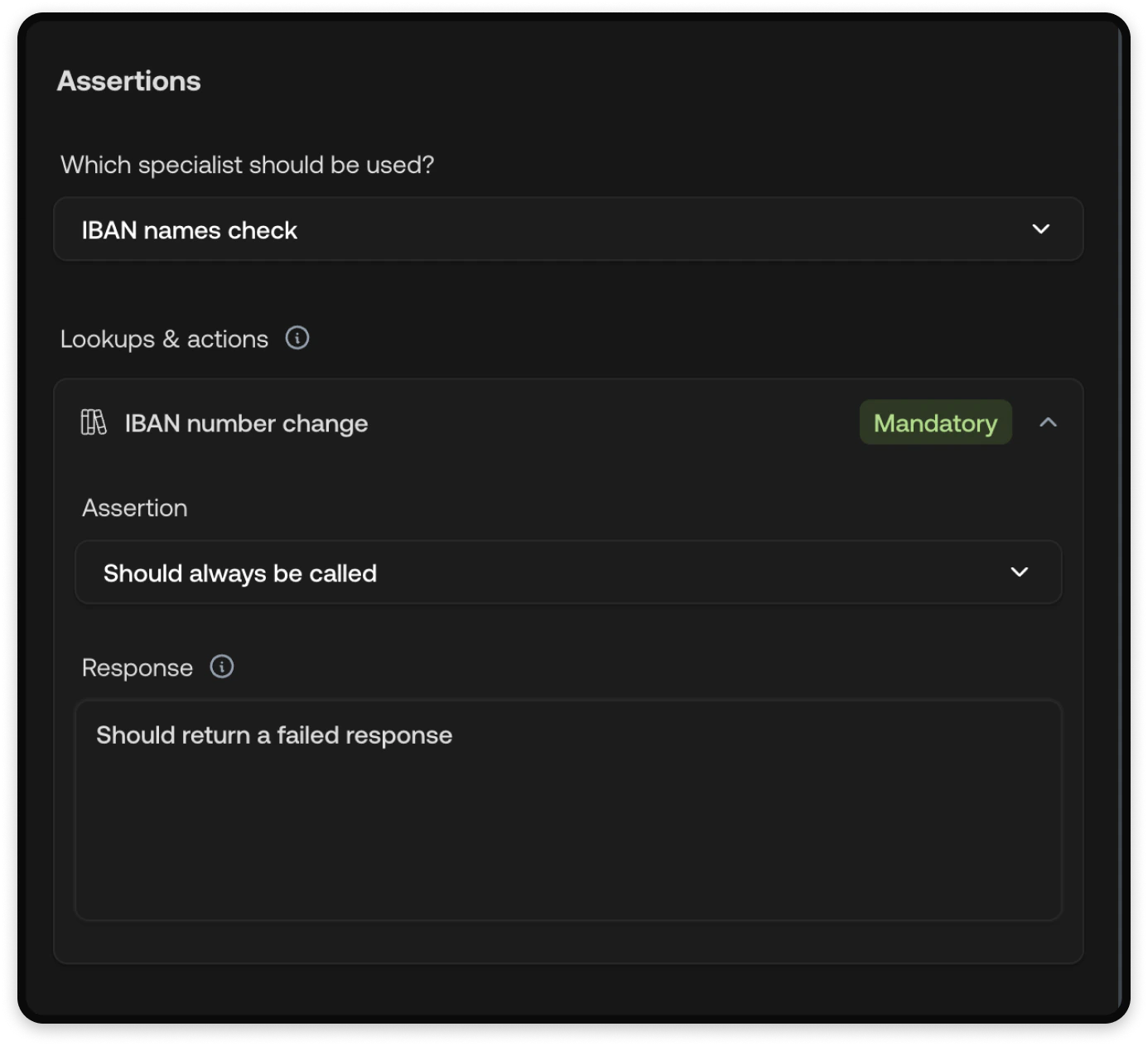 Providing explicit Response values leads to more predictable tests, since the
AI Agent receives specific data instead of relying on real sources or generic
simulated responses.
## Running tests
You can run tests individually or all at once:
* **Single test**: Click the **Run** button next to a test in the list.
* **Run all tests**: Click **Run all tests** at the top of the test list to
execute every test in sequence.
Tests run against your current configuration, including any unpublished
changes. This makes them useful for validating changes before
[publishing](/documentation/behavior/publishing).
## Reviewing results
After a test run completes, switch to the **Runs** tab to review results.
Each run is numbered and shows an overall pass/fail status. Within a run, each
conversation (one per channel) shows its own pass/fail status. Failed assertions
are displayed as badges so you can quickly identify what went wrong, hover
over a failure badge to see more detail.
Providing explicit Response values leads to more predictable tests, since the
AI Agent receives specific data instead of relying on real sources or generic
simulated responses.
## Running tests
You can run tests individually or all at once:
* **Single test**: Click the **Run** button next to a test in the list.
* **Run all tests**: Click **Run all tests** at the top of the test list to
execute every test in sequence.
Tests run against your current configuration, including any unpublished
changes. This makes them useful for validating changes before
[publishing](/documentation/behavior/publishing).
## Reviewing results
After a test run completes, switch to the **Runs** tab to review results.
Each run is numbered and shows an overall pass/fail status. Within a run, each
conversation (one per channel) shows its own pass/fail status. Failed assertions
are displayed as badges so you can quickly identify what went wrong, hover
over a failure badge to see more detail.
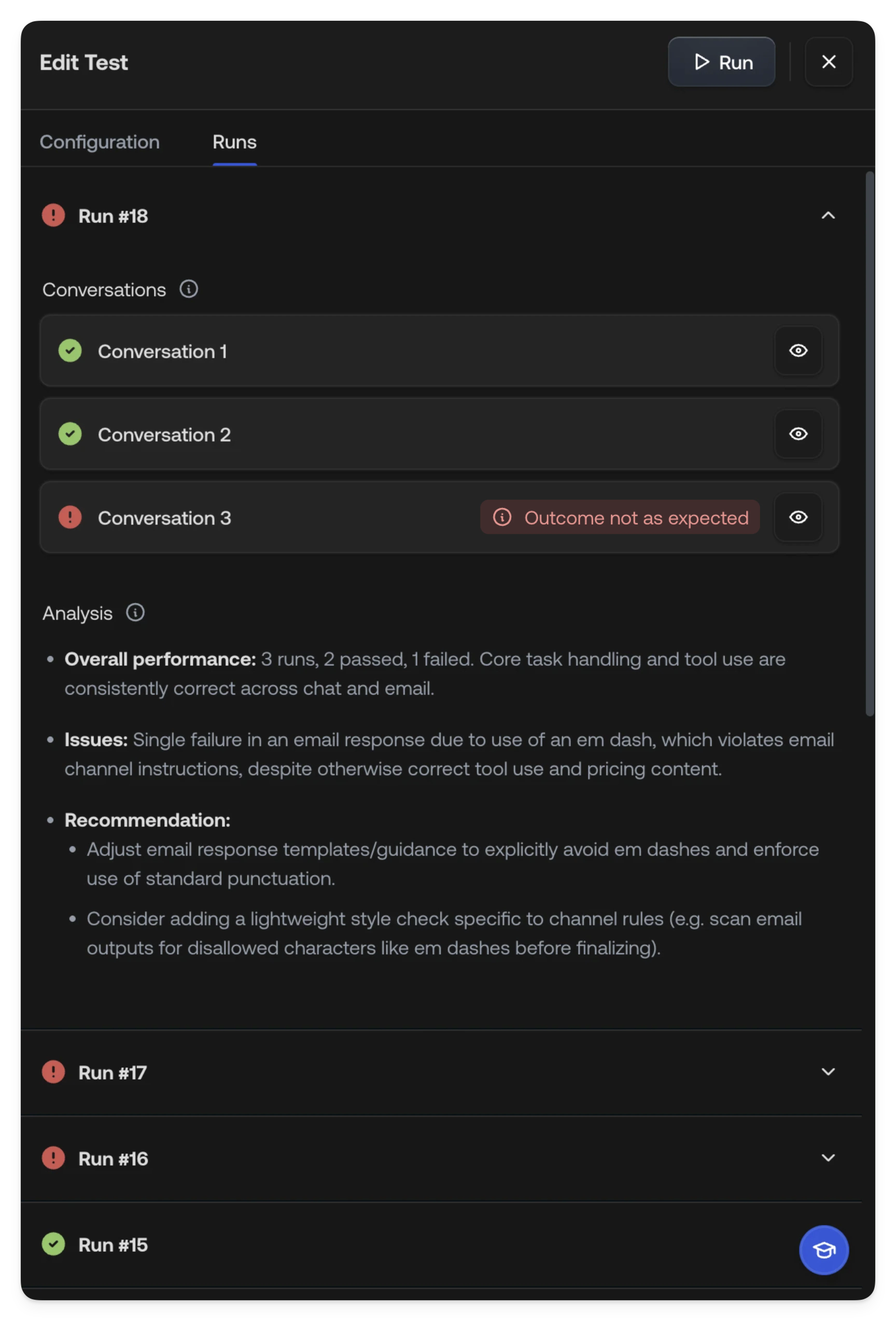 Use the recommendations from AI analysis to refine your Specialist
instructions, adjust routing rules, or add missing knowledge sources.
### Conversation detail
Click into a conversation to see the full message exchange. The detail view
includes:
* The complete conversation between the simulated customer and the AI Agent
* Metadata showing which Supervisor and Specialist handled the conversation
* Knowledge sources that were referenced and actions that were called
## How tests work
When you run a test, the system:
1. **Simulates a customer**: A simulated customer is created from your scenario
description. It sends messages to your AI Agent and continues the
conversation back and forth until it considers the scenario complete.
2. **Runs the AI Agent in production mode**: Your AI Agent behaves exactly as
it would in production: the Supervisor routes to a Specialist, the Specialist
follows its instructions, and tools are called as normal. The AI Agent does
not have access to the scenario description.
3. **Evaluates assertions**: Only once the conversation is finished are
assertions evaluated:
* *Deterministic checks* for Specialist routing, tool usage, and handoff
behavior
* *AI semantic evaluation* for the expected outcome, comparing what happened
against your description
4. **Aggregates results** into the run report with pass/fail status and AI
analysis
During test runs, tool calls are mocked by default. See [Tool
mocking](#tool-mocking) for full details on which tools are mocked and how to
control their responses. Data from mocked tools in test conversations may
differ from production.
## See also
* [Playground](/documentation/testing-and-feedback/simulator): Test
conversations manually
* [Specialists](/documentation/behavior/specialists): Create topic-specific AI
behavior
* [Actions](/documentation/actions/overview): Configure automated and manual
actions
* [Knowledge](/documentation/knowledge/overview): Add knowledge sources for the
AI
* [Publishing](/documentation/behavior/publishing): Publish changes to your AI
Agent
Use the recommendations from AI analysis to refine your Specialist
instructions, adjust routing rules, or add missing knowledge sources.
### Conversation detail
Click into a conversation to see the full message exchange. The detail view
includes:
* The complete conversation between the simulated customer and the AI Agent
* Metadata showing which Supervisor and Specialist handled the conversation
* Knowledge sources that were referenced and actions that were called
## How tests work
When you run a test, the system:
1. **Simulates a customer**: A simulated customer is created from your scenario
description. It sends messages to your AI Agent and continues the
conversation back and forth until it considers the scenario complete.
2. **Runs the AI Agent in production mode**: Your AI Agent behaves exactly as
it would in production: the Supervisor routes to a Specialist, the Specialist
follows its instructions, and tools are called as normal. The AI Agent does
not have access to the scenario description.
3. **Evaluates assertions**: Only once the conversation is finished are
assertions evaluated:
* *Deterministic checks* for Specialist routing, tool usage, and handoff
behavior
* *AI semantic evaluation* for the expected outcome, comparing what happened
against your description
4. **Aggregates results** into the run report with pass/fail status and AI
analysis
During test runs, tool calls are mocked by default. See [Tool
mocking](#tool-mocking) for full details on which tools are mocked and how to
control their responses. Data from mocked tools in test conversations may
differ from production.
## See also
* [Playground](/documentation/testing-and-feedback/simulator): Test
conversations manually
* [Specialists](/documentation/behavior/specialists): Create topic-specific AI
behavior
* [Actions](/documentation/actions/overview): Configure automated and manual
actions
* [Knowledge](/documentation/knowledge/overview): Add knowledge sources for the
AI
* [Publishing](/documentation/behavior/publishing): Publish changes to your AI
Agent