> ## Documentation Index
> Fetch the complete documentation index at: https://docs.typewise.app/llms.txt
> Use this file to discover all available pages before exploring further.
# Ticket conversation
> Understanding the ticket conversation
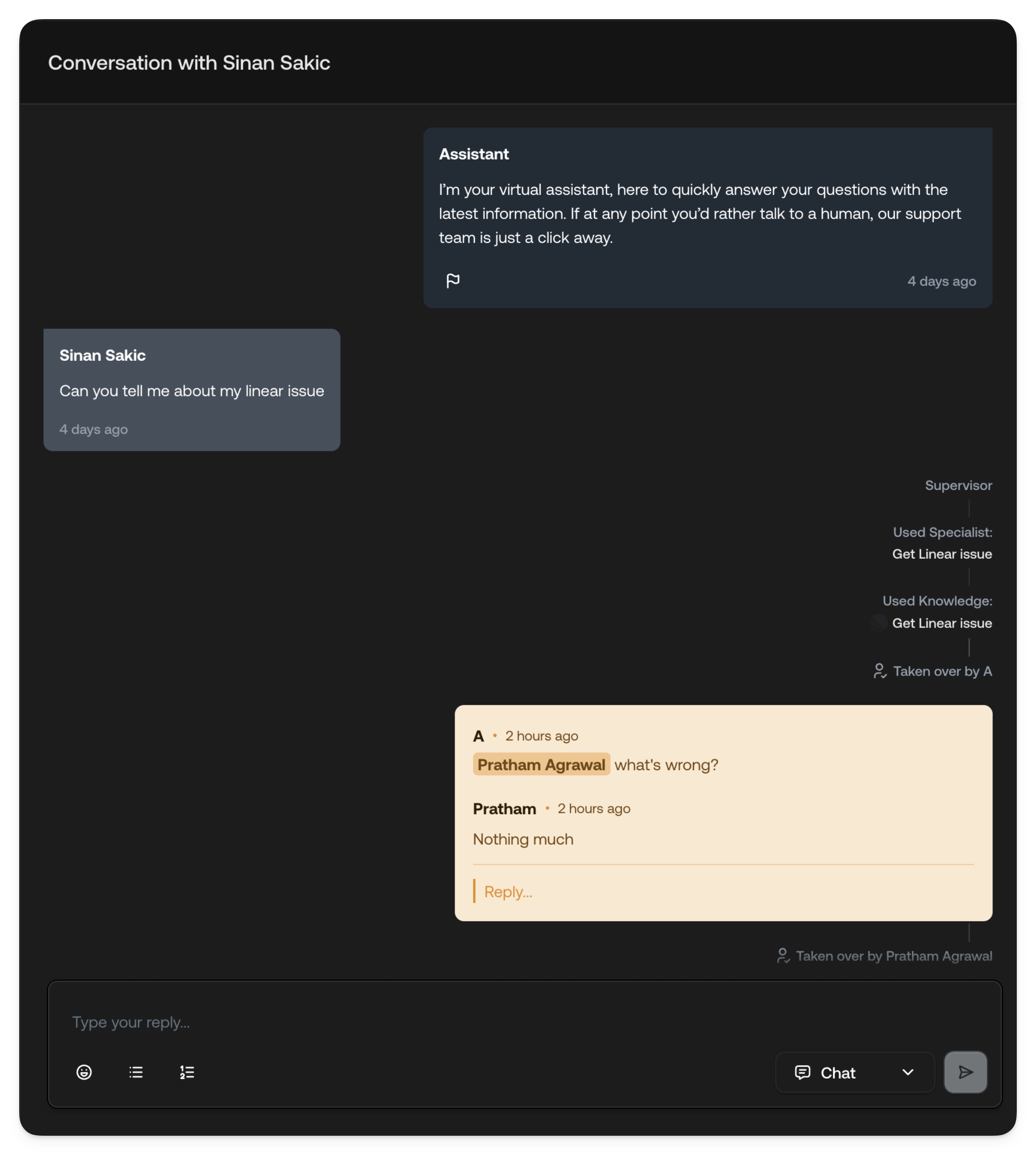
The ticket conversation is the central tool for handling tickets in Typewise. It
displays the complete chronological record of all interactions, activities, and
events that have occurred.
This unified timeline gives agents full context at a glance, from the customer's
initial message through every AI action, human response, internal note, and
system event.
 ***
## Customer messages
Customer messages appear on the left side of the conversation timeline. These
include the original inquiry that created the ticket as well as any follow-up
replies the customer sends throughout the conversation.
***
## Customer messages
Customer messages appear on the left side of the conversation timeline. These
include the original inquiry that created the ticket as well as any follow-up
replies the customer sends throughout the conversation.
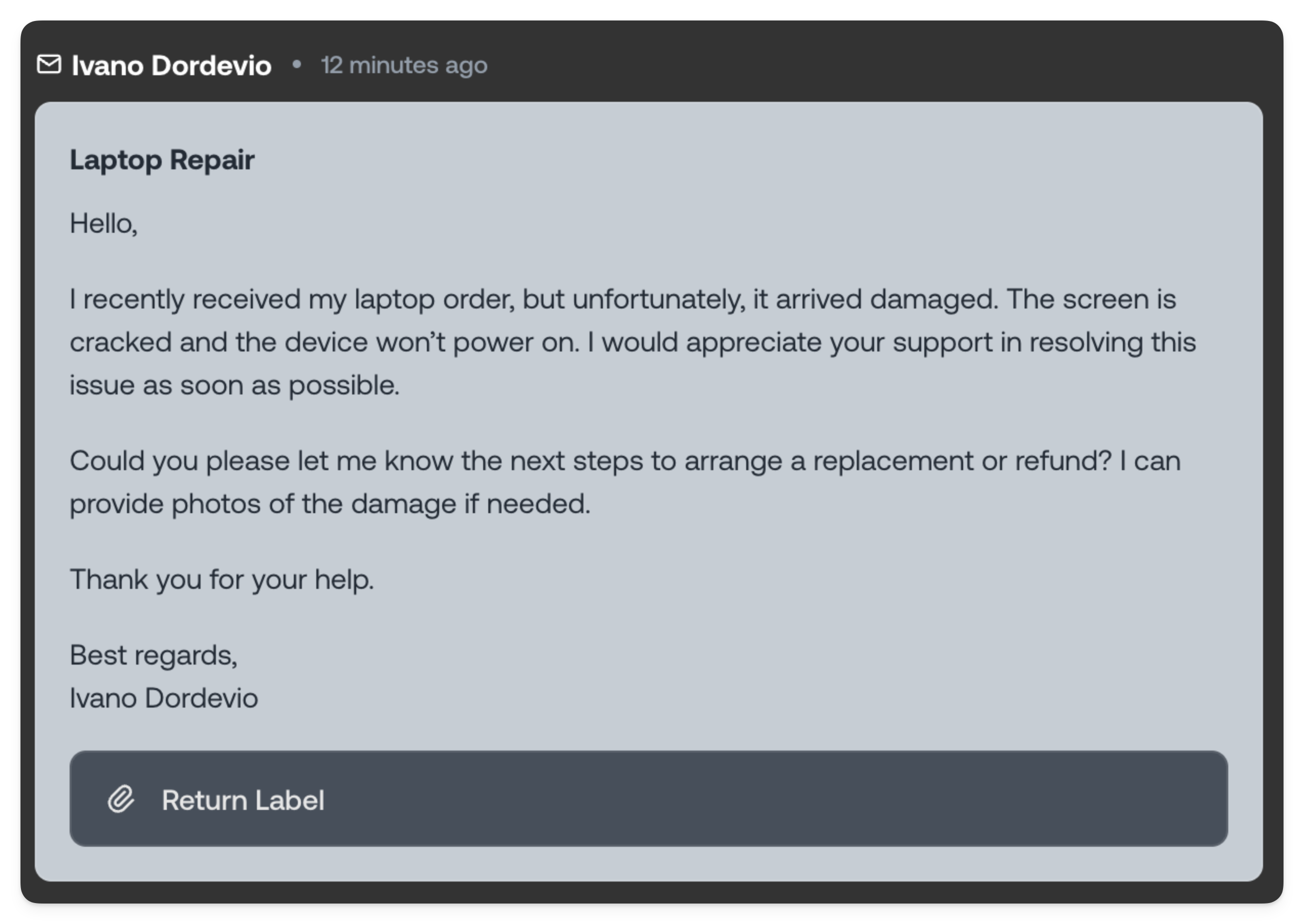 For **email tickets**, customer messages can include attachments such as
documents, images, or other files. Attachments are displayed below the message
content with clickable links to view or download them. For **chat tickets**,
attachments are displayed inline within the message bubble itself.
***
## Human Agent responses
Responses sent by Human Agents appear on the right side of the timeline, clearly
attributed with the agent's name and avatar. Each message displays a timestamp
showing when it was sent.
For **email tickets**, customer messages can include attachments such as
documents, images, or other files. Attachments are displayed below the message
content with clickable links to view or download them. For **chat tickets**,
attachments are displayed inline within the message bubble itself.
***
## Human Agent responses
Responses sent by Human Agents appear on the right side of the timeline, clearly
attributed with the agent's name and avatar. Each message displays a timestamp
showing when it was sent.
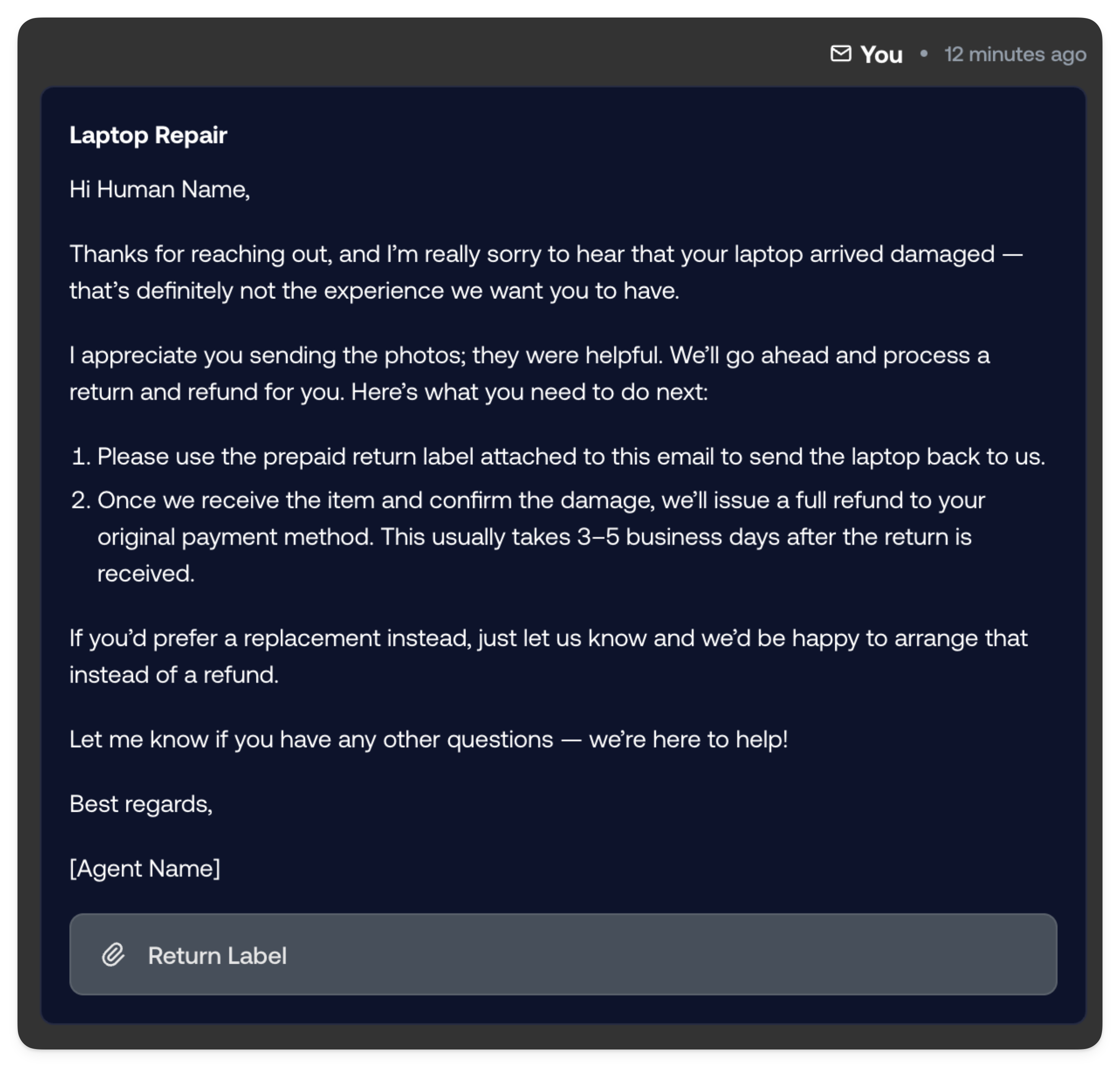 Hover over the timestamp on any message to see the exact date and time it was
sent, including seconds. This is useful for understanding precise timing in
fast-moving conversations.
***
## AI messages
AI-generated messages and drafts appear on the right side of the timeline,
visually distinguished from Human Agent responses. There are several types of AI
messages you may encounter:
### Regular AI replies
When the AI is configured to send messages autonomously, these replies are sent
directly to the customer without requiring human intervention. They appear in
the timeline with a clear AI indicator and show as already delivered.
### AI replies awaiting approval
When your workflow requires human approval before AI messages are sent, draft
responses appear in a pending state. These drafts are highlighted so agents can
quickly identify them, review the proposed response, and either approve, edit,
or reject the message before it reaches the customer.
### AI handoff requests
Sometimes the AI determines that human involvement is needed to properly resolve
a ticket. These handoff requests appear prominently in the timeline and come in
several forms:
Hover over the timestamp on any message to see the exact date and time it was
sent, including seconds. This is useful for understanding precise timing in
fast-moving conversations.
***
## AI messages
AI-generated messages and drafts appear on the right side of the timeline,
visually distinguished from Human Agent responses. There are several types of AI
messages you may encounter:
### Regular AI replies
When the AI is configured to send messages autonomously, these replies are sent
directly to the customer without requiring human intervention. They appear in
the timeline with a clear AI indicator and show as already delivered.
### AI replies awaiting approval
When your workflow requires human approval before AI messages are sent, draft
responses appear in a pending state. These drafts are highlighted so agents can
quickly identify them, review the proposed response, and either approve, edit,
or reject the message before it reaches the customer.
### AI handoff requests
Sometimes the AI determines that human involvement is needed to properly resolve
a ticket. These handoff requests appear prominently in the timeline and come in
several forms:
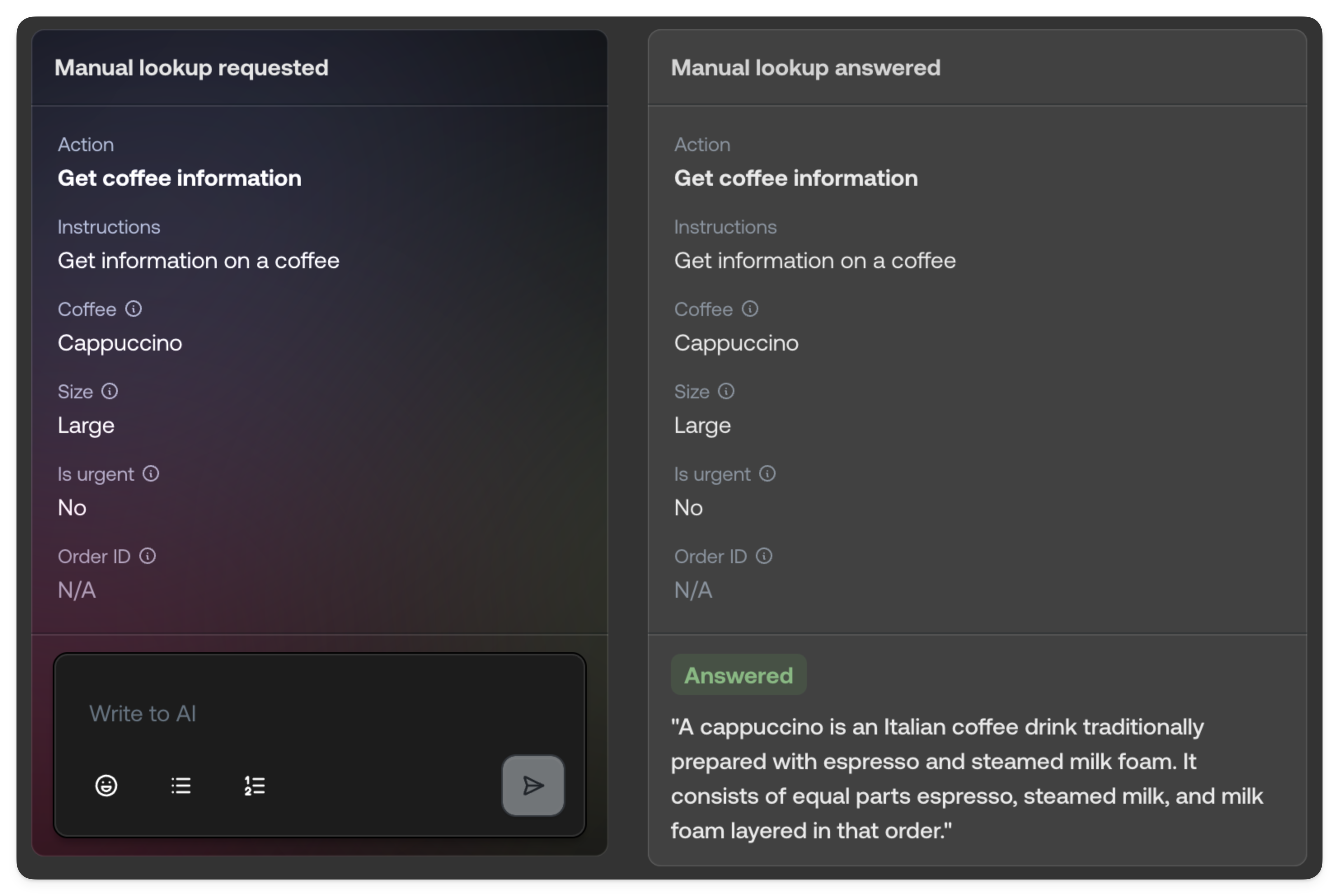 #### Handoff request types
* **Action required**: The AI has identified a specific action that needs to be
performed by a Human Agent, such as processing a refund or updating account
details. The request clearly describes what action is needed.
* **Information needed**: The AI requires additional information from a Human
Agent to continue. This might be internal knowledge, clarification on company
policy, or details not available in the knowledge base.
* **Action approval needed**: The AI wants to perform an action but requires
explicit human approval before proceeding. The agent can review the proposed
action and approve or deny it.
* **Complete takeover**: The AI has determined that the ticket requires full
human handling and has handed off the conversation entirely. This typically
occurs for sensitive situations, complex issues outside the AI's capabilities,
or when explicitly requested by the end customer.
* **Spam email detected**: Typewise is unsure whether the message is spam
and asks you to decide with **Process** or **Ignore**. A **Configure**
link opens your
[Spam classification](/documentation/behavior/email#spam-classification)
settings.
***
## Activity events
Activity events are displayed inline within the conversation timeline, providing
a complete audit trail of everything that has happened on the ticket. These
events appear as compact, timestamped entries between messages.
#### Handoff request types
* **Action required**: The AI has identified a specific action that needs to be
performed by a Human Agent, such as processing a refund or updating account
details. The request clearly describes what action is needed.
* **Information needed**: The AI requires additional information from a Human
Agent to continue. This might be internal knowledge, clarification on company
policy, or details not available in the knowledge base.
* **Action approval needed**: The AI wants to perform an action but requires
explicit human approval before proceeding. The agent can review the proposed
action and approve or deny it.
* **Complete takeover**: The AI has determined that the ticket requires full
human handling and has handed off the conversation entirely. This typically
occurs for sensitive situations, complex issues outside the AI's capabilities,
or when explicitly requested by the end customer.
* **Spam email detected**: Typewise is unsure whether the message is spam
and asks you to decide with **Process** or **Ignore**. A **Configure**
link opens your
[Spam classification](/documentation/behavior/email#spam-classification)
settings.
***
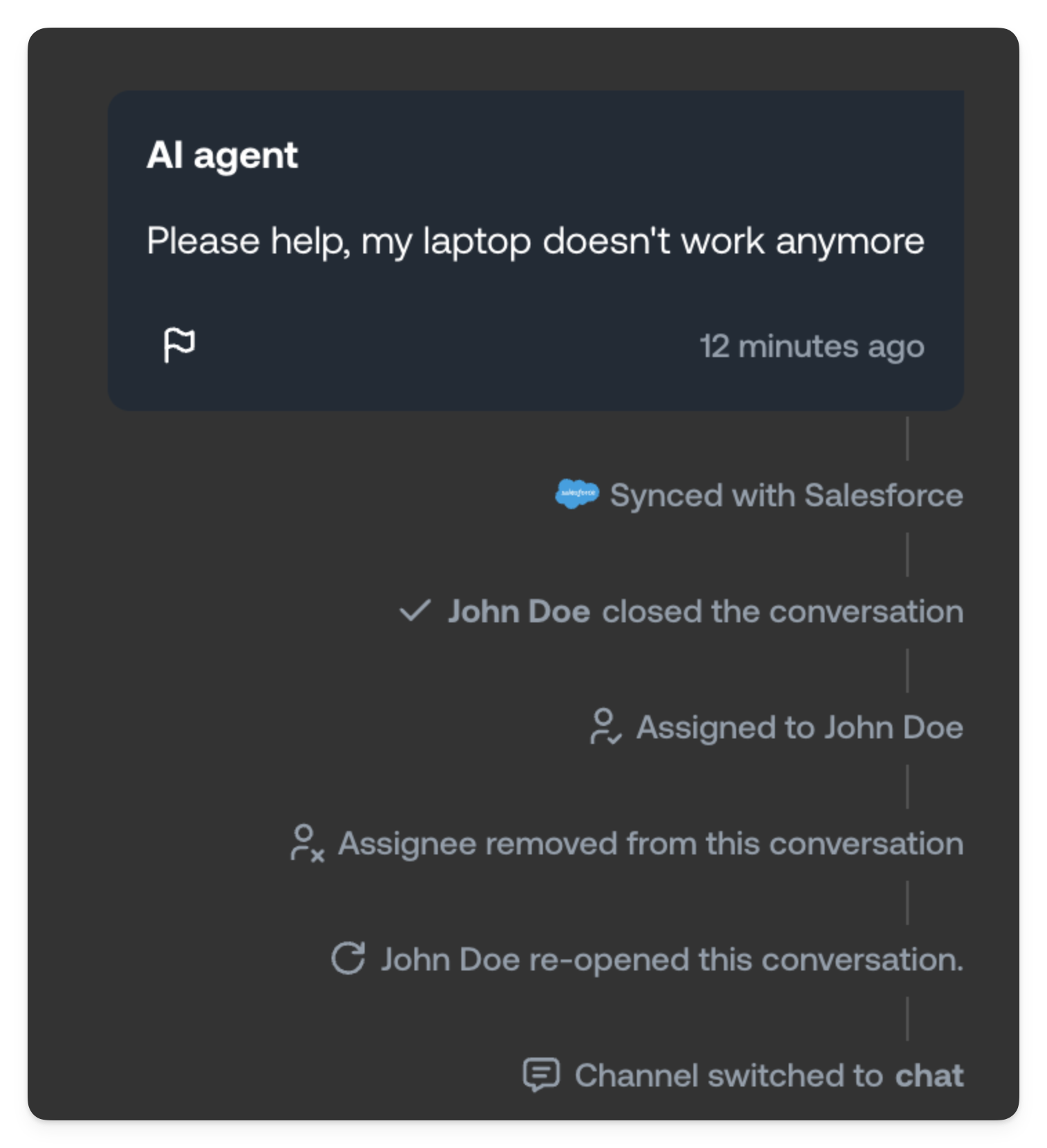
## Activity events
Activity events are displayed inline within the conversation timeline, providing
a complete audit trail of everything that has happened on the ticket. These
events appear as compact, timestamped entries between messages.
 ### AI actions
When the AI performs an action on behalf of your team, such as updating a
customer record, processing a request, or triggering a workflow, an activity
event is logged showing what action was taken and the result.
### AI lookups
When the AI searches your knowledge base or performs a lookup to gather
information, these activities are logged. This helps agents understand what
information the AI used to formulate its responses and can be useful for
troubleshooting or improving your knowledge base.
### Ticket lifecycle events
The timeline records all significant ticket state changes:
* **Assignment**: When a ticket is assigned to a specific agent or team
* **Takeover**: When a Human Agent takes over a ticket from the AI
* **Transfer**: When a ticket is transferred between agents or teams
* **Status changes**: When a ticket is marked as pending, on-hold, or resolved
* **Closure**: When a ticket is closed, including who closed it and why
### Spam classification events
* **Spam filter closed the conversation**: The ticket was filtered as
spam. The event shows why and includes a **Configure** link to your
[Spam classification](/documentation/behavior/email#spam-classification)
settings.
* **Message marked as relevant**: An agent restored a filtered message
using **Mark as relevant**. Records who reopened it and when.
### CRM synchronization events
If you have CRM integrations configured, the timeline shows when tickets are
synchronized:
* **CRM backup**: When ticket data is backed up to your CRM system
* **CRM handoff**: When a ticket is handed off to be managed directly in your
CRM
* **Sync status**: Any synchronization errors or confirmations
***
## Internal notes
Internal notes are messages visible only to your team. Customers never see them.
They appear in the timeline with a distinct visual style (typically a different
background color or border) to clearly differentiate them from customer-facing
messages.
### AI actions
When the AI performs an action on behalf of your team, such as updating a
customer record, processing a request, or triggering a workflow, an activity
event is logged showing what action was taken and the result.
### AI lookups
When the AI searches your knowledge base or performs a lookup to gather
information, these activities are logged. This helps agents understand what
information the AI used to formulate its responses and can be useful for
troubleshooting or improving your knowledge base.
### Ticket lifecycle events
The timeline records all significant ticket state changes:
* **Assignment**: When a ticket is assigned to a specific agent or team
* **Takeover**: When a Human Agent takes over a ticket from the AI
* **Transfer**: When a ticket is transferred between agents or teams
* **Status changes**: When a ticket is marked as pending, on-hold, or resolved
* **Closure**: When a ticket is closed, including who closed it and why
### Spam classification events
* **Spam filter closed the conversation**: The ticket was filtered as
spam. The event shows why and includes a **Configure** link to your
[Spam classification](/documentation/behavior/email#spam-classification)
settings.
* **Message marked as relevant**: An agent restored a filtered message
using **Mark as relevant**. Records who reopened it and when.
### CRM synchronization events
If you have CRM integrations configured, the timeline shows when tickets are
synchronized:
* **CRM backup**: When ticket data is backed up to your CRM system
* **CRM handoff**: When a ticket is handed off to be managed directly in your
CRM
* **Sync status**: Any synchronization errors or confirmations
***
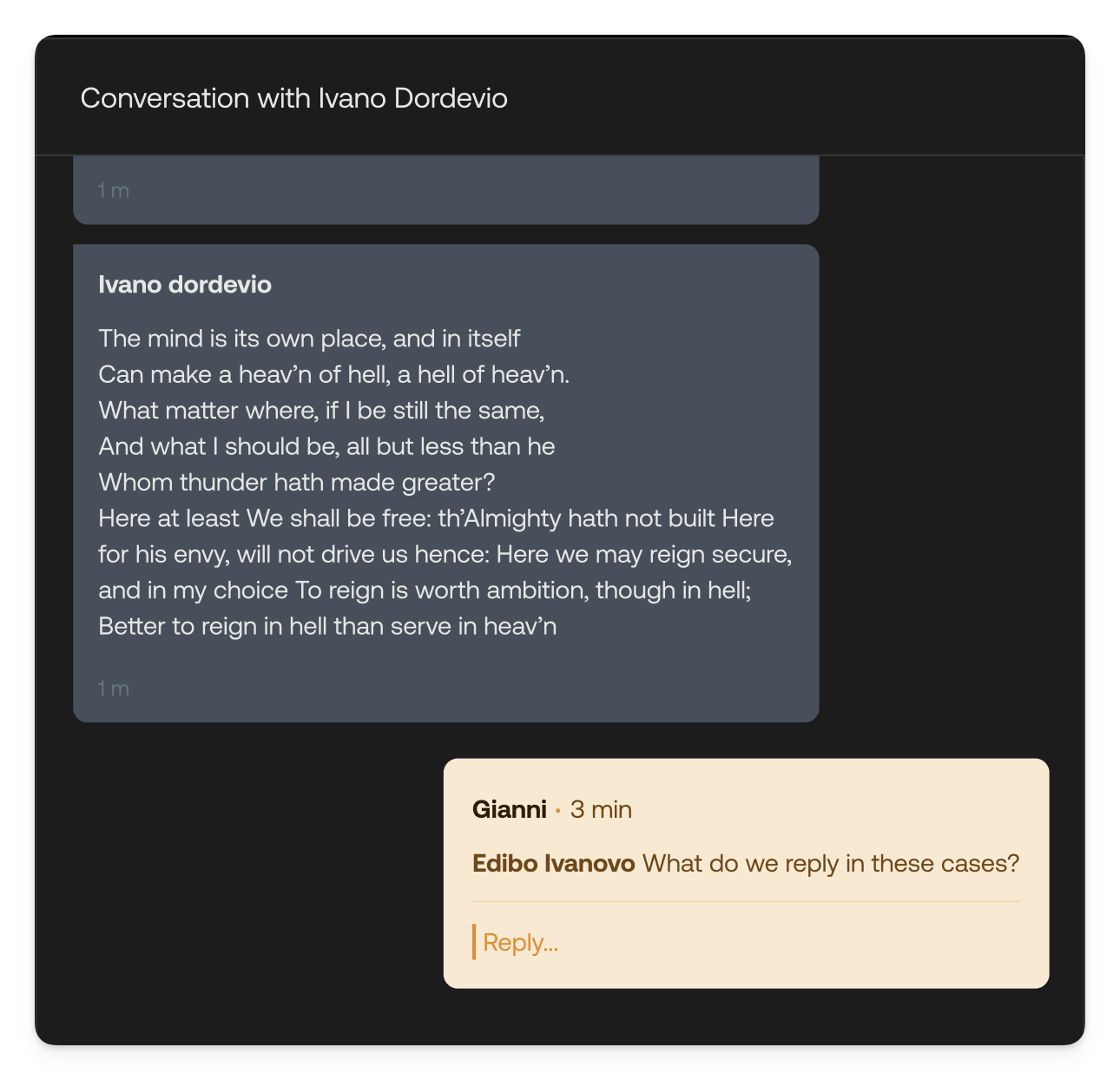
## Internal notes
Internal notes are messages visible only to your team. Customers never see them.
They appear in the timeline with a distinct visual style (typically a different
background color or border) to clearly differentiate them from customer-facing
messages.
 Internal notes are essential for:
* **Handoff context**: Documenting important background information when
transferring a ticket to another agent, ensuring continuity of service
* **Team collaboration**: Asking colleagues questions or requesting input using
[@mentions](/documentation/tickets/mentions), which notify the mentioned user
directly
* **Decision documentation**: Recording why certain decisions were made, what
was discussed with the customer offline, or what actions were taken outside
the ticket
* **Escalation notes**: Adding context when escalating to supervisors or
specialized teams
* **Follow-up reminders**: Leaving notes about promised callbacks, pending
actions, or time-sensitive items
Use internal notes liberally. They create a valuable record for quality
assurance, training, and understanding how tickets were resolved.
Internal notes are essential for:
* **Handoff context**: Documenting important background information when
transferring a ticket to another agent, ensuring continuity of service
* **Team collaboration**: Asking colleagues questions or requesting input using
[@mentions](/documentation/tickets/mentions), which notify the mentioned user
directly
* **Decision documentation**: Recording why certain decisions were made, what
was discussed with the customer offline, or what actions were taken outside
the ticket
* **Escalation notes**: Adding context when escalating to supervisors or
specialized teams
* **Follow-up reminders**: Leaving notes about promised callbacks, pending
actions, or time-sensitive items
Use internal notes liberally. They create a valuable record for quality
assurance, training, and understanding how tickets were resolved.