> ## Documentation Index
> Fetch the complete documentation index at: https://docs.typewise.app/llms.txt
> Use this file to discover all available pages before exploring further.
# Ticket details
> Understanding ticket details and metadata
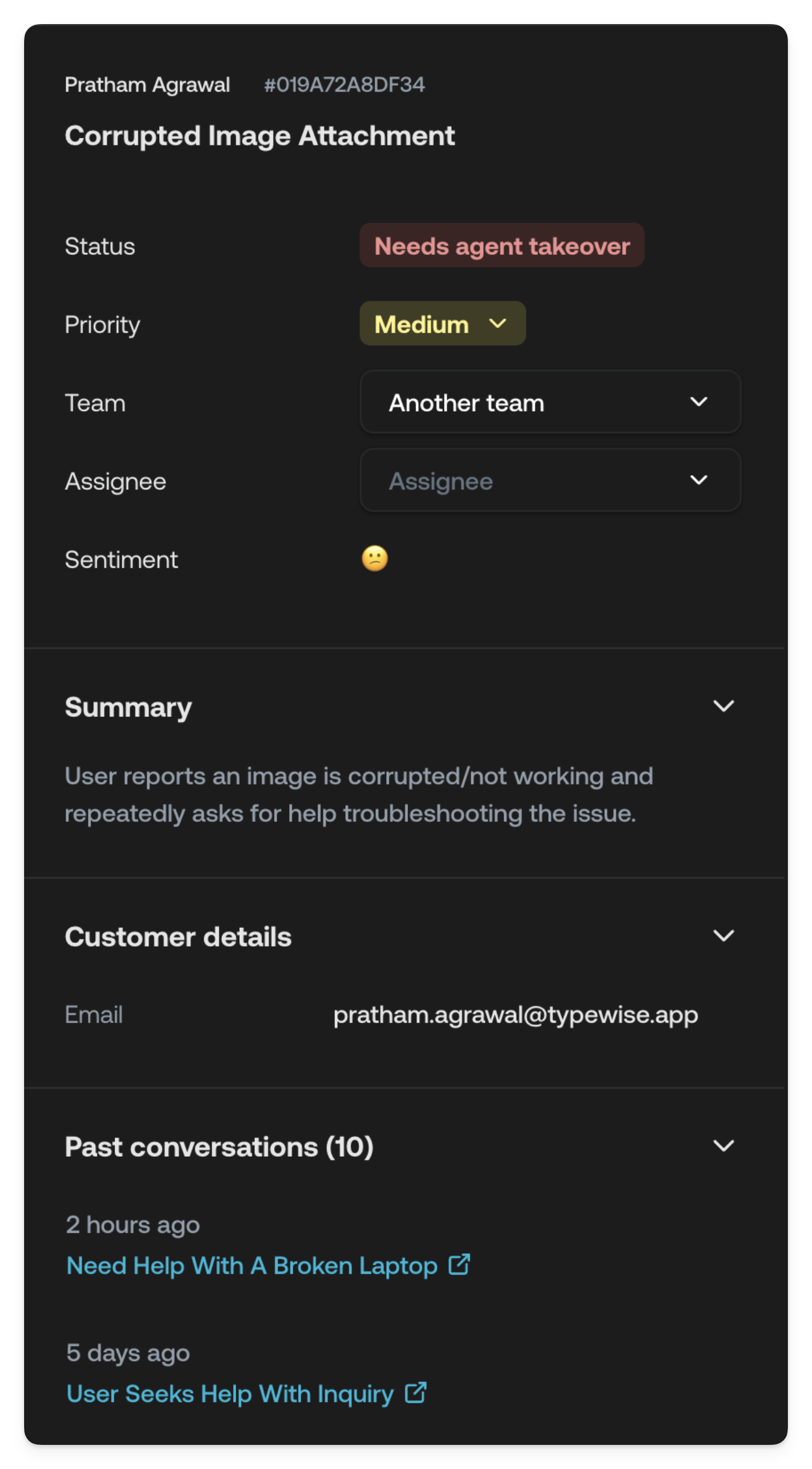
Every ticket contains detailed information about the customer, the conversation,
and its current state. This information appears in the details panel alongside
the conversation.
 ***
## Status
The status of the ticket shows the current state of the ticket. It covers the
entire ticket lifecycle, from when it was created to when it was resolved.
* **AI Agent processing**:\
The AI Agent is currently processing the ticket.
* **Waiting for customer**\
The ticket is waiting for the end customer to reply.
* **Waiting for agent input**:\
The ticket is assigned to a Human Agent and is waiting for them to reply.
* **Waiting for agent action**\
The AI Agent requires a Human Agent to take action.
* **Needs agent takeover**\
The ticket needs to be taken over by a Human Agent.
* **Waiting for agent decision**\
The AI Agent requires a Human Agent to make a decision.
* **Handed off to third party system**\
The AI Agent has handed off the ticket to a third party system.
* **Done**\
The ticket has been resolved.
* **Ignored**\
The ticket has been ignored.
* **Error**\
The ticket has encountered an error.
* **Snoozed**\
The ticket has been snoozed.
***
## Priority
The priority of the ticket shows the urgency of the ticket.
* **Low**: Can be addressed after more urgent matters. Minor inconveniences,
cosmetic issues, or information requests that don’t impact core functionality.
Customer operations are not significantly affected.
* **Medium**: Standard priority. Typical inquiries, common problems with
reasonable workarounds, or issues with limited impact. The customer can
continue most activities despite the issue.
* **High**: Requires prompt attention. Substantial disruption to the customer’s
business or needs, including service degradation, partial functionality loss,
or issues affecting important but non‑critical operations.
* **Urgent**: Requires immediate attention. System outages, security breaches,
safety concerns, legal compliance issues, or situations severely impacting
multiple users or business operations. Significant financial or operational
impact likely.
***
## Team
The team the ticket was assigned to. The AI Agent will automatically assign the
ticket to the team that is most likely to be able to handle the ticket based on
the team configuration.
***
## Assignee
The team member currently responsible for the ticket. The dropdown can be used
to change the assignee. The assignee acts as the owner of the ticket and is
responsible for overseeing the ticket's progress all the way to resolution.
You can use the keyboard shortcut A to quickly assign the ticket.
***
## Rating
The agent/admin quality rating for a closed conversation (1–5 stars),
independent of the customer's CSAT score. The Rating field appears on closed
tickets, and unrated conversations show empty stars.
Hover the field and click the edit control to open **Rate this conversation**,
where you can set or change the score and an optional comment. The rating is
shared across the team.
For the inline end-of-conversation prompt, timeline events, and filtering
unrated tickets, see
[Conversation rating](/documentation/tickets/conversation-rating).
***
## Summary
The summary of the ticket. This is a short description of the ticket's content
and purpose. It is automatically generated by the AI Agent based on the
conversation history. It's continuously updated as the conversation progresses.
***
## Customer details
All the details about the customer who is interacting with the ticket. We
automatically collect some information such as the email address and name.
Additionally, all the information from the Chat widget variables are shown here
as well. If you have backup or handoff to a CRM enabled, you can see the CRM
ticket id here as well.
***
## Past tickets
If the customer has had any previous tickets with you, you can see the details
of those tickets here. You can click on a ticket to open it in a new tab. This
section is only shown if the customer has had any previous tickets with you.
Hover over the ticket to see the summary of the ticket.
***
## Status
The status of the ticket shows the current state of the ticket. It covers the
entire ticket lifecycle, from when it was created to when it was resolved.
* **AI Agent processing**:\
The AI Agent is currently processing the ticket.
* **Waiting for customer**\
The ticket is waiting for the end customer to reply.
* **Waiting for agent input**:\
The ticket is assigned to a Human Agent and is waiting for them to reply.
* **Waiting for agent action**\
The AI Agent requires a Human Agent to take action.
* **Needs agent takeover**\
The ticket needs to be taken over by a Human Agent.
* **Waiting for agent decision**\
The AI Agent requires a Human Agent to make a decision.
* **Handed off to third party system**\
The AI Agent has handed off the ticket to a third party system.
* **Done**\
The ticket has been resolved.
* **Ignored**\
The ticket has been ignored.
* **Error**\
The ticket has encountered an error.
* **Snoozed**\
The ticket has been snoozed.
***
## Priority
The priority of the ticket shows the urgency of the ticket.
* **Low**: Can be addressed after more urgent matters. Minor inconveniences,
cosmetic issues, or information requests that don’t impact core functionality.
Customer operations are not significantly affected.
* **Medium**: Standard priority. Typical inquiries, common problems with
reasonable workarounds, or issues with limited impact. The customer can
continue most activities despite the issue.
* **High**: Requires prompt attention. Substantial disruption to the customer’s
business or needs, including service degradation, partial functionality loss,
or issues affecting important but non‑critical operations.
* **Urgent**: Requires immediate attention. System outages, security breaches,
safety concerns, legal compliance issues, or situations severely impacting
multiple users or business operations. Significant financial or operational
impact likely.
***
## Team
The team the ticket was assigned to. The AI Agent will automatically assign the
ticket to the team that is most likely to be able to handle the ticket based on
the team configuration.
***
## Assignee
The team member currently responsible for the ticket. The dropdown can be used
to change the assignee. The assignee acts as the owner of the ticket and is
responsible for overseeing the ticket's progress all the way to resolution.
You can use the keyboard shortcut A to quickly assign the ticket.
***
## Rating
The agent/admin quality rating for a closed conversation (1–5 stars),
independent of the customer's CSAT score. The Rating field appears on closed
tickets, and unrated conversations show empty stars.
Hover the field and click the edit control to open **Rate this conversation**,
where you can set or change the score and an optional comment. The rating is
shared across the team.
For the inline end-of-conversation prompt, timeline events, and filtering
unrated tickets, see
[Conversation rating](/documentation/tickets/conversation-rating).
***
## Summary
The summary of the ticket. This is a short description of the ticket's content
and purpose. It is automatically generated by the AI Agent based on the
conversation history. It's continuously updated as the conversation progresses.
***
## Customer details
All the details about the customer who is interacting with the ticket. We
automatically collect some information such as the email address and name.
Additionally, all the information from the Chat widget variables are shown here
as well. If you have backup or handoff to a CRM enabled, you can see the CRM
ticket id here as well.
***
## Past tickets
If the customer has had any previous tickets with you, you can see the details
of those tickets here. You can click on a ticket to open it in a new tab. This
section is only shown if the customer has had any previous tickets with you.
Hover over the ticket to see the summary of the ticket.