> ## Documentation Index
> Fetch the complete documentation index at: https://docs.typewise.app/llms.txt
> Use this file to discover all available pages before exploring further.
# Export ticket as PDF
> Download a ticket conversation as a PDF or ZIP file
Download a complete ticket transcript as a PDF file to share with external
partners, meet compliance requirements, or keep offline records.
***
## How to export a ticket
Navigate to the ticket you want to export from the
[Inbox](/documentation/tickets/inbox) or
[All tickets](/documentation/tickets/all-tickets).
Where the button appears depends on the ticket's status:
* **Completed tickets**: Click the **Export as PDF** button in the ticket
header.
* **Active tickets**: Click the overflow menu (three-dot icon) in the ticket
header and select **Export as PDF**.
The button shows a loading state while the file is generated. Once ready,
your browser downloads the file automatically.
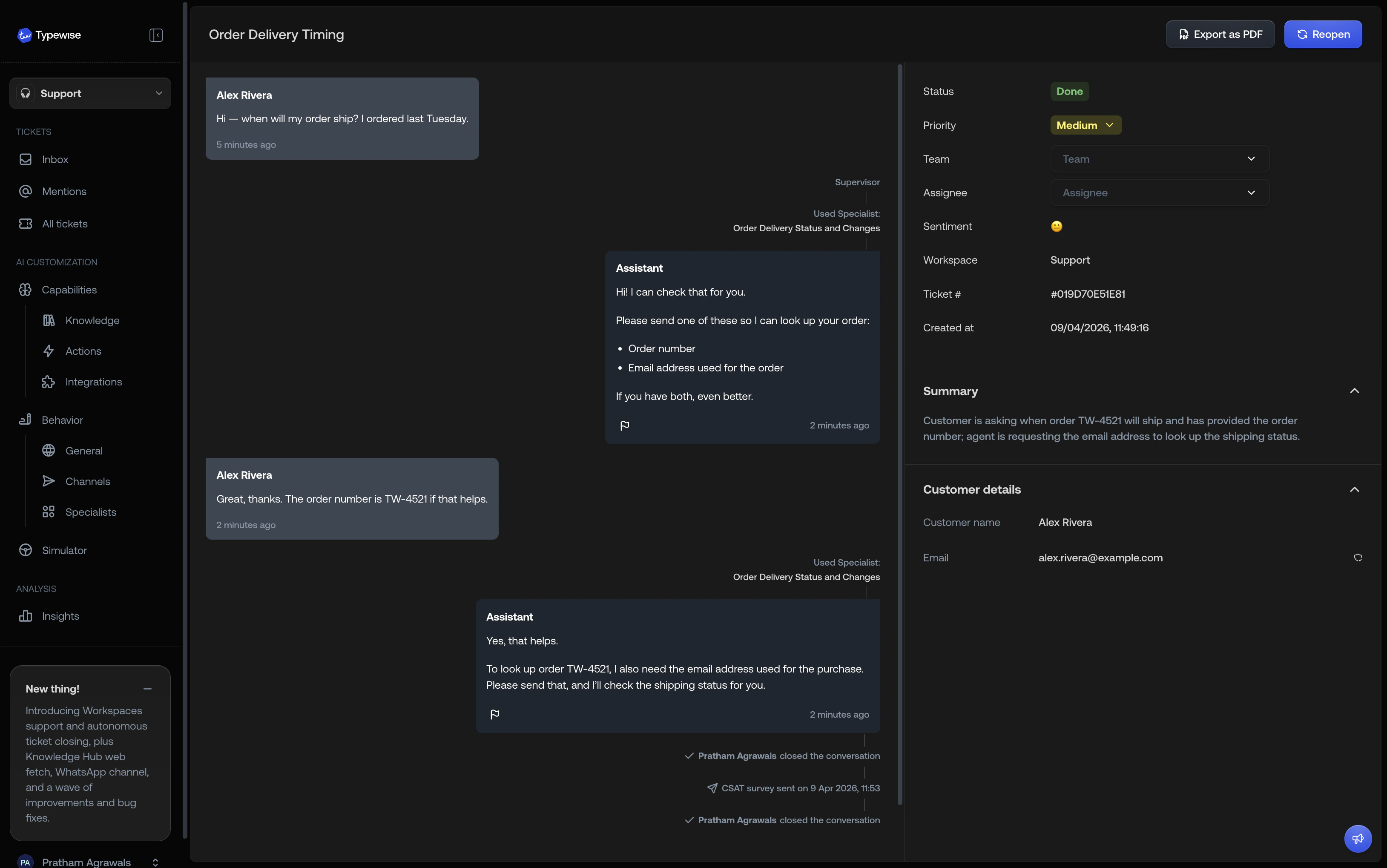
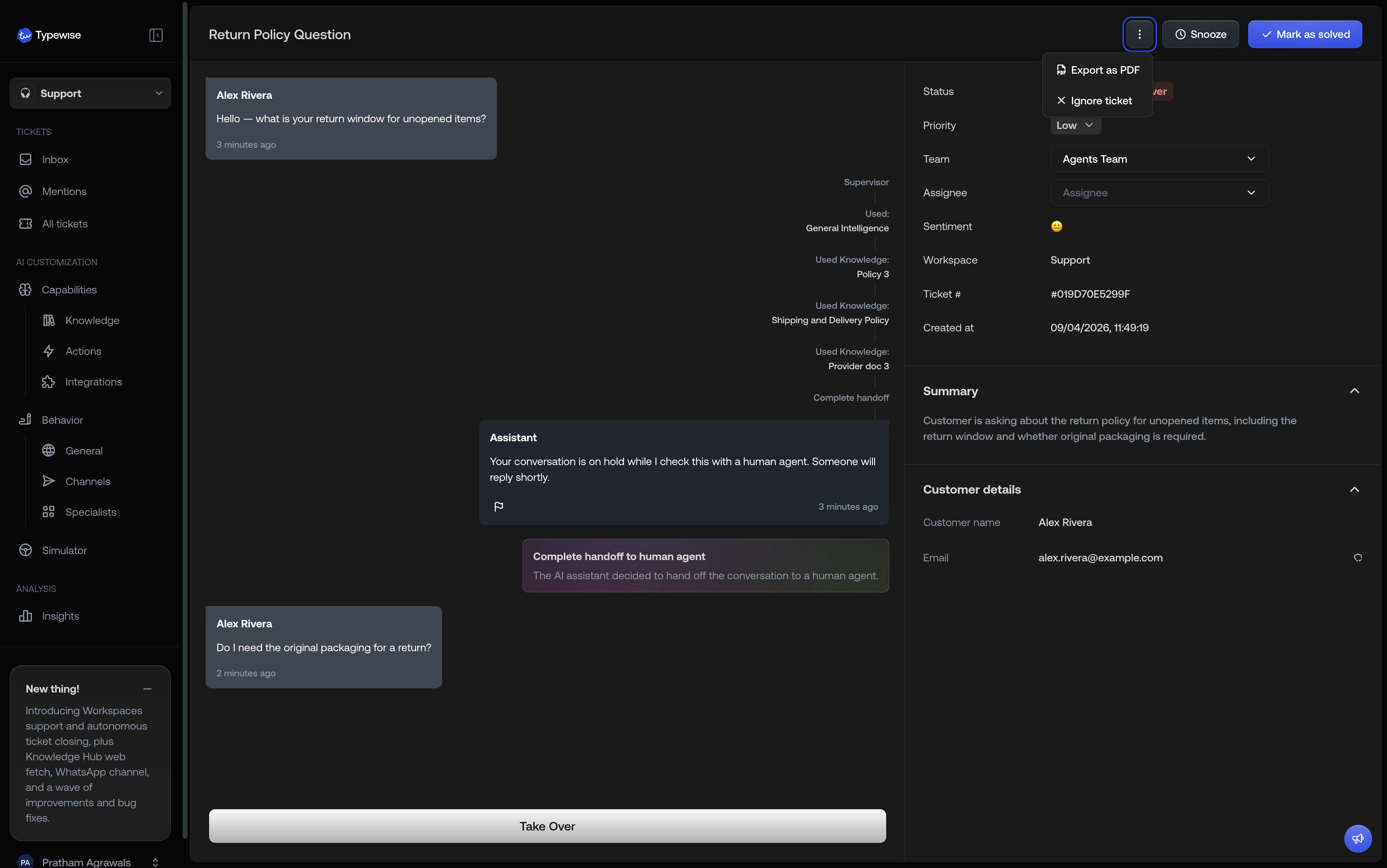 Export a ticket after it's resolved to capture the full conversation,
including the closure event.
***
## What's included
The exported PDF contains the full ticket transcript:
* **Ticket header**: title, customer name, email, ticket ID, channel, status,
and creation date
* **Messages**: all customer and agent messages in chronological order, with
timestamps and sender info
* **Rich text**: bold, headings, links, and lists render in the PDF
* **Email headers**: for email conversations, the subject, sender, and
recipients are shown per message
* **Inline images**: images embedded in messages are rendered inline in the
PDF when possible; images that fail to render are included as attachments in
the ZIP
* **Activity events**: assignments, handoffs, follow-ups, snooze/unsnooze,
channel switches, and ticket closures
***
## Attachments and ZIP files
When a conversation contains non-image attachments (documents, spreadsheets,
etc.), the download is a **ZIP file** instead of a plain PDF. The ZIP
contains the transcript PDF plus all attachment files in an `attachments/`
folder.
Images that are part of a message are rendered inline in the PDF when possible.
If an image cannot be rendered, it is included as a downloadable attachment in
the ZIP. Other file types are listed by name in the transcript and bundled into
the ZIP.
If the conversation has no non-image attachments, you receive a standalone PDF.
***
## Limitations
* **Internal notes** are not included in the export
* **Bulk export** is not supported. Export one ticket at a time.
* **MDX and dynamic content** may not render with full fidelity
***
## See also
* [Ticket conversation](/documentation/tickets/conversation-view/ticket-conversation):
Understanding the conversation timeline
* [All tickets](/documentation/tickets/all-tickets): Browse and search tickets
* [Inbox](/documentation/tickets/inbox): Monitor tickets that need attention
Export a ticket after it's resolved to capture the full conversation,
including the closure event.
***
## What's included
The exported PDF contains the full ticket transcript:
* **Ticket header**: title, customer name, email, ticket ID, channel, status,
and creation date
* **Messages**: all customer and agent messages in chronological order, with
timestamps and sender info
* **Rich text**: bold, headings, links, and lists render in the PDF
* **Email headers**: for email conversations, the subject, sender, and
recipients are shown per message
* **Inline images**: images embedded in messages are rendered inline in the
PDF when possible; images that fail to render are included as attachments in
the ZIP
* **Activity events**: assignments, handoffs, follow-ups, snooze/unsnooze,
channel switches, and ticket closures
***
## Attachments and ZIP files
When a conversation contains non-image attachments (documents, spreadsheets,
etc.), the download is a **ZIP file** instead of a plain PDF. The ZIP
contains the transcript PDF plus all attachment files in an `attachments/`
folder.
Images that are part of a message are rendered inline in the PDF when possible.
If an image cannot be rendered, it is included as a downloadable attachment in
the ZIP. Other file types are listed by name in the transcript and bundled into
the ZIP.
If the conversation has no non-image attachments, you receive a standalone PDF.
***
## Limitations
* **Internal notes** are not included in the export
* **Bulk export** is not supported. Export one ticket at a time.
* **MDX and dynamic content** may not render with full fidelity
***
## See also
* [Ticket conversation](/documentation/tickets/conversation-view/ticket-conversation):
Understanding the conversation timeline
* [All tickets](/documentation/tickets/all-tickets): Browse and search tickets
* [Inbox](/documentation/tickets/inbox): Monitor tickets that need attention