> ## Documentation Index
> Fetch the complete documentation index at: https://docs.typewise.app/llms.txt
> Use this file to discover all available pages before exploring further.
# Forward tickets
> Forward a ticket to an external team by email and get their reply back as an internal note
Sometimes a ticket needs input from someone outside Typewise, such as an
internal department, an external partner, or a regulatory authority. Forwarding
lets you send the ticket to any email address without leaving the conversation.
Their reply comes back into the same ticket as an internal note, and the ticket
is snoozed while you wait so it stays out of your inbox and does not auto-close.
Forwarding is available from the composer once you've taken over a ticket. The
forward is always sent as an email, regardless of the ticket's original
channel.
 ***
## When to use this feature
Use forwarding when the answer lives with someone who doesn't work in Typewise
and you need to stay on the ticket while you wait for them:
* Escalate to an internal team that works in a different tool (for example,
finance or legal working in Outlook).
* Ask an external partner or supplier for information.
* Send a case to a regulatory authority for a compliant, on-record request.
The external recipient never sees your Typewise inbox, and the customer never
sees the forward. Everything the external party sends back stays internal to
your team.
***
## How to forward a ticket
The composer, and the Forward option, are only available once you've taken
over the ticket.
Click the dropdown button next to the send button in the composer.
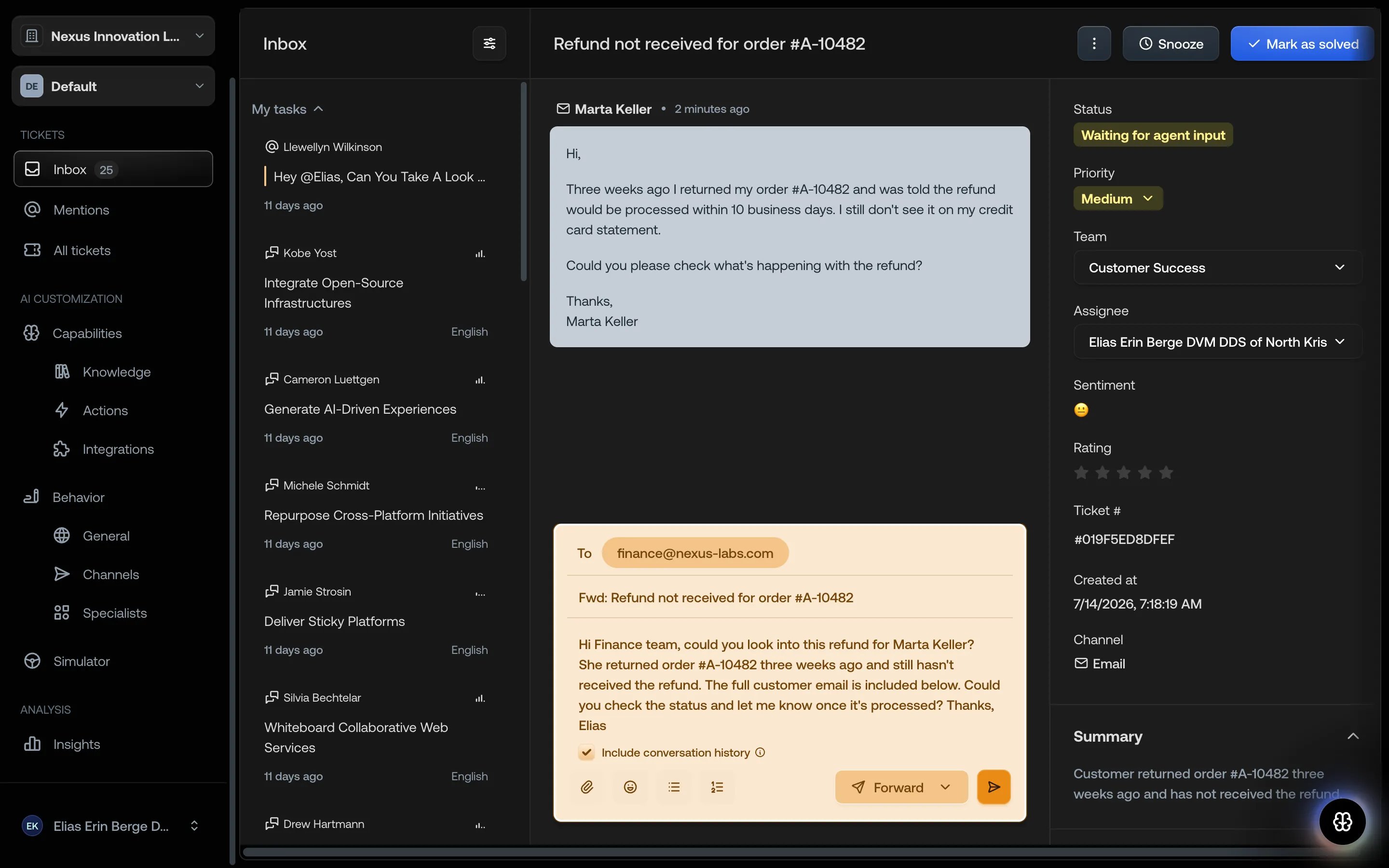
Choose **Forward** from the dropdown. The composer switches to forward mode
and shows the email header fields.
Type the recipient's email address in the **To** field. As you type,
Typewise suggests addresses you've forwarded to before. You can forward to
any valid email address.
There is no guardrail on the recipient address. Double-check the **To**
field before sending, since a typo sends the ticket to the wrong person.
The subject is pre-filled with a **Fwd:** prefix and the ticket title. Edit
it before sending if needed.
Write the message the recipient should read first, using the same rich text
editor, emoji picker, and attachments as a normal reply.
**Include conversation history** is on by default. It appends the full
customer conversation, and its attachments, below your message so the
recipient has the full context. Turn it off to send only your message.
Click send. The ticket is forwarded and automatically snoozed while you wait
for a reply.
Recipient suggestions come from addresses you and your team have forwarded to
before. You can dismiss a suggestion you no longer need; it comes back
automatically the next time you forward to that address.
***
## What happens after you forward
* The ticket is **automatically snoozed** until the next reply, so it leaves
your inbox and does not auto-close while you wait.
* The ticket status changes to **Snoozed** (there is no separate "waiting on
external" status).
* A forward event is recorded in the ticket timeline, showing who forwarded, to
whom, and when.
* If the customer replies in the meantime, the snooze is cancelled and the
ticket returns to your inbox as usual. The forward is unaffected.
For more on snooze behaviour, see
[Snooze tickets](/documentation/tickets/snooze-tickets).
***
## When the external party replies
The recipient replies to the forwarded email as they would to any message.
Typewise matches the reply back to the original ticket automatically, even if it
comes from a different address than the one you forwarded to.
* The reply lands on the original ticket as an **internal note**. It is never
shown to the customer.
* The ticket is **unsnoozed** and returns to your inbox.
* A toast notification tells you a forward reply arrived, with a button to open
the ticket.
### In the inbox
Forward replies appear as their own card in the inbox, marked with a forward
icon so you can tell them apart from customer tickets and mentions.
Forward replies stay in the inbox for **5 days**. After that they drop off the
inbox automatically, but the note remains on the ticket.
### In the conversation
The forward and its replies render inline in the conversation as an internal
thread, showing your original forward, your follow-up replies, and the external
party's replies in order.
***
## When to use this feature
Use forwarding when the answer lives with someone who doesn't work in Typewise
and you need to stay on the ticket while you wait for them:
* Escalate to an internal team that works in a different tool (for example,
finance or legal working in Outlook).
* Ask an external partner or supplier for information.
* Send a case to a regulatory authority for a compliant, on-record request.
The external recipient never sees your Typewise inbox, and the customer never
sees the forward. Everything the external party sends back stays internal to
your team.
***
## How to forward a ticket
The composer, and the Forward option, are only available once you've taken
over the ticket.
Click the dropdown button next to the send button in the composer.
Choose **Forward** from the dropdown. The composer switches to forward mode
and shows the email header fields.
Type the recipient's email address in the **To** field. As you type,
Typewise suggests addresses you've forwarded to before. You can forward to
any valid email address.
There is no guardrail on the recipient address. Double-check the **To**
field before sending, since a typo sends the ticket to the wrong person.
The subject is pre-filled with a **Fwd:** prefix and the ticket title. Edit
it before sending if needed.
Write the message the recipient should read first, using the same rich text
editor, emoji picker, and attachments as a normal reply.
**Include conversation history** is on by default. It appends the full
customer conversation, and its attachments, below your message so the
recipient has the full context. Turn it off to send only your message.
Click send. The ticket is forwarded and automatically snoozed while you wait
for a reply.
Recipient suggestions come from addresses you and your team have forwarded to
before. You can dismiss a suggestion you no longer need; it comes back
automatically the next time you forward to that address.
***
## What happens after you forward
* The ticket is **automatically snoozed** until the next reply, so it leaves
your inbox and does not auto-close while you wait.
* The ticket status changes to **Snoozed** (there is no separate "waiting on
external" status).
* A forward event is recorded in the ticket timeline, showing who forwarded, to
whom, and when.
* If the customer replies in the meantime, the snooze is cancelled and the
ticket returns to your inbox as usual. The forward is unaffected.
For more on snooze behaviour, see
[Snooze tickets](/documentation/tickets/snooze-tickets).
***
## When the external party replies
The recipient replies to the forwarded email as they would to any message.
Typewise matches the reply back to the original ticket automatically, even if it
comes from a different address than the one you forwarded to.
* The reply lands on the original ticket as an **internal note**. It is never
shown to the customer.
* The ticket is **unsnoozed** and returns to your inbox.
* A toast notification tells you a forward reply arrived, with a button to open
the ticket.
### In the inbox
Forward replies appear as their own card in the inbox, marked with a forward
icon so you can tell them apart from customer tickets and mentions.
Forward replies stay in the inbox for **5 days**. After that they drop off the
inbox automatically, but the note remains on the ticket.
### In the conversation
The forward and its replies render inline in the conversation as an internal
thread, showing your original forward, your follow-up replies, and the external
party's replies in order.
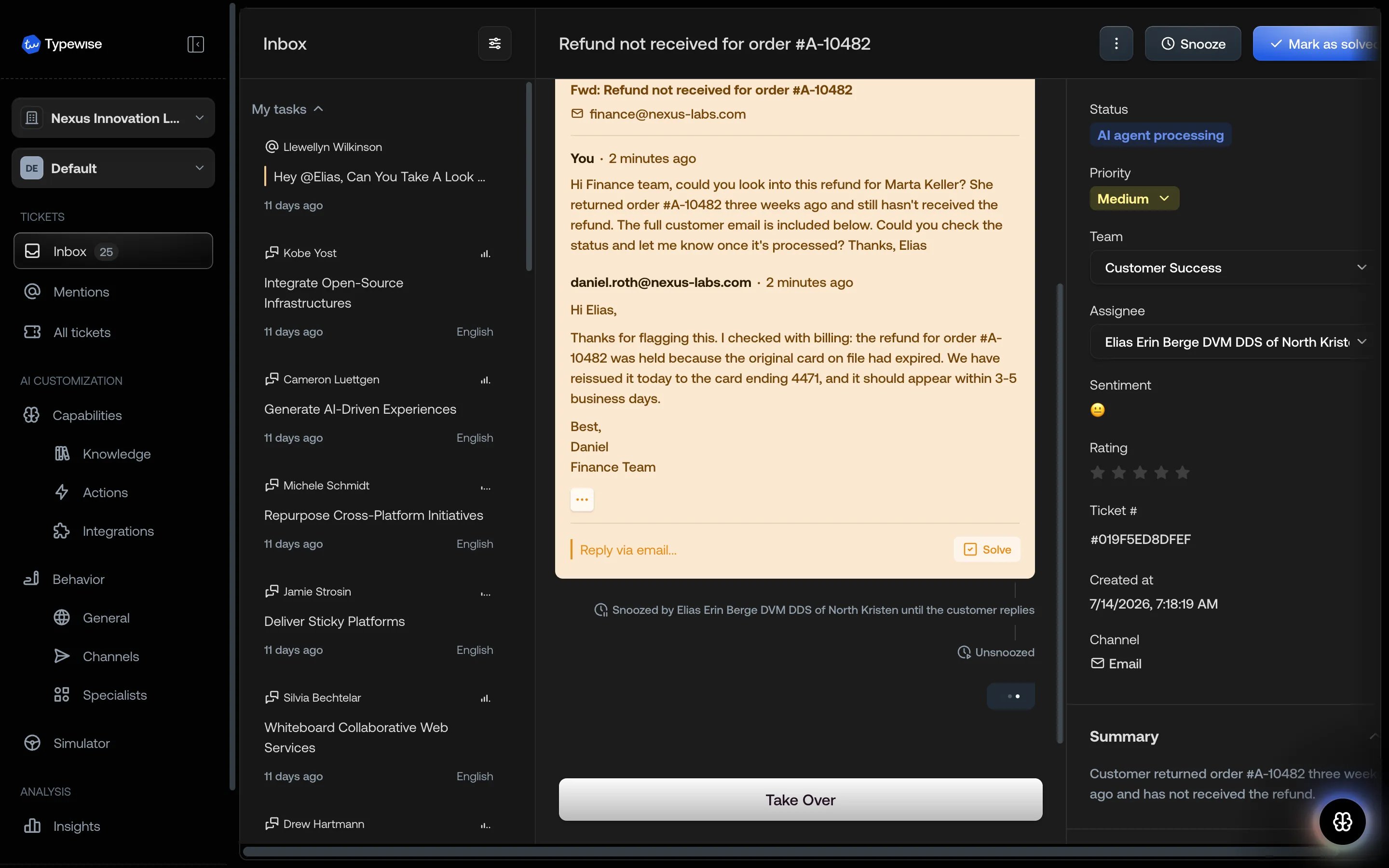 * **View raw email**: on an external reply, click the eye icon to see the raw
email, including headers, quoted history, and signature.
* **Quoted text**: long quoted history is collapsed behind a **…** toggle. Click
it to expand the quoted block.
***
## Continue the conversation
If you need more from the external party after their reply, reply on the same
thread using **Reply via email** in the forward thread. Your reply goes back to
the same recipient and keeps the same thread, so their next reply lands on the
ticket the same way.
Replying to the **customer** is a separate action in the normal composer. The
forward thread is internal and never reaches the customer.
***
## Solve and reopen a forward
When you no longer need the external thread, mark it **Solve**. This removes the
forward reply card from the inbox and collapses the thread in the conversation
to a short "Thread solved by …" receipt.
If you need it again, **Reopen** the thread to bring it back into the
conversation. A late reply that arrives after you solve a thread still lands on
the ticket as a note.
***
## Limits
* **One recipient per forward.** There are no CC or BCC fields. To involve
another person, forward again or continue the thread.
* **No recipient guardrails.** Any valid email address is accepted, including
the customer's own address, so review the recipient before sending.
* **Email only.** Forwarding is sent by email regardless of the ticket's
original channel.
***
## See also
* [Snooze tickets](/documentation/tickets/snooze-tickets): How snoozing removes
tickets from your inbox until a reply
* [Composer](/documentation/tickets/conversation-view/composer): Compose
replies, notes, and forwards
* [Mentions](/documentation/tickets/mentions): Loop in colleagues who use
Typewise with internal notes
* [Inbox](/documentation/tickets/inbox): Understanding the inbox and its
sections
* **View raw email**: on an external reply, click the eye icon to see the raw
email, including headers, quoted history, and signature.
* **Quoted text**: long quoted history is collapsed behind a **…** toggle. Click
it to expand the quoted block.
***
## Continue the conversation
If you need more from the external party after their reply, reply on the same
thread using **Reply via email** in the forward thread. Your reply goes back to
the same recipient and keeps the same thread, so their next reply lands on the
ticket the same way.
Replying to the **customer** is a separate action in the normal composer. The
forward thread is internal and never reaches the customer.
***
## Solve and reopen a forward
When you no longer need the external thread, mark it **Solve**. This removes the
forward reply card from the inbox and collapses the thread in the conversation
to a short "Thread solved by …" receipt.
If you need it again, **Reopen** the thread to bring it back into the
conversation. A late reply that arrives after you solve a thread still lands on
the ticket as a note.
***
## Limits
* **One recipient per forward.** There are no CC or BCC fields. To involve
another person, forward again or continue the thread.
* **No recipient guardrails.** Any valid email address is accepted, including
the customer's own address, so review the recipient before sending.
* **Email only.** Forwarding is sent by email regardless of the ticket's
original channel.
***
## See also
* [Snooze tickets](/documentation/tickets/snooze-tickets): How snoozing removes
tickets from your inbox until a reply
* [Composer](/documentation/tickets/conversation-view/composer): Compose
replies, notes, and forwards
* [Mentions](/documentation/tickets/mentions): Loop in colleagues who use
Typewise with internal notes
* [Inbox](/documentation/tickets/inbox): Understanding the inbox and its
sections