> ## Documentation Index
> Fetch the complete documentation index at: https://docs.typewise.app/llms.txt
> Use this file to discover all available pages before exploring further.
# Inbox
> Understanding the Inbox and its sections
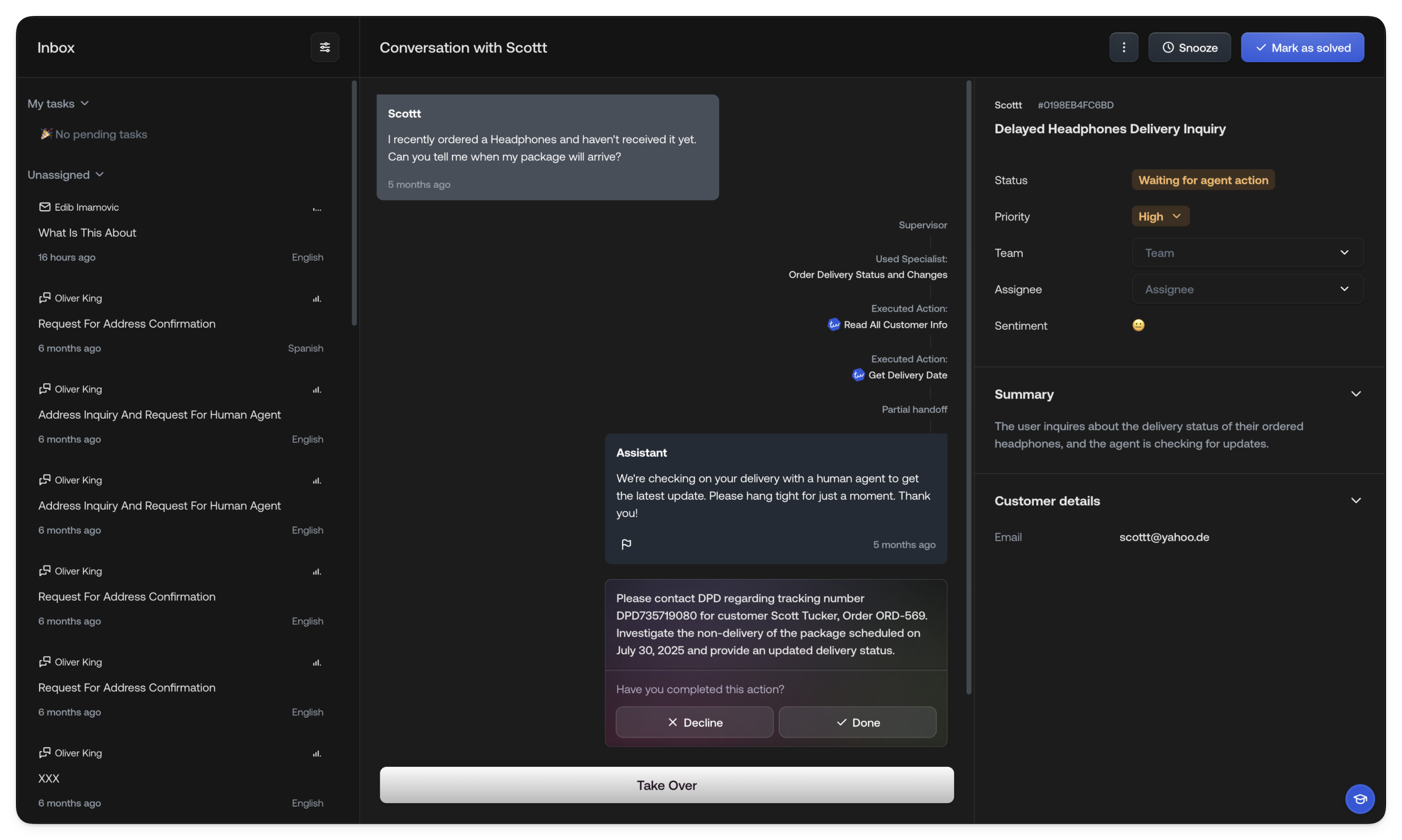
The [Inbox](https://platform.typewise.app/inbox) is the main view for Human
Agents to see all tickets that need their attention. Tickets appear here when
the AI is unsure how to proceed or when it's been instructed to request human
input. In many cases, the AI will continue handling the ticket after an agent
provides approval or input.
 ***
## Sections
The inbox is divided into two sections: **My tickets** and **Unassigned
tickets**. You can collapse or expand these sections to see more or fewer
tickets.
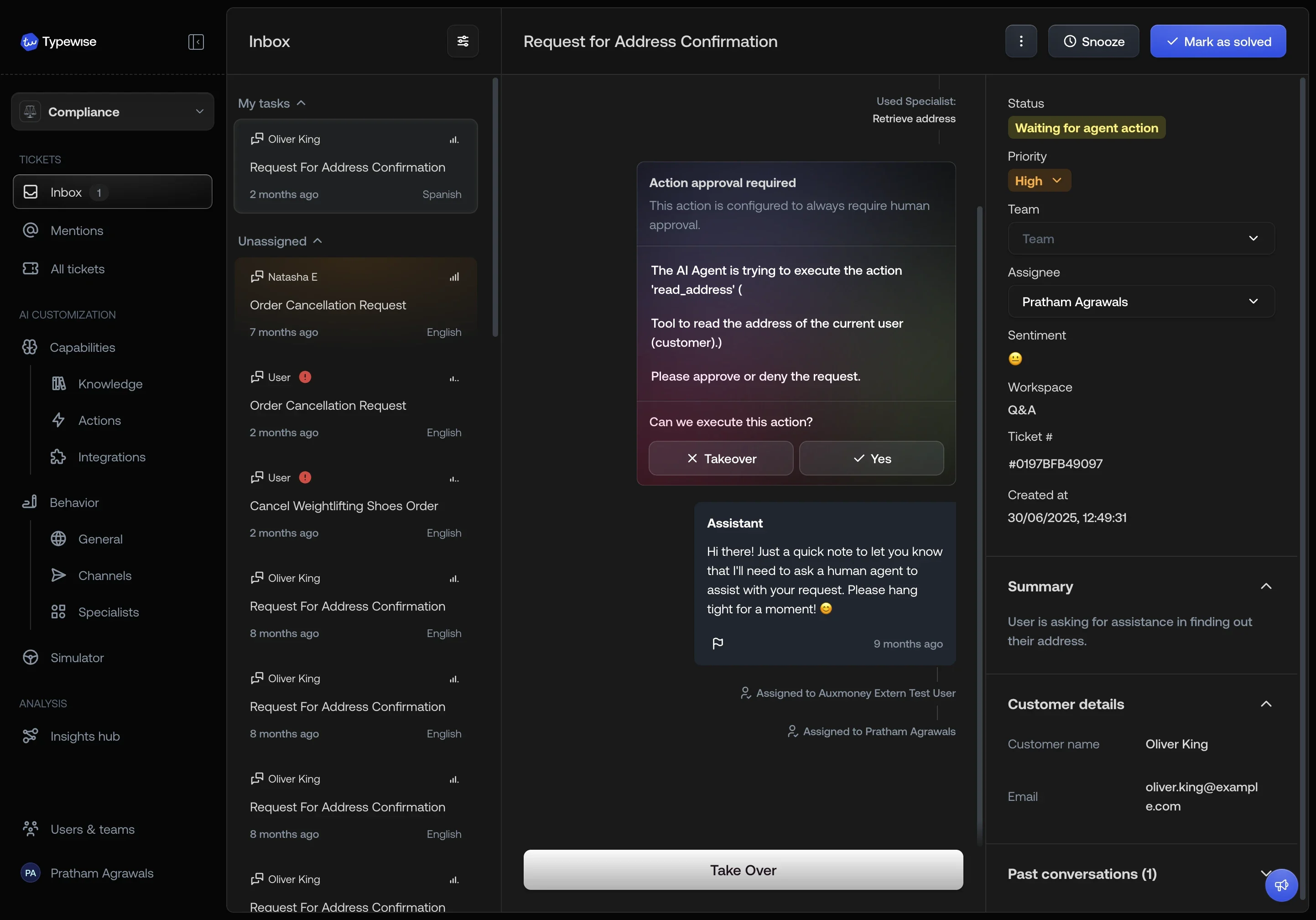
#### My tasks
This section shows all tickets assigned to you, for example, because you
previously replied to the customer in this ticket. Once you reply, the ticket
disappears from your Inbox and only reappears when your input is needed again.
#### Unassigned tickets
Here you'll see new tickets that haven't been assigned yet and are available for
you to pick up. You only see tickets relevant to you based on your assigned
teams.
***
## Sorting and filtering the inbox
By default, intelligent sorting is used to sort the tickets in the inbox. We use
a combination of factors to determine the order of the tickets, including the
time since the customer's last message, the priority of the ticket, its status,
and more.
**It's designed to show you the tickets that are most likely to need your
attention first.**
***
## Sections
The inbox is divided into two sections: **My tickets** and **Unassigned
tickets**. You can collapse or expand these sections to see more or fewer
tickets.
#### My tasks
This section shows all tickets assigned to you, for example, because you
previously replied to the customer in this ticket. Once you reply, the ticket
disappears from your Inbox and only reappears when your input is needed again.
#### Unassigned tickets
Here you'll see new tickets that haven't been assigned yet and are available for
you to pick up. You only see tickets relevant to you based on your assigned
teams.
***
## Sorting and filtering the inbox
By default, intelligent sorting is used to sort the tickets in the inbox. We use
a combination of factors to determine the order of the tickets, including the
time since the customer's last message, the priority of the ticket, its status,
and more.
**It's designed to show you the tickets that are most likely to need your
attention first.**
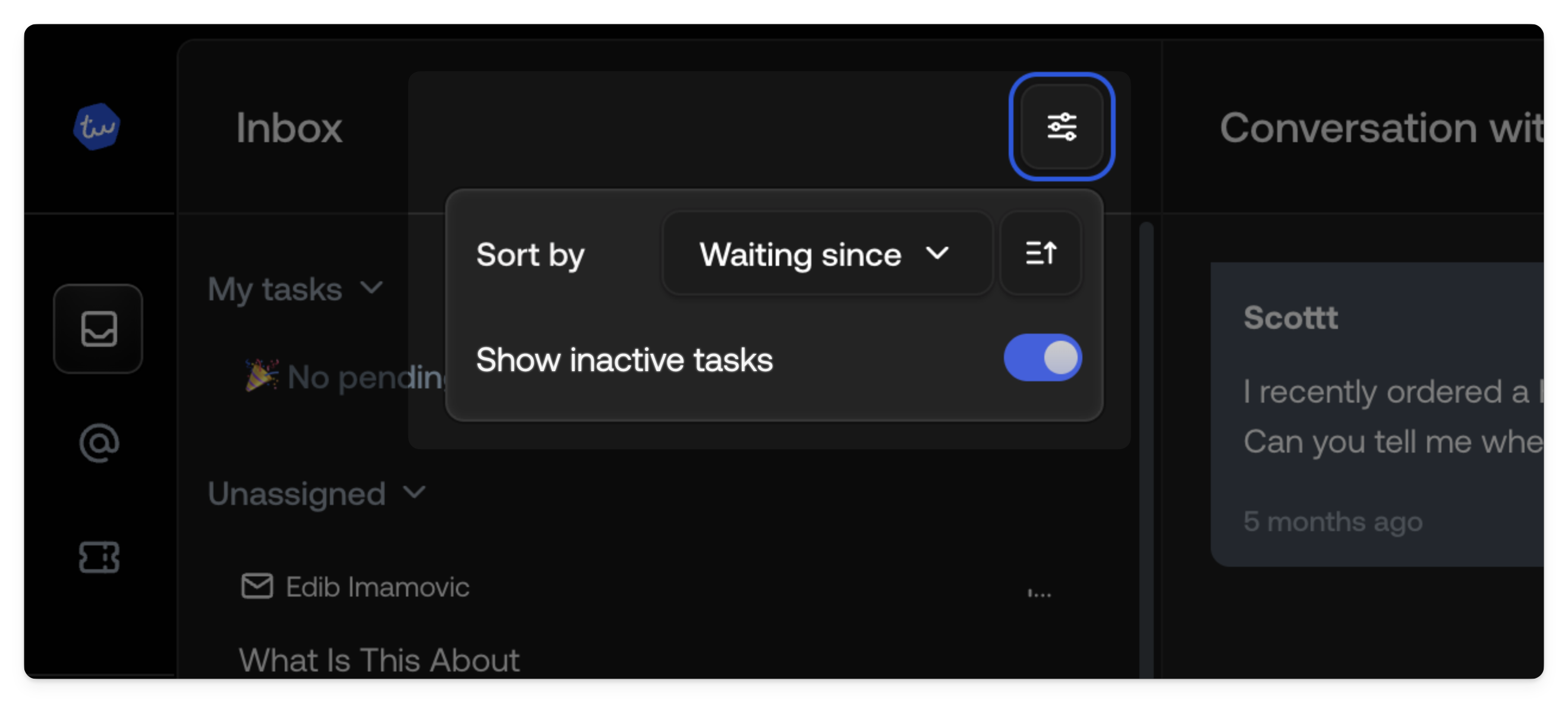 ### Sorting options
* **Smart (default)**: We sort tickets based on the time since the customer's
last message, the priority of the ticket, its status, and more.
* **Waiting since**: We sort tickets based on the time since the ticket was last
waiting for your input.
* **Last activity**: We sort tickets based on the time since the last activity
on the ticket. This includes any changes to the ticket such as status changes,
notes, and any AI activity.
* **Creation date**: We sort tickets based on the creation date of the ticket.
* **Priority**: We sort tickets based on the priority of the ticket.
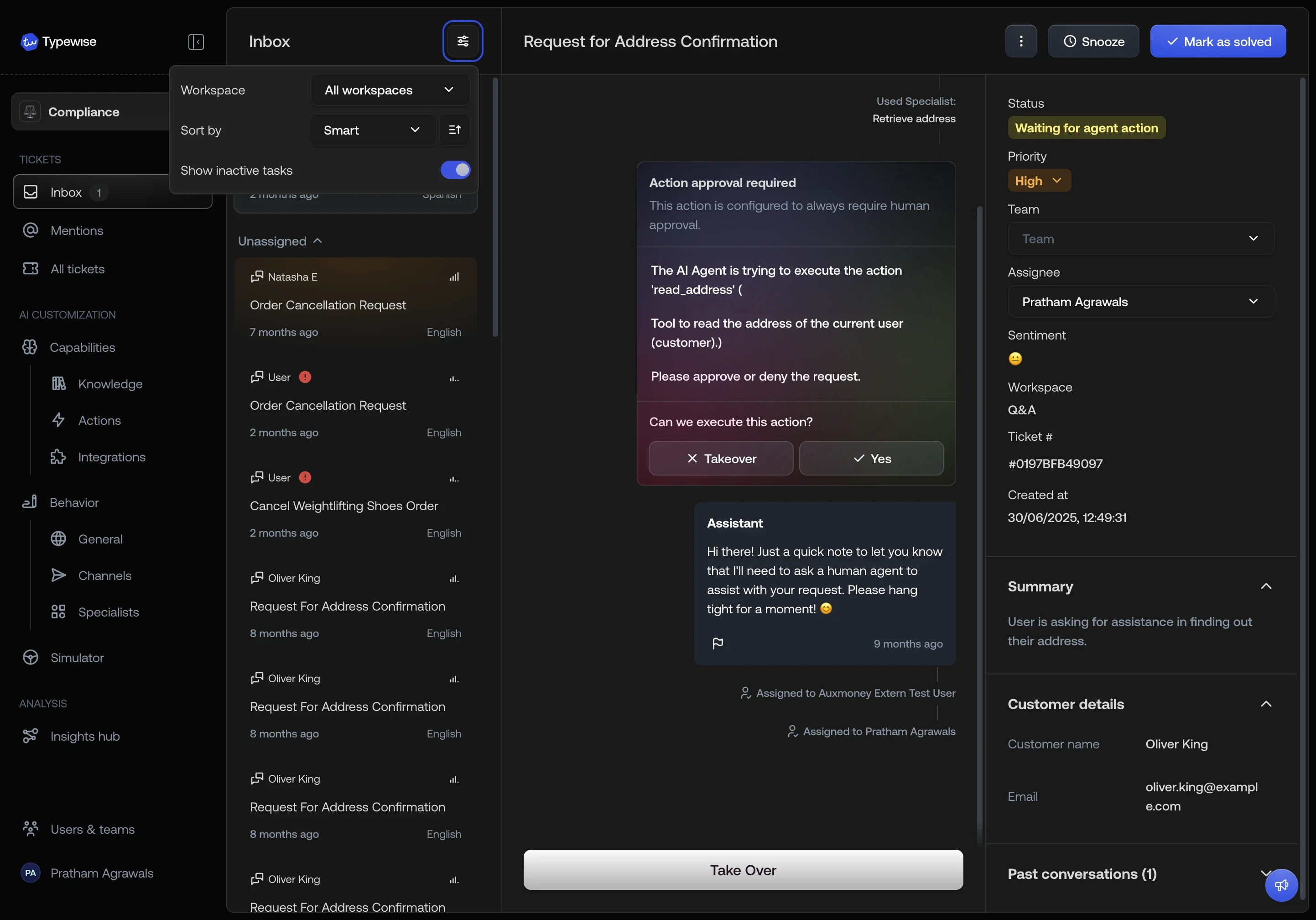
### Filtering by workspace
When your account has more than one [workspace](/documentation/workspaces/overview),
a **Workspace** filter appears in the inbox filter menu.
* **All workspaces** (default): shows tickets from every workspace.
* Select a specific workspace to see only its tickets.
The filter applies to both **My tickets** and **Unassigned tickets** and is
remembered for your session.
When multiple workspaces exist, the ticket details sidebar also displays a
**Workspace** field showing which workspace the ticket belongs to.
### Sorting options
* **Smart (default)**: We sort tickets based on the time since the customer's
last message, the priority of the ticket, its status, and more.
* **Waiting since**: We sort tickets based on the time since the ticket was last
waiting for your input.
* **Last activity**: We sort tickets based on the time since the last activity
on the ticket. This includes any changes to the ticket such as status changes,
notes, and any AI activity.
* **Creation date**: We sort tickets based on the creation date of the ticket.
* **Priority**: We sort tickets based on the priority of the ticket.
### Filtering by workspace
When your account has more than one [workspace](/documentation/workspaces/overview),
a **Workspace** filter appears in the inbox filter menu.
* **All workspaces** (default): shows tickets from every workspace.
* Select a specific workspace to see only its tickets.
The filter applies to both **My tickets** and **Unassigned tickets** and is
remembered for your session.
When multiple workspaces exist, the ticket details sidebar also displays a
**Workspace** field showing which workspace the ticket belongs to.
 ### Showing your inactive tasks
By default, your assigned task list will include all open tickets that are
assigned to you including tickets that don't need your input anymore. If you
want to see only the tickets that need your input, you can disable the **Show
unassigned tasks** option from the filtering dropdown.
***
## Responding to tickets
When a ticket lands in your Inbox, it means the AI needs your input to proceed.
By default, new tickets show up in the assigned section of the inbox.
By default, new tickets show up in the assigned section of the inbox. Based
on the sorting configured, tickets that need immediate attention will be at
the top of the queue.
Review the ticket details and the conversation to understand the customer's
request and the AI's response.
When you start working on a ticket, assign it to yourself. This moves the
ticket to your tasks section and removes it from other Human Agents'
inboxes.
You can use the keyboard shortcut A to quickly assign the
ticket.
The AI assistant may need you to either completely takeover the ticket,
approve a draft response or action, or provide additional information.
Once you've responded, the ticket will be removed from your Inbox and will
return when the customer replies or when further action is needed. Once the
issue is resolved, you can safely close the ticket.
***
## Collaboration
Since the inbox is shared between all your team members, it's important to
collaborate with other Human Agents to ensure that tickets are handled
efficiently and effectively.
### Showing your inactive tasks
By default, your assigned task list will include all open tickets that are
assigned to you including tickets that don't need your input anymore. If you
want to see only the tickets that need your input, you can disable the **Show
unassigned tasks** option from the filtering dropdown.
***
## Responding to tickets
When a ticket lands in your Inbox, it means the AI needs your input to proceed.
By default, new tickets show up in the assigned section of the inbox.
By default, new tickets show up in the assigned section of the inbox. Based
on the sorting configured, tickets that need immediate attention will be at
the top of the queue.
Review the ticket details and the conversation to understand the customer's
request and the AI's response.
When you start working on a ticket, assign it to yourself. This moves the
ticket to your tasks section and removes it from other Human Agents'
inboxes.
You can use the keyboard shortcut A to quickly assign the
ticket.
The AI assistant may need you to either completely takeover the ticket,
approve a draft response or action, or provide additional information.
Once you've responded, the ticket will be removed from your Inbox and will
return when the customer replies or when further action is needed. Once the
issue is resolved, you can safely close the ticket.
***
## Collaboration
Since the inbox is shared between all your team members, it's important to
collaborate with other Human Agents to ensure that tickets are handled
efficiently and effectively.
 #### Seeing what other Human Agents are looking at
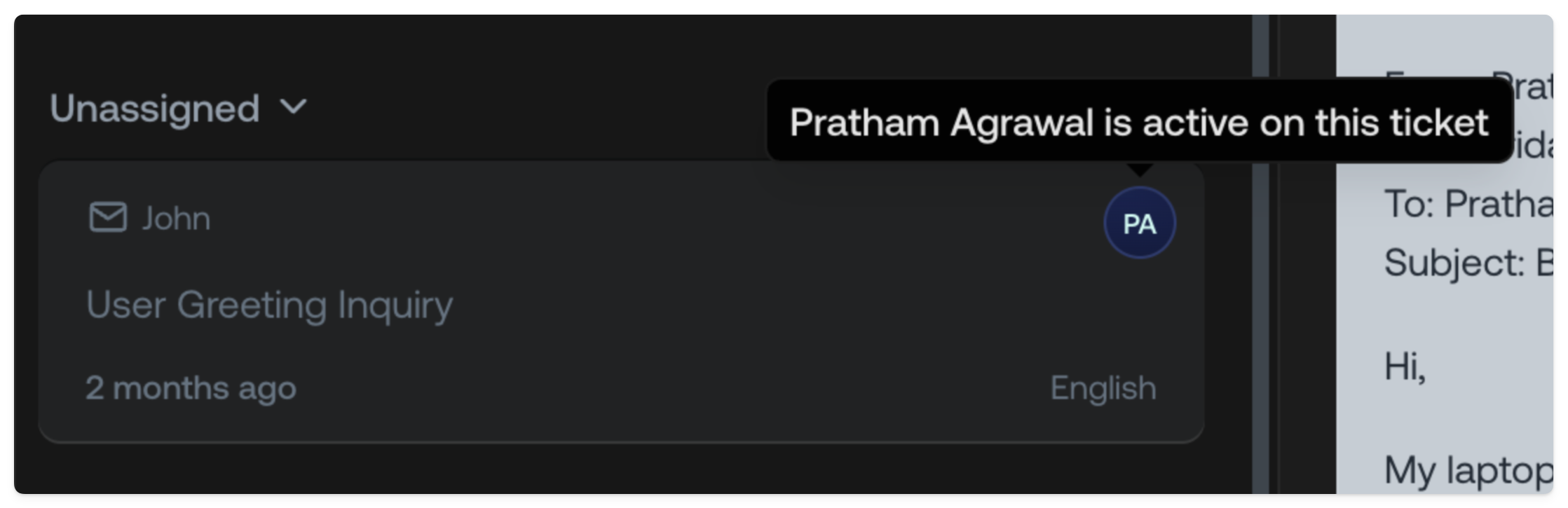
When reviewing the unassigned queue, you can see what tickets are already being
looked at by other Human Agents. This allows you to make sure you're not working
on the same ticket as another Human Agent.
#### Assigning a ticket to yourself
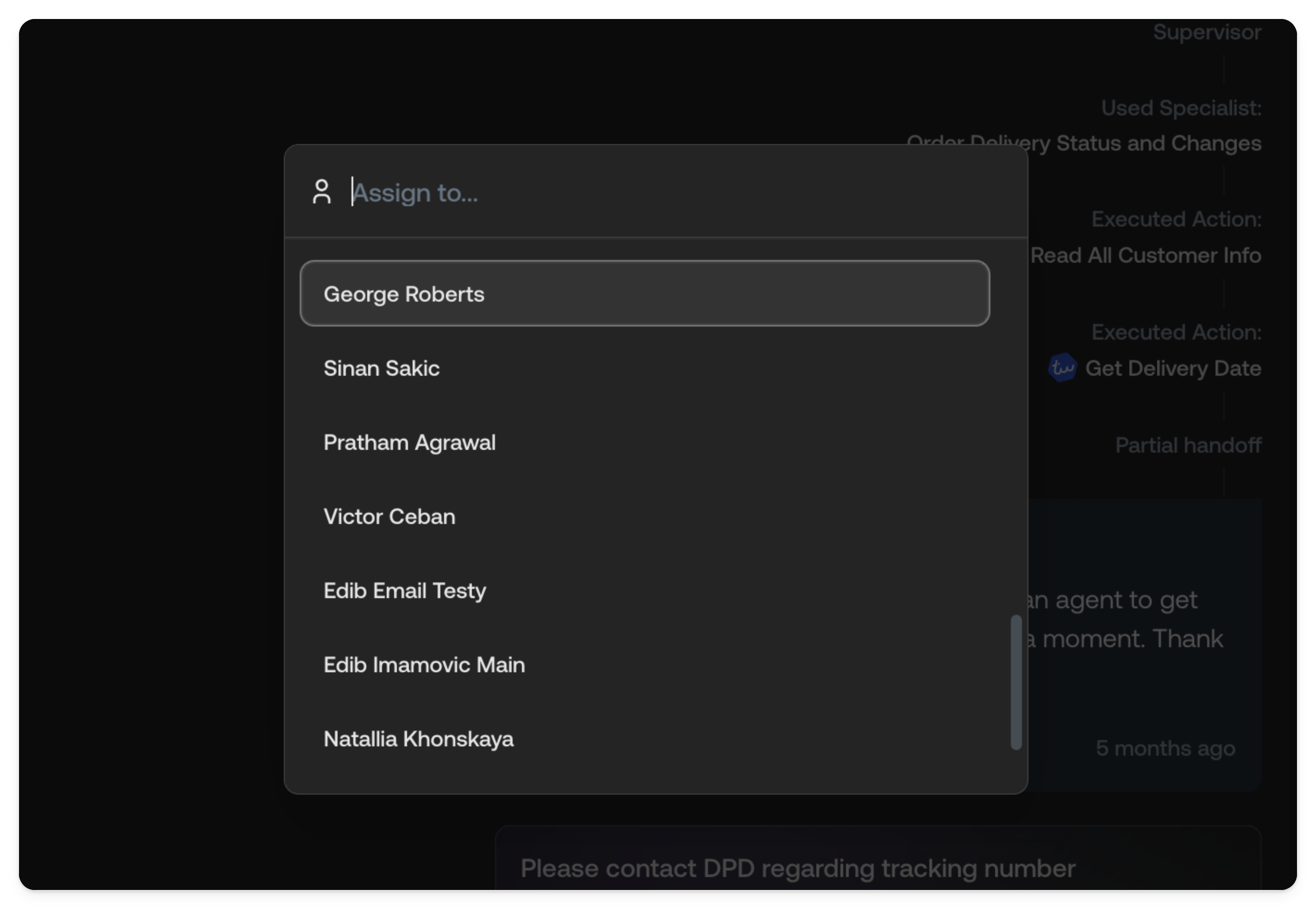
If you feel like you can help with a ticket, you can assign it to yourself. It
will move the ticket to your tasks section. It will also be removed from other
Human Agents' inboxes.
#### Seeing what other Human Agents are looking at
When reviewing the unassigned queue, you can see what tickets are already being
looked at by other Human Agents. This allows you to make sure you're not working
on the same ticket as another Human Agent.
#### Assigning a ticket to yourself
If you feel like you can help with a ticket, you can assign it to yourself. It
will move the ticket to your tasks section. It will also be removed from other
Human Agents' inboxes.
 #### Collaborating with another Human Agent
If you need to collaborate with another Human Agent, you can add a note to the
ticket or mention them in a note. This will notify them that the ticket is being
worked on and they can help you out.
***
## All tickets
If you need to view all your or other people's tickets, go to
[All tickets](/documentation/tickets/all-tickets).
***
#### Collaborating with another Human Agent
If you need to collaborate with another Human Agent, you can add a note to the
ticket or mention them in a note. This will notify them that the ticket is being
worked on and they can help you out.
***
## All tickets
If you need to view all your or other people's tickets, go to
[All tickets](/documentation/tickets/all-tickets).
***