> ## Documentation Index
> Fetch the complete documentation index at: https://docs.typewise.app/llms.txt
> Use this file to discover all available pages before exploring further.
# Mentions
> Mention users in notes on tickets
Mentions are a quick and easy way to communicate internally within tickets by
tagging colleagues. They allow you to draw attention to specific messages or
updates and ensure the right person sees the note. Mentions appear in the
**Inbox** and in a dedicated [Mentions](https://platform.typewise.app/mentions)
tab, with support for threaded replies to keep conversations organized.
***
## When to use this feature
Use Mentions whenever you need to notify a colleague about a ticket, ask a
question, request action, or provide an update that requires their attention.
Think of it as a way to quickly loop someone into a conversation without sending
separate messages outside the system.
Mentions are perfect for internal collaboration but are not visible to the
customer.
Once a mention has been handled, you can mark the thread as solved to clear it
from your queue. See [Solving and reopening threads](#solving-and-reopening-threads).
***
## Instructions
Navigate to the ticket in the Inbox where you want to mention someone.
You can only add notes to tickets that you've already taken over.
If you've already taken over the ticket, the composer should already be
open. Switch to the notes composer by clicking on the dropdown next to the
send button, and click on **Notes** from the dropdown.
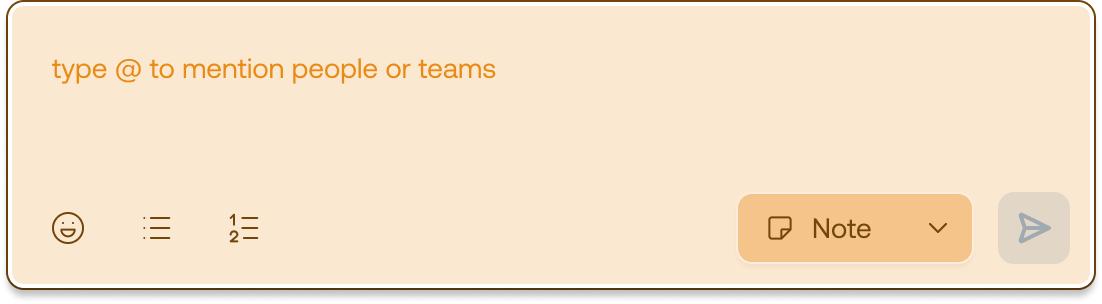
The composer will turn yellow to indicate that you're in the notes
composer.
 Type `@` and start typing the name of the person you want to tag. Select the
correct user from the list that appears.
Type `@` and start typing the name of the person you want to tag. Select the
correct user from the list that appears. 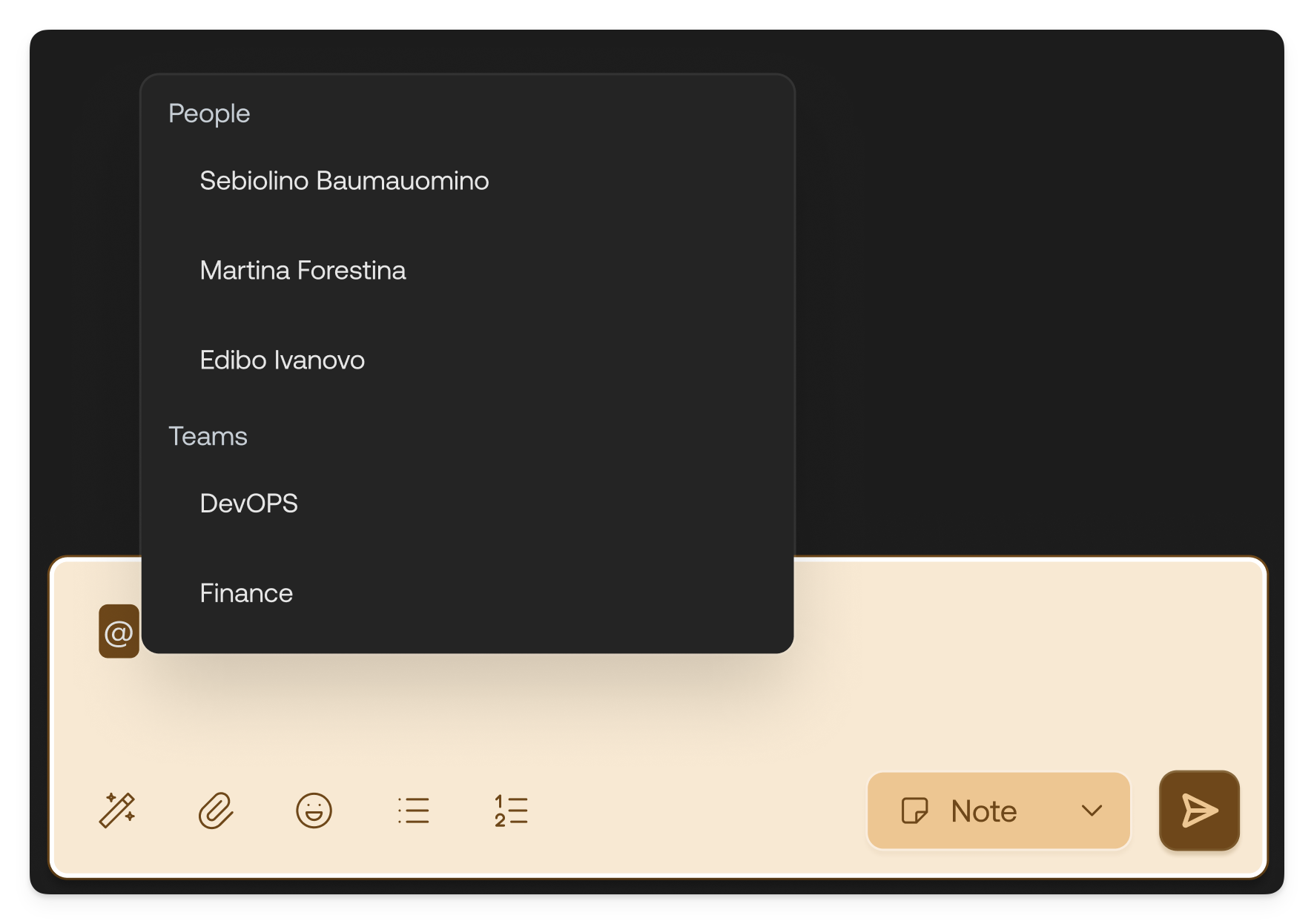 Write your message after tagging the person. Once sent, the mention becomes
visible in the ticket, as well as in the Mentions tab.
You and the mentioned user can reply directly to the mention, creating a
threaded conversation that keeps context clear and organized.
Write your message after tagging the person. Once sent, the mention becomes
visible in the ticket, as well as in the Mentions tab.
You and the mentioned user can reply directly to the mention, creating a
threaded conversation that keeps context clear and organized. 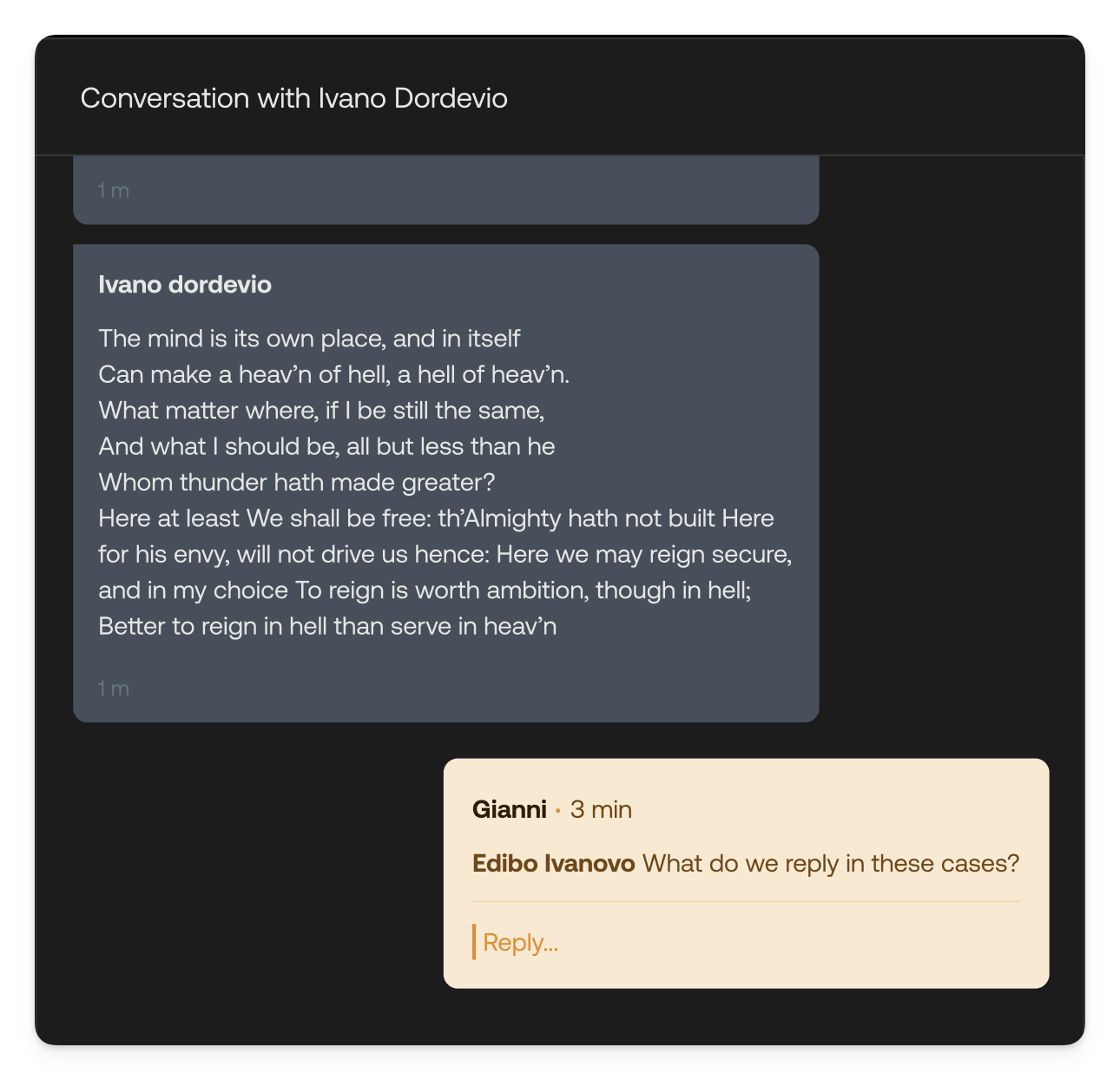 ***
## Solving and reopening threads
Once a mention thread has served its purpose, you can mark it as solved to clear
it from your queue and signal to your teammates that no further action is needed.
On the mention thread, click the **Solve** button next to the reply
composer. The thread collapses and shows a receipt indicating who solved it,
for example **Thread solved by you** or **Thread solved by** the colleague's
name.
If the thread needs more attention, click **Reopen** on the solved thread to
reactivate it. This returns it to the Inbox and reopens the reply composer.
Solving a thread removes it from the **Inbox** and no longer counts it toward
the mentions badge. The thread still appears in the
[Mentions](https://platform.typewise.app/mentions) tab, where it is shown
collapsed as solved until you reopen it.
## See also
* [Inbox](/documentation/tickets/inbox): Understanding the Inbox and its
sections
* [Composer](/documentation/tickets/conversation-view/composer): Compose
responses and notes
* [Team Management](/documentation/settings/team-management): Organize users
into teams
***
## Solving and reopening threads
Once a mention thread has served its purpose, you can mark it as solved to clear
it from your queue and signal to your teammates that no further action is needed.
On the mention thread, click the **Solve** button next to the reply
composer. The thread collapses and shows a receipt indicating who solved it,
for example **Thread solved by you** or **Thread solved by** the colleague's
name.
If the thread needs more attention, click **Reopen** on the solved thread to
reactivate it. This returns it to the Inbox and reopens the reply composer.
Solving a thread removes it from the **Inbox** and no longer counts it toward
the mentions badge. The thread still appears in the
[Mentions](https://platform.typewise.app/mentions) tab, where it is shown
collapsed as solved until you reopen it.
## See also
* [Inbox](/documentation/tickets/inbox): Understanding the Inbox and its
sections
* [Composer](/documentation/tickets/conversation-view/composer): Compose
responses and notes
* [Team Management](/documentation/settings/team-management): Organize users
into teams