> ## Documentation Index
> Fetch the complete documentation index at: https://docs.typewise.app/llms.txt
> Use this file to discover all available pages before exploring further.
# Create a workspace
> Set up a new workspace from scratch or by cloning an existing one
You can create a new workspace from the workspace selector in the sidebar. There
are two paths: start with an empty workspace, or clone configuration from an
existing one.
***
## Start from scratch
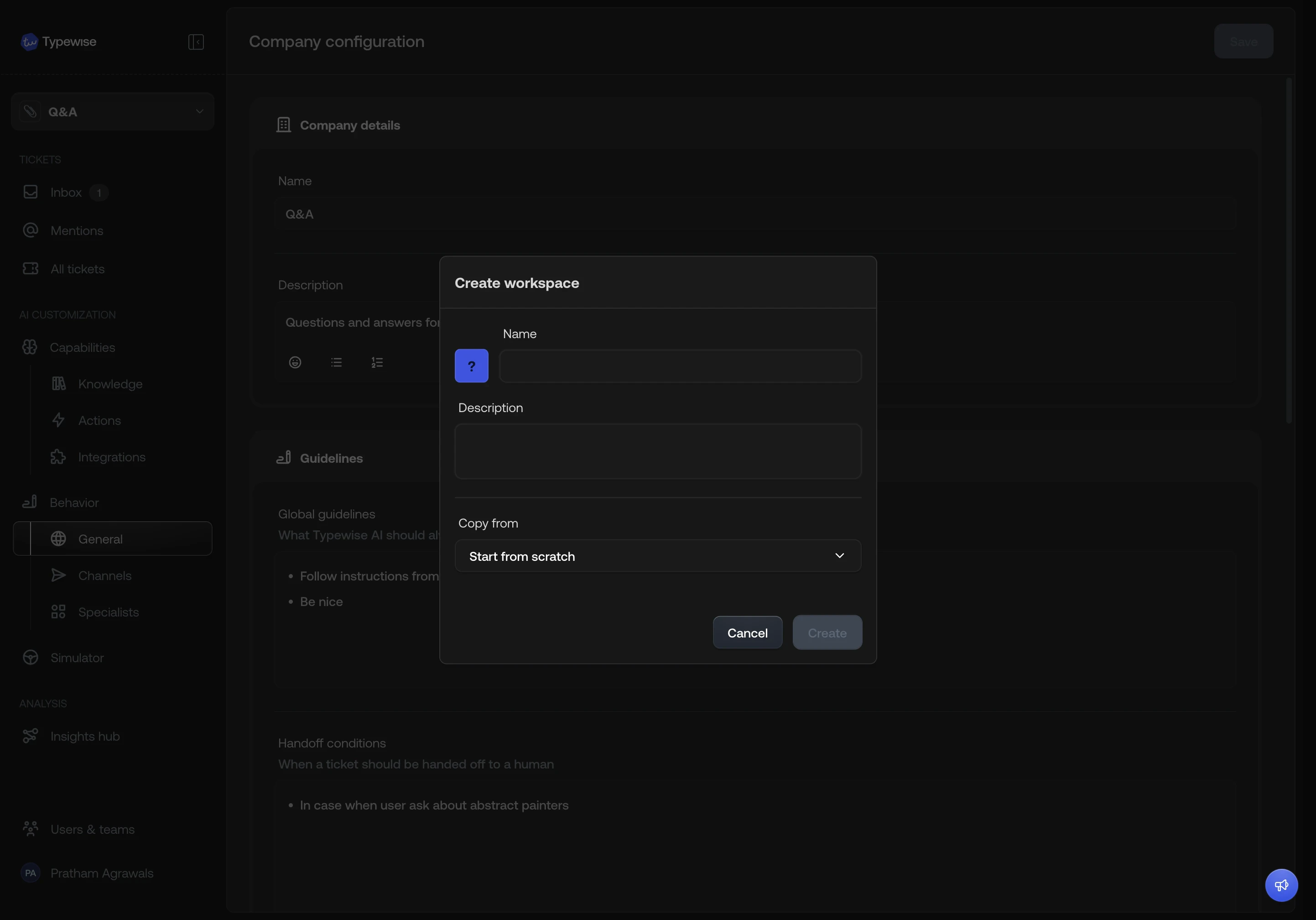
Click the workspace selector in the sidebar and select **Create workspace**.
Enter a workspace name (required) and an optional description.
Pick an avatar for the workspace. You can choose from three types:
* **Color**: 8 preset colors.
* **Emoji**: any emoji.
* **Logo**: upload a custom image.
The avatar defaults to the first color preset if you skip this step.
Click **Create**. The workspace is created empty with default behaviour
settings. You can then configure it from the
[workspace settings](/documentation/workspaces/workspace-settings) or by
[importing resources](/documentation/workspaces/import-resources) from
another workspace.
 ***
## Clone from an existing workspace
Cloning copies selected configuration from a source workspace into a new one.
Click the workspace selector in the sidebar and select **Create workspace**.
Enter a workspace name, optional description, and pick an avatar.
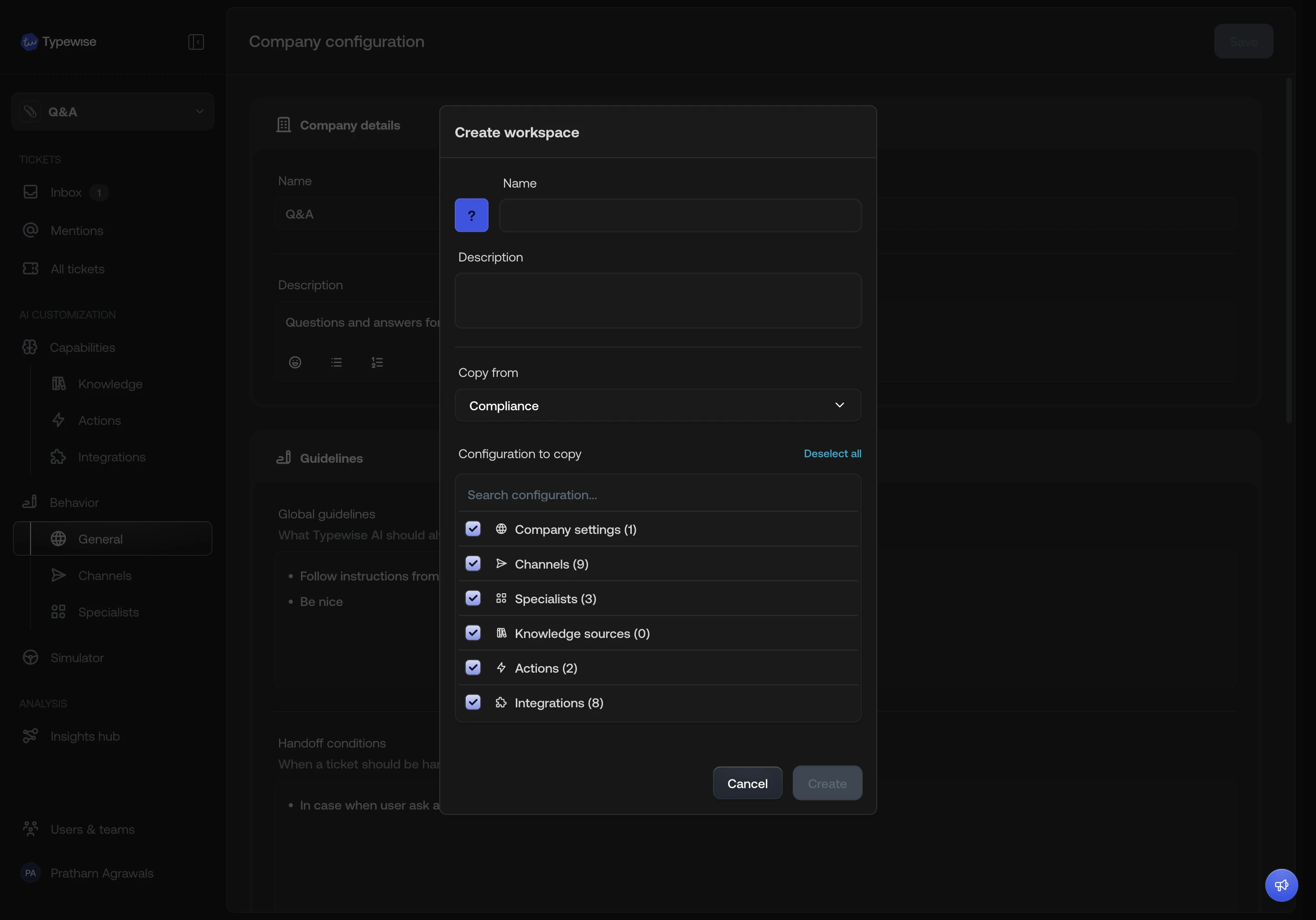
In the **Copy from** dropdown, select the workspace you want to clone from.
A checklist appears with the following configuration types:
* **Company settings**
* **Channels**
* **Specialists**
* **Knowledge sources**
* **Actions**
* **Integrations**
All options are selected by default. Each option shows the number of items
that will be copied (e.g., "Specialists (5)"). Uncheck any types you do not
want to copy.
If your selection creates a dependency gap, a warning appears. For example:
* Copying **specialists** but not **actions** or **knowledge**: if those
specialists reference actions or knowledge sources, the warning tells you
how many extra items will be imported automatically.
* Copying **actions** or **knowledge** but not **integrations**: if those
items use integrations, the warning tells you how many integrations will be
imported automatically.
Click **Create**. If the copy fails for any reason, the new workspace is
removed automatically. You will not end up with a half-configured workspace.
***
## Clone from an existing workspace
Cloning copies selected configuration from a source workspace into a new one.
Click the workspace selector in the sidebar and select **Create workspace**.
Enter a workspace name, optional description, and pick an avatar.
In the **Copy from** dropdown, select the workspace you want to clone from.
A checklist appears with the following configuration types:
* **Company settings**
* **Channels**
* **Specialists**
* **Knowledge sources**
* **Actions**
* **Integrations**
All options are selected by default. Each option shows the number of items
that will be copied (e.g., "Specialists (5)"). Uncheck any types you do not
want to copy.
If your selection creates a dependency gap, a warning appears. For example:
* Copying **specialists** but not **actions** or **knowledge**: if those
specialists reference actions or knowledge sources, the warning tells you
how many extra items will be imported automatically.
* Copying **actions** or **knowledge** but not **integrations**: if those
items use integrations, the warning tells you how many integrations will be
imported automatically.
Click **Create**. If the copy fails for any reason, the new workspace is
removed automatically. You will not end up with a half-configured workspace.
 Dependencies are always resolved to keep the workspace consistent. If a
specialist references an action that is not in your selection, that action is
imported along with it.
***
## See also
* [Import resources](/documentation/workspaces/import-resources): Copy
individual resources between workspaces after creation
* [Workspace settings](/documentation/workspaces/workspace-settings): Edit
workspace name, avatar, and Context Variables
* [Workspaces overview](/documentation/workspaces/overview): Understand what is
isolated vs shared
Dependencies are always resolved to keep the workspace consistent. If a
specialist references an action that is not in your selection, that action is
imported along with it.
***
## See also
* [Import resources](/documentation/workspaces/import-resources): Copy
individual resources between workspaces after creation
* [Workspace settings](/documentation/workspaces/workspace-settings): Edit
workspace name, avatar, and Context Variables
* [Workspaces overview](/documentation/workspaces/overview): Understand what is
isolated vs shared