> ## Documentation Index
> Fetch the complete documentation index at: https://docs.typewise.app/llms.txt
> Use this file to discover all available pages before exploring further.
# Overview
> Create multiple dedicated environments within a single account
Workspaces let you run multiple dedicated environments inside one Typewise
account. Each workspace has its own configuration (behaviour, channels,
integrations, knowledge, actions, specialists, and context variables), while
inbox, tickets, users, and teams remain shared.
Think of a workspace as a dedicated agent or section of your company. Common
setups include separate workspaces for Compliance vs Support, different brands,
or different departments.
Workspaces are managed by **admin users** only. Non-admin users work within
whichever workspace context applies to their tickets.
***
## What is isolated per workspace
Each workspace has its own independent copy of:
* [Company settings](/documentation/behavior/company) (behaviour)
* [Channel settings](/documentation/behavior/email) (email, chat, WhatsApp, API)
* [Integrations](/documentation/integrations/overview)
* [Knowledge sources](/documentation/knowledge/overview)
* [Actions](/documentation/actions/overview)
* [Specialists](/documentation/behavior/specialists)
* [Context Variables](/documentation/settings/context-variables)
* Translation overrides
* Chat SDK configuration and whitelisted domains
* [Simulator tests](/documentation/testing-and-feedback/simulator)
Nothing is shared automatically between workspaces. When you create a new
workspace it starts empty unless you
[clone from an existing one](/documentation/workspaces/create-workspace).
***
## What is shared across workspaces
| Resource | How it works |
| ----------------- | --------------------------------------------------------------------------------------------------------------------- |
| **Inbox** | Tickets belong to a workspace but can be viewed across all workspaces. |
| **All tickets** | A workspace filter and column appear when multiple workspaces exist. |
| **Users** | User accounts are account-wide. The same login works in every workspace. |
| **Teams** | Teams exist at the account level but can be [linked to specific workspaces](/documentation/settings/team-management). |
| **End customers** | Customer records are shared across all workspaces. |
***
## Workspace selector
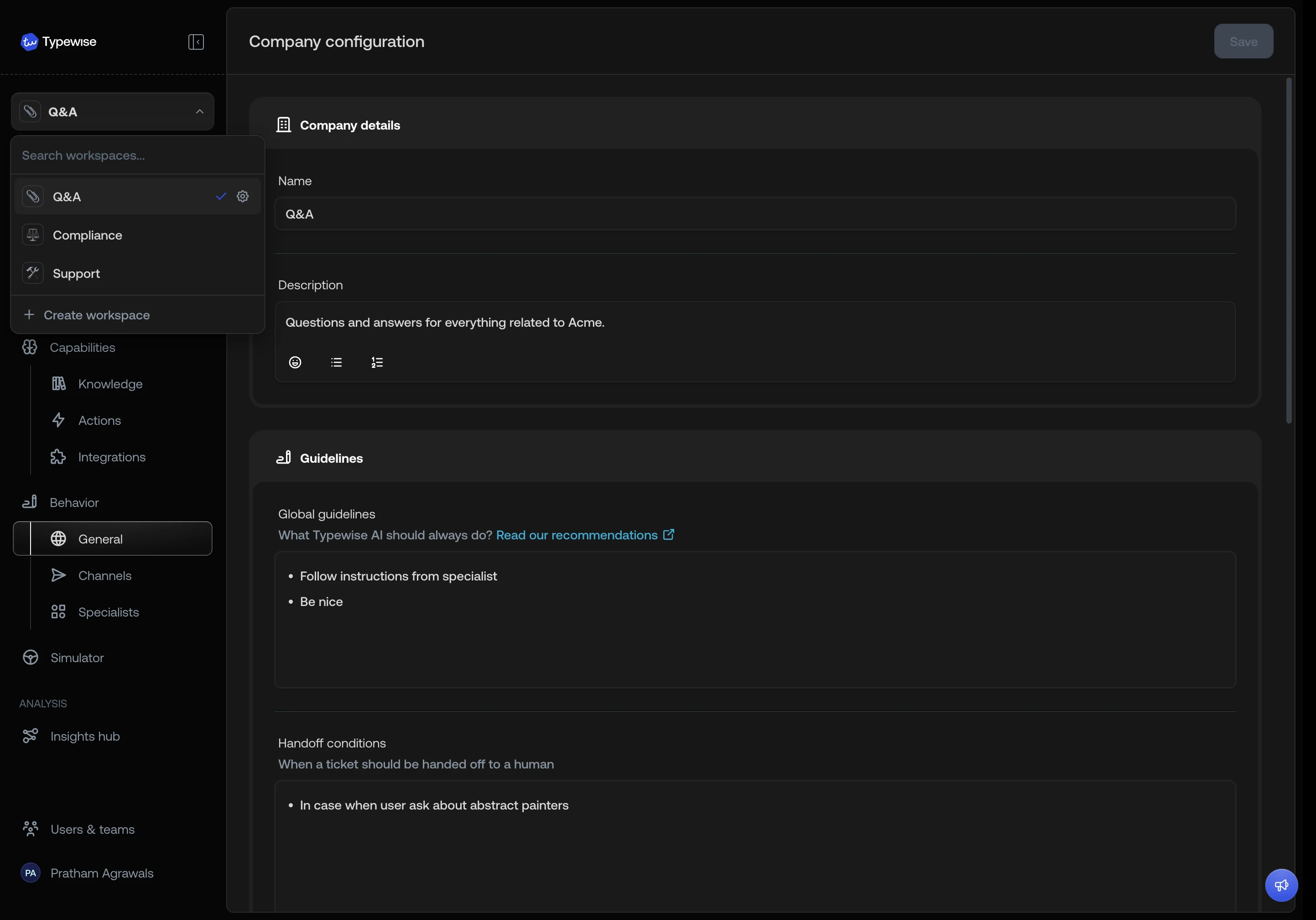
The workspace selector appears in the sidebar for admin users. It lets you
switch between workspaces and access workspace-level settings.
* **Search**: type to filter workspaces by name or description.
* **Switch**: selecting a workspace refreshes all workspace-scoped data
(behaviour, channels, knowledge, etc.).
* **Detail page redirect**: if you are viewing a specific resource (e.g., a
specialist or knowledge source) and switch workspaces, you are taken back to
the list view to avoid showing stale data.
* **Settings**: each entry shows a gear icon that opens
[Workspace settings](/documentation/workspaces/workspace-settings).
* **Create workspace**: opens the
[create workspace](/documentation/workspaces/create-workspace) dialog.
 ***
## Deep links
If you open a link to a specific specialist, knowledge source, or action that
belongs to a different workspace, Typewise automatically switches to the correct
workspace before showing the page. This ensures bookmarks and shared links
always work regardless of which workspace you are currently in.
***
## Related
Start from scratch or clone an existing workspace.
Copy knowledge, actions, specialists, or integrations between workspaces.
Edit name, avatar, Context Variables, or delete a workspace.
***
## Deep links
If you open a link to a specific specialist, knowledge source, or action that
belongs to a different workspace, Typewise automatically switches to the correct
workspace before showing the page. This ensures bookmarks and shared links
always work regardless of which workspace you are currently in.
***
## Related
Start from scratch or clone an existing workspace.
Copy knowledge, actions, specialists, or integrations between workspaces.
Edit name, avatar, Context Variables, or delete a workspace.