> ## Documentation Index
> Fetch the complete documentation index at: https://docs.typewise.app/llms.txt
> Use this file to discover all available pages before exploring further.
# Set up email
> Send and receive customer emails in Typewise.
Connect your email address to Typewise.
Migrating from an existing support inbox? See [Migrate a shared
inbox](/guides/migrate-to-typewise/migrate-shared-inbox-to-typewise).
***
## Set up email sending
By default, Typewise sends from a Typewise-owned address. To use your own
address, add it to channel settings.
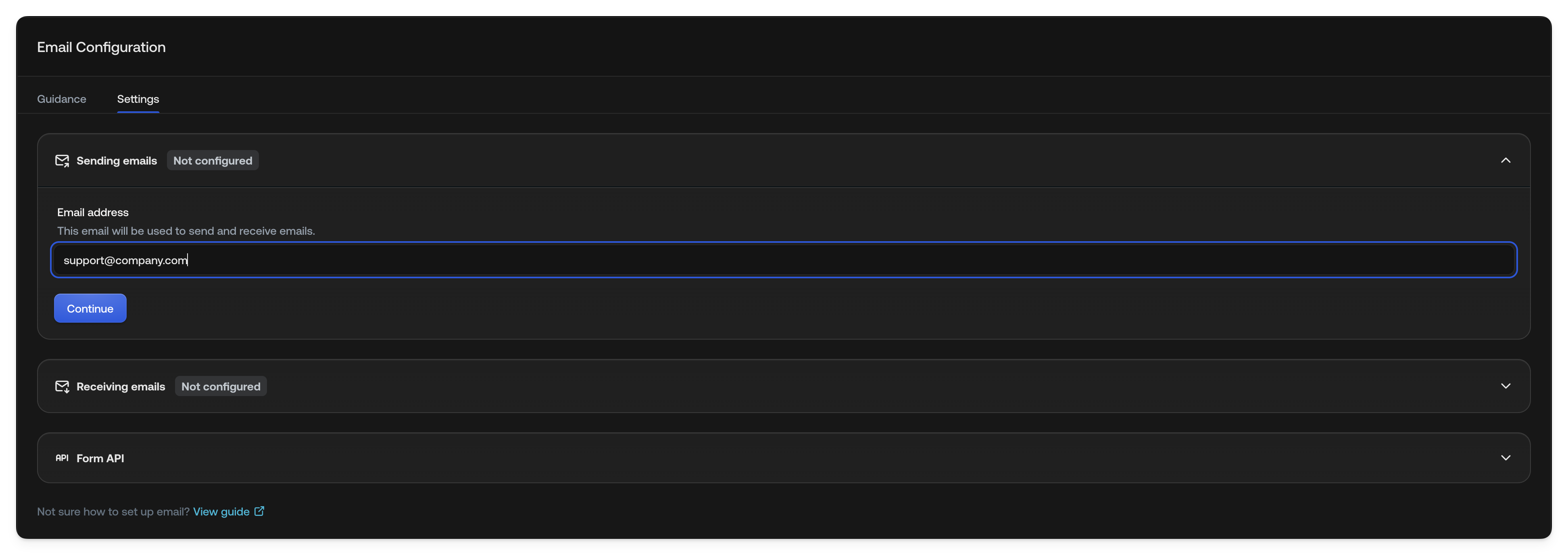
### Step 1: Add your support email address
1. Go to [Email Settings](https://platform.typewise.app/channels/email/settings)
(Behavior → Channels → Email → Settings tab)
2. Open the **Sending emails** section
3. Enter your support address (e.g., `support@yourcompany.com`)
 ### Step 2: Update your DNS records
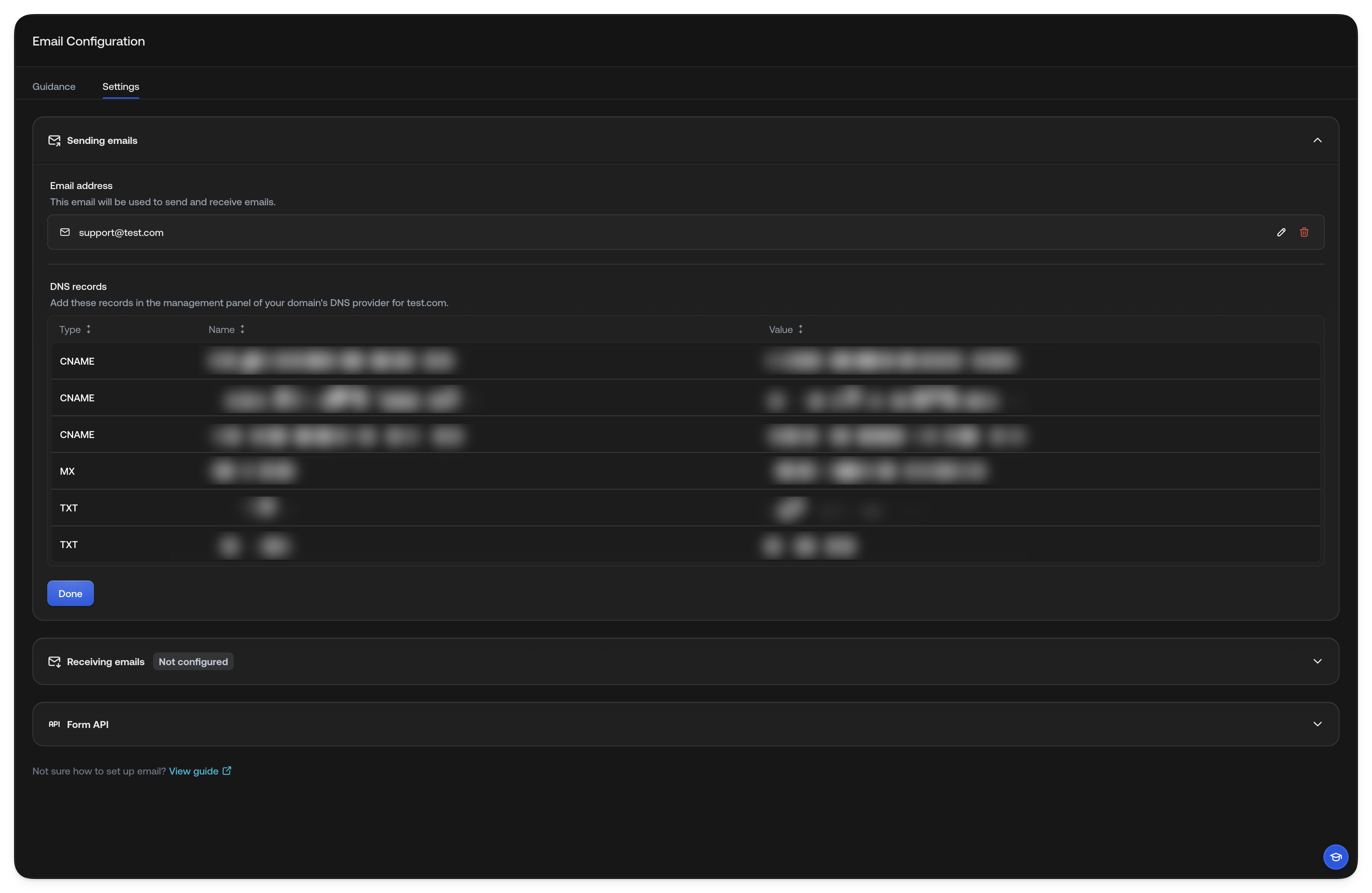
After adding your domain, you'll see DNS records to add. Copy these into your
domain host's settings (e.g., GoDaddy, Cloudflare, Google Domains).
DNS changes can take up to 48 hours to propagate, but usually complete within
an hour.
**Required DNS records:**
| Record Type | Purpose |
| :---------- | :----------------------------------------------- |
| DKIM | Authenticates emails as coming from your domain |
| SPF | Specifies which servers can send for your domain |
| DMARC | Defines how to handle unauthenticated emails |
### Step 2: Update your DNS records
After adding your domain, you'll see DNS records to add. Copy these into your
domain host's settings (e.g., GoDaddy, Cloudflare, Google Domains).
DNS changes can take up to 48 hours to propagate, but usually complete within
an hour.
**Required DNS records:**
| Record Type | Purpose |
| :---------- | :----------------------------------------------- |
| DKIM | Authenticates emails as coming from your domain |
| SPF | Specifies which servers can send for your domain |
| DMARC | Defines how to handle unauthenticated emails |
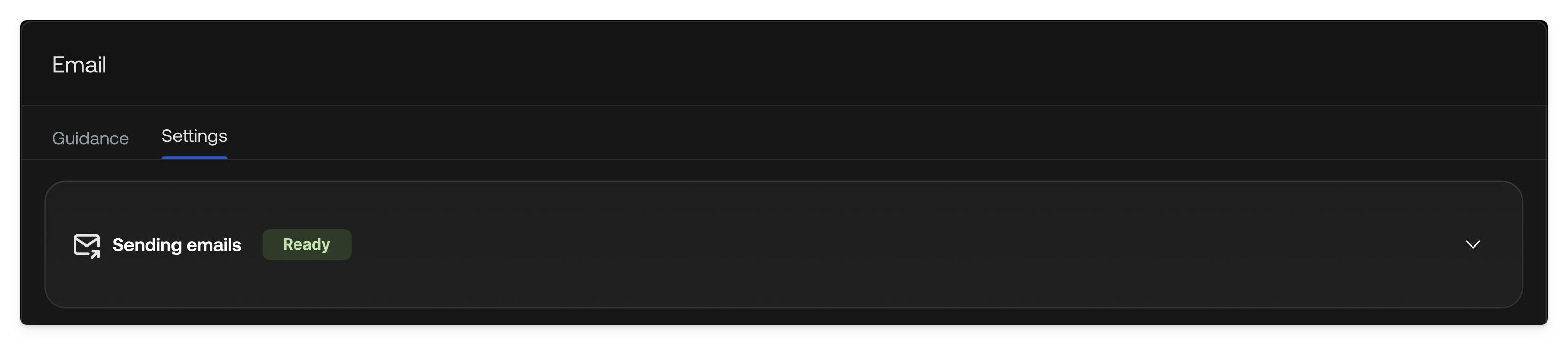
 ### Step 3: Verify your domain
Once saved, Typewise automatically verifies your DNS records. When status shows
**Ready**, you can send emails.
### Step 3: Verify your domain
Once saved, Typewise automatically verifies your DNS records. When status shows
**Ready**, you can send emails.
 ***
## Set up email receiving
Route replies and new emails to Typewise.
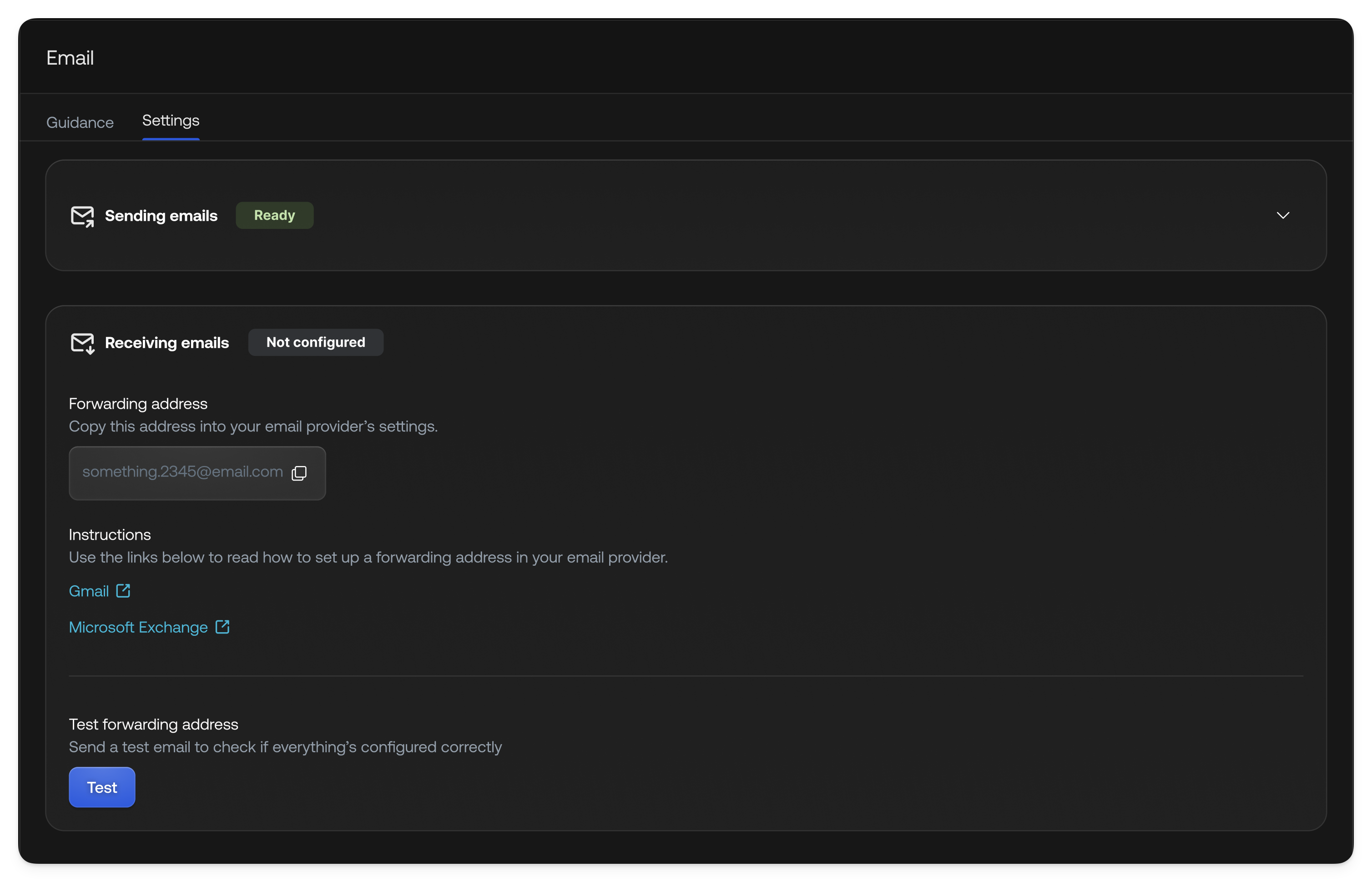
### Step 1: Copy your forwarding address
1. Go to [Email Settings](https://platform.typewise.app/channels/email/settings)
(Behavior → Channels → Email → Settings tab)
2. Open the **Receiving emails** section
3. Copy your Typewise forwarding address (e.g., `support@inbound.typewise.app`)
***
## Set up email receiving
Route replies and new emails to Typewise.
### Step 1: Copy your forwarding address
1. Go to [Email Settings](https://platform.typewise.app/channels/email/settings)
(Behavior → Channels → Email → Settings tab)
2. Open the **Receiving emails** section
3. Copy your Typewise forwarding address (e.g., `support@inbound.typewise.app`)
 ### Step 2: Add forwarding in your email provider
In your email provider (Gmail, Outlook, or mail server), set up a forwarding
rule:
* Forward incoming messages to your Typewise forwarding address
* Provider instructions:
* [Gmail](/guides/channels/setup-email-gmail)
* [Outlook](https://support.microsoft.com/en-us/office/use-rules-to-automatically-forward-messages-45aa9664-4911-4f96-9663-ece42816d746)
* [Dynamics 365](https://learn.microsoft.com/en-us/microsoft-365/admin/email/configure-email-forwarding?view=o365-worldwide)
### Step 3: Test it out
**Automatic test:**
Click the test email button to verify forwarding.
This only works if the sending and receiving addresses are the same.
### Step 2: Add forwarding in your email provider
In your email provider (Gmail, Outlook, or mail server), set up a forwarding
rule:
* Forward incoming messages to your Typewise forwarding address
* Provider instructions:
* [Gmail](/guides/channels/setup-email-gmail)
* [Outlook](https://support.microsoft.com/en-us/office/use-rules-to-automatically-forward-messages-45aa9664-4911-4f96-9663-ece42816d746)
* [Dynamics 365](https://learn.microsoft.com/en-us/microsoft-365/admin/email/configure-email-forwarding?view=o365-worldwide)
### Step 3: Test it out
**Automatic test:**
Click the test email button to verify forwarding.
This only works if the sending and receiving addresses are the same.
 **Manual test:**
1. Send an email to your support address
2. Check your Typewise inbox. The email should appear.
**Manual test:**
1. Send an email to your support address
2. Check your Typewise inbox. The email should appear.
 ***
## Troubleshooting
### Q. Can sending and receiving addresses differ?
Yes. Forwarding verification won't work, but the channel functions normally.
### Q. How do I add/edit my SPF record?
* **Existing SPF record:** Add `include:amazonses.com`
* **No SPF record:** Create: `v=spf1 a include:amazonses.com ~all`
*This may affect other services on the same domain; add them to the SPF record
too.*
### Q. Customers aren't receiving emails
* Sending address not verified? Typewise can't send until verified.
* Check spam folders. This may be caused by misconfigured SPF/DKIM.
### Q. Domain verification failed
* Double-check **DKIM records** are correct
* Check for **extra spaces or missing characters**
* DNS propagation can take **48 hours**
* Use [MXToolbox](https://mxtoolbox.com/) to verify records
### Q. Emails not received in Typewise
* Confirm **forwarding rule** points to correct Typewise address
* Check if provider requires **forwarding verification** (Gmail sends
confirmation). Find confirmation in All Tickets.
* Check spam folder
* Try sending from a different address
### Q. Emails landing in spam
* Verify SPF and DKIM records
* Use a recognizable sender (not `no-reply@`)
* Keep subject lines professional
### Q. Forwarding delay
* Some providers batch-process forwards. Small delays are normal.
* If delays persist, check provider settings or contact their support
***
Contact **Typewise Support** for help.
***
## Troubleshooting
### Q. Can sending and receiving addresses differ?
Yes. Forwarding verification won't work, but the channel functions normally.
### Q. How do I add/edit my SPF record?
* **Existing SPF record:** Add `include:amazonses.com`
* **No SPF record:** Create: `v=spf1 a include:amazonses.com ~all`
*This may affect other services on the same domain; add them to the SPF record
too.*
### Q. Customers aren't receiving emails
* Sending address not verified? Typewise can't send until verified.
* Check spam folders. This may be caused by misconfigured SPF/DKIM.
### Q. Domain verification failed
* Double-check **DKIM records** are correct
* Check for **extra spaces or missing characters**
* DNS propagation can take **48 hours**
* Use [MXToolbox](https://mxtoolbox.com/) to verify records
### Q. Emails not received in Typewise
* Confirm **forwarding rule** points to correct Typewise address
* Check if provider requires **forwarding verification** (Gmail sends
confirmation). Find confirmation in All Tickets.
* Check spam folder
* Try sending from a different address
### Q. Emails landing in spam
* Verify SPF and DKIM records
* Use a recognizable sender (not `no-reply@`)
* Keep subject lines professional
### Q. Forwarding delay
* Some providers batch-process forwards. Small delays are normal.
* If delays persist, check provider settings or contact their support
***
Contact **Typewise Support** for help.