> ## Documentation Index
> Fetch the complete documentation index at: https://docs.typewise.app/llms.txt
> Use this file to discover all available pages before exploring further.
# Migrate a shared support inbox to Typewise
> Safely move from a shared support email to Typewise with minimal risk
Migrate an existing shared support inbox to Typewise: connect the channel,
create one Specialist, add minimal knowledge, test, and roll out gradually.
Setting up email for the first time? Start with [Set up
email](/guides/channels/setup-email).
## Prerequisites
* Access to your email provider and DNS manager
* Permission to add forwarding rules and update DNS records
* A test cohort (internal addresses or sub-alias) for validation
## Step 1: Connect the support inbox
1. Go to [Email Channel](https://platform.typewise.app/channels/email) (Behavior
→ Channels → Email)
2. Follow the setup wizard to add your support email
3. Add required DNS records
4. Wait for verification (**Ready** status)
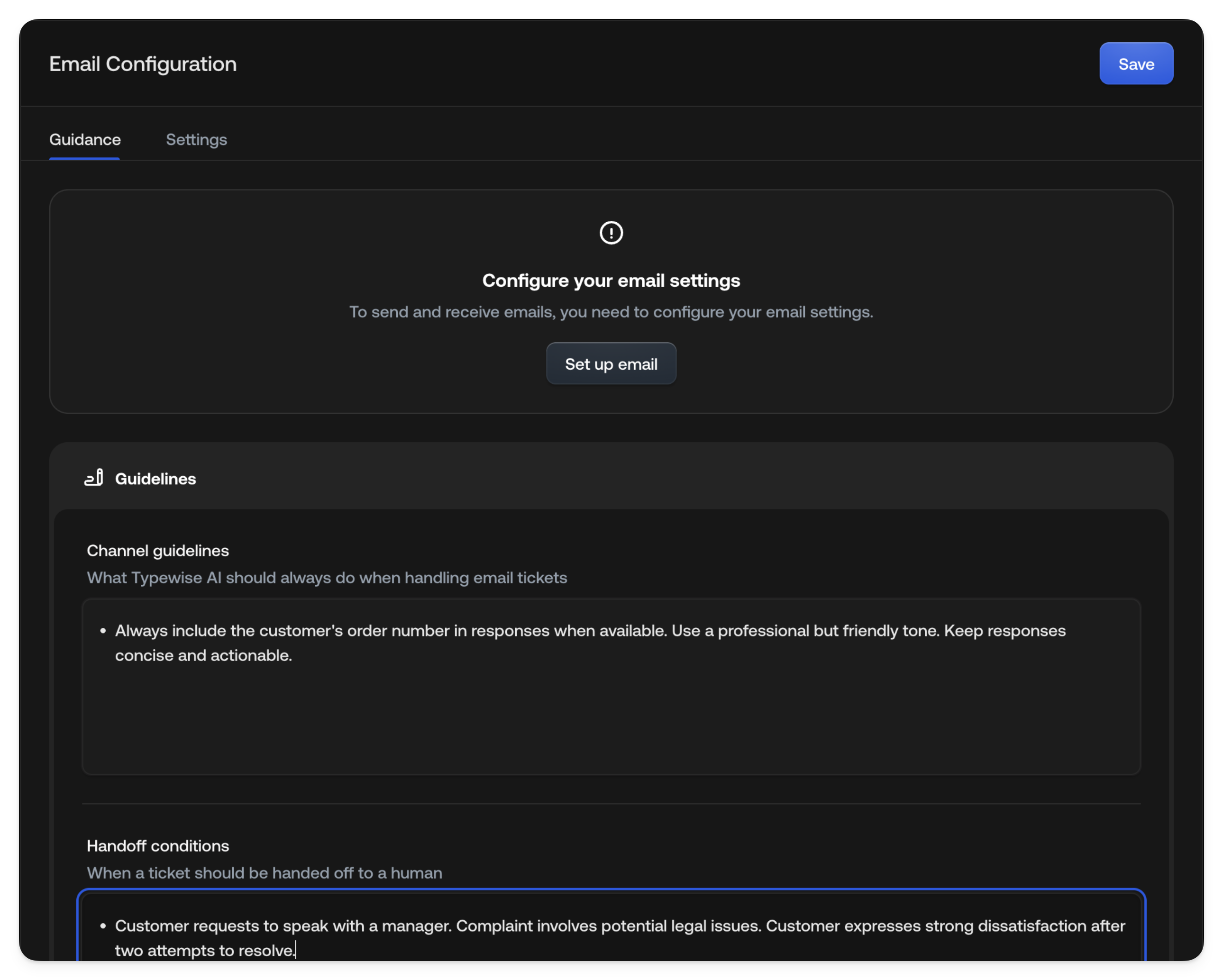 **Expected outcome:** Your Typewise inbox receives test emails.
See: [Set up email](/guides/channels/setup-email) for DNS details.
## Step 2: Set up safe forwarding
Route only test traffic to Typewise while keeping your existing inbox
operational.
**Option A: Alias-based routing (recommended)**
Create a test alias (e.g., `support+tw@yourcompany.com`) and forward only that
alias. Test without affecting production.
**Option B: Percentage-based routing**
If supported, forward 5-10% of traffic to Typewise.
**Option C: Internal-only testing**
Forward only emails from internal addresses.
**Expected outcome:** Test emails arrive in Typewise; production continues to
existing inbox.
## Step 3: Create one Specialist
Choose your highest-volume question category.
1. Go to [Specialists](https://platform.typewise.app/specialists) (sidebar →
Specialists)
2. Click **+ Create Specialist**
3. Configure:
* **Name:** e.g., "Order Status Inquiries"
* **When to use:** "Customer asks about order status, shipping, or delivery"
* **Instructions:** Steps for handling the request
4. Add handoff triggers for edge cases
**Expected outcome:** Your Typewise inbox receives test emails.
See: [Set up email](/guides/channels/setup-email) for DNS details.
## Step 2: Set up safe forwarding
Route only test traffic to Typewise while keeping your existing inbox
operational.
**Option A: Alias-based routing (recommended)**
Create a test alias (e.g., `support+tw@yourcompany.com`) and forward only that
alias. Test without affecting production.
**Option B: Percentage-based routing**
If supported, forward 5-10% of traffic to Typewise.
**Option C: Internal-only testing**
Forward only emails from internal addresses.
**Expected outcome:** Test emails arrive in Typewise; production continues to
existing inbox.
## Step 3: Create one Specialist
Choose your highest-volume question category.
1. Go to [Specialists](https://platform.typewise.app/specialists) (sidebar →
Specialists)
2. Click **+ Create Specialist**
3. Configure:
* **Name:** e.g., "Order Status Inquiries"
* **When to use:** "Customer asks about order status, shipping, or delivery"
* **Instructions:** Steps for handling the request
4. Add handoff triggers for edge cases
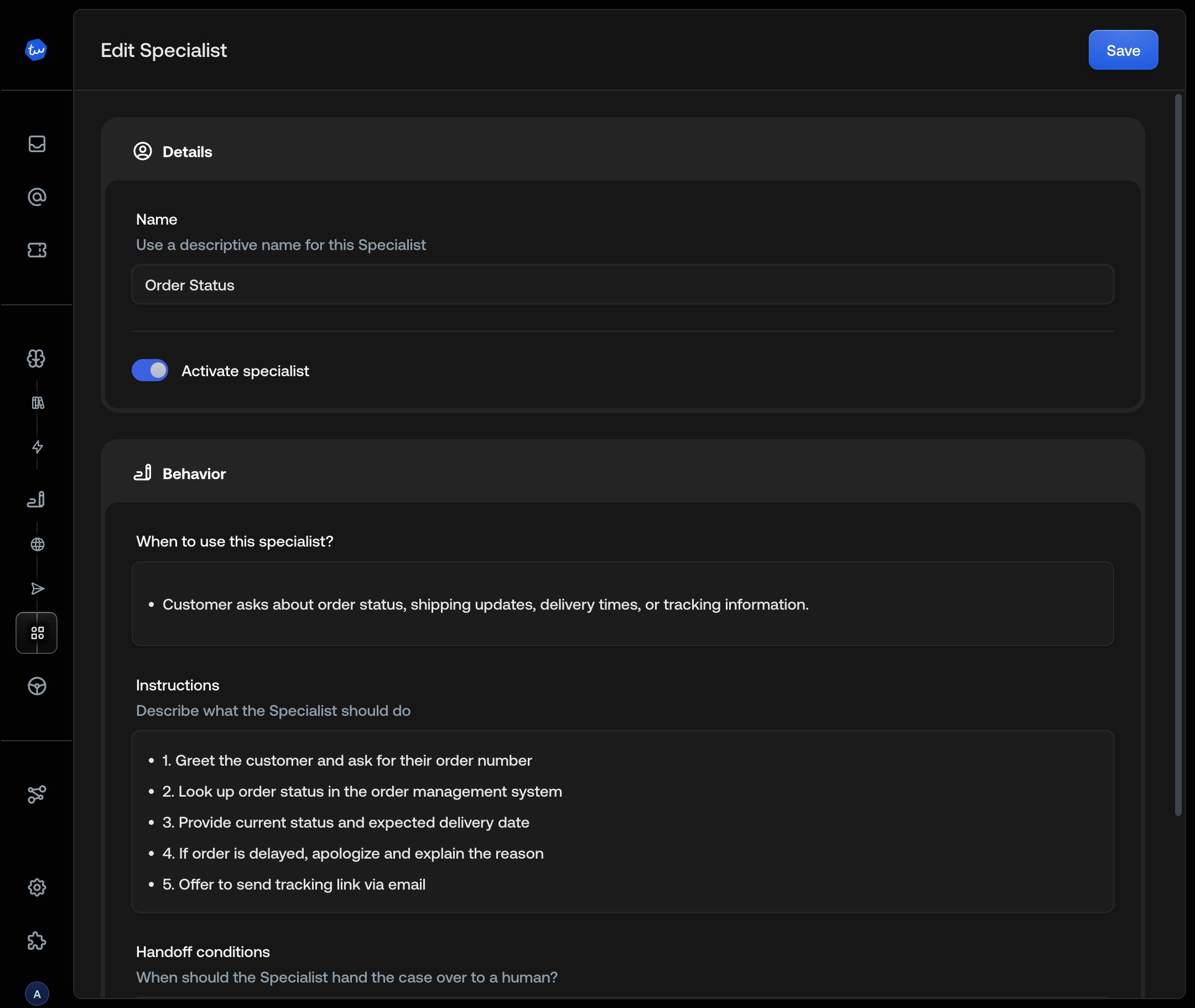 **Example instructions:**
```
1. Greet the customer and ask for their order number
2. Look up the order status using @Order Lookup
3. Provide status and expected delivery date
4. If delayed, apologize and explain
5. Hand off to a Human Agent if:
- Customer requests cancellation
- Order is missing or damaged
- Issue can't be resolved
```
**Expected outcome:** One Specialist ready to handle inquiries.
See: [Specialists](/documentation/behavior/specialists)
## Step 4: Add minimal knowledge
Add one FAQ or help document.
1. Go to [Knowledge Hub](https://platform.typewise.app/knowledge-hub) (sidebar →
Knowledge)
2. Click **Add source**
3. Add your FAQ page or authoritative document
4. Wait for processing
**Example instructions:**
```
1. Greet the customer and ask for their order number
2. Look up the order status using @Order Lookup
3. Provide status and expected delivery date
4. If delayed, apologize and explain
5. Hand off to a Human Agent if:
- Customer requests cancellation
- Order is missing or damaged
- Issue can't be resolved
```
**Expected outcome:** One Specialist ready to handle inquiries.
See: [Specialists](/documentation/behavior/specialists)
## Step 4: Add minimal knowledge
Add one FAQ or help document.
1. Go to [Knowledge Hub](https://platform.typewise.app/knowledge-hub) (sidebar →
Knowledge)
2. Click **Add source**
3. Add your FAQ page or authoritative document
4. Wait for processing
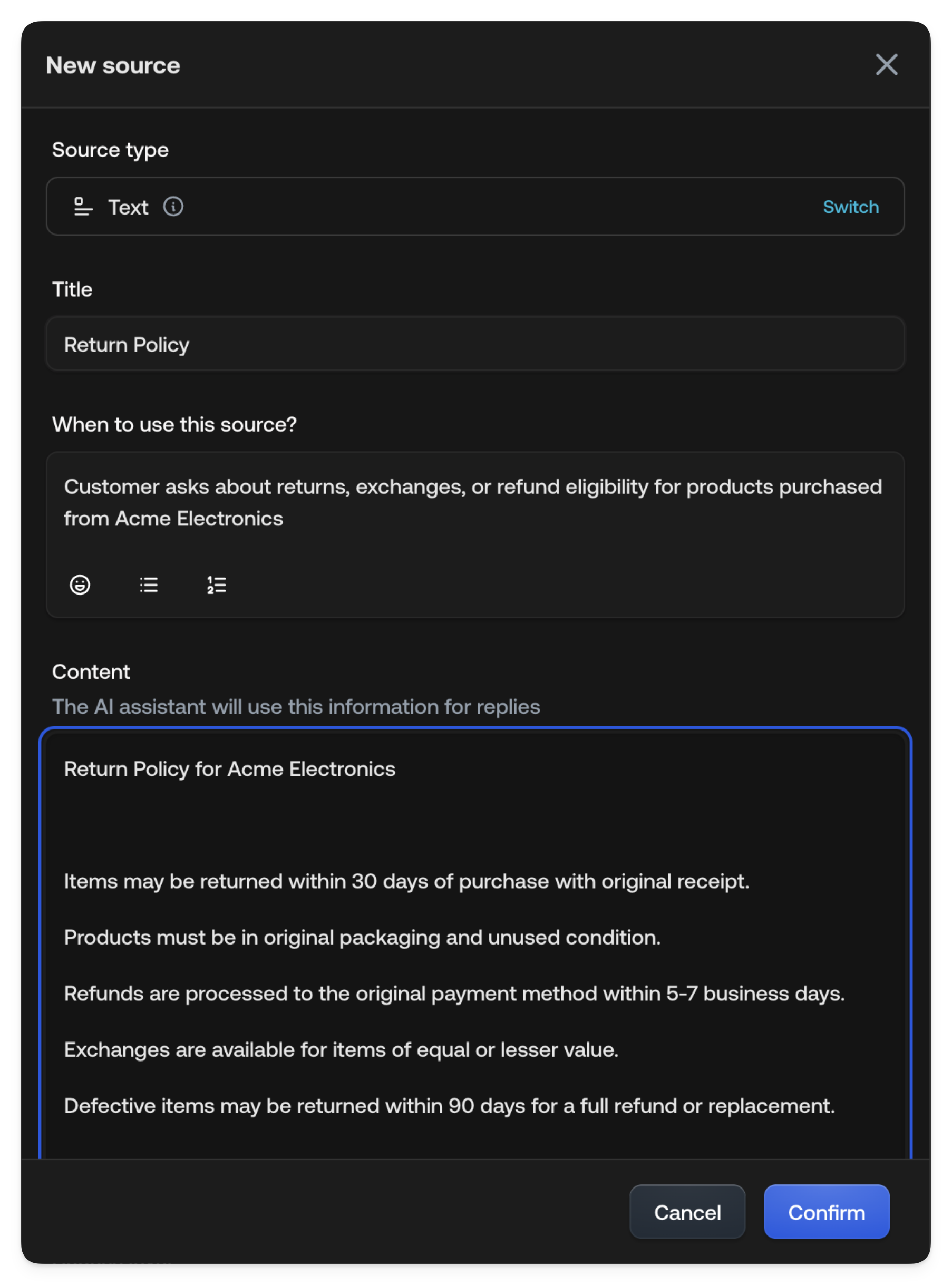 **Expected outcome:** The AI Agent can reference your knowledge.
See: [Knowledge](/documentation/knowledge/overview)
## Step 5: Test in the Simulator
Test before going live.
1. Go to [Simulator](https://platform.typewise.app/simulator) (sidebar →
Simulator)
2. Click **+ New Conversation**
3. Select your Specialist and Email channel
4. Type realistic customer messages
**Expected outcome:** The AI Agent can reference your knowledge.
See: [Knowledge](/documentation/knowledge/overview)
## Step 5: Test in the Simulator
Test before going live.
1. Go to [Simulator](https://platform.typewise.app/simulator) (sidebar →
Simulator)
2. Click **+ New Conversation**
3. Select your Specialist and Email channel
4. Type realistic customer messages
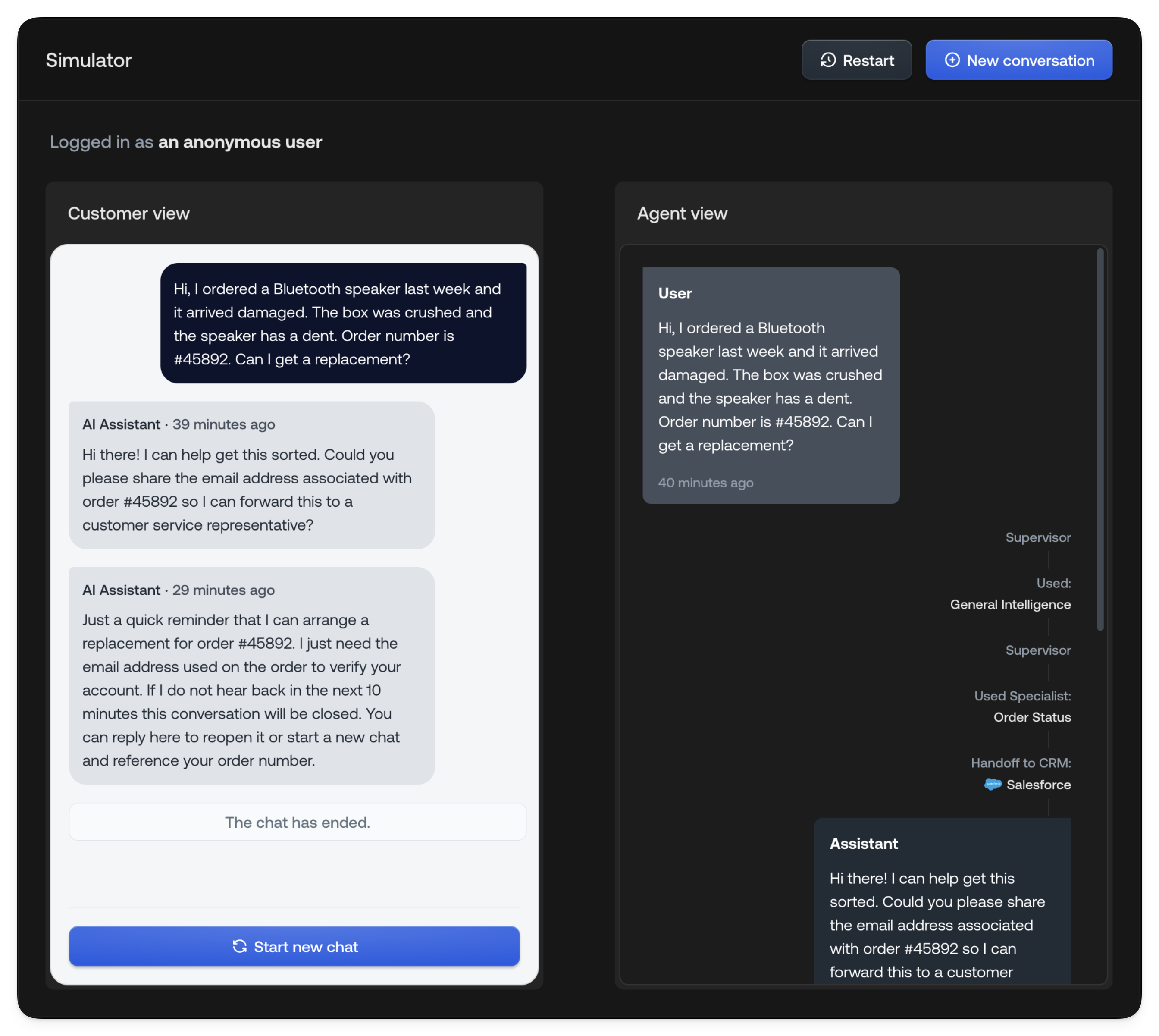 **Test scenarios:**
* Straightforward question the Specialist should handle
* Edge case that should trigger handoff
* Question requiring knowledge lookup
**Check:**
* Does it cite correct knowledge sources?
* Does it hand off when appropriate?
* Are responses accurate?
**Expected outcome:** Specialist handles common cases and hands off
appropriately.
See: [Simulator](/documentation/testing-and-feedback/simulator)
## Step 6: Configure handoff triggers
Route sensitive cases to Human Agents.
1. In Specialist instructions, define handoff conditions
2. Common triggers:
* Refund or cancellation requests
* Complaints or escalations
* Questions outside scope
* Customer requests Human Agent
**Example:**
```
Hand off to a Human Agent immediately if:
- Customer expresses frustration
- Refund over $100
- Requires internal system access
- Customer asks for human assistance
```
**Expected outcome:** Clear boundaries between AI and human handling.
## Step 7: Roll out gradually
Increase traffic incrementally.
| Phase | Traffic | Duration | Success criteria |
| :---- | :------ | :------- | :----------------- |
| 1 | 5-10% | 1 week | No major issues |
| 2 | 25% | 1 week | Consistent quality |
| 3 | 50% | 1 week | Team comfortable |
| 4 | 100% | Ongoing | Migration complete |
**Monitor:**
* Resolution rate (AI vs. handed off)
* Customer satisfaction
* Response accuracy
* Handoff appropriateness
**Expected outcome:** Verified performance at each stage.
## Step 8: Verify deliverability and archiving
Confirm emails deliver and are tracked.
**Deliverability:**
* Send test emails, verify arrival (not spam)
* Check SPF/DKIM/DMARC with [MXToolbox](https://mxtoolbox.com/)
* Monitor bounce rates
**Archiving:**
* Verify tickets in [All Tickets](https://platform.typewise.app/tickets) with
full history
* If connected to CRM, confirm sync
**Expected outcome:** Reliable delivery and recording.
***
## Checklist
* [ ] Email channel verified (**Ready** status)
* [ ] Test forwarding working
* [ ] One Specialist configured with handoff triggers
* [ ] Knowledge source added and processed
* [ ] Simulator tests passed
* [ ] Gradual rollout plan in place
* [ ] Deliverability verified (SPF/DKIM/DMARC)
* [ ] Archiving confirmed
## Next steps
* Add more Specialists for other categories
* Expand knowledge based on gaps
* Connect
[Parcel Tracking](/documentation/integrations/supported/parcel-tracking)
* Configure [User Management](/documentation/settings/user-management)
**Test scenarios:**
* Straightforward question the Specialist should handle
* Edge case that should trigger handoff
* Question requiring knowledge lookup
**Check:**
* Does it cite correct knowledge sources?
* Does it hand off when appropriate?
* Are responses accurate?
**Expected outcome:** Specialist handles common cases and hands off
appropriately.
See: [Simulator](/documentation/testing-and-feedback/simulator)
## Step 6: Configure handoff triggers
Route sensitive cases to Human Agents.
1. In Specialist instructions, define handoff conditions
2. Common triggers:
* Refund or cancellation requests
* Complaints or escalations
* Questions outside scope
* Customer requests Human Agent
**Example:**
```
Hand off to a Human Agent immediately if:
- Customer expresses frustration
- Refund over $100
- Requires internal system access
- Customer asks for human assistance
```
**Expected outcome:** Clear boundaries between AI and human handling.
## Step 7: Roll out gradually
Increase traffic incrementally.
| Phase | Traffic | Duration | Success criteria |
| :---- | :------ | :------- | :----------------- |
| 1 | 5-10% | 1 week | No major issues |
| 2 | 25% | 1 week | Consistent quality |
| 3 | 50% | 1 week | Team comfortable |
| 4 | 100% | Ongoing | Migration complete |
**Monitor:**
* Resolution rate (AI vs. handed off)
* Customer satisfaction
* Response accuracy
* Handoff appropriateness
**Expected outcome:** Verified performance at each stage.
## Step 8: Verify deliverability and archiving
Confirm emails deliver and are tracked.
**Deliverability:**
* Send test emails, verify arrival (not spam)
* Check SPF/DKIM/DMARC with [MXToolbox](https://mxtoolbox.com/)
* Monitor bounce rates
**Archiving:**
* Verify tickets in [All Tickets](https://platform.typewise.app/tickets) with
full history
* If connected to CRM, confirm sync
**Expected outcome:** Reliable delivery and recording.
***
## Checklist
* [ ] Email channel verified (**Ready** status)
* [ ] Test forwarding working
* [ ] One Specialist configured with handoff triggers
* [ ] Knowledge source added and processed
* [ ] Simulator tests passed
* [ ] Gradual rollout plan in place
* [ ] Deliverability verified (SPF/DKIM/DMARC)
* [ ] Archiving confirmed
## Next steps
* Add more Specialists for other categories
* Expand knowledge based on gaps
* Connect
[Parcel Tracking](/documentation/integrations/supported/parcel-tracking)
* Configure [User Management](/documentation/settings/user-management)