

Migrating from an existing support inbox? See Migrate a shared
inbox.
Set up email sending
By default, Typewise sends from a Typewise-owned address. To use your own address, add it to channel settings.Step 1: Add your support email address
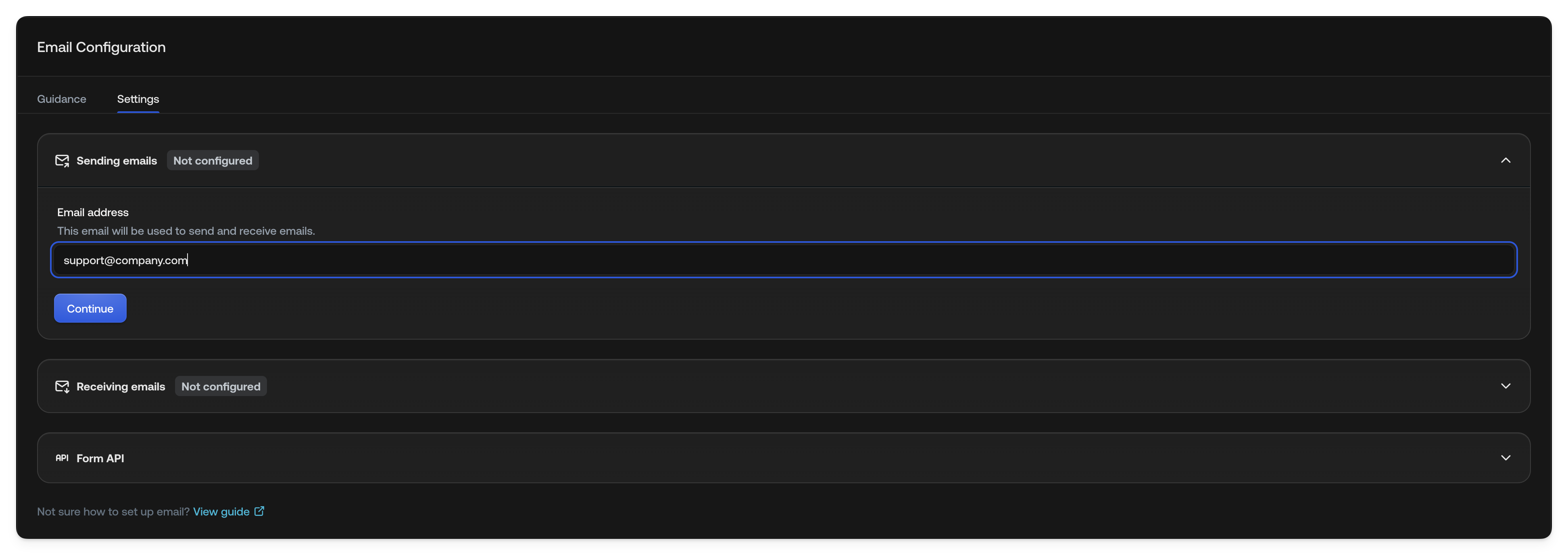
- Go to Email Settings (Behavior → Channels → Email → Settings tab)
- Open the Sending emails section
- Enter your support address (e.g.,
support@yourcompany.com)
Step 2: Update your DNS records
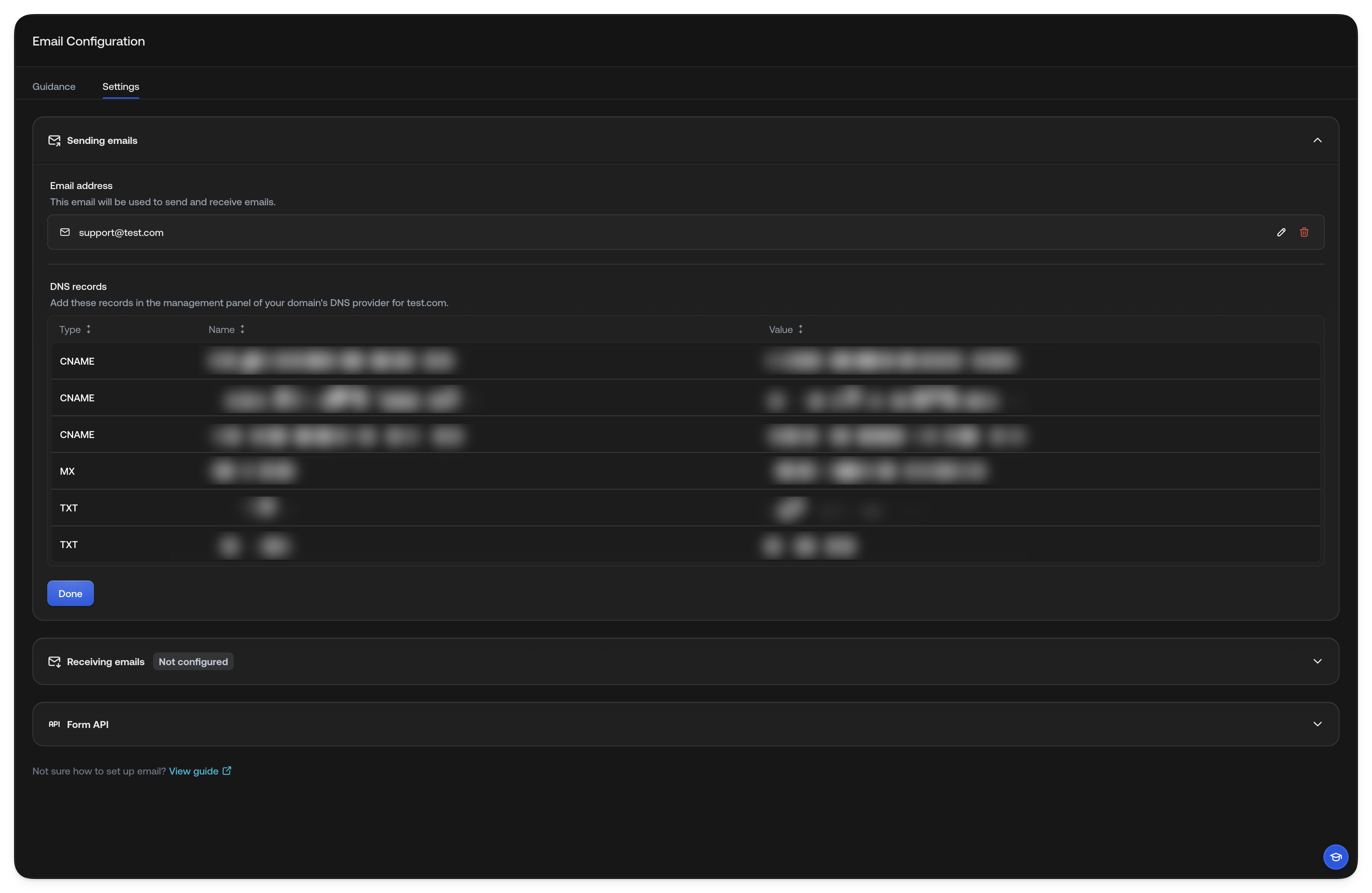
After adding your domain, you’ll see DNS records to add. Copy these into your domain host’s settings (e.g., GoDaddy, Cloudflare, Google Domains).DNS changes can take up to 48 hours to propagate, but usually complete within
an hour.
Step 3: Verify your domain
Once saved, Typewise automatically verifies your DNS records. When status shows Ready, you can send emails.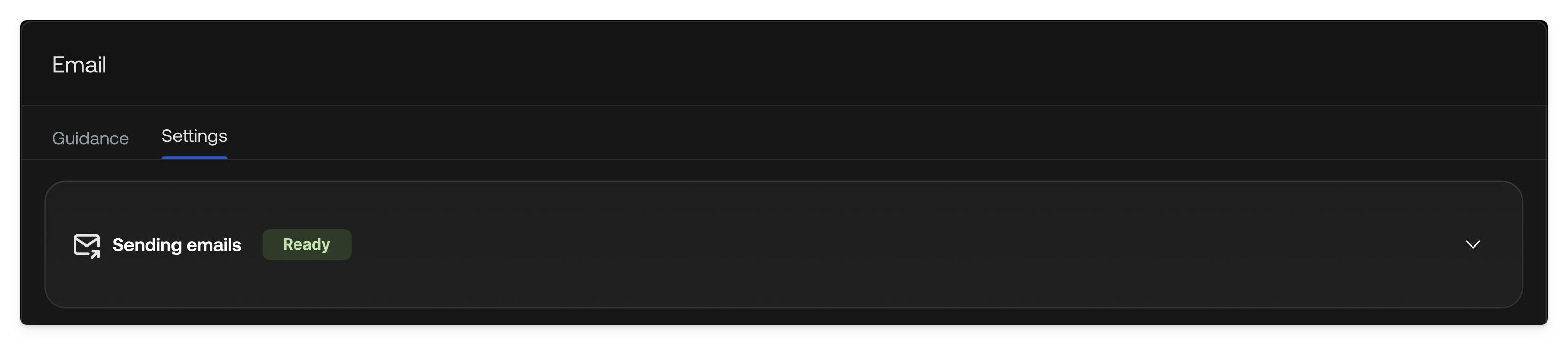
Set up email receiving
Route replies and new emails to Typewise.Step 1: Copy your forwarding address
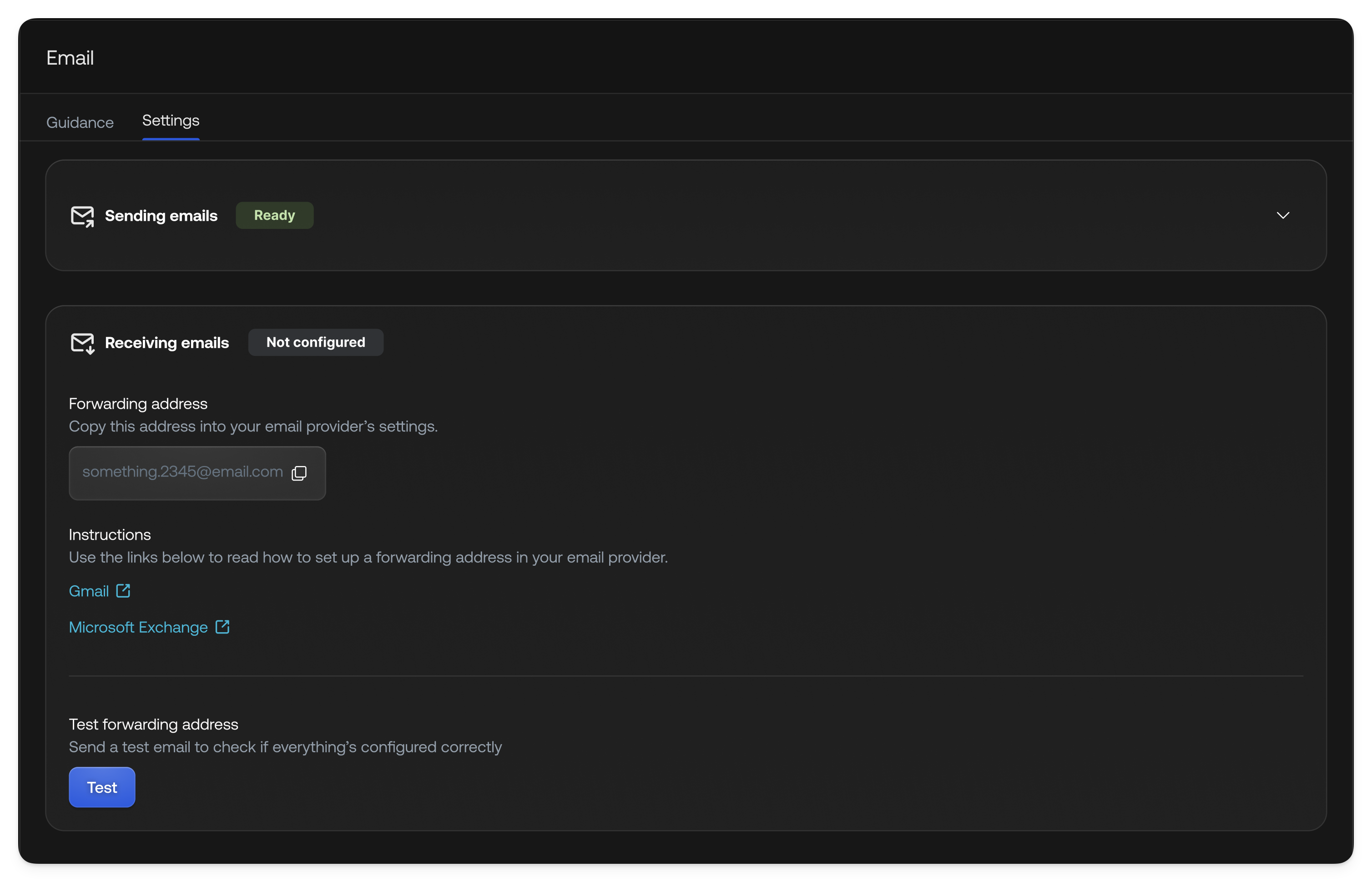
- Go to Email Settings (Behavior → Channels → Email → Settings tab)
- Open the Receiving emails section
- Copy your Typewise forwarding address (e.g.,
support@inbound.typewise.app)
Step 2: Add forwarding in your email provider
In your email provider (Gmail, Outlook, or mail server), set up a forwarding rule:- Forward incoming messages to your Typewise forwarding address
- Provider instructions:
Step 3: Test it out
Automatic test: Click the test email button to verify forwarding.This only works if the sending and receiving addresses are the same.

- Send an email to your support address
- Check your Typewise inbox. The email should appear.

Troubleshooting
Q. Can sending and receiving addresses differ?
Yes. Forwarding verification won’t work, but the channel functions normally.Q. How do I add/edit my SPF record?
- Existing SPF record: Add
include:amazonses.com - No SPF record: Create:
v=spf1 a include:amazonses.com ~all
Q. Customers aren’t receiving emails
- Sending address not verified? Typewise can’t send until verified.
- Check spam folders. This may be caused by misconfigured SPF/DKIM.
Q. Domain verification failed
- Double-check DKIM records are correct
- Check for extra spaces or missing characters
- DNS propagation can take 48 hours
- Use MXToolbox to verify records
Q. Emails not received in Typewise
- Confirm forwarding rule points to correct Typewise address
- Check if provider requires forwarding verification (Gmail sends confirmation). Find confirmation in All Tickets.
- Check spam folder
- Try sending from a different address
Q. Emails landing in spam
- Verify SPF and DKIM records
- Use a recognizable sender (not
no-reply@) - Keep subject lines professional
Q. Forwarding delay
- Some providers batch-process forwards. Small delays are normal.
- If delays persist, check provider settings or contact their support
Contact Typewise Support for help.