

You need your client ID and workspace ID from Behavior → Channels →
Chat → Installation, and the signing key from Identity
verification.
Add your store’s domain to the Domain allowlist on the same page.
How it works
- Shopify exposes the logged-in shopper as the
customerobject in Liquid. For guests it is empty. - Liquid has a built-in
hmac_sha256filter, so the JWT is built and signed on Shopify’s servers. The browser only ever sees the finished token. - The signing key lives in a theme setting, never in the page source.
- Guests get the widget without
signedVariables. Logged-in customers get a token withuserIdanduser_email. You can sign any other customer value the same way.
Add the theme setting
Open Online Store → Themes → ⋯ → Edit code, then Config →settings_schema.json. Add this group at the end of the array, after the last
existing group. Do not replace the file; it holds all of your theme’s other
settings.
1
Open the theme editor
Go to Online Store → Themes → Customize, then click the gear icon at the
bottom of the left sidebar to open Theme settings.
2
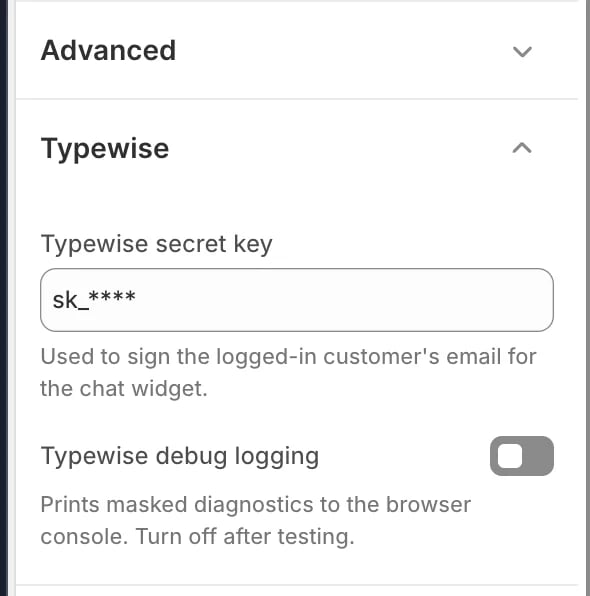
Enter the secret key
Open the Typewise group and paste the
sk_... key from Identity
verification
into Typewise secret key.3
Save
Click Save at the top right. Leave Typewise debug logging off for
now; you turn it on later to verify the setup.
Add the JWT signer snippet
Under Snippets, choose Add a new snippet, name itjwt-hs256, and paste
the following. It takes a JSON payload string and a secret, and outputs a signed
token. The loop converts the hex output of hmac_sha256 into the base64url form
a JWT needs.
snippets/jwt-hs256.liquid
Add the widget snippet
Add a second snippet namedtypewise-widget. Replace YOUR_CLIENT_ID and
YOUR_WORKSPACE_ID with your values.
snippets/typewise-widget.liquid
Render it in the theme layout
Open Layout →theme.liquid and add one line just before </body>:
layout/theme.liquid
Checkout and the order status page are not rendered by your theme, so the
widget does not appear there. That requires a Shopify app with a theme app
extension.
Verify the setup
Turn on Typewise debug logging in theme settings and add the block below to the end oftypewise-widget. It prints one JSON object to the browser console
under [typewise-debug] with presence checks and masked values only. It never
prints the key, the email, the names or the token.
Debug block for typewise-widget.liquid
Debug block for typewise-widget.liquid
overall_ok: true. What to check
when it does not:
Turn debug logging off once you are done.
Troubleshooting
- The chat shows “An error occurred” on the first message. The page sent
signedVariables: null. The widget snippet above omits the key when there is no token; make sure you did not change that branch. - The widget loads but variables are untrusted. The key in theme settings does not match the current key in Typewise, or the token has expired. Copy the key again from Identity verification.
- Nothing renders. Check that your store’s domain is on the Domain allowlist
and that the
renderline sits inside<body>.
See also
- Chat identity verification: the signing model and backend examples for non-Shopify sites
- Context Variables: declare verified variables and map secure inputs
- Chat configuration: installation and domain allowlist