

user_email, order_id, account_id.
Without declaring them here, the AI Agent doesn’t see those values, and your actions can’t enforce who a request is for.
Typewise forwards only what you declare on this page. If your app sends a variable that isn’t on the list, Typewise filters it out: the value never reaches the ticket, the AI Agent, webhooks, or the API.
Declare a variable
1
Open Context Variables
Go to Settings > Workspace > your workspace > Context variables. Each workspace declares its own set.
2
Add a variable
Click Add item and fill in the fields below.
3
Save
Save the page. The variable becomes available when you customize inputs on actions and integration lookups.
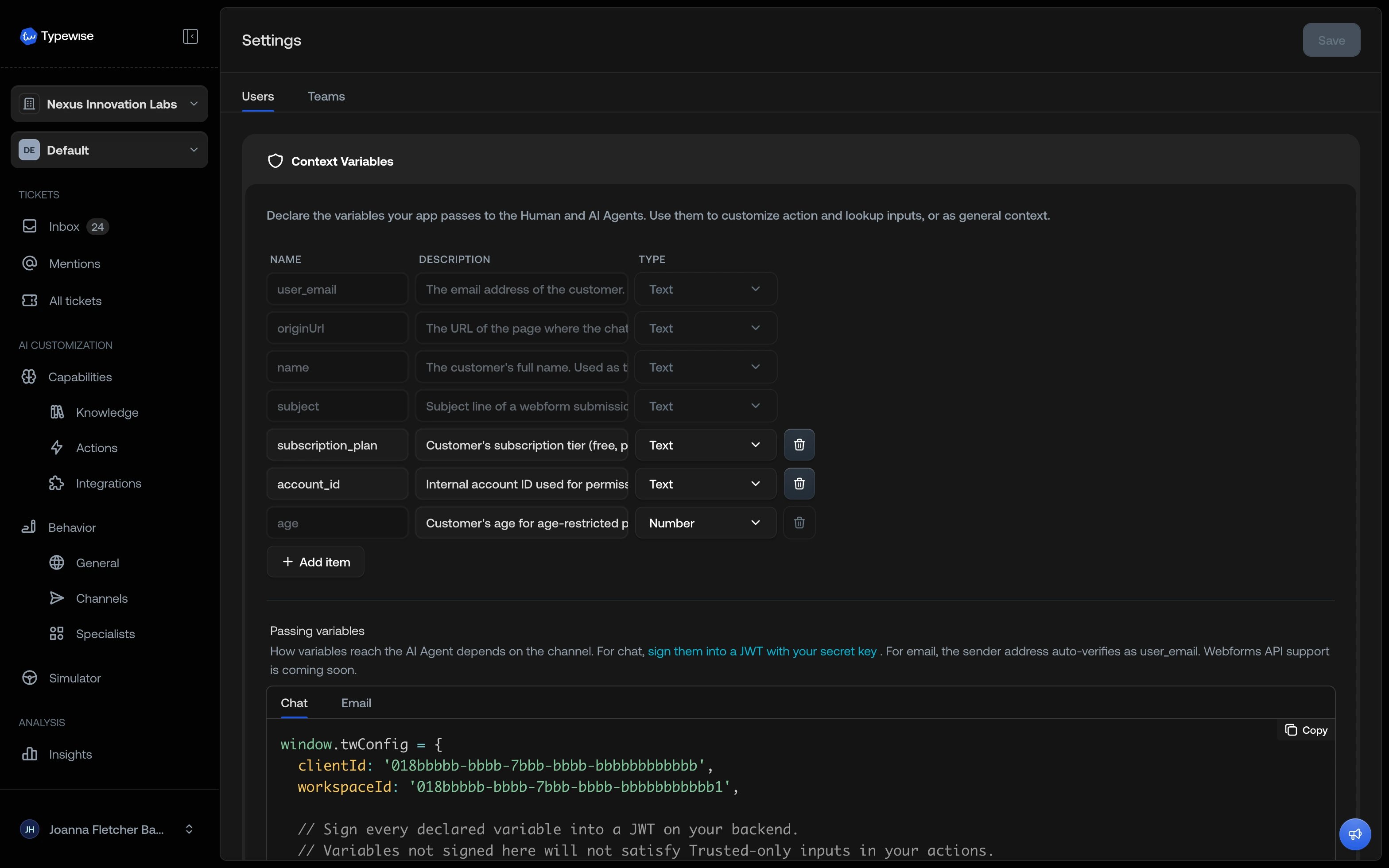
Built-in variables
Every workspace ships with variables Typewise pre-declares and populates automatically. You can’t edit or delete them, and they coexist with your own declared variables. The workspace’s Context variables page shows the current set alongside your custom ones, and you can map any of them to an action or lookup input.Pass the Typewise ticket ID to your systems
MaptypewiseTicketId to an input when the system you call should record which conversation a request came from, so an order or case it creates can be traced back to the ticket it started in.
Typewise supplies the value per request rather than storing it on the ticket, and its own value always wins over one your app sends under the same name.
typewiseTicketId always counts as verified, so an input mapped to it passes a Trusted only check without asking the customer to confirm anything. Typewise sets the value, so your backend doesn’t sign it on chat — the install snippet lists only the variables you need to sign.Where declared variables appear
After Typewise drops undeclared variables, every declared variable surfaces in four places:
The sidebar shows exactly what the AI Agent sees. If a variable does not appear in the sidebar, it has not been declared, and the AI Agent does not see it either.
Use variables in actions and lookups
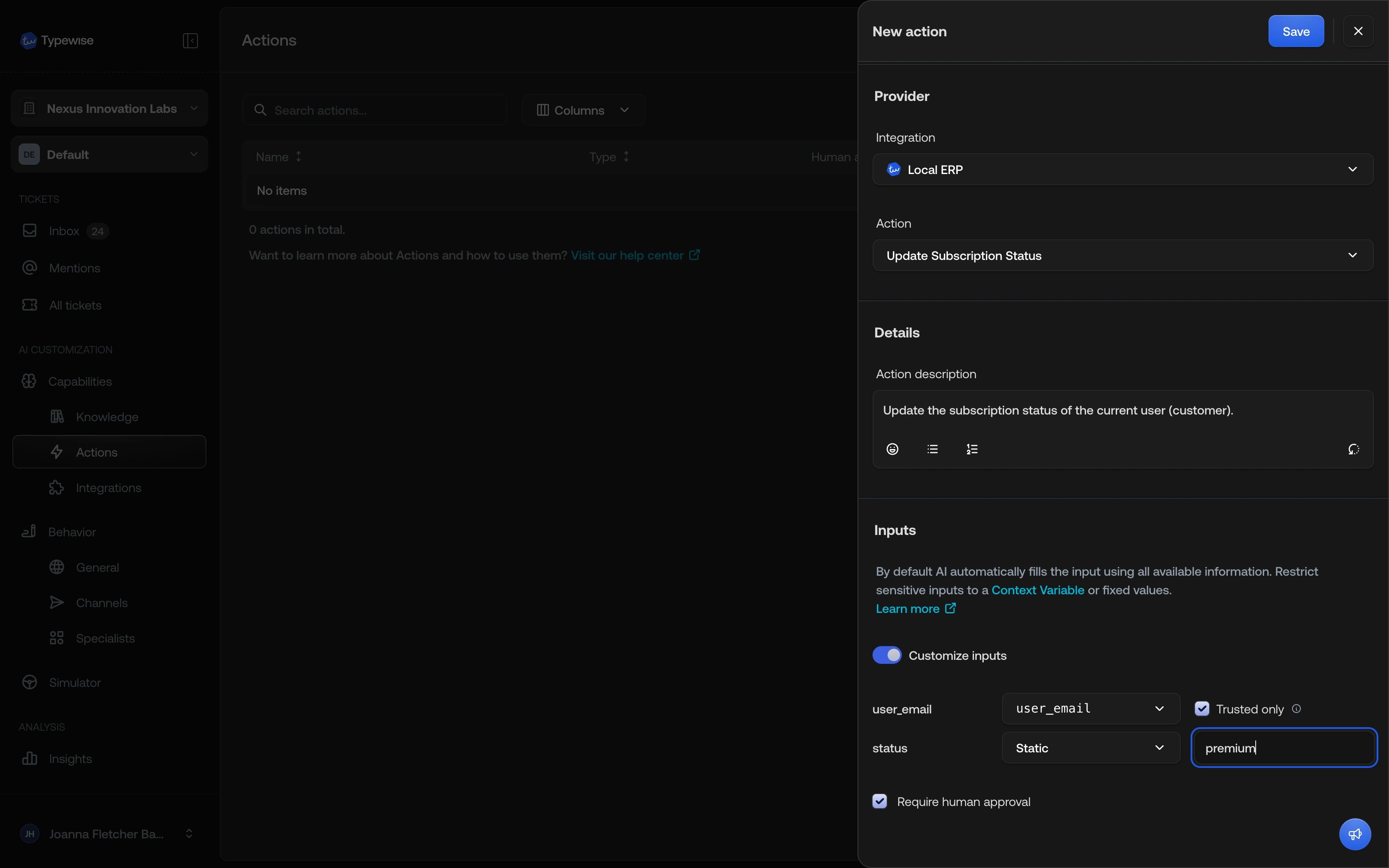
Actions are tasks the AI Agent performs in your connected systems (refund an order, update a CRM contact). Lookups read data from those systems. Both can take inputs that you fill from declared context variables. Open any integration action or integration lookup and turn on Customize inputs.Pick a source for each input
For every input the action or lookup accepts, the picker offers:
When you map an input to a variable, an optional Trusted only checkbox appears next to the picker.
The Trusted-only check
Trusted only is a per-input check that runs at the moment Typewise is about to call the tool. With it on, the AI Agent runs the tool only when the mapped variable’s value arrived through a verified path on the current conversation. When the value can’t be trusted, the tool doesn’t run: foruser_email the AI Agent asks the customer to prove the address (a one-time code on chat, or a reply on email). For any other variable, the conversation hands off to a Human Agent.
Use Trusted only on every input that decides who the action runs for: user_email, tenant_id, account_id. Leaving it off lets the AI Agent run the tool with any value the variable has, including one that arrived unsigned over the chat widget.
Manual actions and manual lookups don’t expose Customize inputs. Their inputs are filled by the AI Agent from the conversation.
How a value becomes verified
A value is verified on a given conversation only when it arrived through a trusted path. The path depends on the channel.Chat widget
On chat, a value your app sends counts as verified only when your backend signs it. Unsigned values from the browser (locale, theme) stay untrusted, so any input mapped to them fails the Trusted only check. Sign every variable you use as a Trusted-only input on a chat action or lookup. For the signing secret, the code, and where the token goes, see Chat identity verification.user_email has a second path: the customer verifies it in the chat itself with a one-time code. The code prompt appears when a Trusted only check fails or when the AI Agent runs the Verify email address system action, and it replaces the message box until the customer verifies.
From: can be spoofed, so Typewise doesn’t trust them on their own. A reply proves the sender controls the inbox.
- A sender becomes verified the first time they reply to a Typewise message on this conversation.
- If a Trusted only input mapped to
user_emailruns before the sender is verified, the AI Agent asks the customer to reply. - On the next inbound message, Typewise marks the sender verified and the action proceeds.
When a Trusted-only input is not satisfied
Checklist
- Declare every variable your app sends, including identity and authorization variables. Typewise drops anything you don’t declare.
- On every integration action and integration lookup that depends on identity, enable Customize inputs, map the identity inputs to context variables, and turn on Trusted only.
- On chat, sign identity variables so they arrive trusted (see Chat identity verification). On email, the sender’s address becomes verified after their first reply.
- Declaring a variable doesn’t enforce trust. The Trusted-only check on the input applies it at runtime.
See also
- Security and verification: the trust model behind input customization
- Verify email address: trigger email verification from instructions, without a gated input
- AI actions: configure actions
- Lookups: configure integration lookups
- Knowledge: add knowledge sources