

How to export a ticket
1
Open the ticket
Navigate to the ticket you want to export from the
Inbox or
All tickets.
2
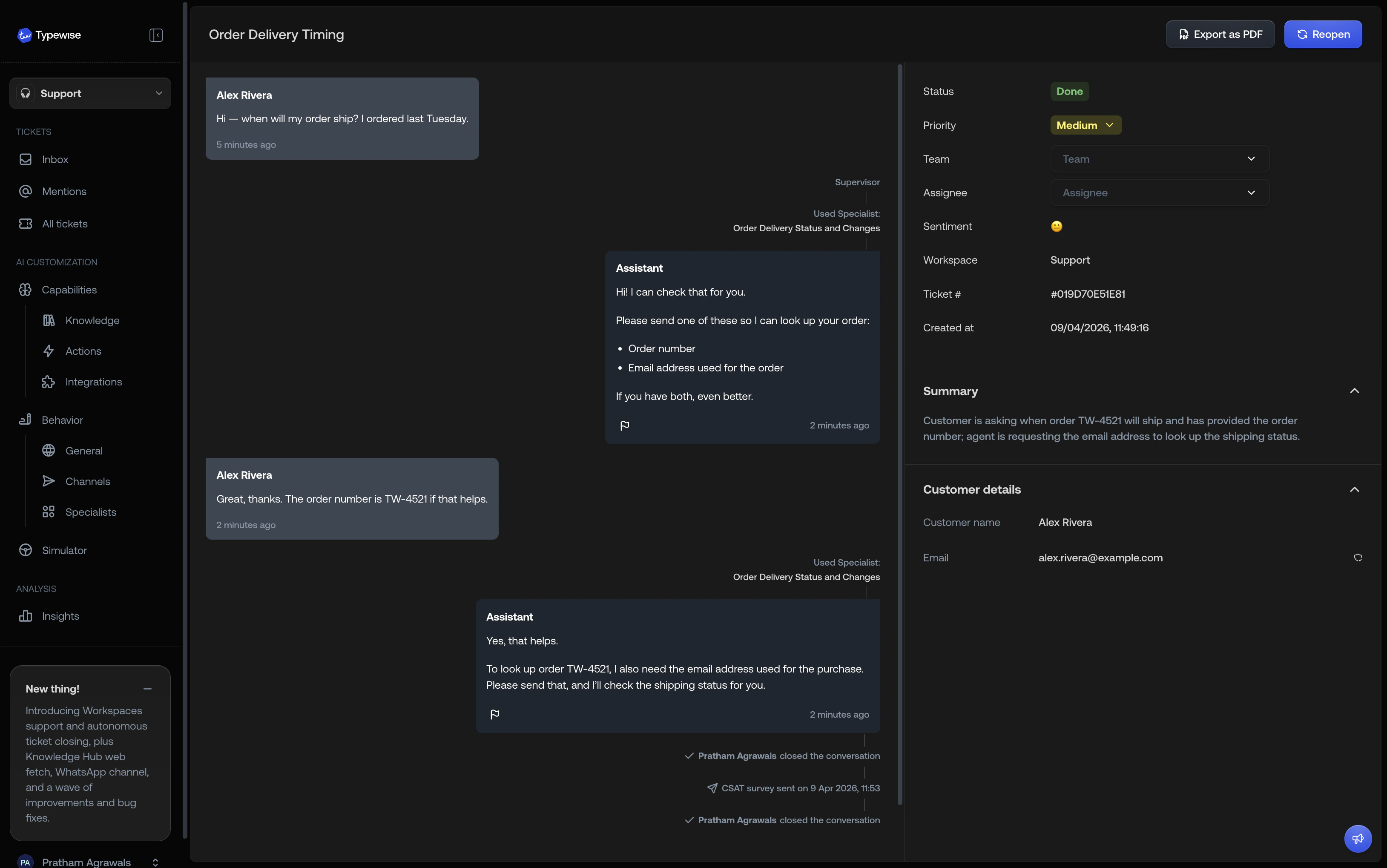
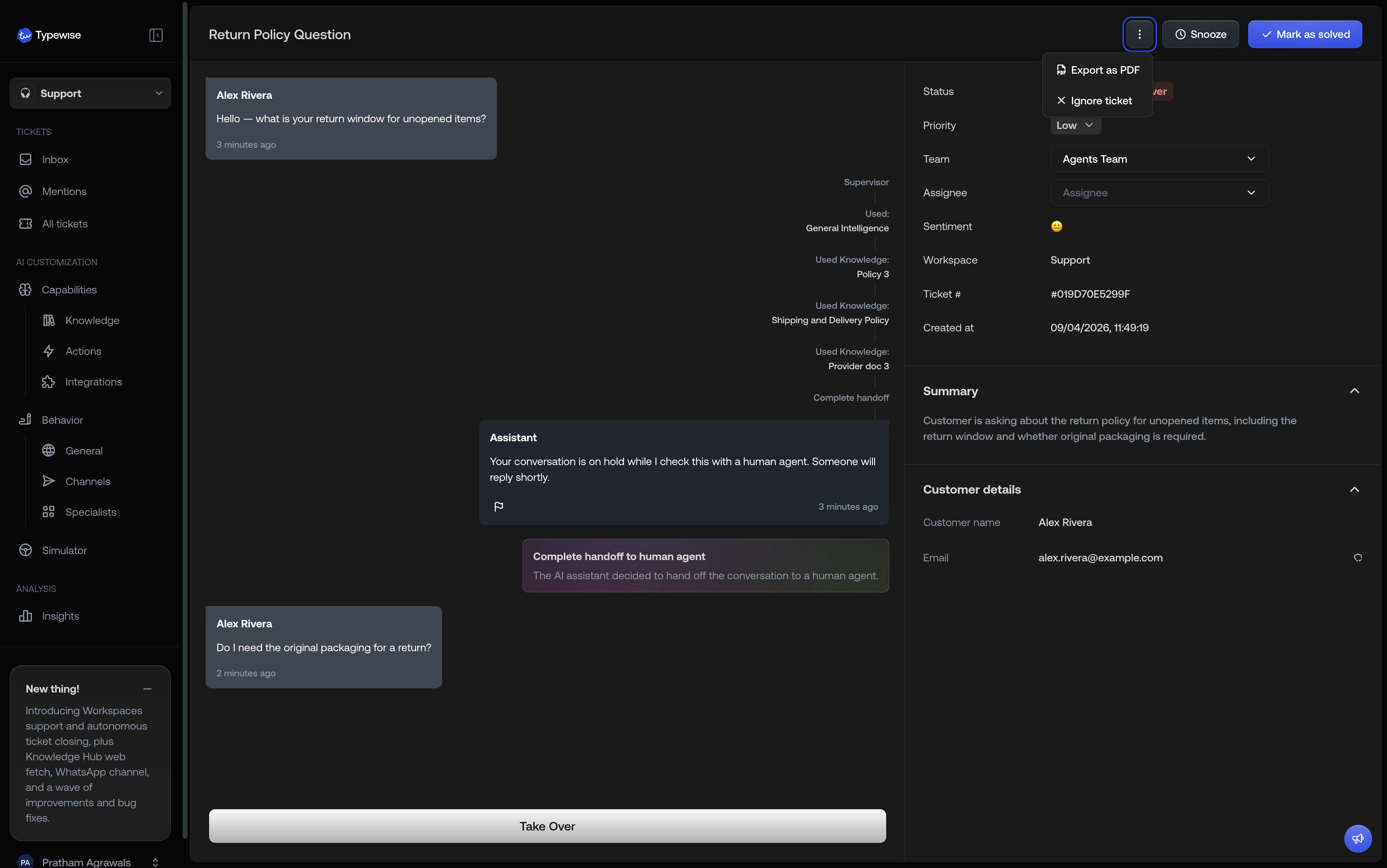
Click Export as PDF
Where the button appears depends on the ticket’s status:
- Completed tickets: Click the Export as PDF button in the ticket header.
- Active tickets: Click the overflow menu (three-dot icon) in the ticket header and select Export as PDF.
3
Wait for the download
The button shows a loading state while the file is generated. Once ready,
your browser downloads the file automatically.
What’s included
The exported PDF contains the full ticket transcript:- Ticket header: title, customer name, email, ticket ID, channel, status, and creation date
- Messages: all customer and agent messages in chronological order, with timestamps and sender info
- Rich text: bold, headings, links, and lists render in the PDF
- Email headers: for email conversations, the subject, sender, and recipients are shown per message
- Inline images: images embedded in messages are rendered inline in the PDF when possible; images that fail to render are included as attachments in the ZIP
- Activity events: assignments, handoffs, follow-ups, snooze/unsnooze, channel switches, and ticket closures
Attachments and ZIP files
When a conversation contains non-image attachments (documents, spreadsheets,
etc.), the download is a ZIP file instead of a plain PDF. The ZIP
contains the transcript PDF plus all attachment files in an
attachments/
folder.Limitations
- Internal notes are not included in the export
- Bulk export is not supported. Export one ticket at a time.
- MDX and dynamic content may not render with full fidelity
See also
- Ticket conversation: Understanding the conversation timeline
- All tickets: Browse and search tickets
- Inbox: Monitor tickets that need attention