

Instructions: Write the more detailed instructions/rules the specialist has to follow when solving end customer inquiries. Imagine this to be a bullet point list for a new employee with the high-level instructions, actions to conduct, and knowledge sources to use.
1
Click + Create Specialist

2
Choose a descriptive name
Choose a name that clearly describes what the Specialist does.
3
Define when to use this Specialist
Specify which scenarios the Specialist should handle.
4
Add detailed instructions
Write a clear, ordered set of steps the Specialist must follow when solving
requests. Use
@ to reference configured Actions and Lookups.5
Specify handoff conditions
Define when the Specialist should escalate to a Human Agent.
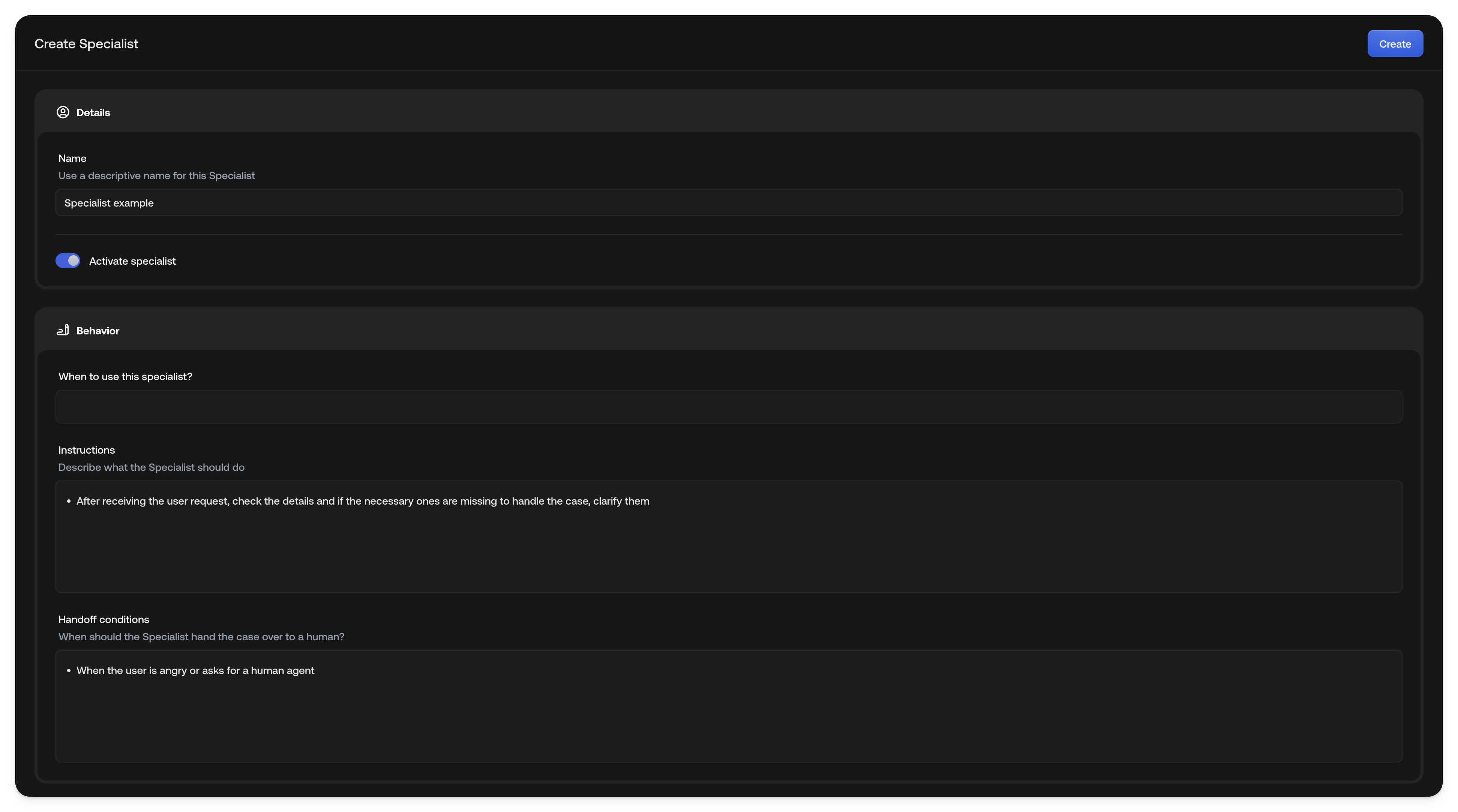
Example: “Cancel subscription”
In the Instructions field, type@ to open the tool picker and select the tools
you need. Selected tools appear as visual pills in your instructions. Here’s an
example of what the instructions might contain:
Sample Instructions
- First look up the end customer’s account and subscription details using @Read All Customer Info (lookup)
- If the end customer wants to cancel, determine the reason and reference @Subscription Policy Document (knowledge) to determine the cancellation policy
- Extra rules, temporary redirects, or pauses are only possible for “Premium” end customers; offer “Standard” end customers an upgrade
- For date or address changes, ask for the exact new data and confirm the changes with the end customer
- Perform the desired changes using @Update Address, @Update Subscription Status, or @Update Phone Number (actions)
- At the end, inform the end customer that changes were completed and ask if there’s anything else you can help with
Actions, Lookups, and Knowledge sources must be configured in their respective
hubs first. Once set up, type
@ in the Instructions field to select them.
They appear as visual pills. Lookups retrieve data without modifying it, while
Actions make changes to external systems. System
actions are built in and do not need a
separate hub setup. You can also add them in global guidelines and channel
guidelines.See also
- Writing good Specialists: How the AI reads each field and what to put in it
- System actions: Close, hand off, verify the customer, or switch a conversation to email
- Actions: Configure automated and manual actions
- Knowledge: Add knowledge sources for the AI
- Company configuration: Set global guidelines