

How to start a conversation
1
Click New Ticket
Navigate to All tickets and click New Ticket in the page header.
2
Add a recipient
Start typing a name or email address in the To field. A dropdown shows matching customers from your records. Select one to add them as the recipient.If the customer doesn’t exist yet, type their full email address and press Enter. A new customer record is created automatically.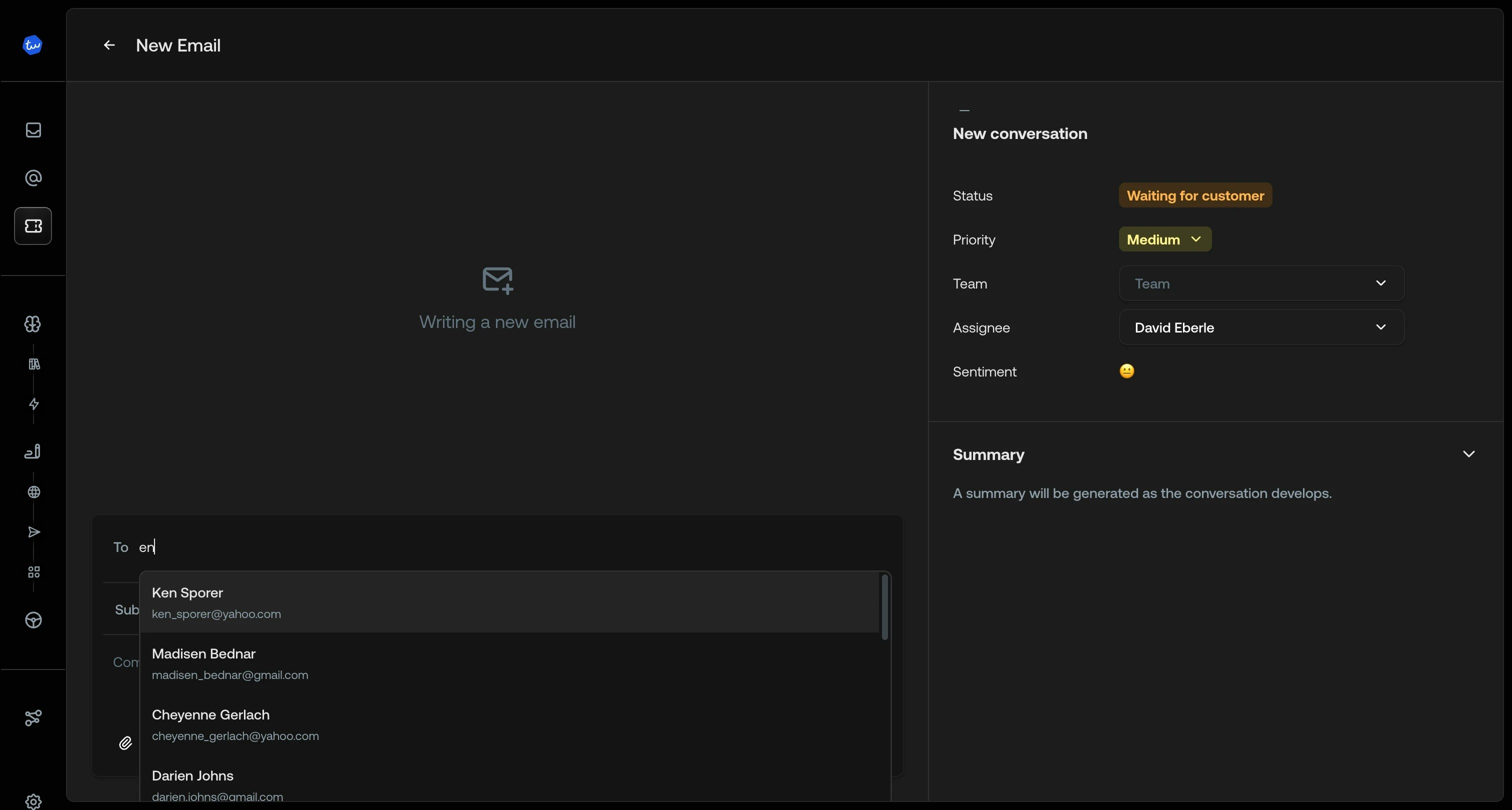
3
Enter a subject
Type a subject line for your email.
4
Compose your message
Write your message using the rich text editor. Bold, italic, lists, links, and block quotes are all supported, same as the regular composer.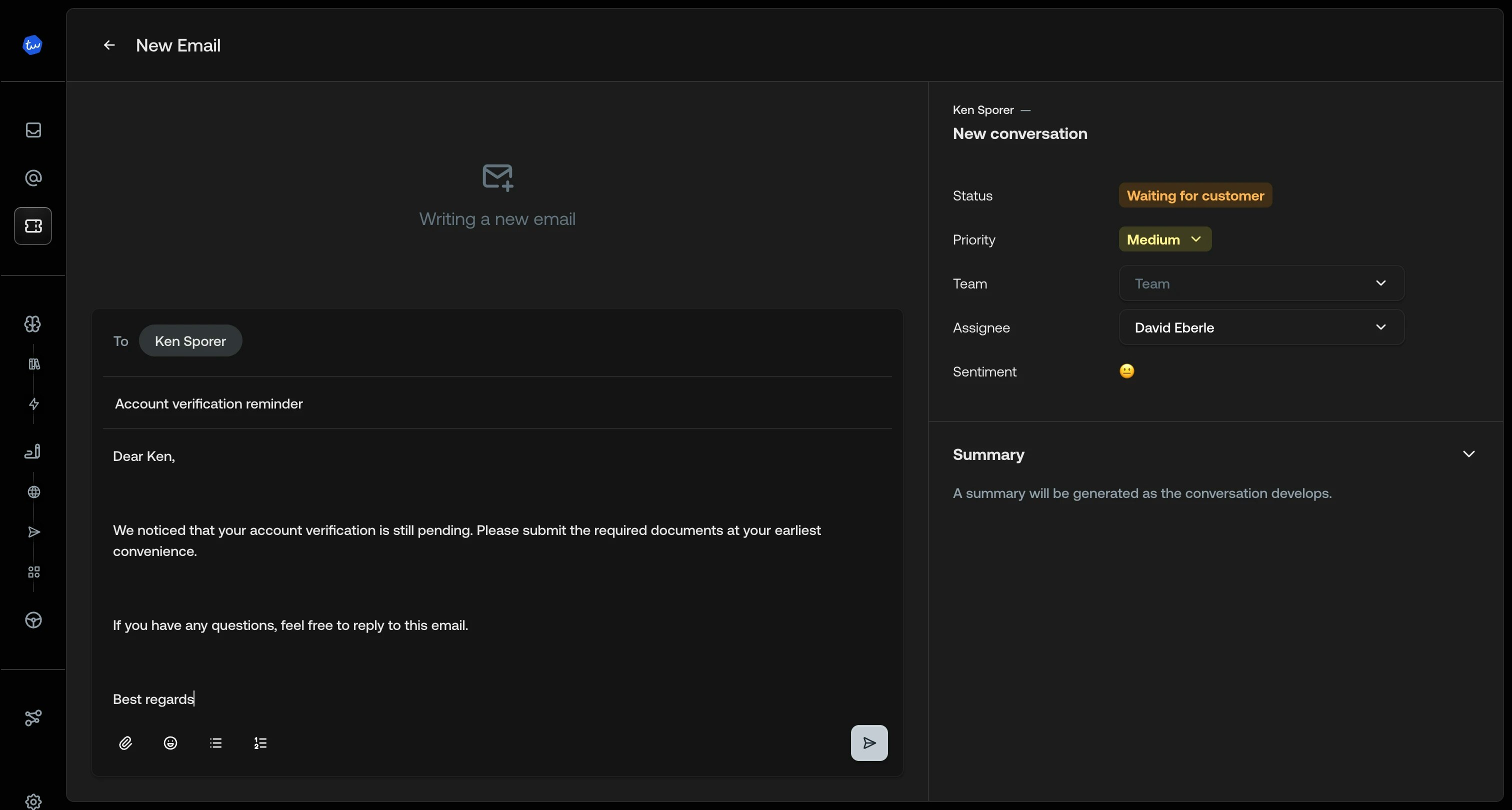
5
Add attachments (optional)
Click the attachment icon to attach files. Attached files appear below the editor.
6
Set ticket details (optional)
Use the right-hand panel to set the Assignee, Team, and Priority.
7
Send
Click Send. You’re taken to the newly created ticket.
Your email signature is added automatically.
After sending
A ticket is created with the status Waiting for customer and stays assigned to a human agent. The AI won’t take over. When the customer replies, the response appears on the same ticket and it reopens in your inbox as a normal conversation. To set a follow-up reminder, snooze the ticket. It reappears when the snooze period ends or the customer replies, whichever comes first.One-way notifications
If you don’t expect a reply (for example, a policy update or an informational notice), start the conversation as described above, then close the ticket manually once you’re taken to it. Mention in the email body that no response is needed, so the customer knows not to reply. If the customer does reply, the ticket reopens automatically.See also
- Composer: Rich text editing and message options
- Snooze tickets: Set follow-up reminders
- All tickets: Browse and search all tickets