

Only Admin users can create and manage API keys.
Create a key
1
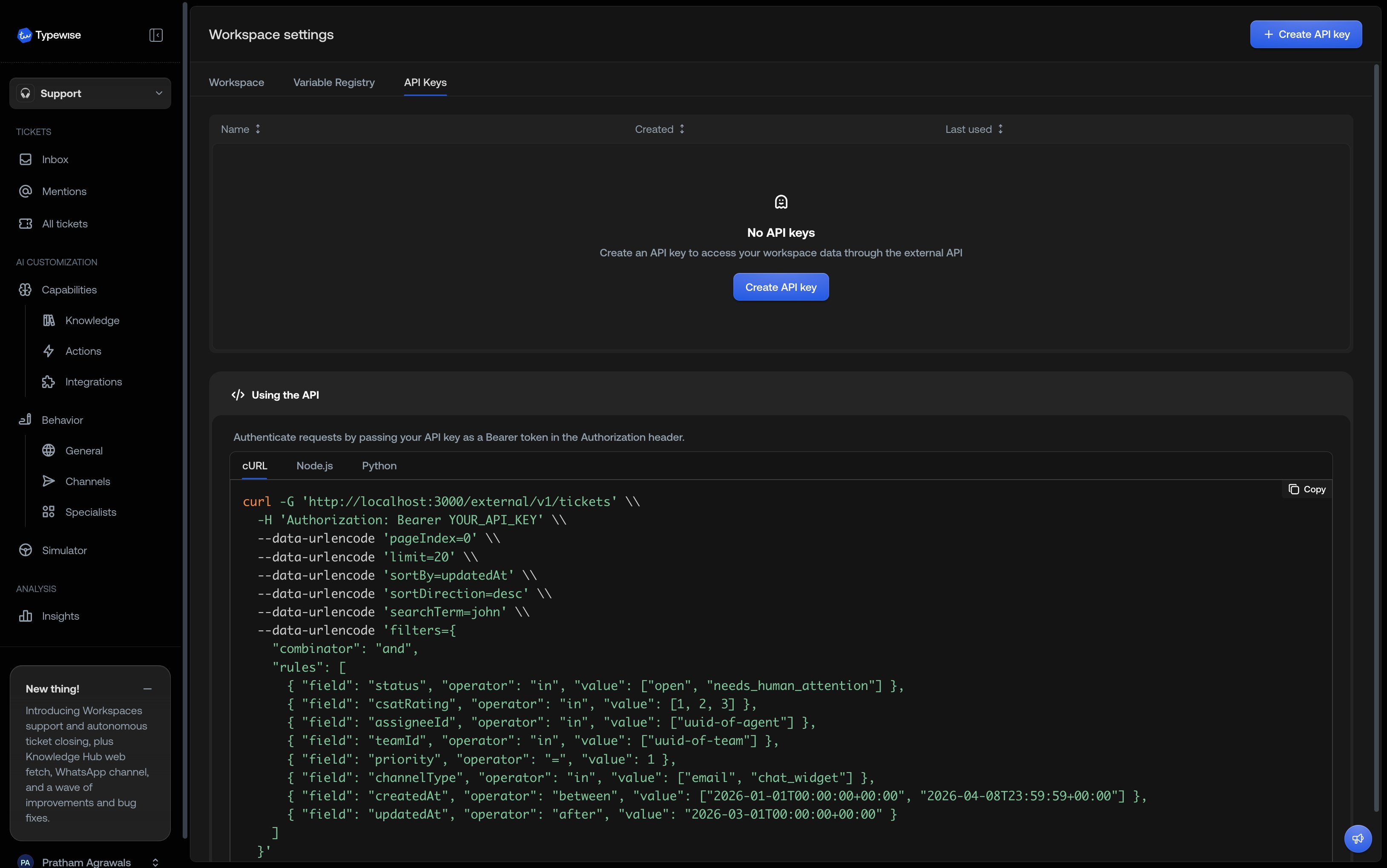
Open API Keys
Go to Workspace Settings and select the API Keys tab.
2
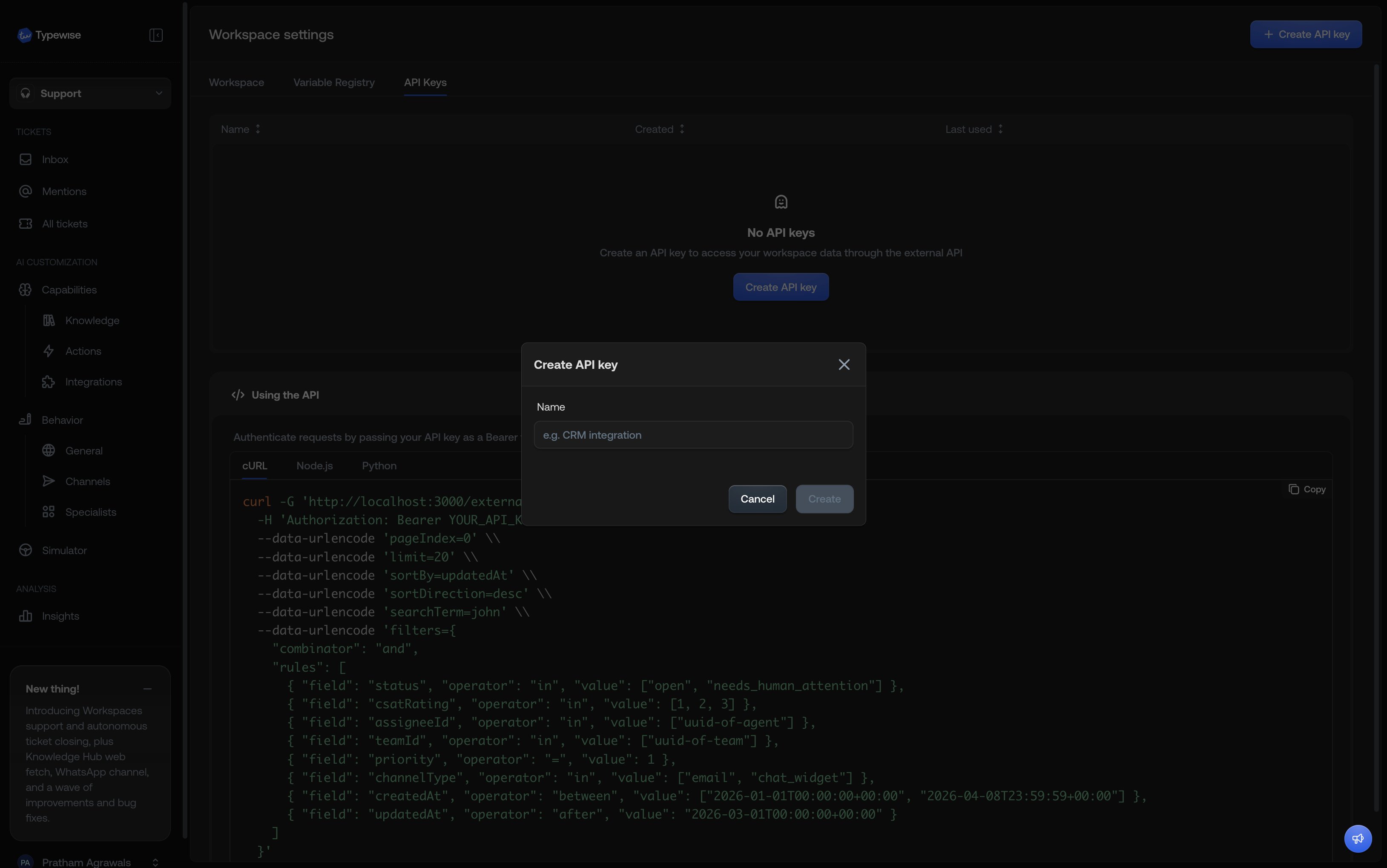
Create
Click Create API key and enter a descriptive name (e.g. “Zapier
integration” or “Reporting pipeline”).
3
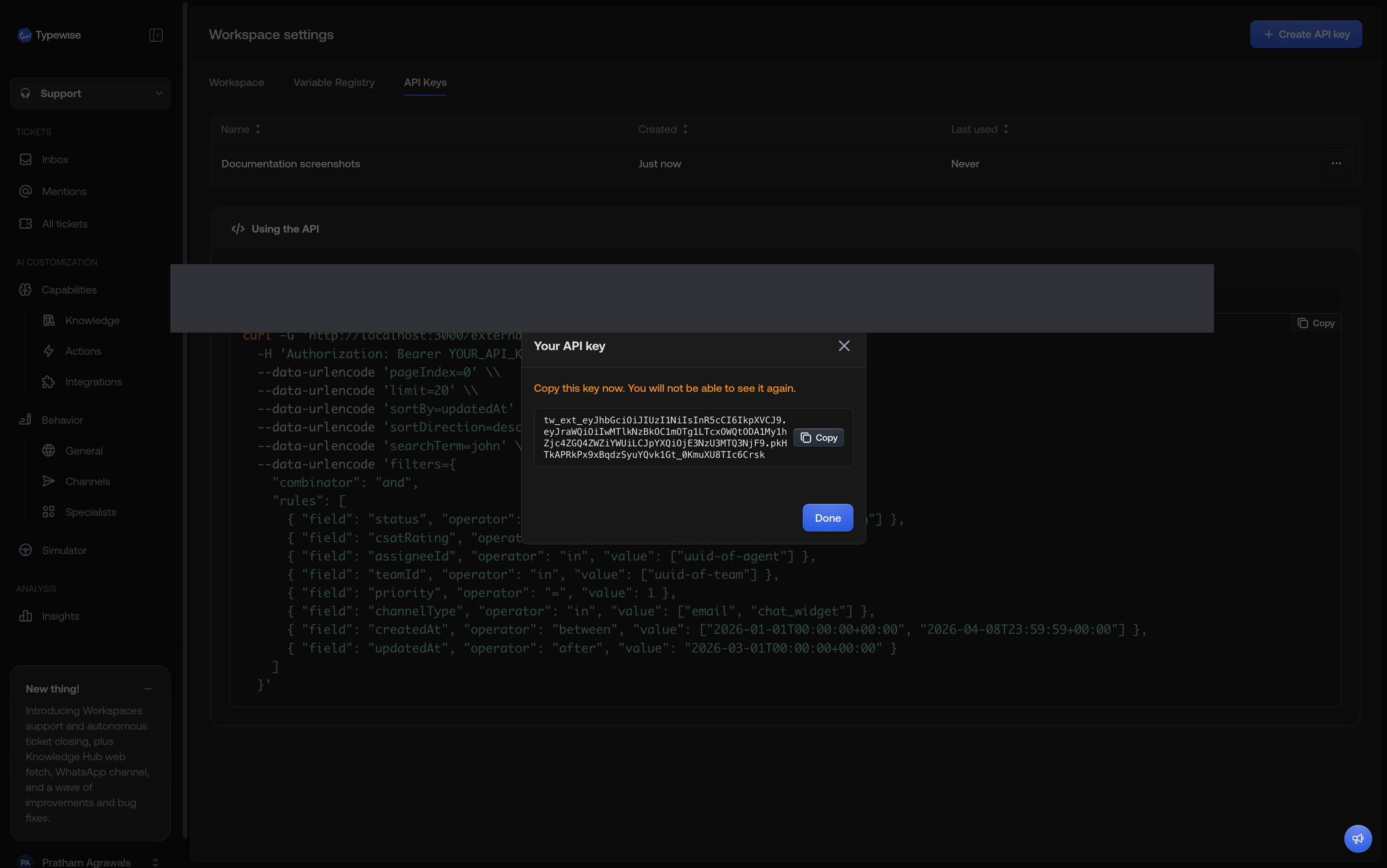
Copy the key
The full key is displayed once. Copy it immediately and store it in a
secure location. You won’t be able to view it again.
Rotate a key
Rotating replaces the current key with a new one.1
Find the key
In the API Keys tab, locate the key you want to rotate.
2
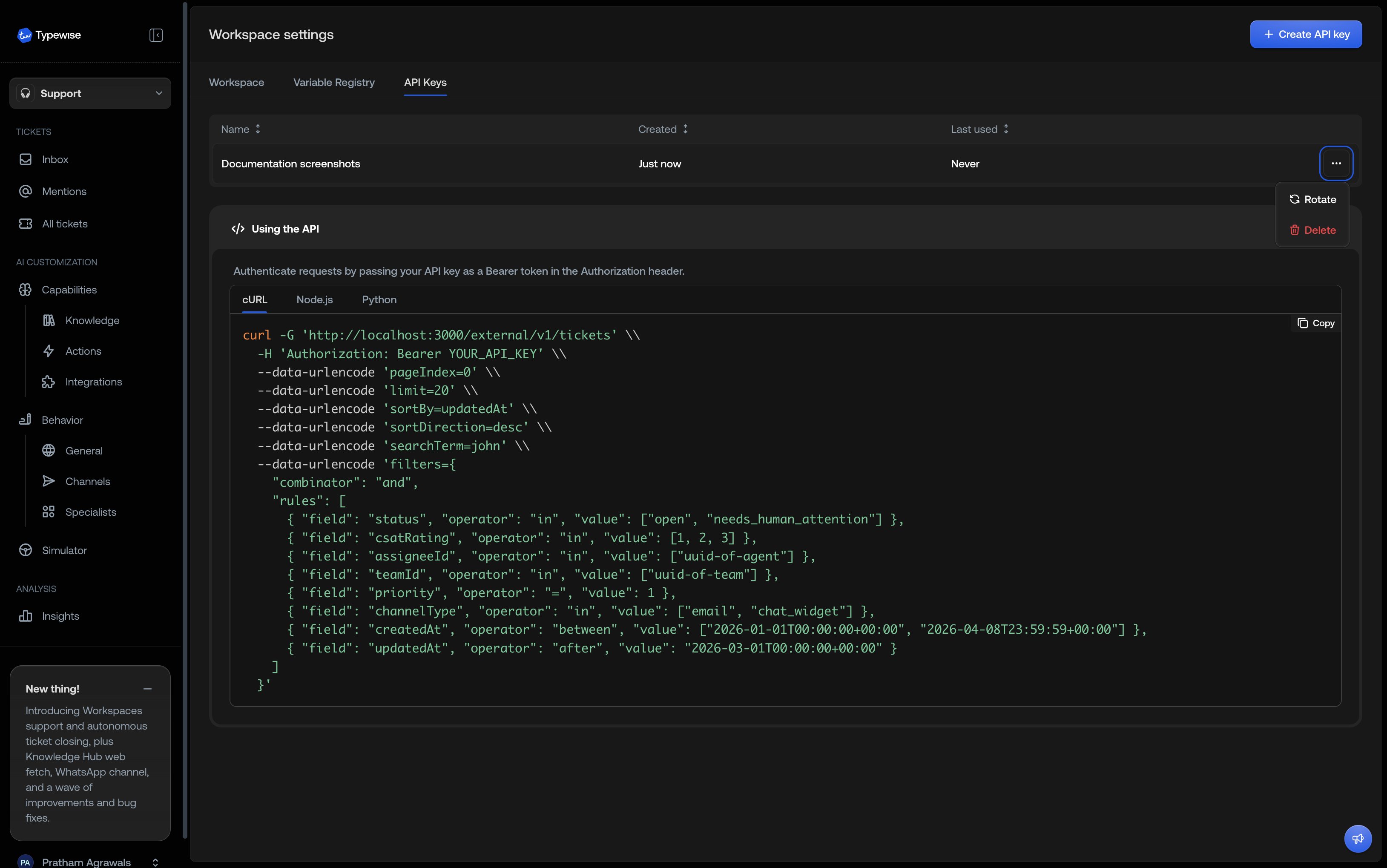
Rotate
Open the key’s action menu and select Rotate. Confirm the action.
3
Copy the new key
Copy the new key and update any integrations that use it.
Delete a key
Deleting a key revokes it permanently. Any integration using the key will receive401 Unauthorized responses.
1
Find the key
In the API Keys tab, locate the key you want to delete.
2
Delete
Open the key’s action menu and select Delete. Confirm the action.
Permissions
Each key is created with thetickets:read permission, which grants read-only
access to the Tickets API.
See also
- Tickets API: Query tickets programmatically with filtering, sorting, and pagination
- User Management: Manage user access and roles