

Configure the requests that repeat, so the Human Agent gets the same fields
every time. Use Ask a human agent for the cases that stand on their own.
When to use it
- A fact only your team has. Whether you’d give this customer an education discount, when it’s nowhere in your knowledge sources.
- A step in a system you haven’t connected. Taking an address off a legacy mailing list, or correcting a record in an old CRM.
- A step you’ll automate later. A Human Agent covers the part no integration reaches yet, and the AI keeps handling the conversation.
- An AI action already covers the step. Point the AI at that action.
- The Human Agent needs the same details every time. A configured Manual action or Manual lookup names each input and shows it as a labeled, copyable field. A request arrives as one sentence.
- You want a person to approve an automated step. Use Require human approval on the action itself, on by default.
- Nothing inside your company can answer it. Why the customer’s bank declined their card, or what another company’s system is doing.
Tell the AI when to ask
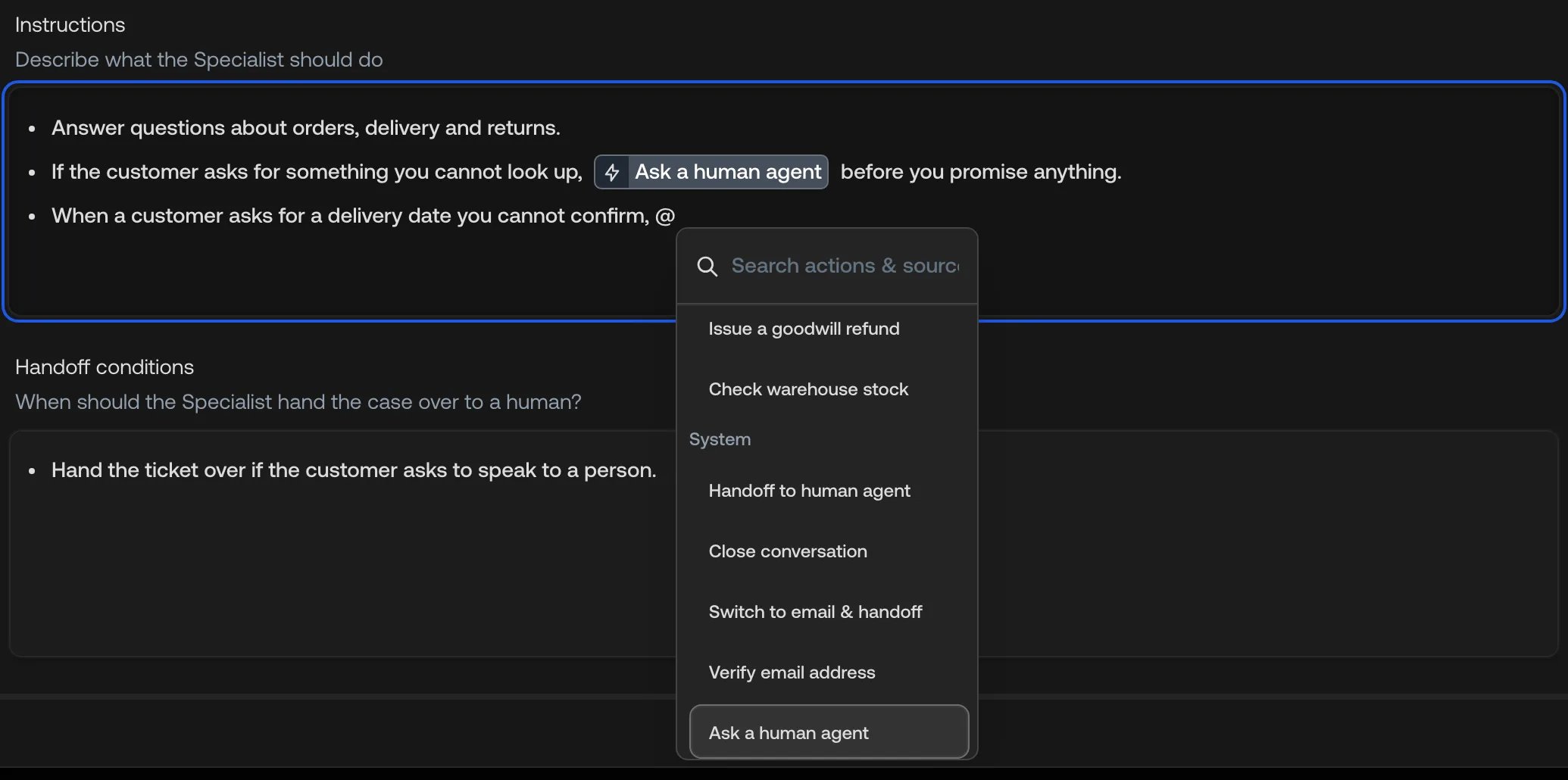
Type@ in any instructions field and pick Ask a human agent from the
System group:
- Specialist instructions
- Global guidelines
- Channel guidelines for Chat, Email, or WhatsApp
What the customer sees
On Chat and WhatsApp, the customer gets one short waiting message while the Human Agent works, even if the AI asks more than once in the same turn. On Email, they get nothing. Either way, the next thing they receive is the finished reply. The customer never sees the request itself.Answer a request
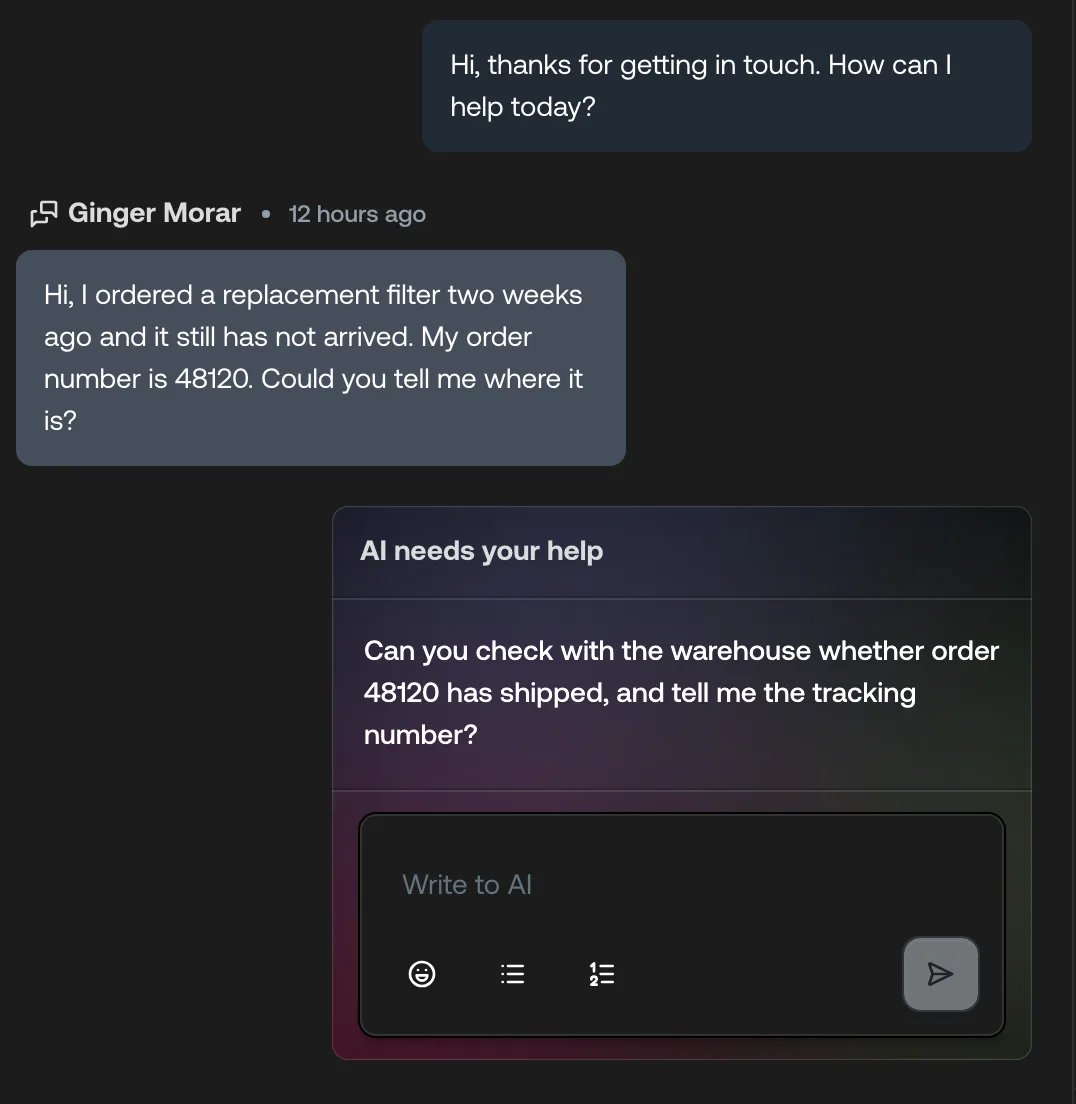
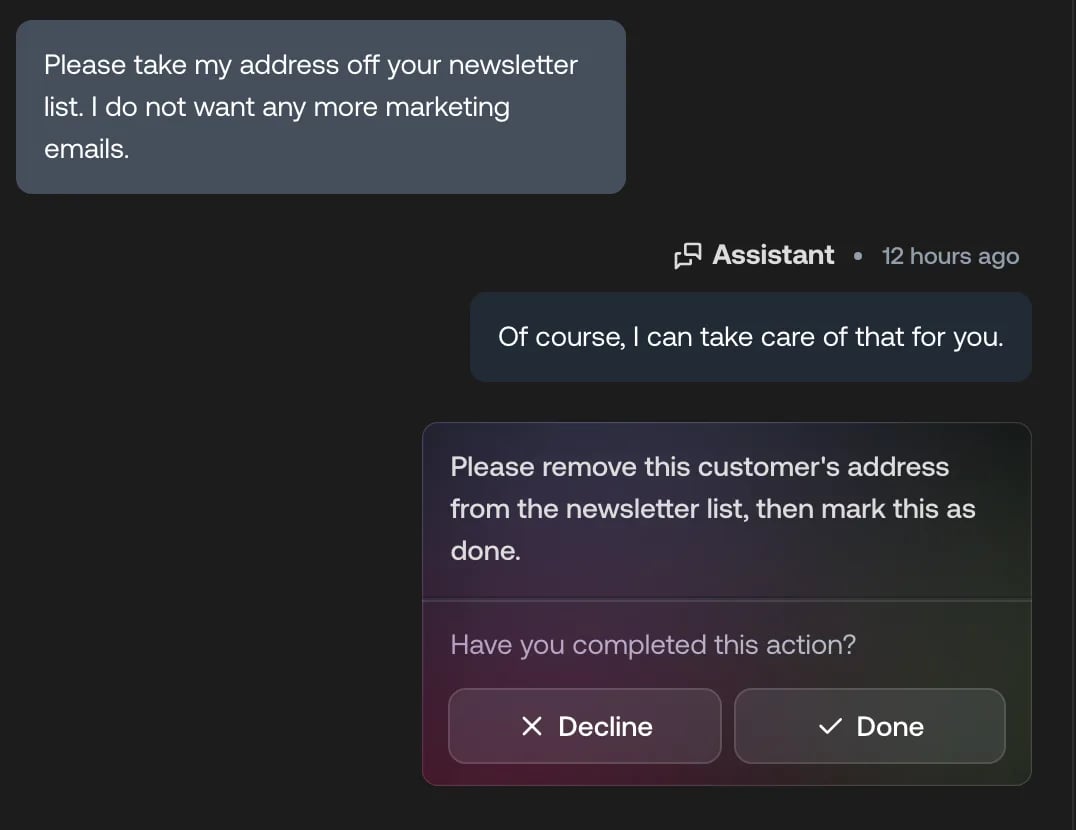
A pending request puts the ticket in Waiting for agent action and into the Inbox: under My tickets for the assignee, or under Unassigned tickets for the whole team while nobody has it. An unassigned one also triggers the New unassigned tickets notification. Nothing is sent by email. Open the ticket and the request is a card in the conversation timeline, showing the AI’s question or task in plain text. No action name and no input fields appear, because nothing in the Actions hub or Knowledge Hub backs the request.- Asked for an answer: type it in the reply box and send.
- Asked for a task: do it, then press Done. You don’t have to type anything; Done on its own tells the AI the task is finished.
If nobody answers
Nothing chases an unanswered request. On Chat and WhatsApp, the Automatically switch to email channel after setting still applies if you use it. When it fires, the ticket switches to email and goes to a Human Agent, and the AI stops handling it. See the automation settings for Chat and WhatsApp. On Email, the request waits until someone answers it.See also
- System actions: The other built-in conversation controls
- Manual lookups: Configured questions for a Human Agent
- Manual actions: Configured tasks for a Human Agent
- AI handoff requests: Every request type in the conversation timeline