

Overview
The Tickets view allows you to browse all tickets, regardless of whether they’ve been handled by you, another agent or the AI. This view is useful for team leads to track the status of all tickets and for Human Agents to see all their assigned tickets, including those where you wait for customer input.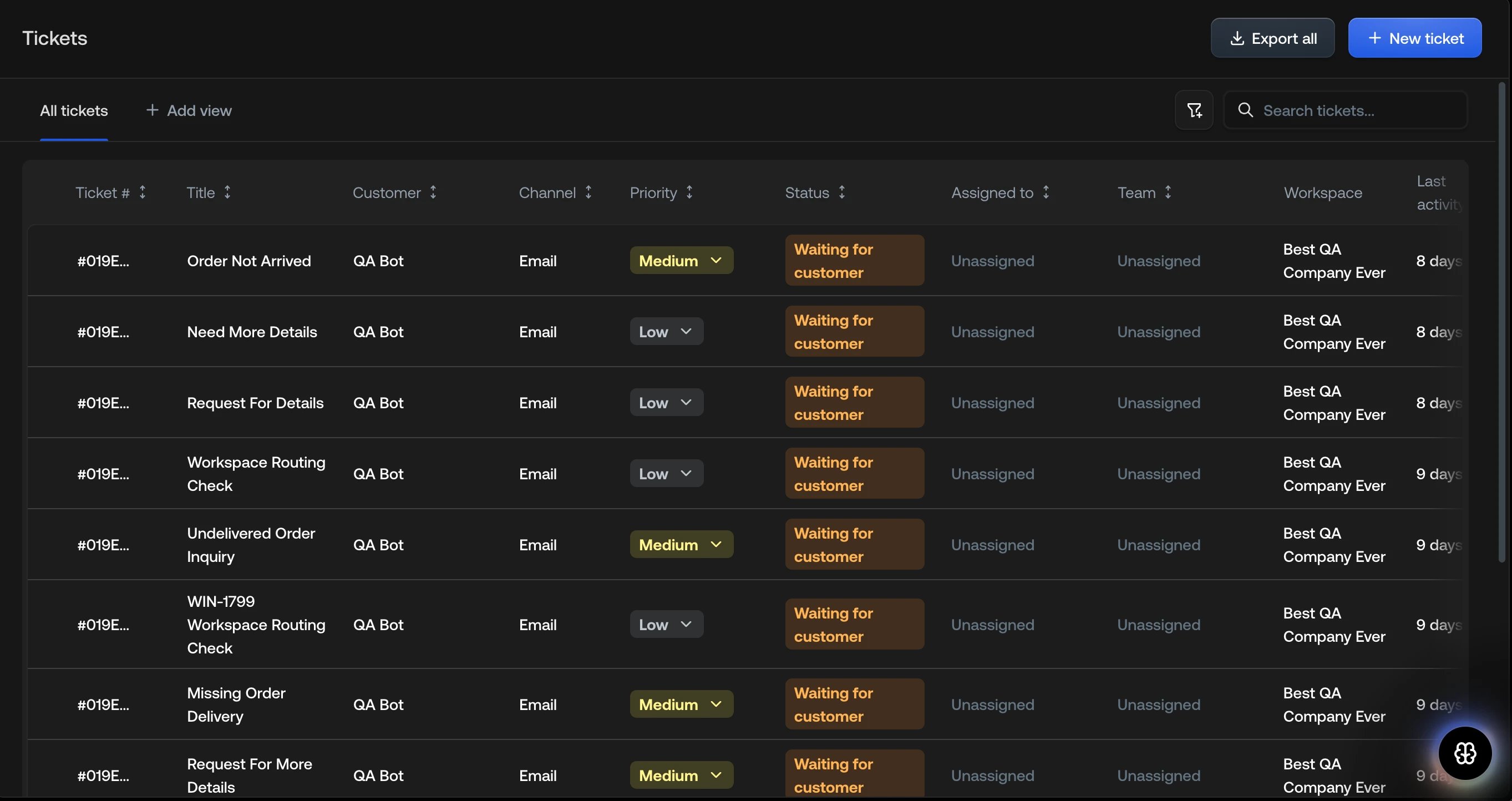
Searching tickets
Using the search field you can search the following fields. Search is processed in real time as you type.
- Ticket title
- Customer name
- Customer email
- Assignee name
- Team name
- Channel type
Filtering tickets
We support filtering tickets using a combination of filters, similar to tools like Linear. Filters allow you to narrow down the ticket list to find exactly what you’re looking for.Adding a filter
1
Click Add filter
Click the Add filter button.
2
Select filter field
Select a filter field from the dropdown.
3
Choose values
Choose the values you want to filter by.
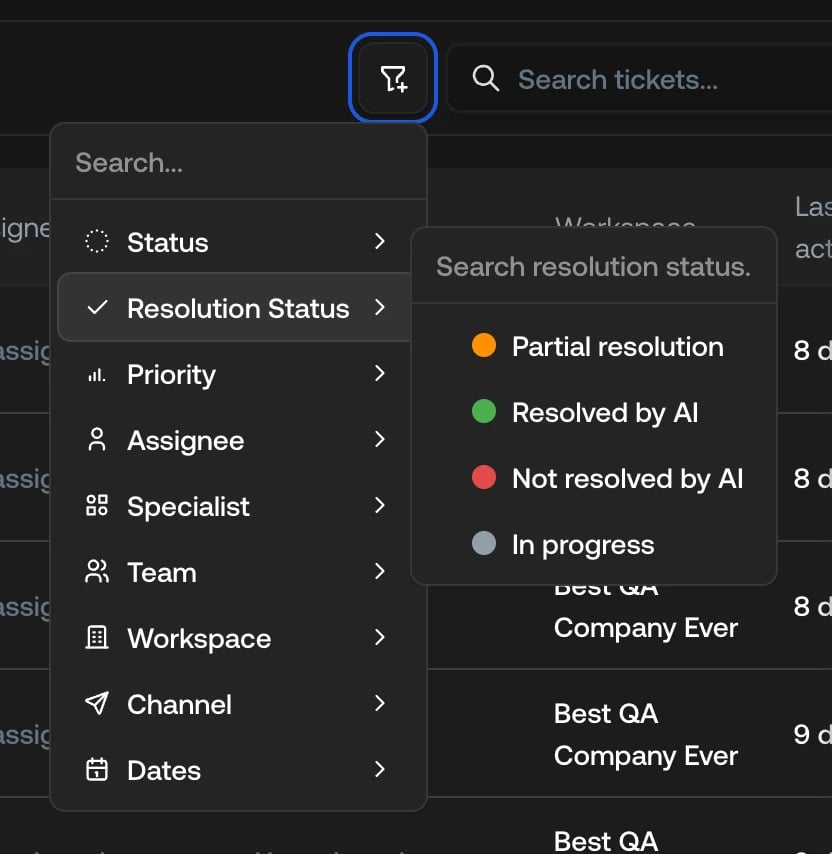
Available filter fields
You can filter tickets by the following fields: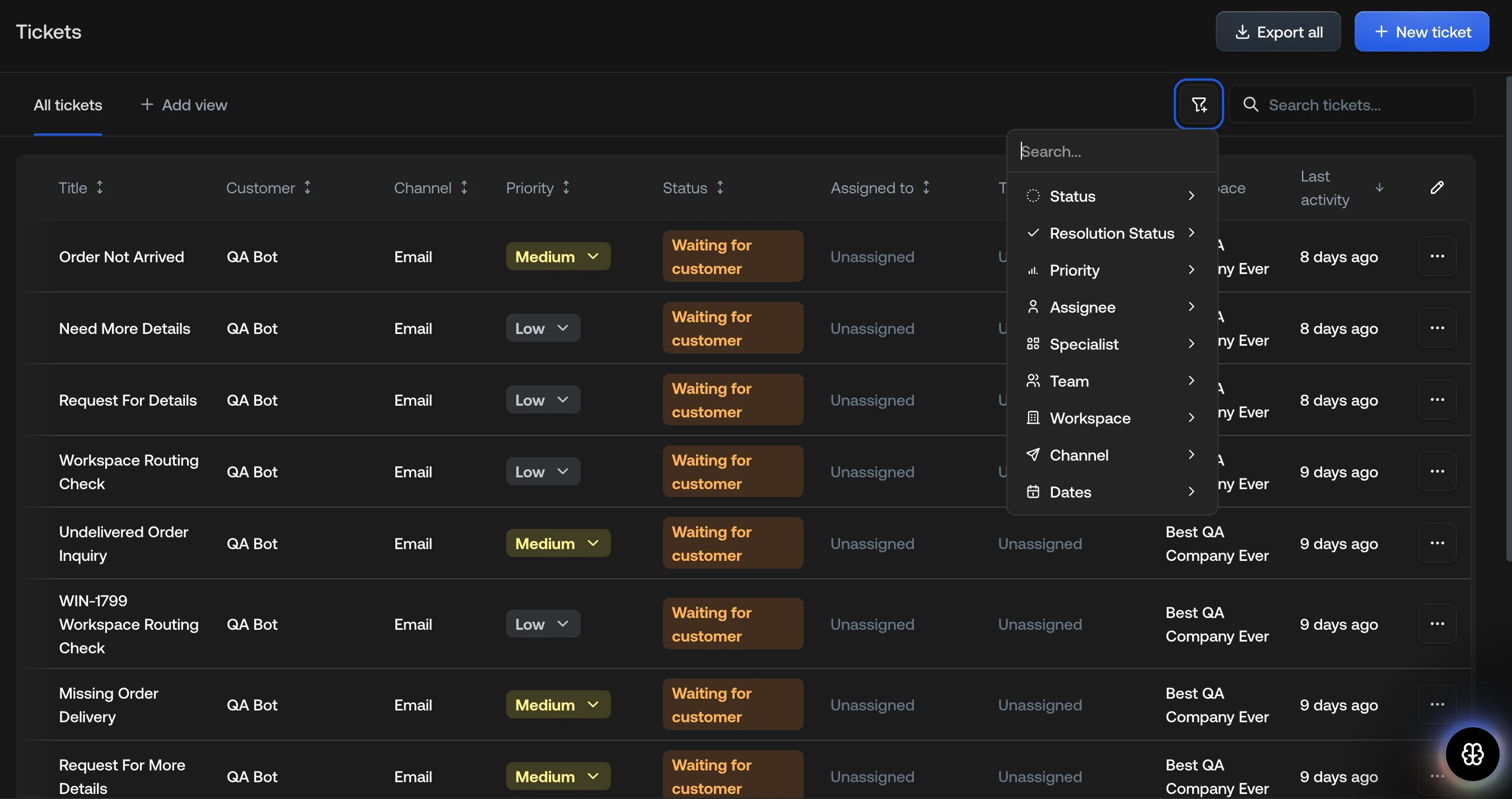
Inverting filters
Each filter can be inverted to exclude specific values instead of including them. When you add a filter, you can toggle the filter to is not mode, which will show all tickets where the field does not match the selected values.Combining multiple filters
You can add multiple filters to refine your search. All filters are combined using AND logic, meaning tickets must match all active filters to appear in the results.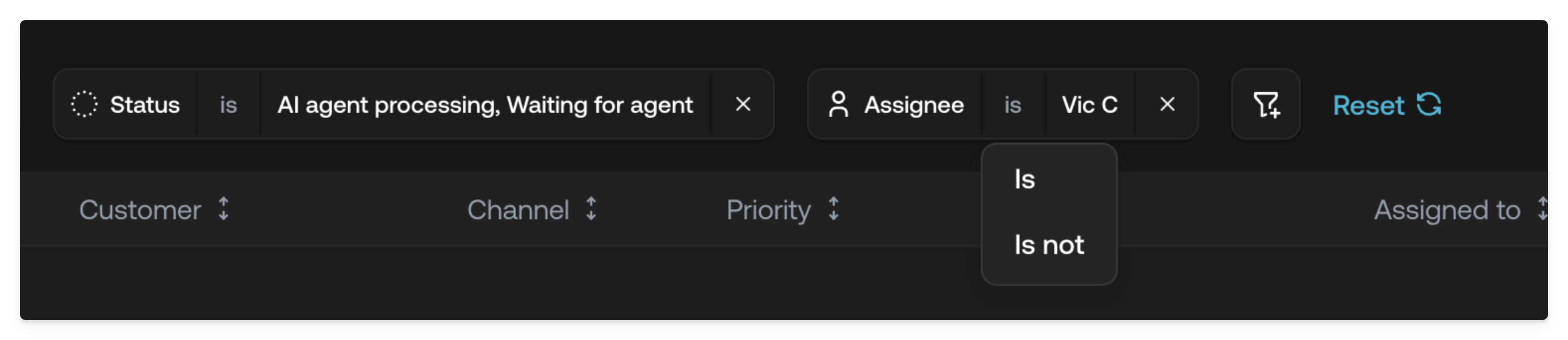
Example: If you add a filter for
Status = processing and Team = Support, only tickets that are both in processing status and assigned to
the Support team will be shown.Removing filters
To remove a filter, click the × button next to the filter tag. To clear all filters at once, click Clear filters.Column visibility
You can customize which columns are displayed in the ticket list using the column menu — the pencil icon at the top-right of the table (labelled Adjust columns and sorting). This allows you to show only the information that’s relevant to your workflow.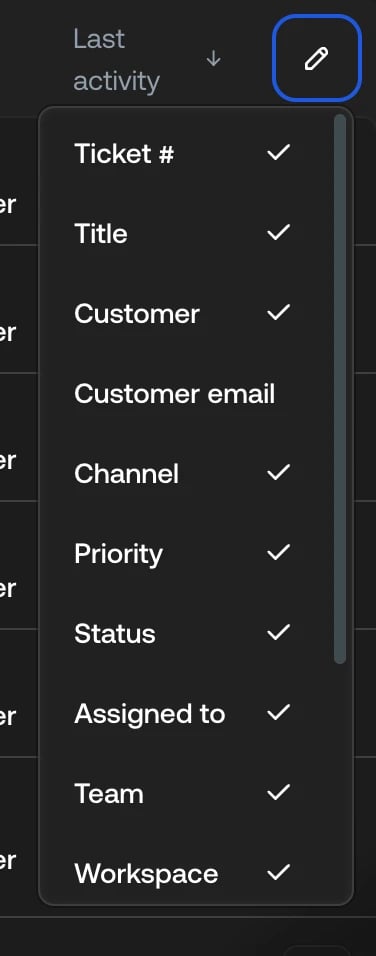
Managing columns
1
Open the column menu
Click the pencil icon at the top-right of the table.
2
Toggle columns
Check or uncheck the columns you want to show or hide. Changes are applied
immediately.
Default columns
The following columns are visible by default:- Ticket #
- Title
- Customer
- Channel
- Priority
- Status
- Assigned to
- Team
- Labels
- Last activity
Additional columns
These columns are hidden by default but can be enabled:- Resolution status
- Created
- Customer email
- Rating
- Workspace (only available when multiple workspaces exist)
Reordering columns
You can change the order of the columns by dragging them directly in the table. Hover over a column header to reveal its drag handle (the grip icon), then drag the column left or right to reposition it. The new order is applied immediately.Every data column can be reordered. Column order, like column visibility, is
remembered per saved view.