

Instructions
1
Open Add User
Go to User Management and
click Add User.
2
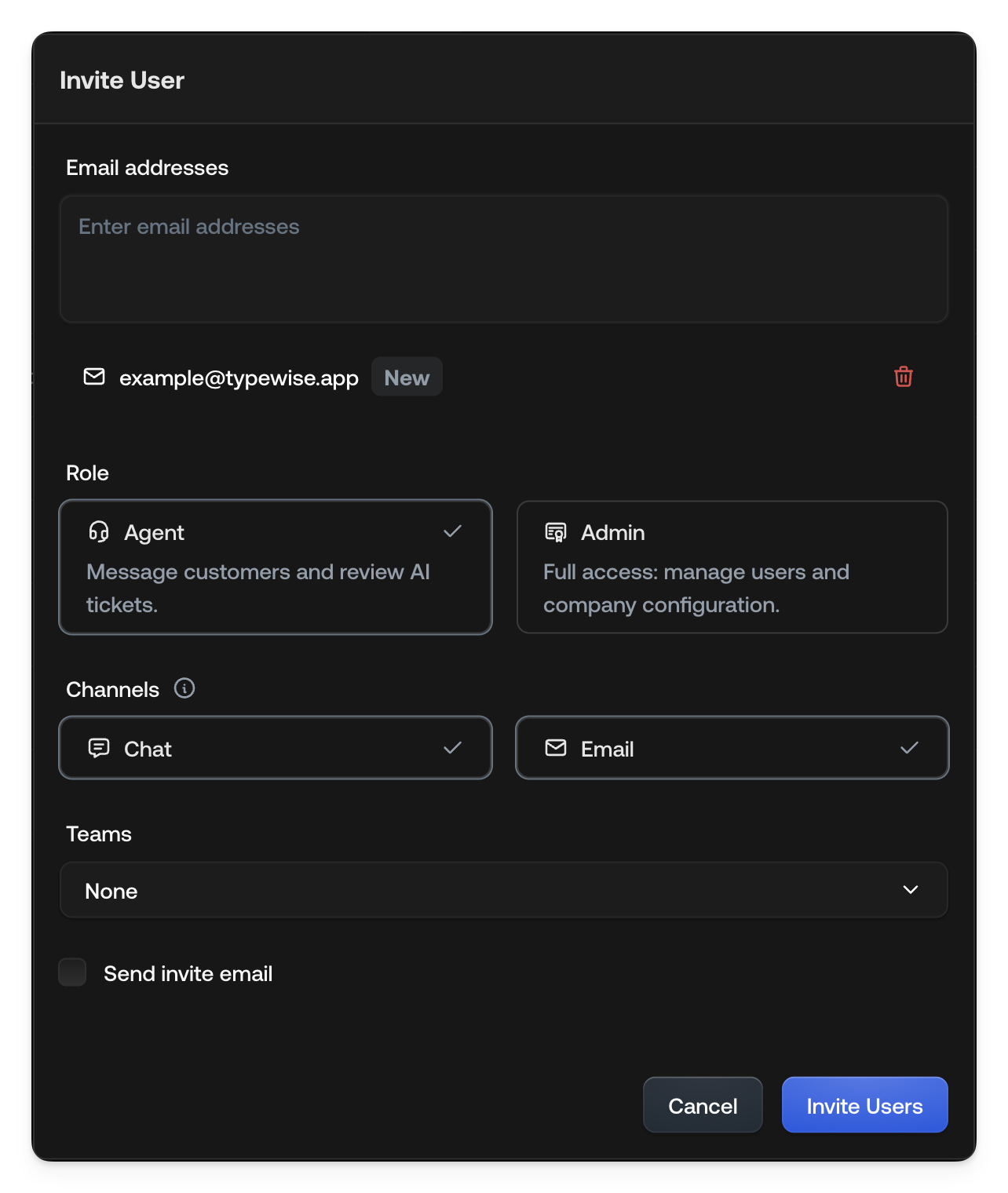
Enter email addresses
In the Email addresses field, enter one or multiple email addresses.
3
Select role
Select the user’s role: - Agent - Can message customers and review AI
tickets. - Admin - Full access to manage users and overall company
configuration.
4
Choose channels
Choose Channels the user will handle: Chat and/or Email.
5
Assign team
Assign the user to a Team. Select an existing team from the dropdown, or
leave as None if not yet assigned.
6
Send invite
Optionally, check the box Send invite email if you want Typewise to
email the invitation.
7
Invite
Click Invite Users.
Tips
- Always double-check role permissions before sending the invite.
- You can edit user roles and channels anytime later in User Settings.
- Removing a user deletes their personal saved views. Shared views they created stay shared. An admin you change to Agent keeps their views but can no longer edit or delete shared ones.
- Editing a user opens the same details they see on their own profile, so you can set someone’s photo or fill in their user properties on their behalf.
See also
- Team Management: Organize users into teams
- User properties: Define the details each agent carries
- Profile: What each user can set for themselves
- Company configuration: Set global guidelines