Sections
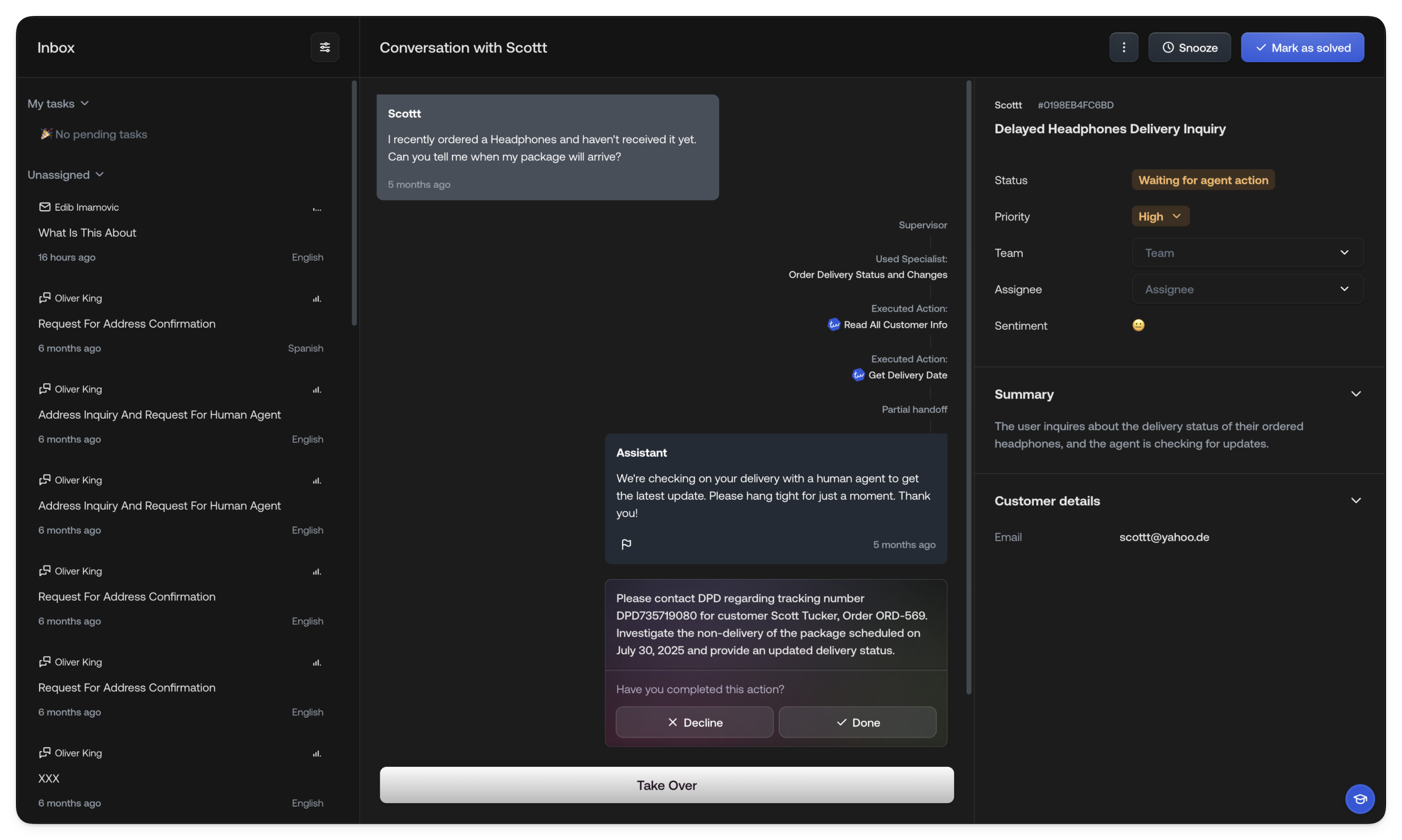
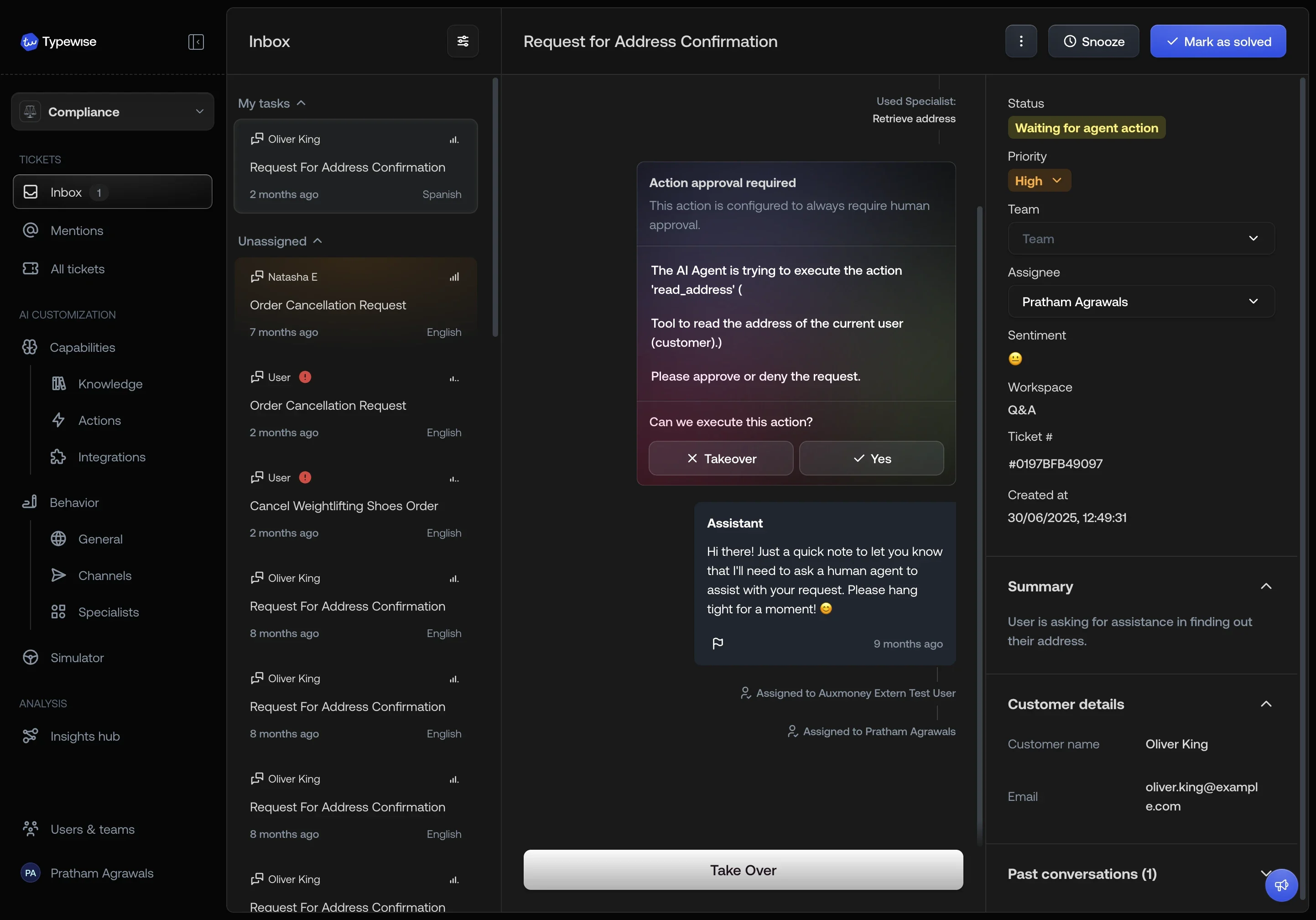
The inbox is divided into two sections: My tickets and Unassigned tickets. You can collapse or expand these sections to see more or fewer tickets.My tasks
This section shows all tickets assigned to you, for example, because you previously replied to the customer in this ticket. Once you reply, the ticket disappears from your Inbox and only reappears when your input is needed again.Unassigned tickets
Here you’ll see new tickets that haven’t been assigned yet and are available for you to pick up. You only see tickets relevant to you based on your assigned teams.Sorting and filtering the inbox
By default, intelligent sorting is used to sort the tickets in the inbox. We use a combination of factors to determine the order of the tickets, including the time since the customer’s last message, the priority of the ticket, its status, and more. It’s designed to show you the tickets that are most likely to need your attention first.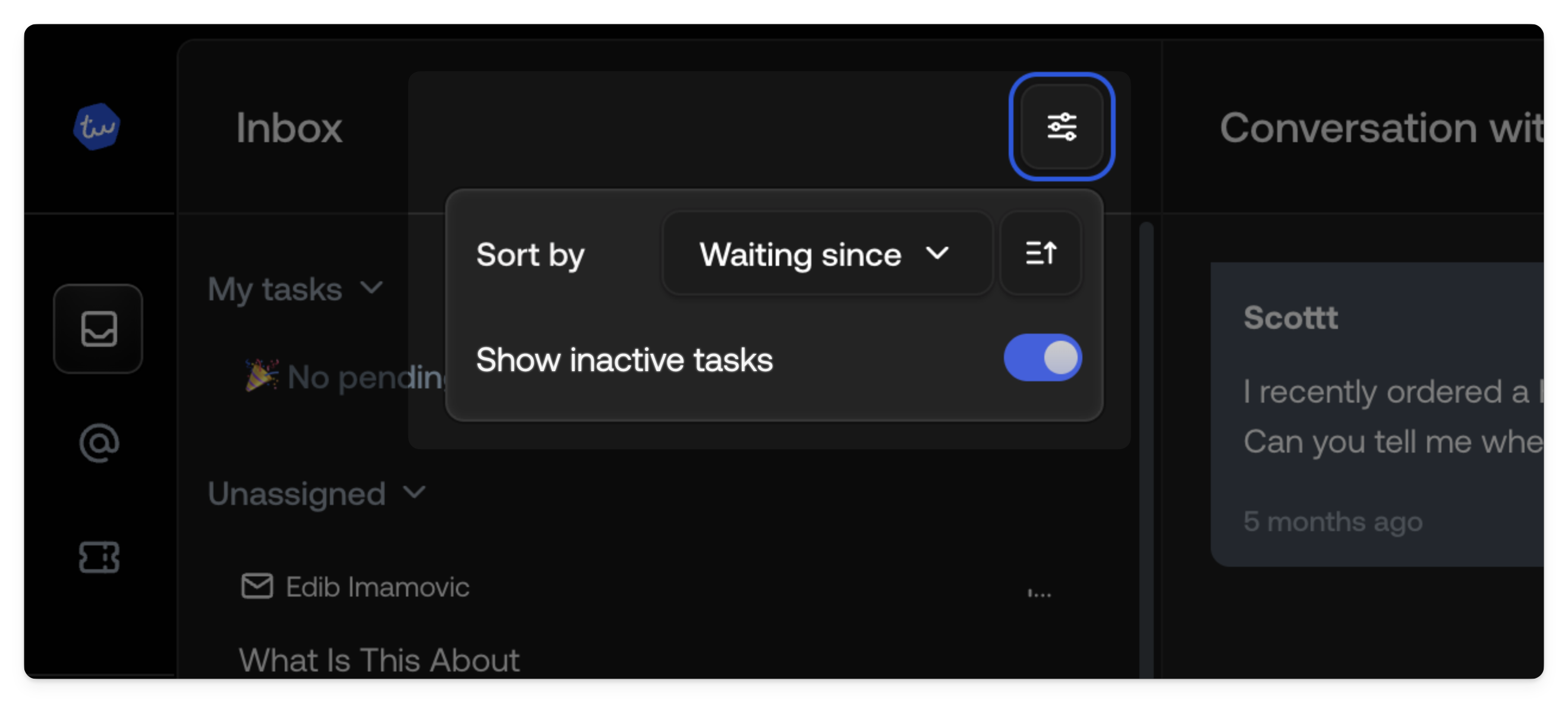
Sorting options
- Smart (default): We sort tickets based on the time since the customer’s last message, the priority of the ticket, its status, and more.
- Waiting since: We sort tickets based on the time since the ticket was last waiting for your input.
- Last activity: We sort tickets based on the time since the last activity on the ticket. This includes any changes to the ticket such as status changes, notes, and any AI activity.
- Creation date: We sort tickets based on the creation date of the ticket.
- Priority: We sort tickets based on the priority of the ticket.
Filtering by workspace
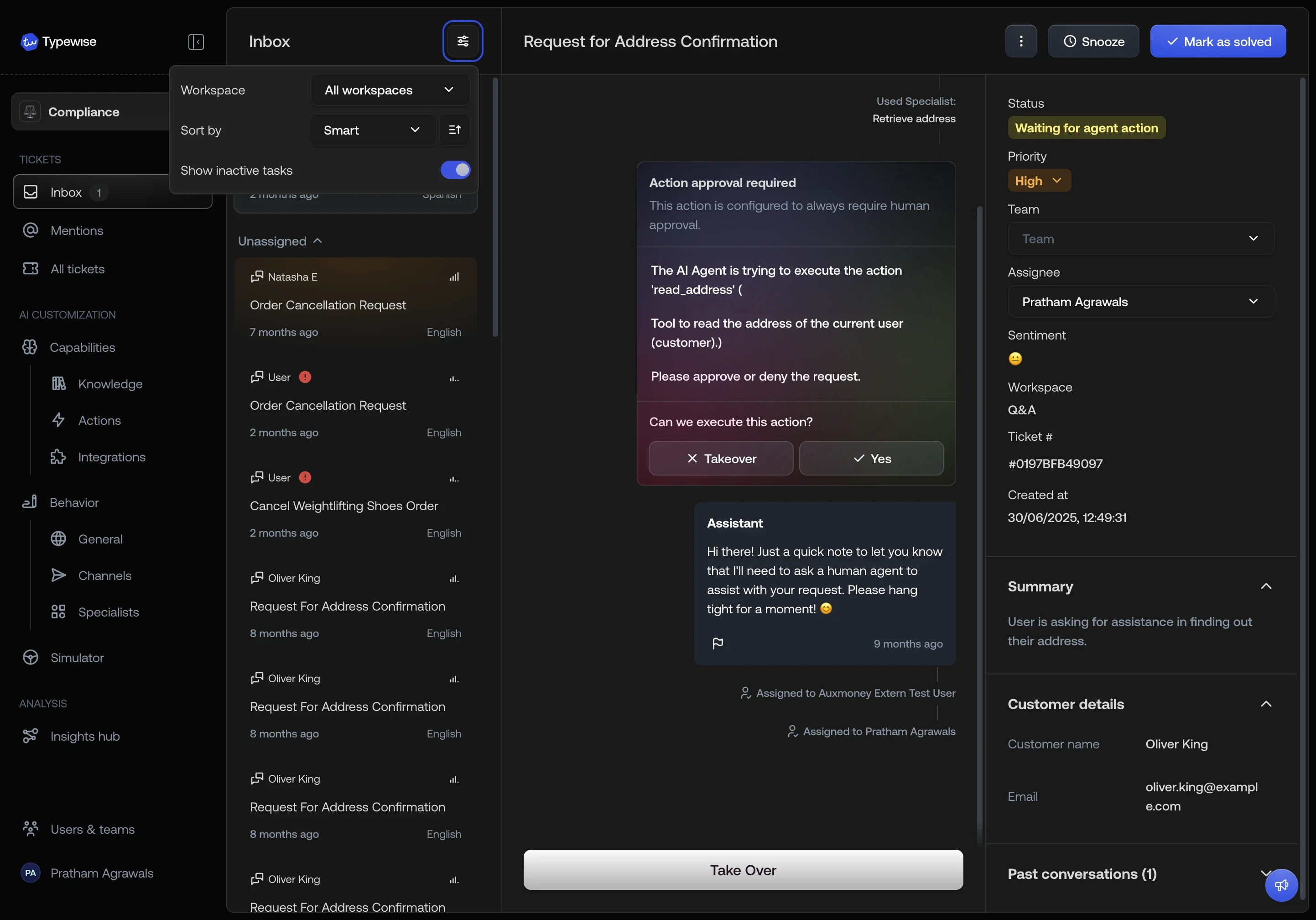
When your account has more than one workspace, a Workspace filter appears in the inbox filter menu.- All workspaces (default): shows tickets from every workspace.
- Select a specific workspace to see only its tickets.
Showing your inactive tasks
By default, your assigned task list will include all open tickets that are assigned to you including tickets that don’t need your input anymore. If you want to see only the tickets that need your input, you can disable the Show unassigned tasks option from the filtering dropdown.Responding to tickets
When a ticket lands in your Inbox, it means the AI needs your input to proceed. By default, new tickets show up in the assigned section of the inbox.1
Monitor the unassigned queue
By default, new tickets show up in the assigned section of the inbox. Based
on the sorting configured, tickets that need immediate attention will be at
the top of the queue.
2
Review the ticket
Review the ticket details and the conversation to understand the customer’s
request and the AI’s response.
3
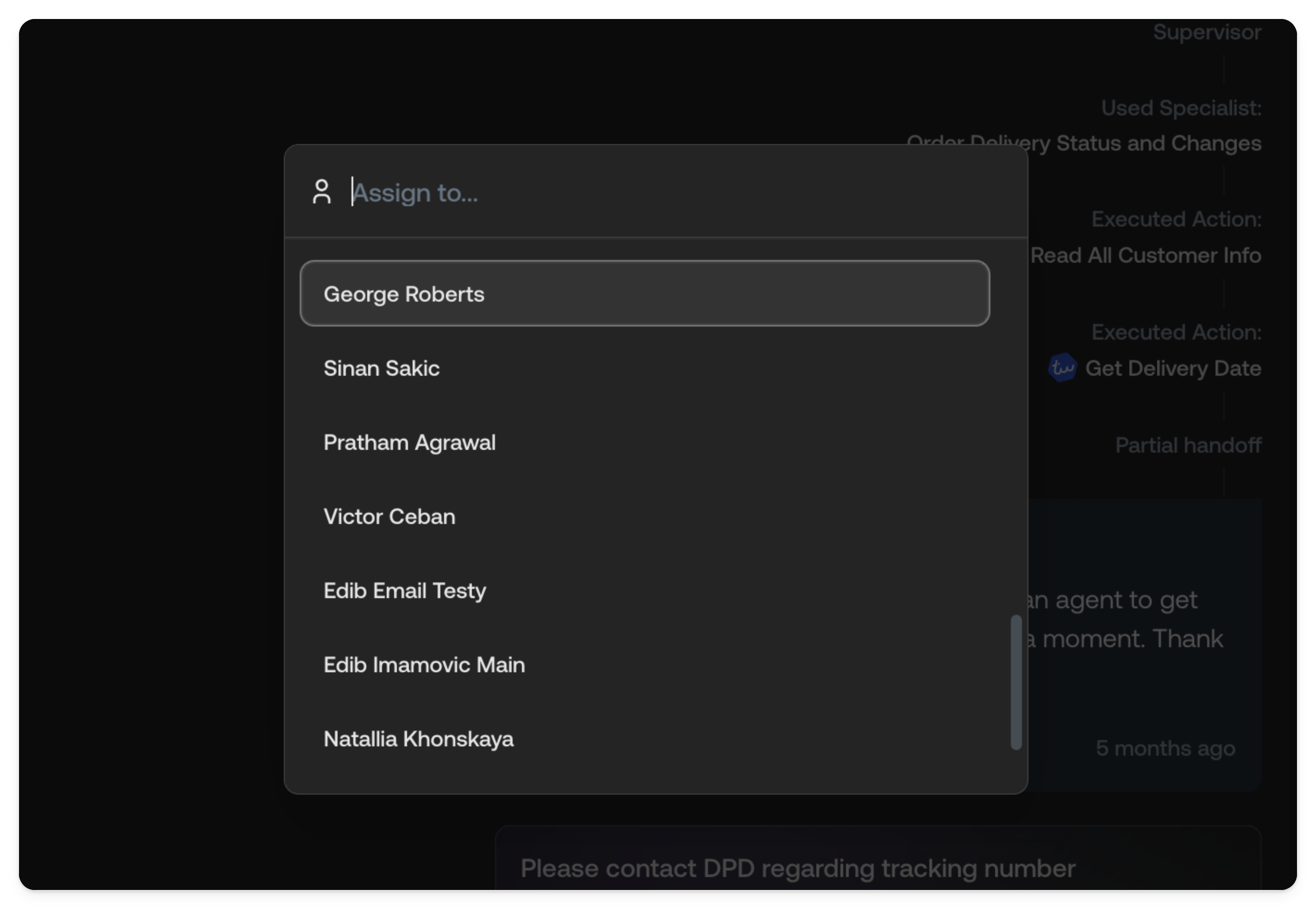
Assign the ticket to yourself
When you start working on a ticket, assign it to yourself. This moves the
ticket to your tasks section and removes it from other Human Agents’
inboxes.
4
Respond to the ticket
The AI assistant may need you to either completely takeover the ticket,
approve a draft response or action, or provide additional information.
5
Close the ticket
Once you’ve responded, the ticket will be removed from your Inbox and will
return when the customer replies or when further action is needed. Once the
issue is resolved, you can safely close the ticket.
Collaboration
Since the inbox is shared between all your team members, it’s important to collaborate with other Human Agents to ensure that tickets are handled efficiently and effectively.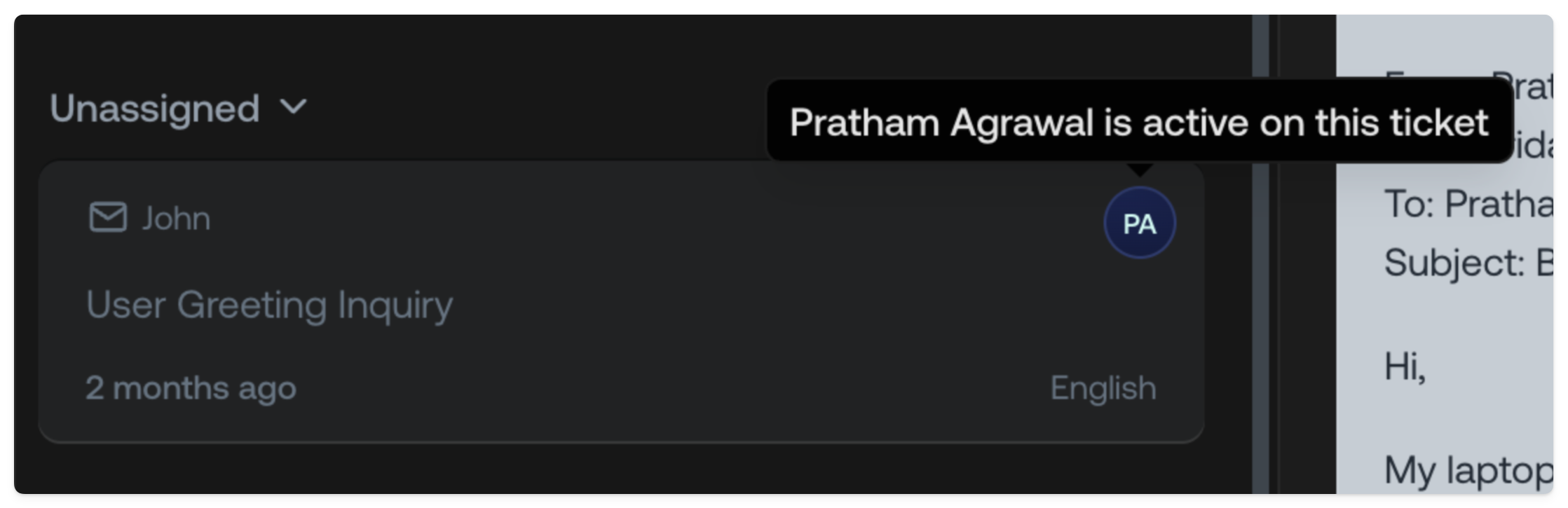
Seeing what other Human Agents are looking at
When reviewing the unassigned queue, you can see what tickets are already being looked at by other Human Agents. This allows you to make sure you’re not working on the same ticket as another Human Agent.Assigning a ticket to yourself
If you feel like you can help with a ticket, you can assign it to yourself. It will move the ticket to your tasks section. It will also be removed from other Human Agents’ inboxes.