

How actions work
When the AI Agent determines a task needs to be performed, such as refunding an order or updating a ticket, it checks which actions are available in the current instructions. For integration and manual actions, that usually means tools you added to a Specialist’s instructions. System actions are built in and can also be added in global guidelines and channel guidelines.Add an action
1
Open the action hub
Go to Actions (sidebar → Actions) and click Add action.
2
Choose the action type
Select the type of action: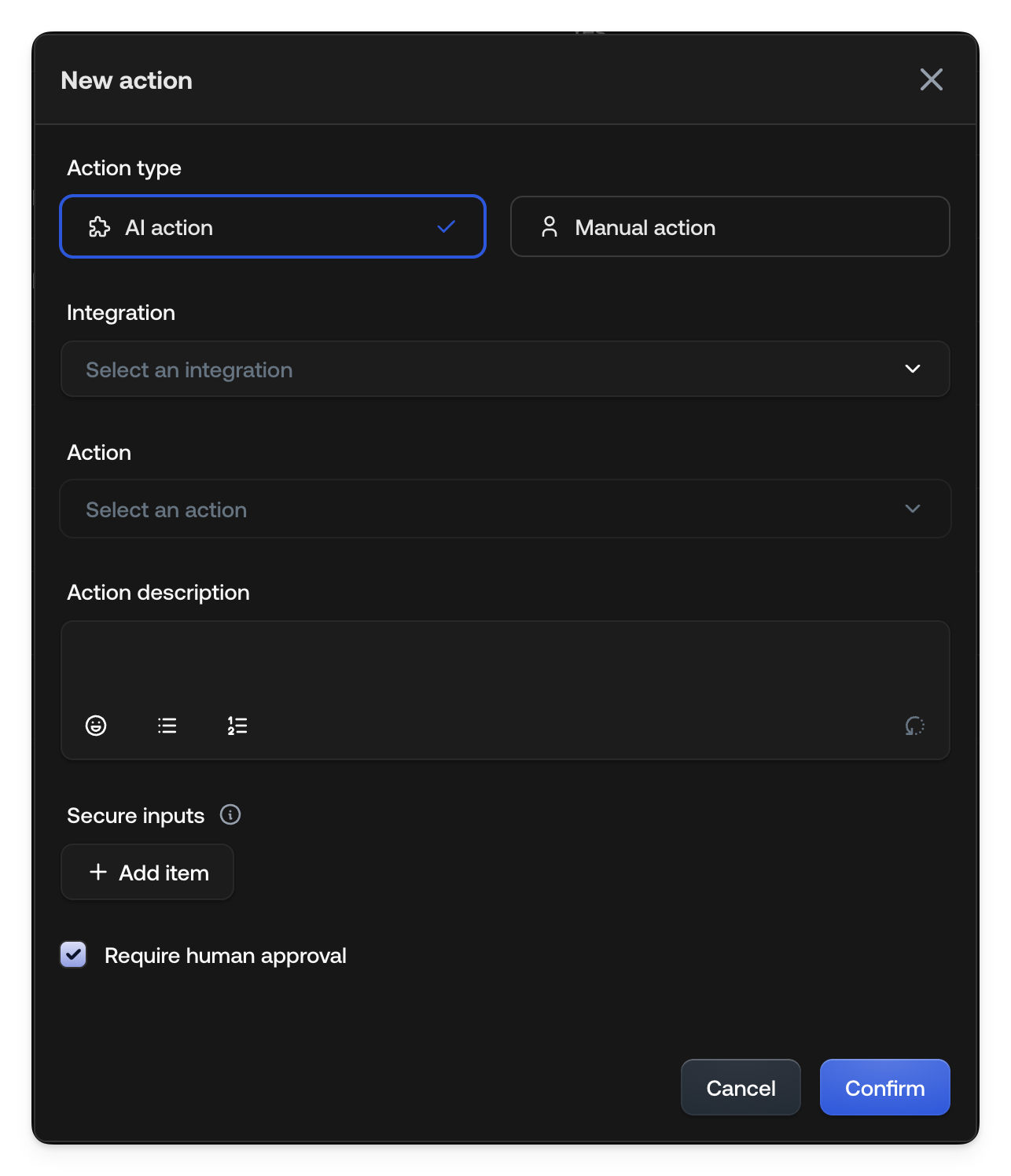
- AI action: Executed through an integration
- Manual action: Delegated to a human agent
3
Configure the action
Fill in the required fields:
- Integration: The connected system (e.g., Salesforce, your MCP server)
- Action: The specific operation from the integration
- Name: A readable name for this action instance (shown in the Actions table and to the AI Agent)
- Action description: When and how to use this action
- Customize inputs: Per input, pick a source (Auto, Static, or a context variable). Add a Trusted only check on variable mappings that need a verified value.
- Require human approval: Require confirmation before execution (enabled by default)
4
Save and add to Specialist
Click Confirm to save. Then add it to a Specialist:
- Go to Specialists (sidebar → Specialists)
- Edit the Specialist that should use this action
-
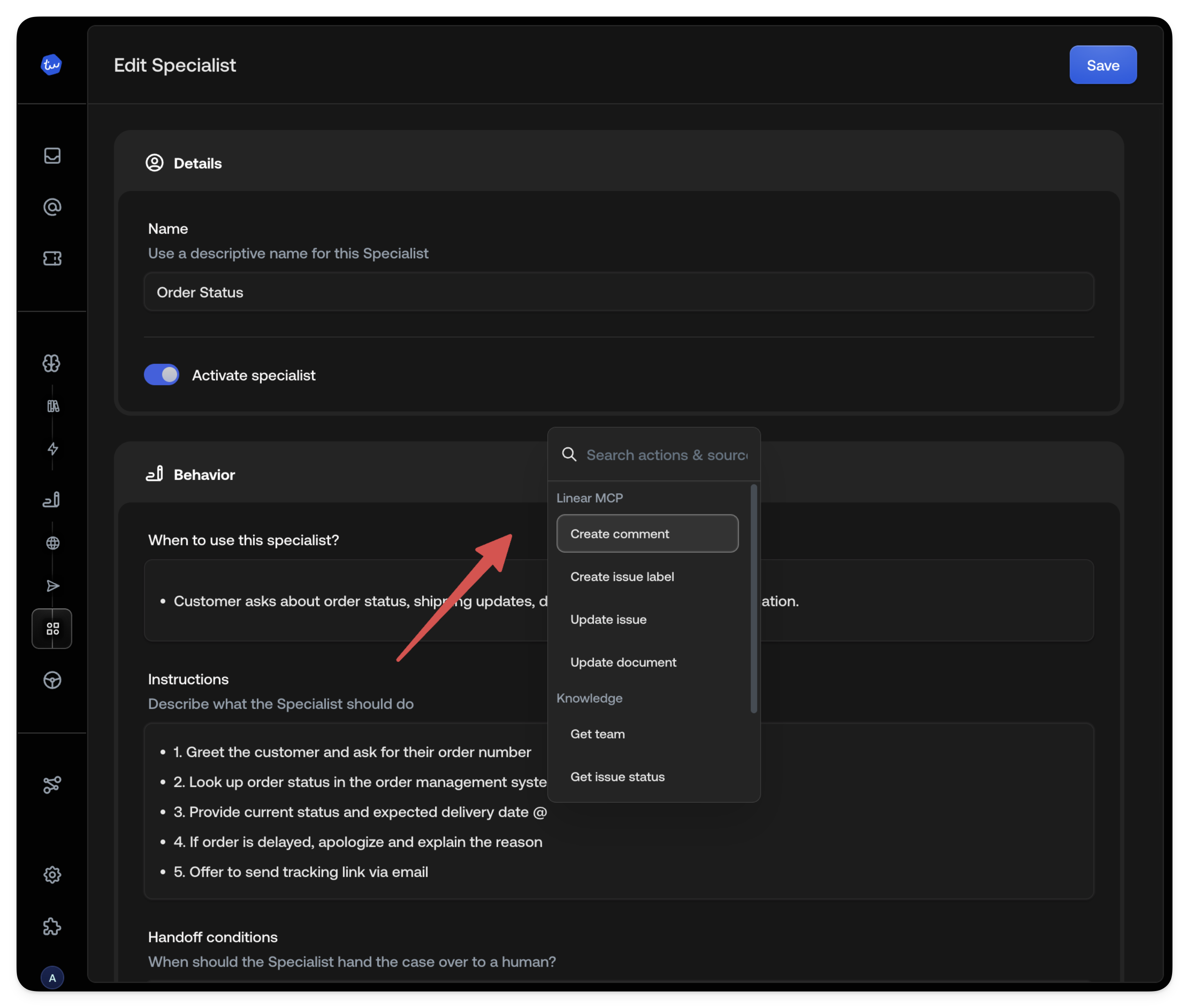
In the Instructions field, type
@to open the tool picker -
Select your action. It appears as a visual pill in the instructions.
Reuse the same action multiple times
You can add the same catalog action more than once. Each instance keeps its own Name, description, and input mappings, so the AI Agent can choose the right variant without guessing hidden values such as queue IDs or sender mailboxes. When you pick an action that is already configured, the picker shows a warning with how many other instances already use it. The Actions table shows each instance under its custom Name, not only the catalog tool name. Example: Addcreate_case twice as Create billing case and Create
tech case, each with a different queue ID set as a static input. Or add
send_email twice for support@ and billing@.
Two instances with the same tool, description, and inputs are blocked. A valid
variant needs a unique Name and a different description or input mapping.
You do not need a separate upstream integration just to represent different
prefilled variants.
See also
- System actions: Close, hand off, ask a colleague, verify the customer, or switch a conversation to email
- AI actions: Execute through integrations
- Manual actions: Human Agent execution
- Security & verification: The trust model behind input customization
- Context Variables: Declare context variables and customize action inputs