

When to use this feature
Use Mentions whenever you need to notify a colleague about a ticket, ask a question, request action, or provide an update that requires their attention. Think of it as a way to quickly loop someone into a conversation without sending separate messages outside the system. Once a mention has been handled, you can mark the thread as solved to clear it from your queue. See Solving and reopening threads.Instructions
1
Navigate to the ticket
Navigate to the ticket in the Inbox where you want to mention someone.
2
Switch to the notes composer
If you’ve already taken over the ticket, the composer should already be
open. Switch to the notes composer by clicking on the dropdown next to the
send button, and click on Notes from the dropdown.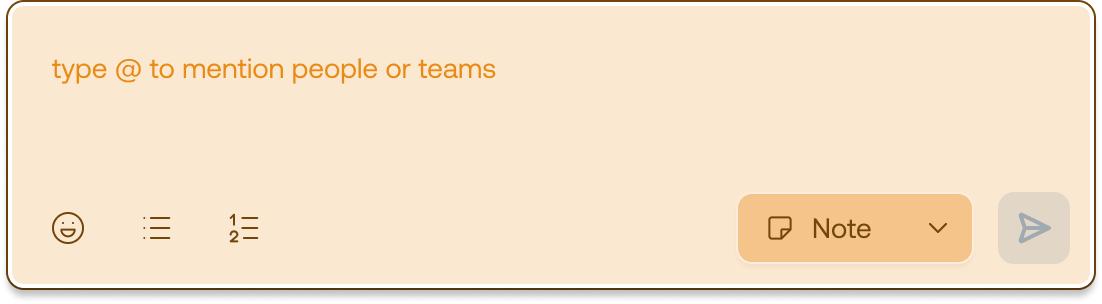
3
Add a mention
Type 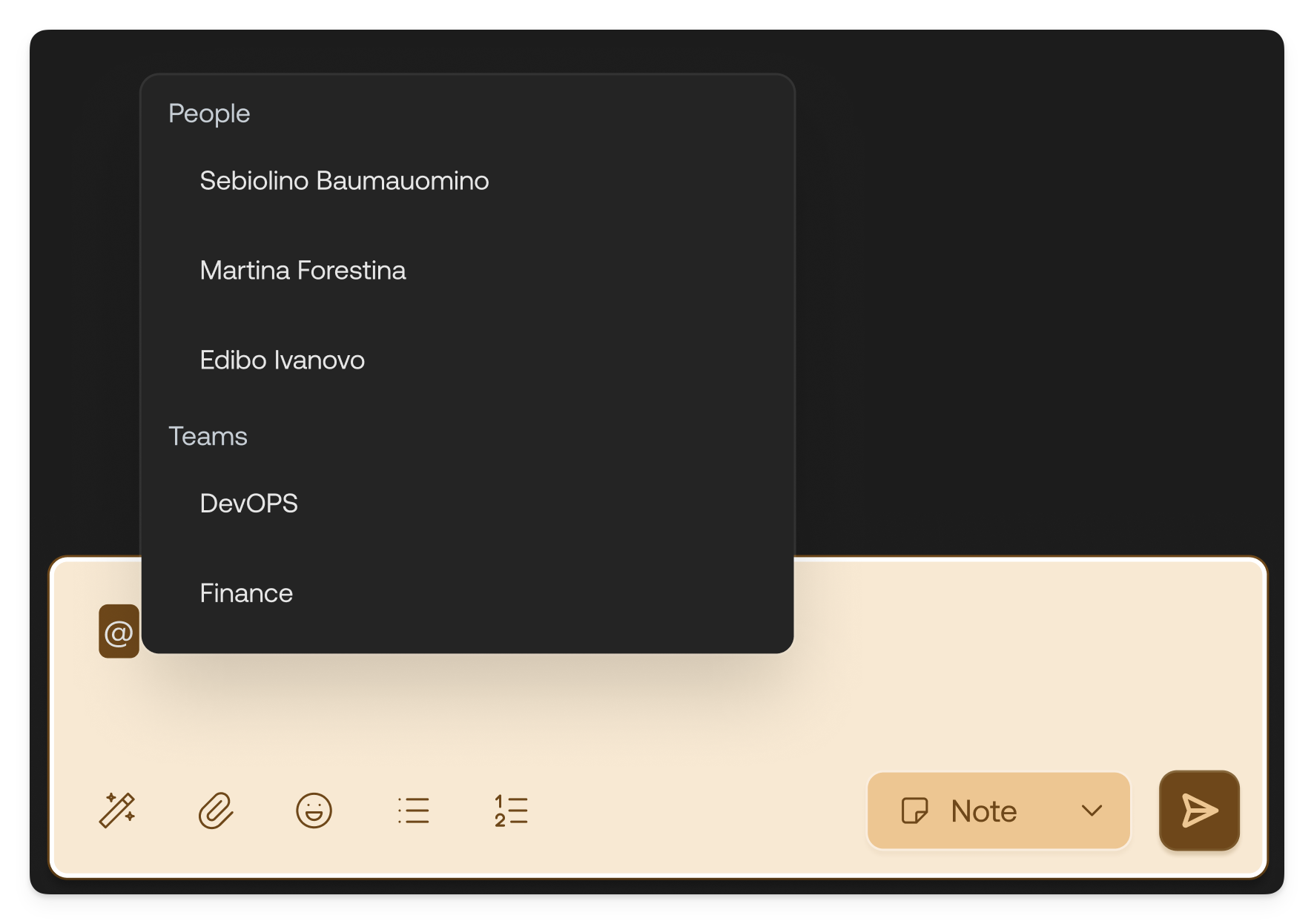
@ and start typing the name of the person you want to tag. Select the
correct user from the list that appears. 4
Write your message
Write your message after tagging the person. Once sent, the mention becomes
visible in the ticket, as well as in the Mentions tab.
5
Replying & threading
You and the mentioned user can reply directly to the mention, creating a
threaded conversation that keeps context clear and organized. 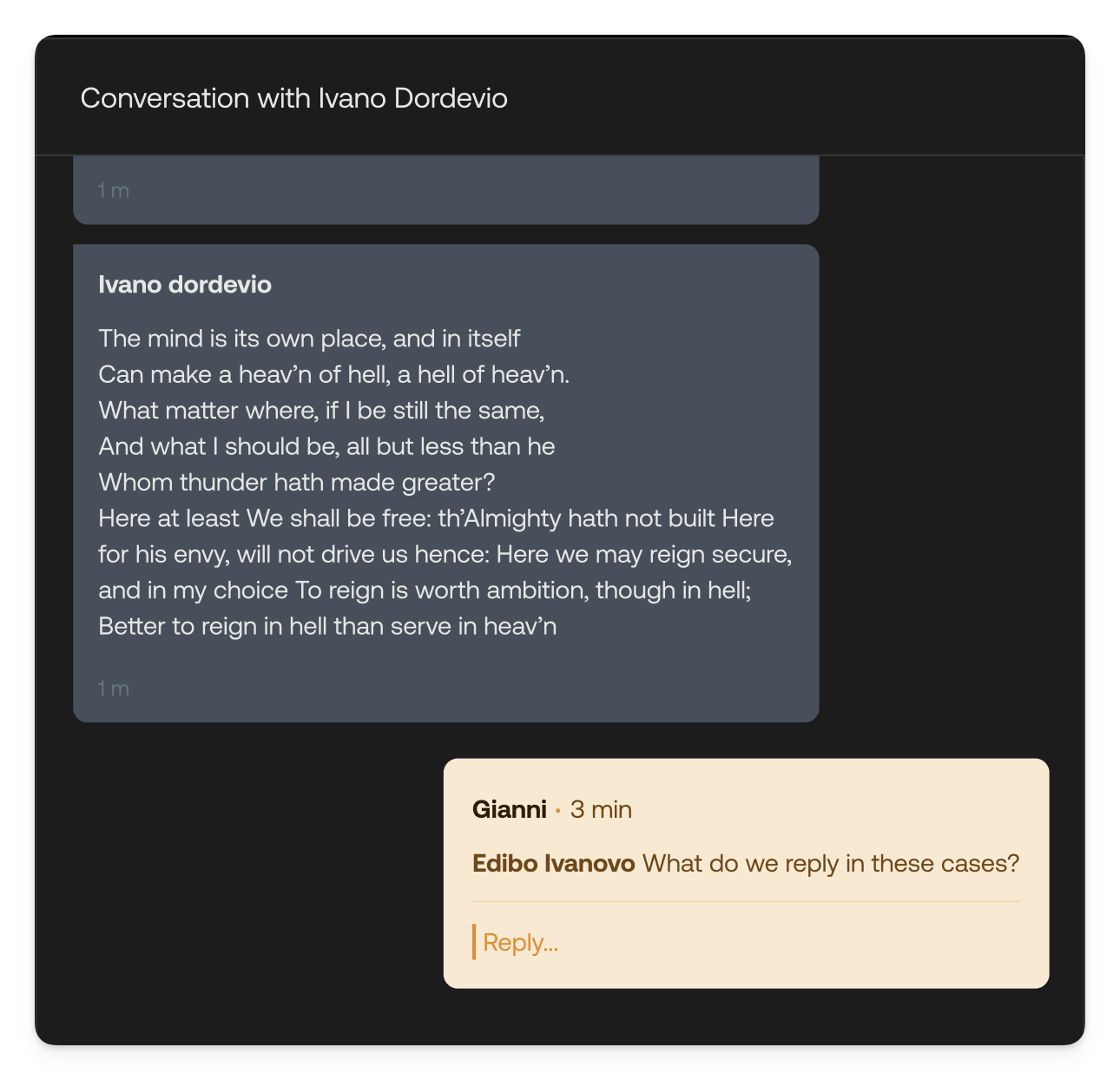
Solving and reopening threads
Once a mention thread has served its purpose, you can mark it as solved to clear it from your queue and signal to your teammates that no further action is needed.1
Solve the thread
On the mention thread, click the Solve button next to the reply
composer. The thread collapses and shows a receipt indicating who solved it,
for example Thread solved by you or Thread solved by the colleague’s
name.
2
Reopen if needed
If the thread needs more attention, click Reopen on the solved thread to
reactivate it. This returns it to the Inbox and reopens the reply composer.
Solving a thread removes it from the Inbox and no longer counts it toward
the mentions badge. The thread still appears in the
Mentions tab, where it is shown
collapsed as solved until you reopen it.
See also
- Inbox: Understanding the Inbox and its sections
- Composer: Compose responses and notes
- Team Management: Organize users into teams