

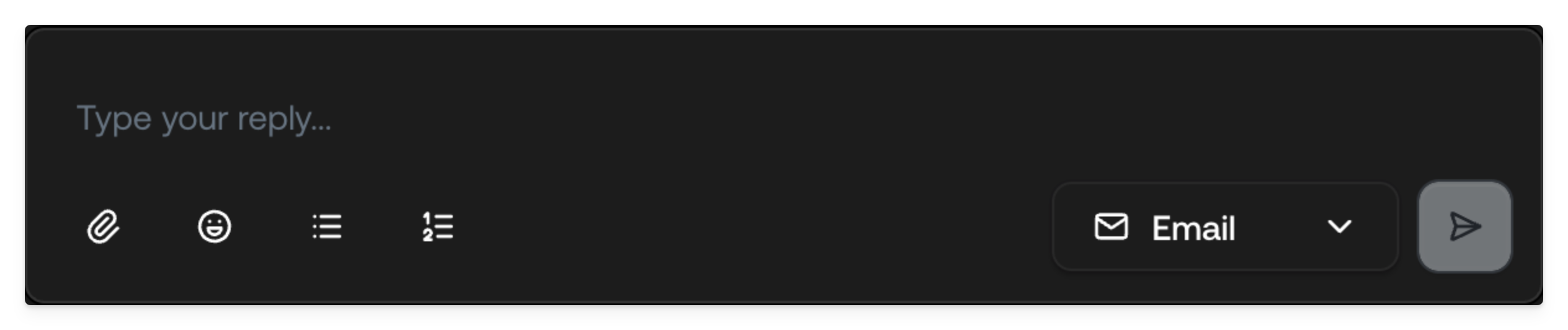
Sending a reply
Click Send to send your reply. On chat and WhatsApp tickets you can also send withCtrl/Cmd + Enter.
Enter always inserts a line break rather than sending, so a half-written
reply is never sent by accident. Email tickets have no send shortcut. See
keyboard shortcuts.Rich text editing
The composer includes a full-featured rich text editor that allows you to format your messages professionally. The formatting toolbar provides quick access to common styling options:- Bold and italic text for emphasis
- Bulleted and numbered lists for organized information
- Hyperlinks to reference external resources or documentation
- Block quotes for citing previous messages or policies
Attachments
For email tickets, you can attach files to your responses by clicking the attachment icon in the composer toolbar. This is useful for sending:- Documents (PDFs, Word files, spreadsheets)
- Images and screenshots
- Invoices, receipts, or other supporting materials
Attachments are only available for the email channel. Chat tickets do not
support agent-side attachments.
1
Click attachment icon
Click the attachment icon (paperclip) in the composer toolbar.
2
Select files
Select the file(s) you want to attach from your device. The attached files
will appear below the text editor.
3
Remove if needed
Click the remove button on any attachment to remove it before sending.
Selecting recipients
When Typewise detects that a ticket originated from a forwarded email, additional recipient options become available in the composer. This allows you to control exactly who receives your response.How forwarding detection works
If a customer forwards an email thread to your support address, Typewise parses the original email chain and identifies the original participants. You can then choose whether to:- Reply to the forwarder only: Send your response only to the person who forwarded the email to you
- Reply to original recipients: Include the original sender and any CC’d parties from the forwarded thread
- Customize recipients: Manually add or remove email addresses before sending
Switching channels
Typewise allows you to switch a ticket’s communication channel directly from the composer. This is particularly useful when a conversation that started in chat needs to continue over email, for example, when you need to send attachments or formal documentation.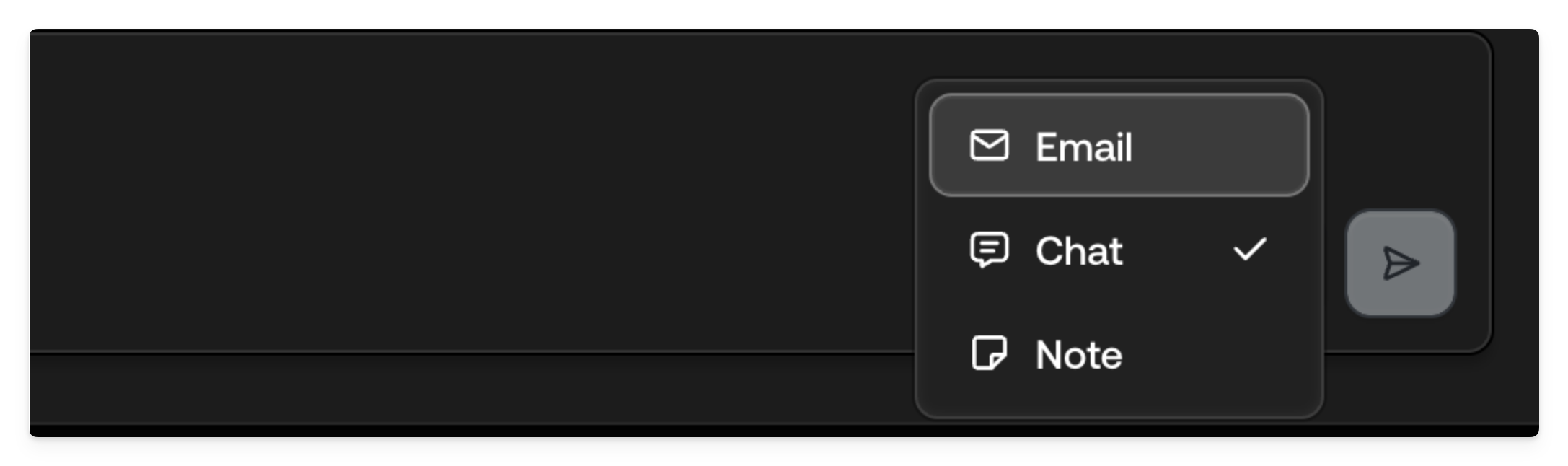
Switching from chat to email
To switch a chat ticket to email:1
Open the message type selector
Click on the dropdown button next to the send button in the composer. This
reveals the available message types and channel options.
2
Select the email channel
Choose Email from the channel options. The composer will update to show
email-specific features.
3
Enter the recipient's email
If the customer’s email address is already known (from their profile or
previous interactions), it will be pre-filled. Otherwise, you’ll need to
enter their email address manually.
4
Compose and send
Write your message using the rich text editor, add any attachments if
needed, and send. The ticket will now continue as an email conversation.
The AI can also move a Chat or WhatsApp conversation to email using the
Switch to email & handoff system action. See System
actions.
Notes mode
The composer can be switched to notes mode for recording internal notes that are visible only to your team. Notes are essential for collaboration, documentation, and keeping context when tickets are transferred between agents.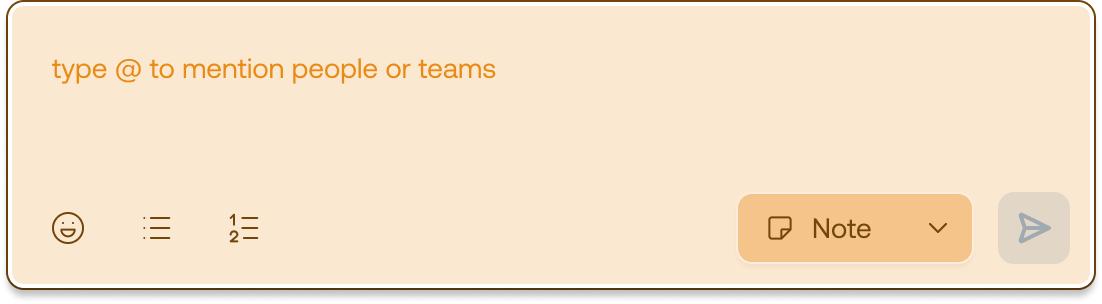
Switching to notes mode
1
Open the message type selector
Click on the dropdown button next to the send button in the composer.
2
Select Notes
Choose Notes from the dropdown menu. The composer will change
appearance, typically turning yellow, to clearly indicate you’re in notes
mode.
3
Write your note
Compose your internal message. Notes support the same rich text formatting
as regular replies.
4
Send the note
Click send. The note will appear in the conversation timeline with a
distinct visual style, visible only to agents.
Mentions in notes
Notes support @mentions for tagging colleagues and drawing their attention to specific tickets. To mention someone:1
Type @mention
While in notes mode, type
@ followed by the person’s name.2
Select user
Select the correct user from the autocomplete dropdown.
3
Send
Complete your message and send.