

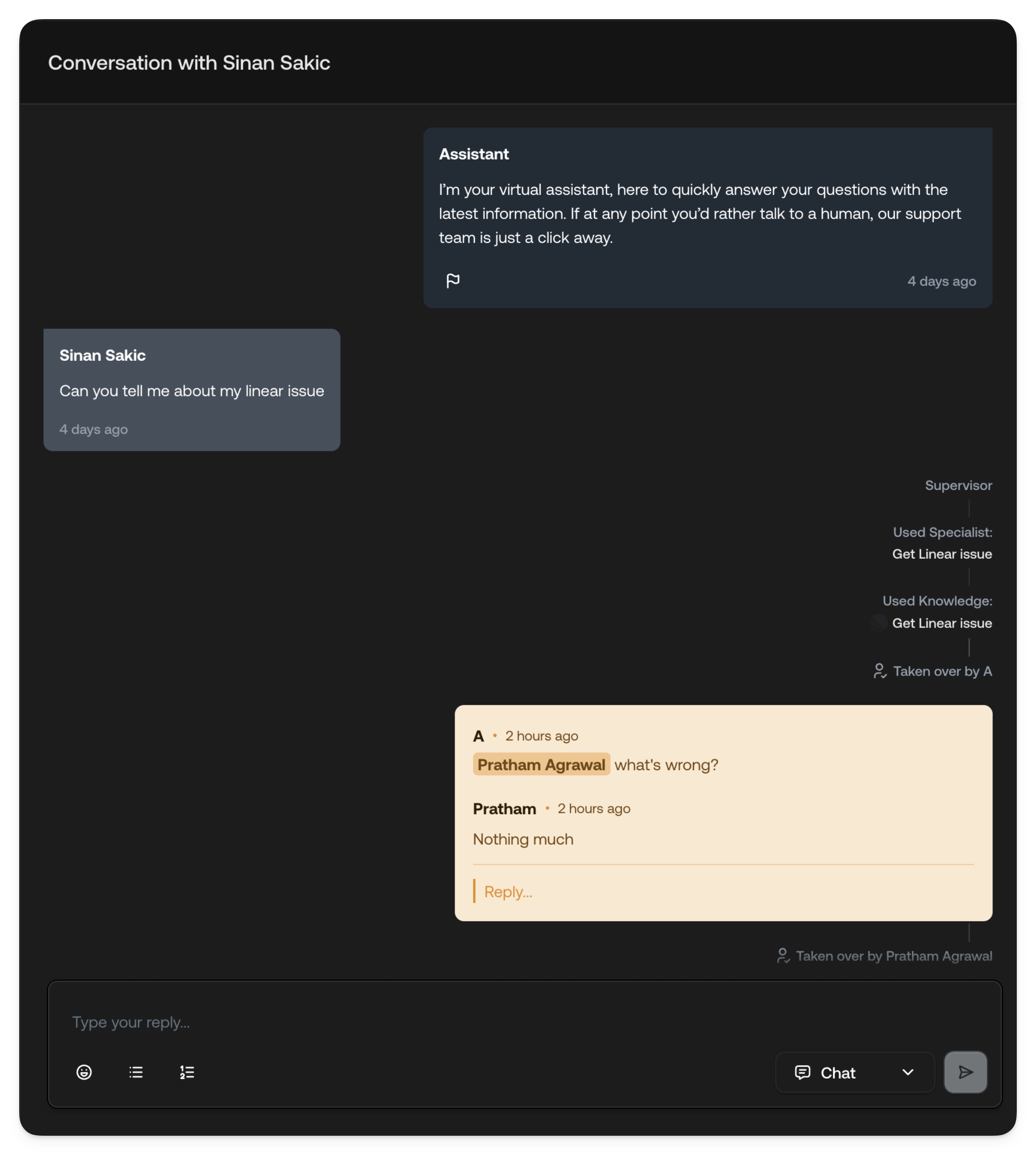
Customer messages
Customer messages appear on the left side of the conversation timeline. These include the original inquiry that created the ticket as well as any follow-up replies the customer sends throughout the conversation.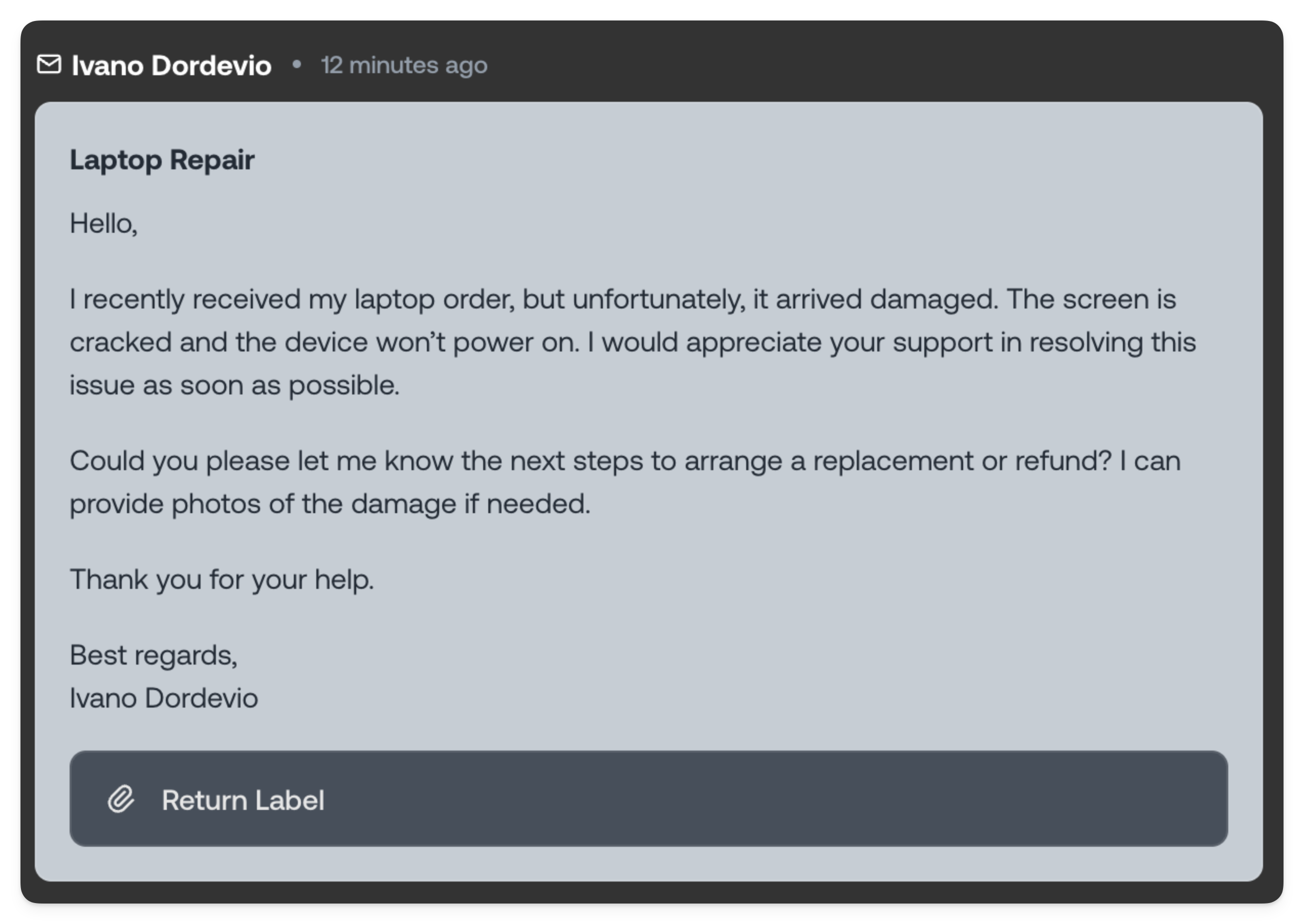
For email tickets, customer messages can include attachments such as
documents, images, or other files. Attachments are displayed below the message
content with clickable links to view or download them. For chat tickets,
attachments are displayed inline within the message bubble itself.
Human Agent responses
Responses sent by Human Agents appear on the right side of the timeline, clearly attributed with the agent’s name and avatar. Each message displays a timestamp showing when it was sent.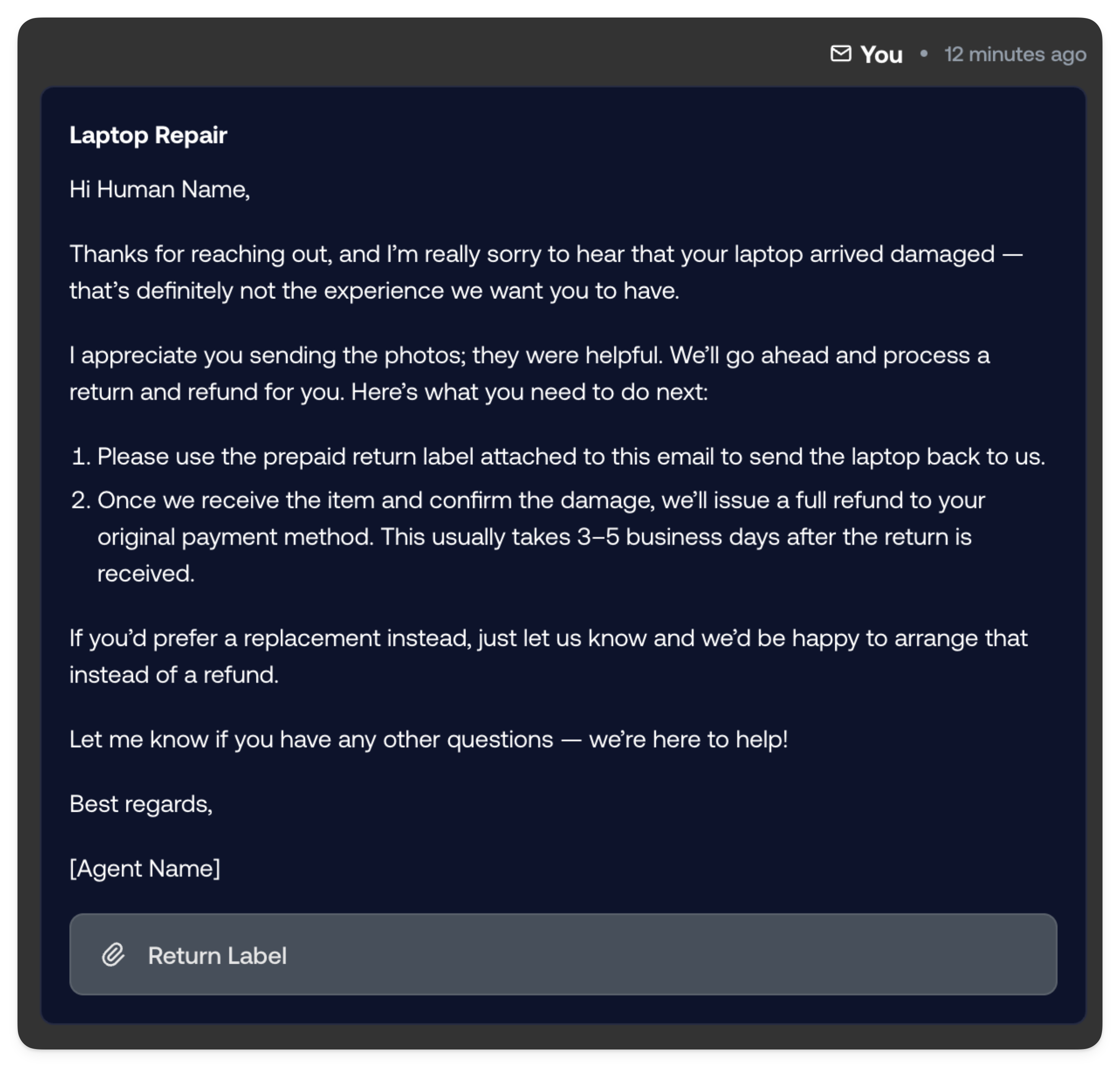
AI messages
AI-generated messages and drafts appear on the right side of the timeline, visually distinguished from Human Agent responses. There are several types of AI messages you may encounter:Regular AI replies
When the AI is configured to send messages autonomously, these replies are sent directly to the customer without requiring human intervention. They appear in the timeline with a clear AI indicator and show as already delivered.AI replies awaiting approval
When your workflow requires human approval before AI messages are sent, draft responses appear in a pending state. These drafts are highlighted so agents can quickly identify them, review the proposed response, and either approve, edit, or reject the message before it reaches the customer.AI handoff requests
Sometimes the AI determines that human involvement is needed to properly resolve a ticket. These handoff requests appear prominently in the timeline and come in several forms: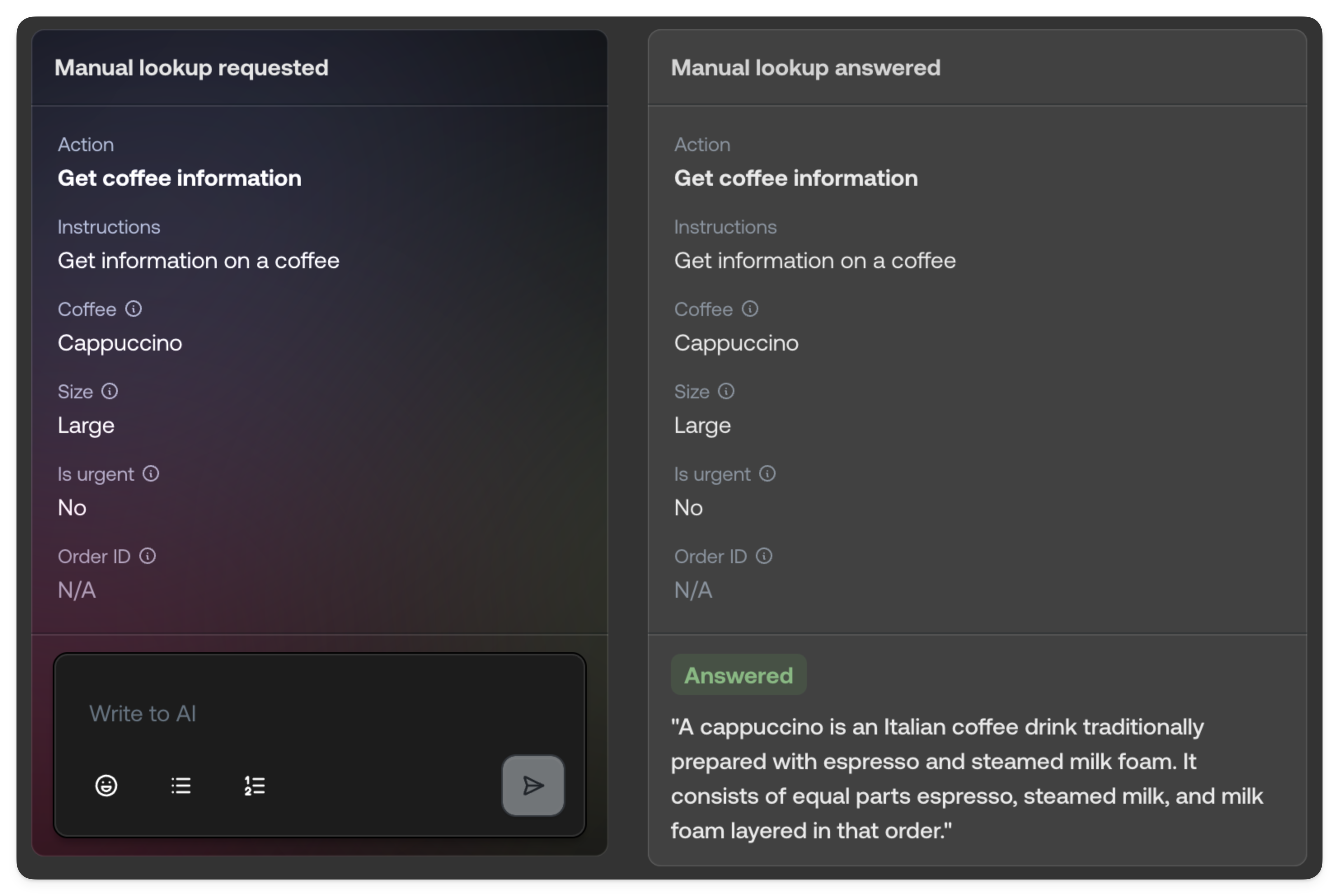
Handoff request types
- Action required: The AI has identified a specific action that needs to be performed by a Human Agent, such as processing a refund or updating account details. The request clearly describes what action is needed. A configured manual action shows its action name and the details collected from the customer. A one-off request from the Ask a human agent system action shows the AI’s request on its own, with no action name and no fields. Both carry Done and Decline.
- Information needed: The AI requires additional information from a Human Agent to continue. This might be internal knowledge, clarification on company policy, or details not available in the knowledge base. Reply in the box on the card; the AI reads your answer and carries on with the ticket.
- Action approval needed: The AI wants to perform an action but requires explicit human approval before proceeding. The agent can review the proposed action and approve or deny it.
- Complete takeover: The AI has determined that the ticket requires full human handling and has handed off the conversation entirely. This typically occurs for sensitive situations, complex issues outside the AI’s capabilities, or when explicitly requested by the end customer.
- Spam email detected: Typewise is unsure whether the message is spam and asks you to decide with Process or Ignore. A Configure link opens your Spam classification settings.
Activity events
Activity events are displayed inline within the conversation timeline, providing a complete audit trail of everything that has happened on the ticket. These events appear as compact, timestamped entries between messages.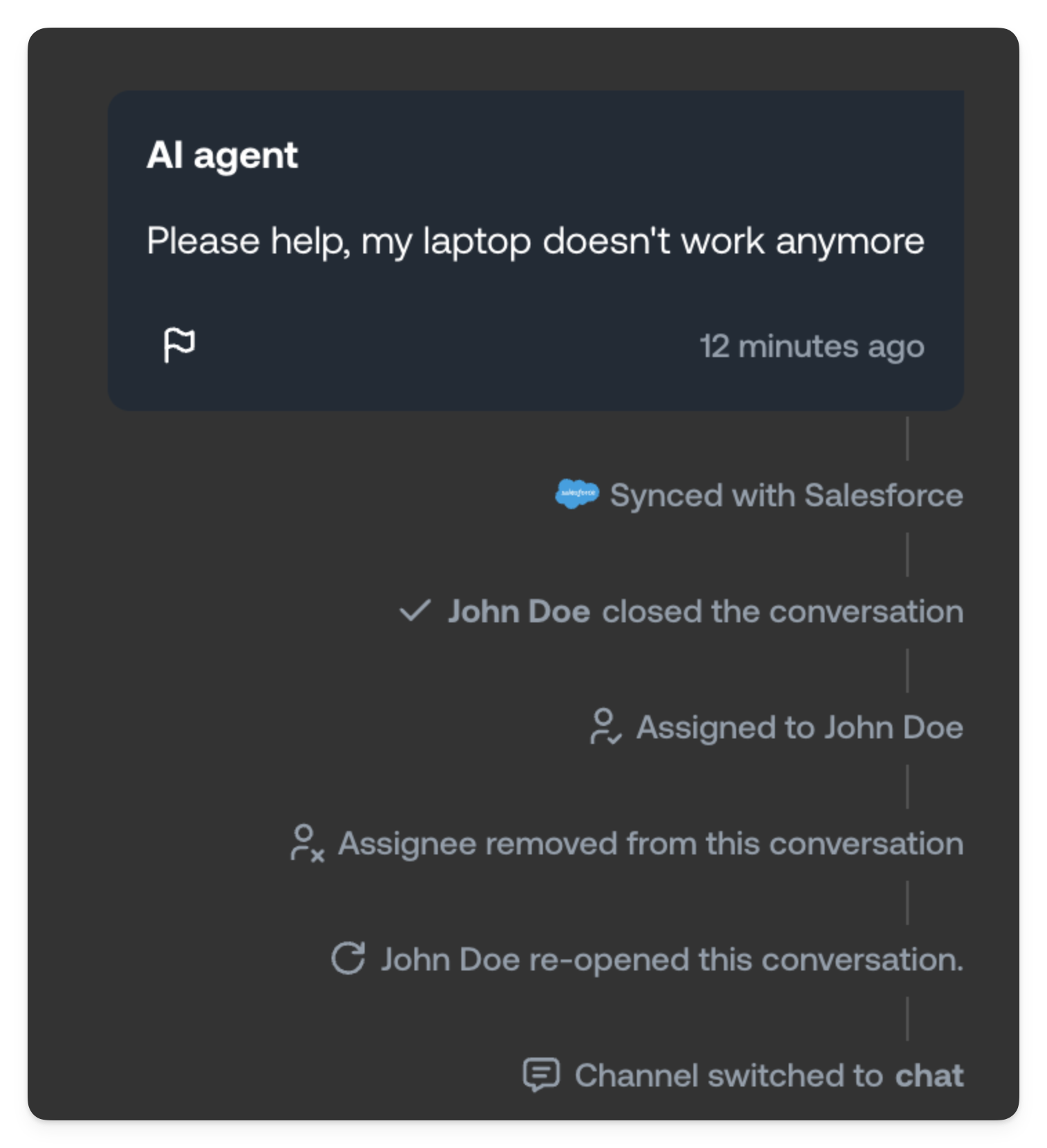
AI actions
When the AI performs an action on behalf of your team, such as updating a customer record, processing a request, or triggering a workflow, an activity event is logged showing what action was taken and the result.AI lookups
When the AI searches your knowledge base or performs a lookup to gather information, these activities are logged. This helps agents understand what information the AI used to formulate its responses and can be useful for troubleshooting or improving your knowledge base.Ticket lifecycle events
The timeline records all significant ticket state changes:- Assignment: When a ticket is assigned to a specific agent or team
- Takeover: When a Human Agent takes over a ticket from the AI
- Transfer: When a ticket is transferred between agents or teams
- Status changes: When a ticket is marked as pending, on-hold, or resolved
- Closure: When a ticket is closed, including who closed it and why
Label changes
Every change to the conversation’s ticket labels is logged, whether the AI Agent or an agent made it. The entry names the actor and the label, for example “AI added a label: Churn risk”. When one change covers several labels, hover the entry to see everything that was added and removed.Spam classification events
- Spam filter closed the conversation: The ticket was filtered as spam. The event shows why and includes a Configure link to your Spam classification settings.
- Message marked as relevant: An agent restored a filtered message using Mark as relevant. Records who reopened it and when.
CRM synchronization events
If you have CRM integrations configured, the timeline shows when tickets are synchronized:- CRM backup: When ticket data is backed up to your CRM system
- CRM handoff: When a ticket is handed off to be managed directly in your CRM
- Sync status: Any synchronization errors or confirmations
Internal notes
Internal notes are messages visible only to your team. Customers never see them. They appear in the timeline with a distinct visual style (typically a different background color or border) to clearly differentiate them from customer-facing messages.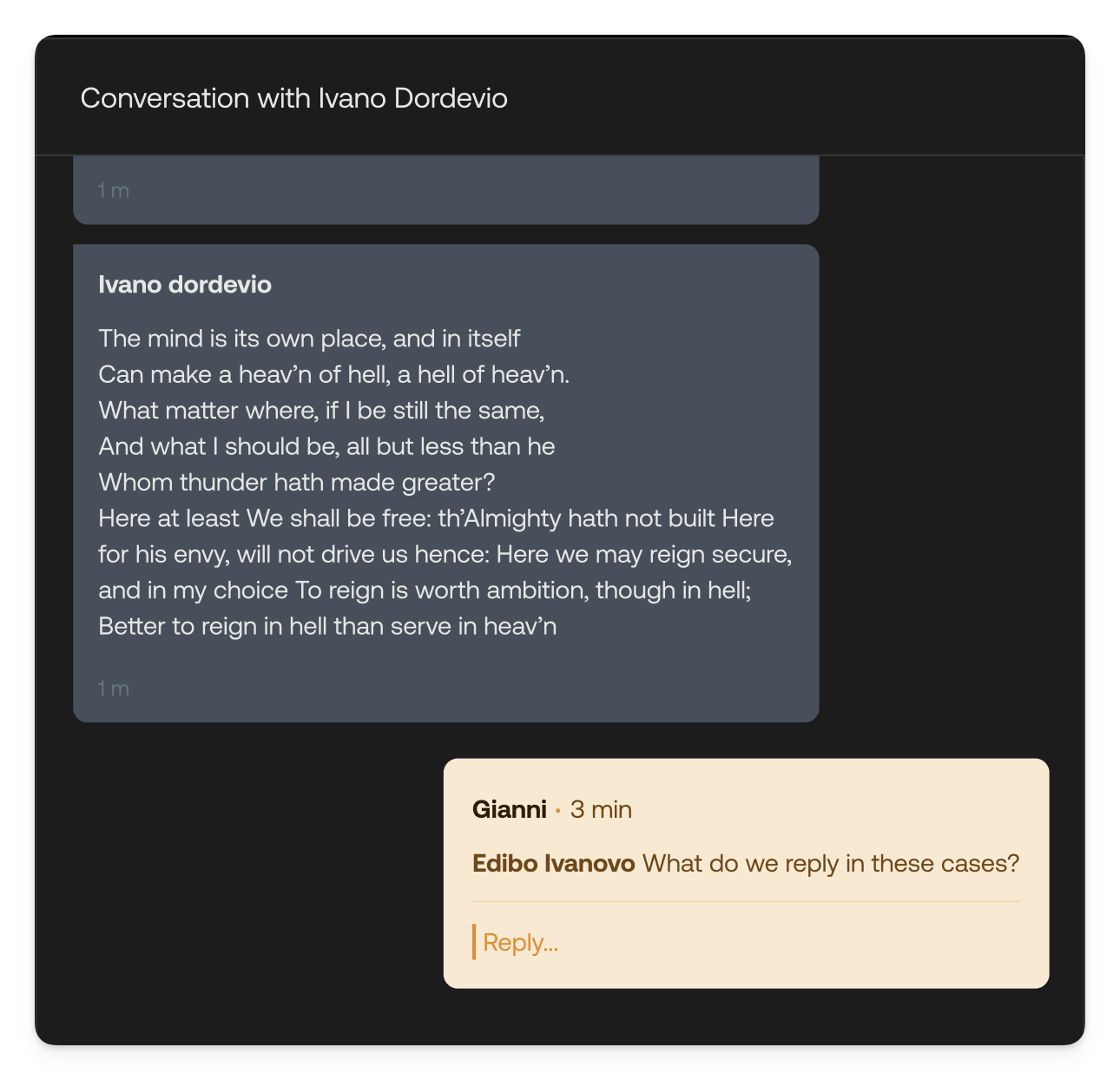
- Handoff context: Documenting important background information when transferring a ticket to another agent, ensuring continuity of service
- Team collaboration: Asking colleagues questions or requesting input using @mentions, which notify the mentioned user directly
- Decision documentation: Recording why certain decisions were made, what was discussed with the customer offline, or what actions were taken outside the ticket
- Escalation notes: Adding context when escalating to supervisors or specialized teams
- Follow-up reminders: Leaving notes about promised callbacks, pending actions, or time-sensitive items