

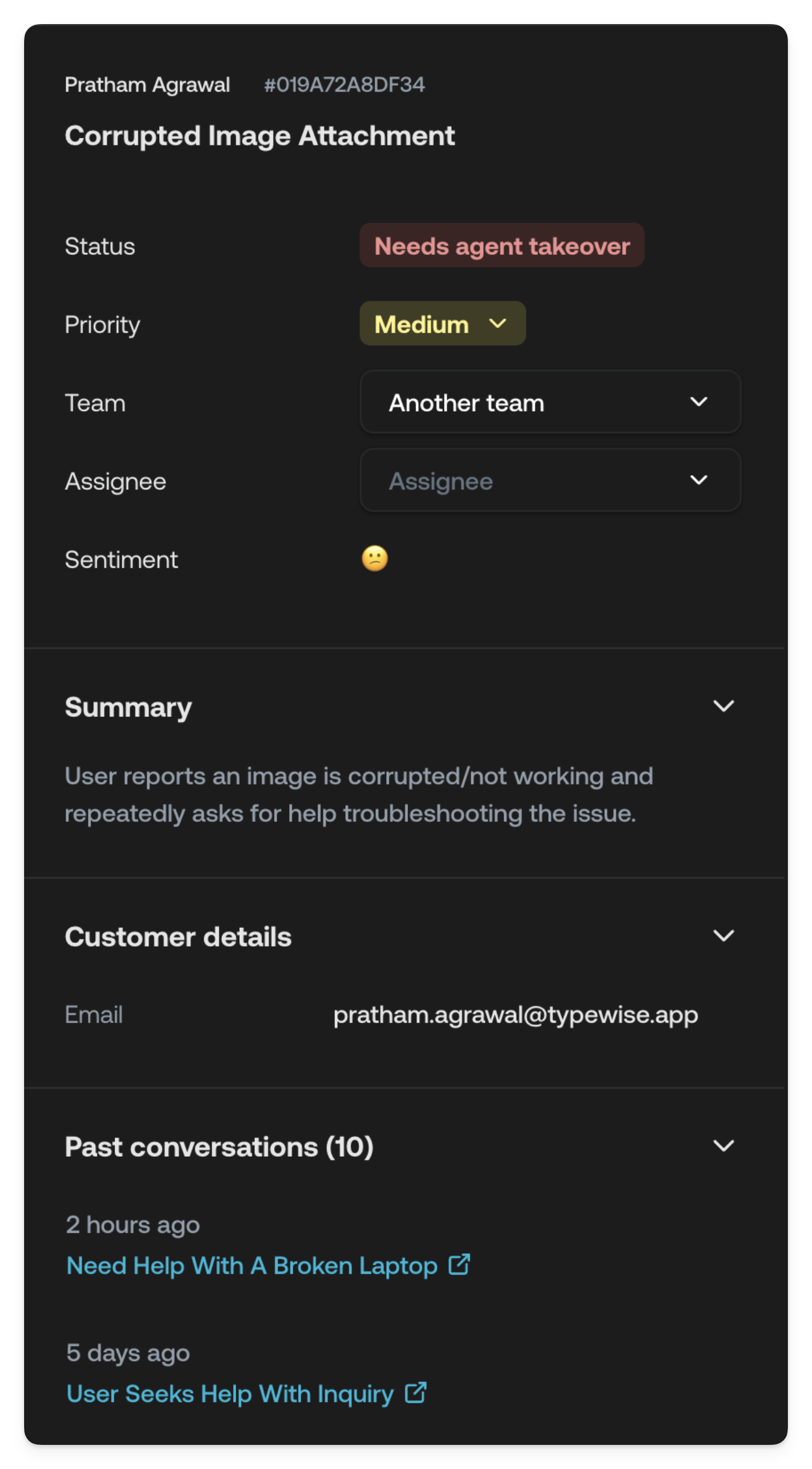
Status
The status of the ticket shows the current state of the ticket. It covers the entire ticket lifecycle, from when it was created to when it was resolved.-
AI Agent processing:
The AI Agent is currently processing the ticket. -
Waiting for customer
The ticket is waiting for the end customer to reply. -
Waiting for agent input:
The ticket is assigned to a Human Agent and is waiting for them to reply. -
Waiting for agent action
The AI Agent requires a Human Agent to take action. -
Needs agent takeover
The ticket needs to be taken over by a Human Agent. -
Waiting for agent decision
The AI Agent requires a Human Agent to make a decision. -
Handed off to third party system
The AI Agent has handed off the ticket to a third party system. -
Done
The ticket has been resolved. -
Ignored
The ticket has been ignored. -
Error
The ticket has encountered an error. -
Snoozed
The ticket has been snoozed.
Priority
The priority of the ticket shows the urgency of the ticket.- Low: Can be addressed after more urgent matters. Minor inconveniences, cosmetic issues, or information requests that don’t impact core functionality. Customer operations are not significantly affected.
- Medium: Standard priority. Typical inquiries, common problems with reasonable workarounds, or issues with limited impact. The customer can continue most activities despite the issue.
- High: Requires prompt attention. Substantial disruption to the customer’s business or needs, including service degradation, partial functionality loss, or issues affecting important but non‑critical operations.
- Urgent: Requires immediate attention. System outages, security breaches, safety concerns, legal compliance issues, or situations severely impacting multiple users or business operations. Significant financial or operational impact likely.