

General
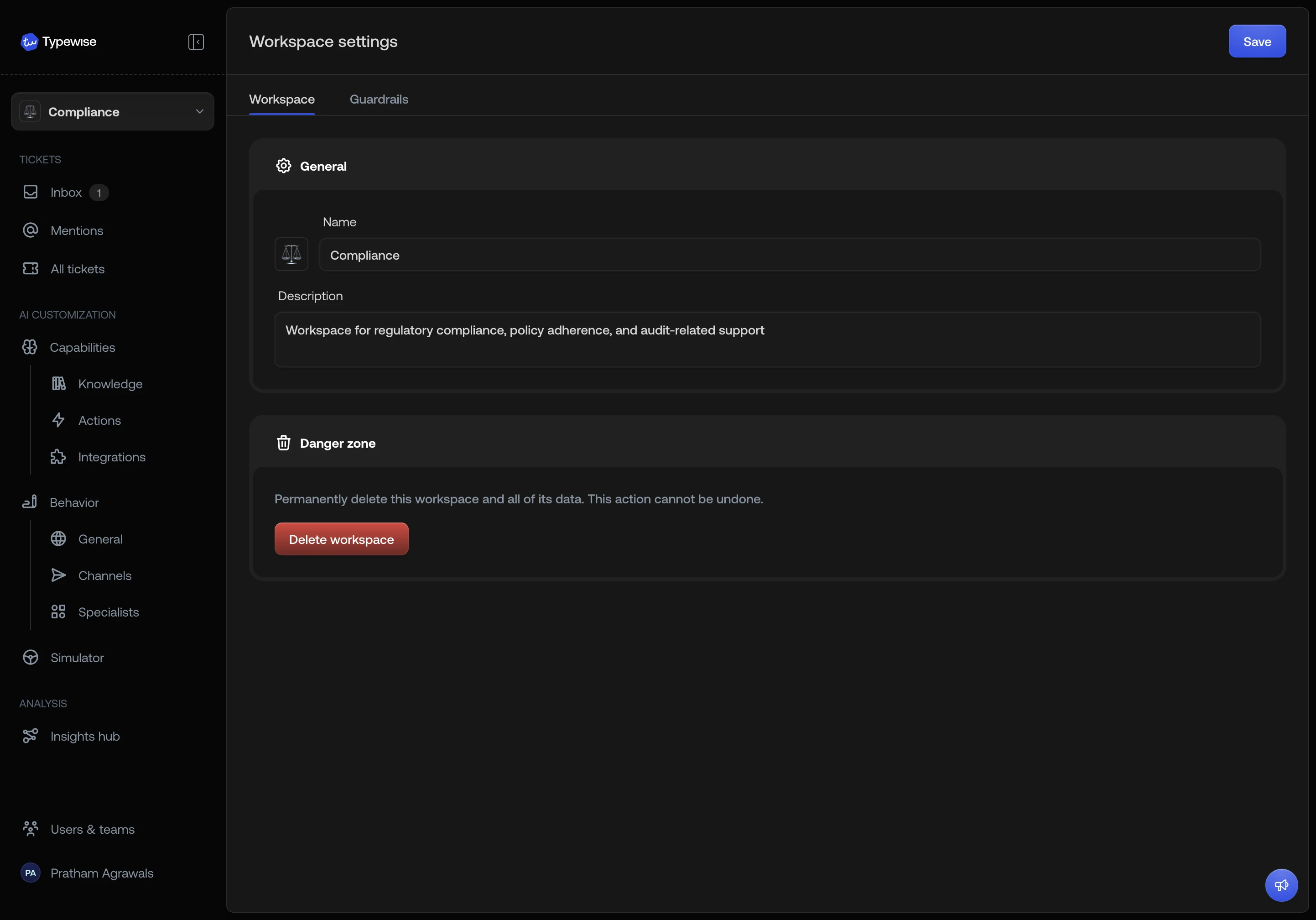
The General page lets you update the workspace’s name, description, and avatar.- Name: the display name shown in the workspace selector, ticket filters, and team cards.
- Description: an optional note to help admins identify the workspace’s purpose (e.g., “EU Support” or “Compliance team”).
- Avatar: choose a color, emoji, or uploaded logo. See avatar options for details.
Context Variables
The Context variables page lets you declare workspace-specific variables. Each workspace maintains its own set, so different workspaces can pass different data through to actions, lookups, and the AI Agent. For details, see Context Variables.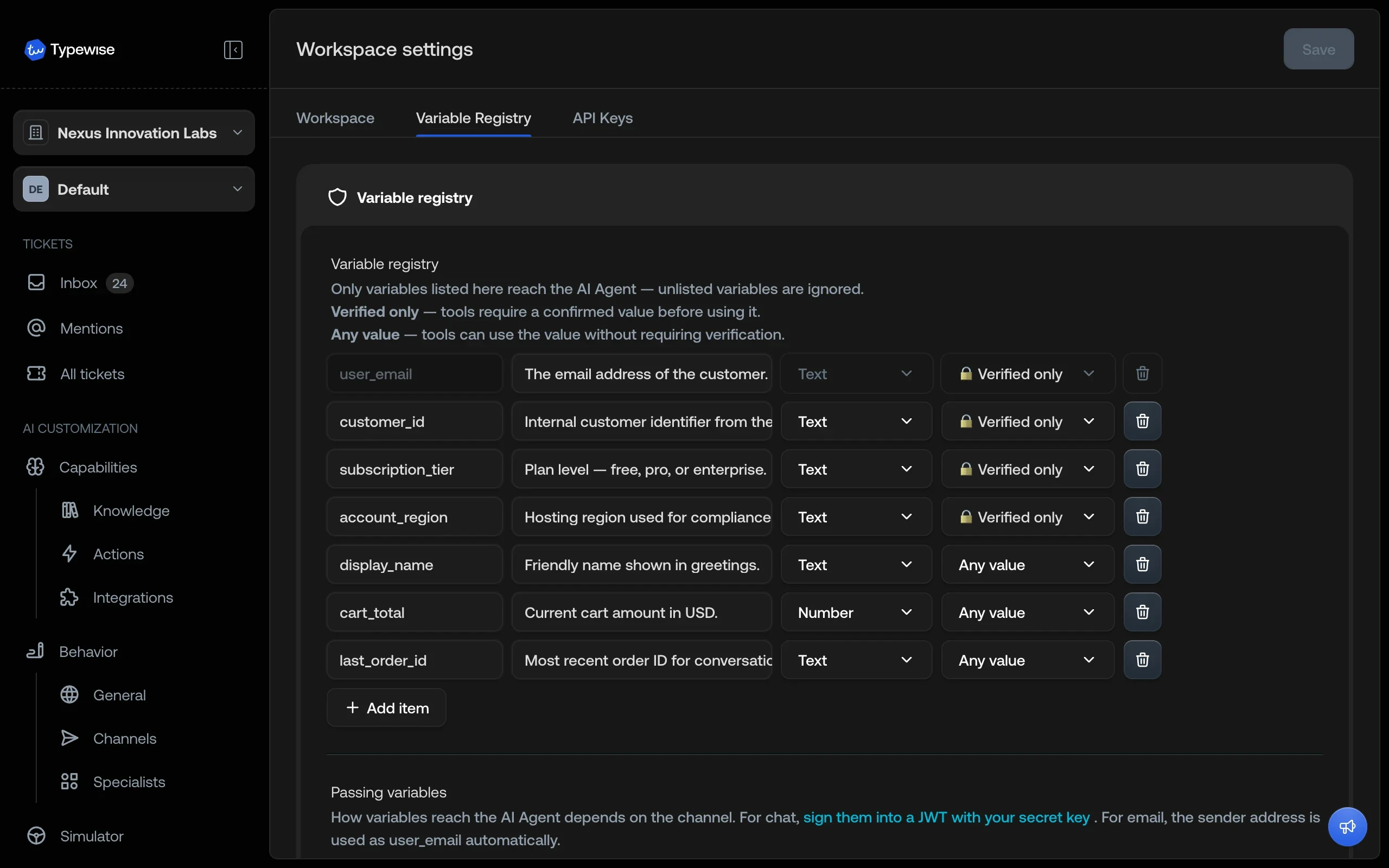
Ticket labels
The Ticket labels tab holds the labels the AI Agent applies to this workspace’s conversations, such asAngry customer or Churn risk. Each workspace keeps
its own list of up to 30.
For details, see Ticket labels.
Deleting a workspace
The Danger zone section at the bottom of the General page lets you permanently delete a workspace.The default workspace cannot be deleted. If you need to change which workspace
is the default, contact support.
See also
- Workspaces overview: Understand what is isolated vs shared
- Create a workspace: Set up a new workspace
- Import resources: Copy resources between workspaces