

Workspaces are managed by admin users only. Non-admin users work within
whichever workspace context applies to their tickets.
What is isolated per workspace
Each workspace has its own independent copy of:- Company settings (behaviour)
- Channel settings (email, chat, WhatsApp, API)
- Integrations
- Knowledge sources
- Actions
- Specialists
- Context Variables
- Translation overrides
- Chat SDK configuration and whitelisted domains
- Simulator tests
What is shared across workspaces
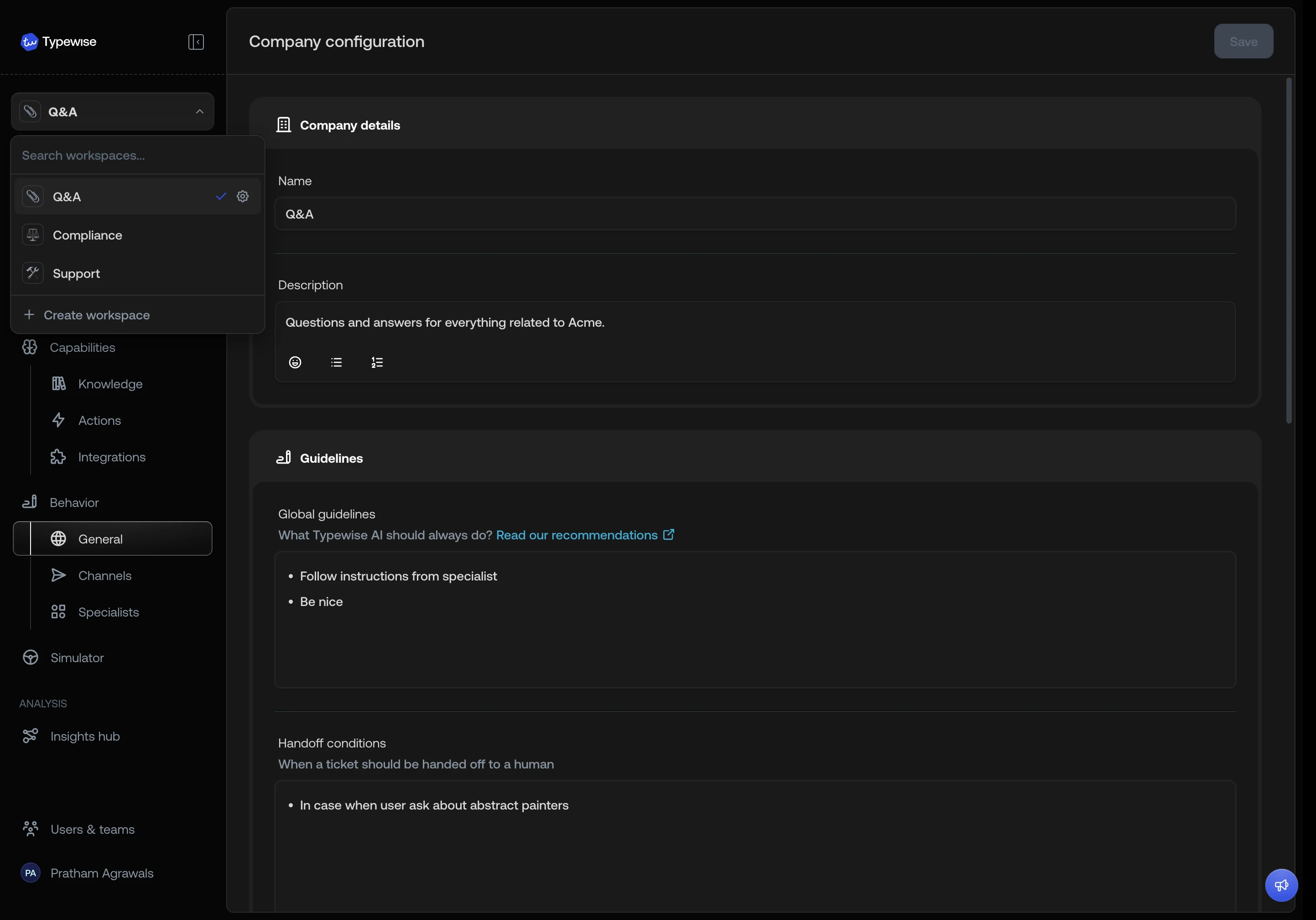
Workspace selector
The workspace selector appears in the sidebar for admin users. It lets you switch between workspaces and access workspace-level settings.- Search: type to filter workspaces by name or description.
- Switch: selecting a workspace refreshes all workspace-scoped data (behaviour, channels, knowledge, etc.).
- Detail page redirect: if you are viewing a specific resource (e.g., a specialist or knowledge source) and switch workspaces, you are taken back to the list view to avoid showing stale data.
- Settings: each entry shows a gear icon that opens Workspace settings.
- Create workspace: opens the create workspace dialog.
Deep links
If you open a link to a specific specialist, knowledge source, or action that belongs to a different workspace, Typewise automatically switches to the correct workspace before showing the page. This ensures bookmarks and shared links always work regardless of which workspace you are currently in.Related
Create a workspace
Start from scratch or clone an existing workspace.
Import resources
Copy knowledge, actions, specialists, or integrations between workspaces.
Workspace settings
Edit name, avatar, Context Variables, or delete a workspace.