

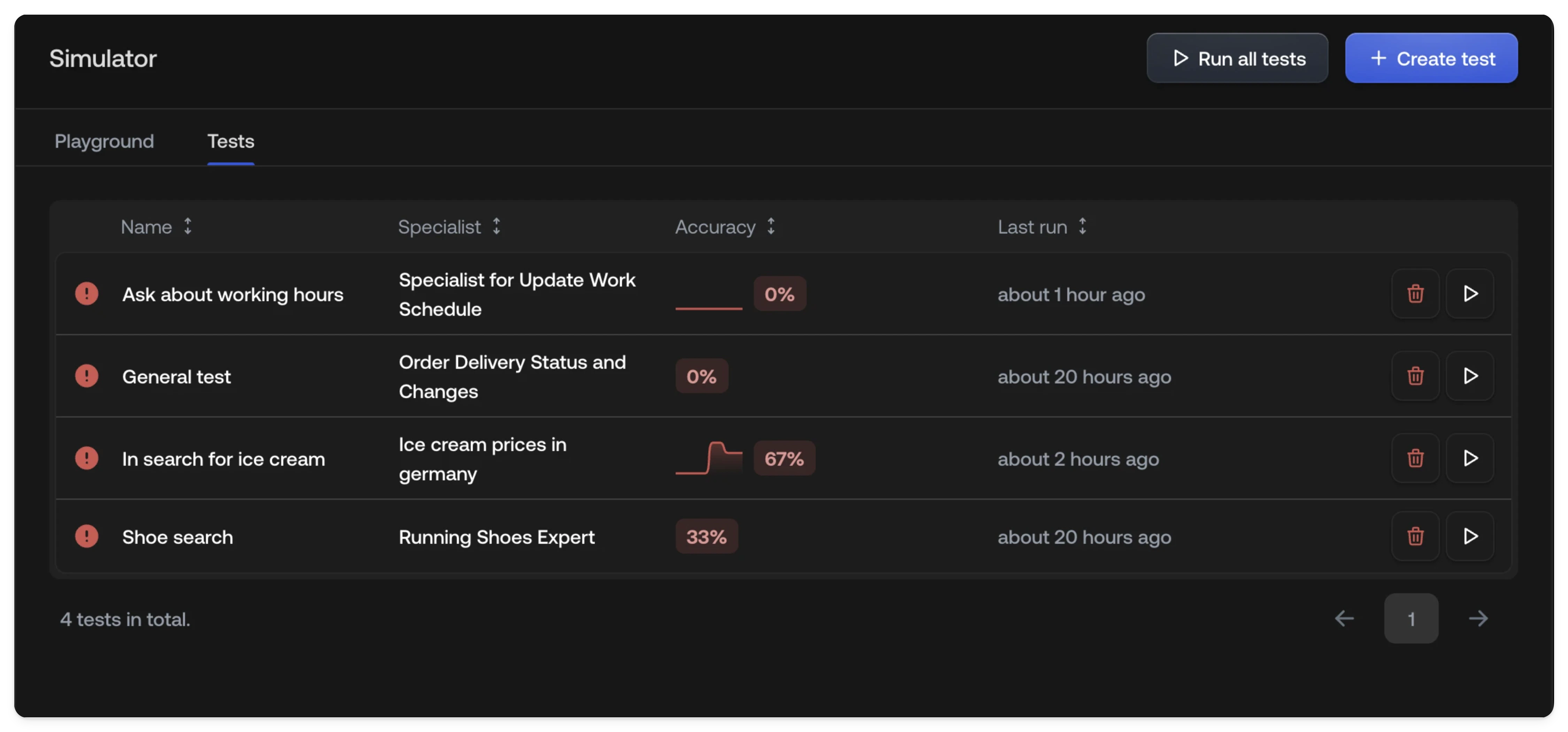
Test list
The test list table gives you an at-a-glance overview of every test and its recent performance.Creating a test
1
Open the Tests tab
Navigate to the Simulator and
select the Tests tab.
2
Click + Create test
Click + Create test to open the test configuration form.
3
Define the scenario
Enter a name and description for the test scenario. The description tells
the simulated customer what to say and how to behave.
4
Select channels
Choose which channels (Chat, Email, or both) the test should run on. Each
channel produces a separate conversation per run.
5
Configure assertions
Define what the AI Agent should do during the conversation, which
Specialist it should use, which tools it should call, the expected outcome,
and whether it should trigger a handoff.
6
Save
Click Save to add the test to your test list.
Test configuration
Scenario
The scenario defines what the simulated customer will say to your AI Agent.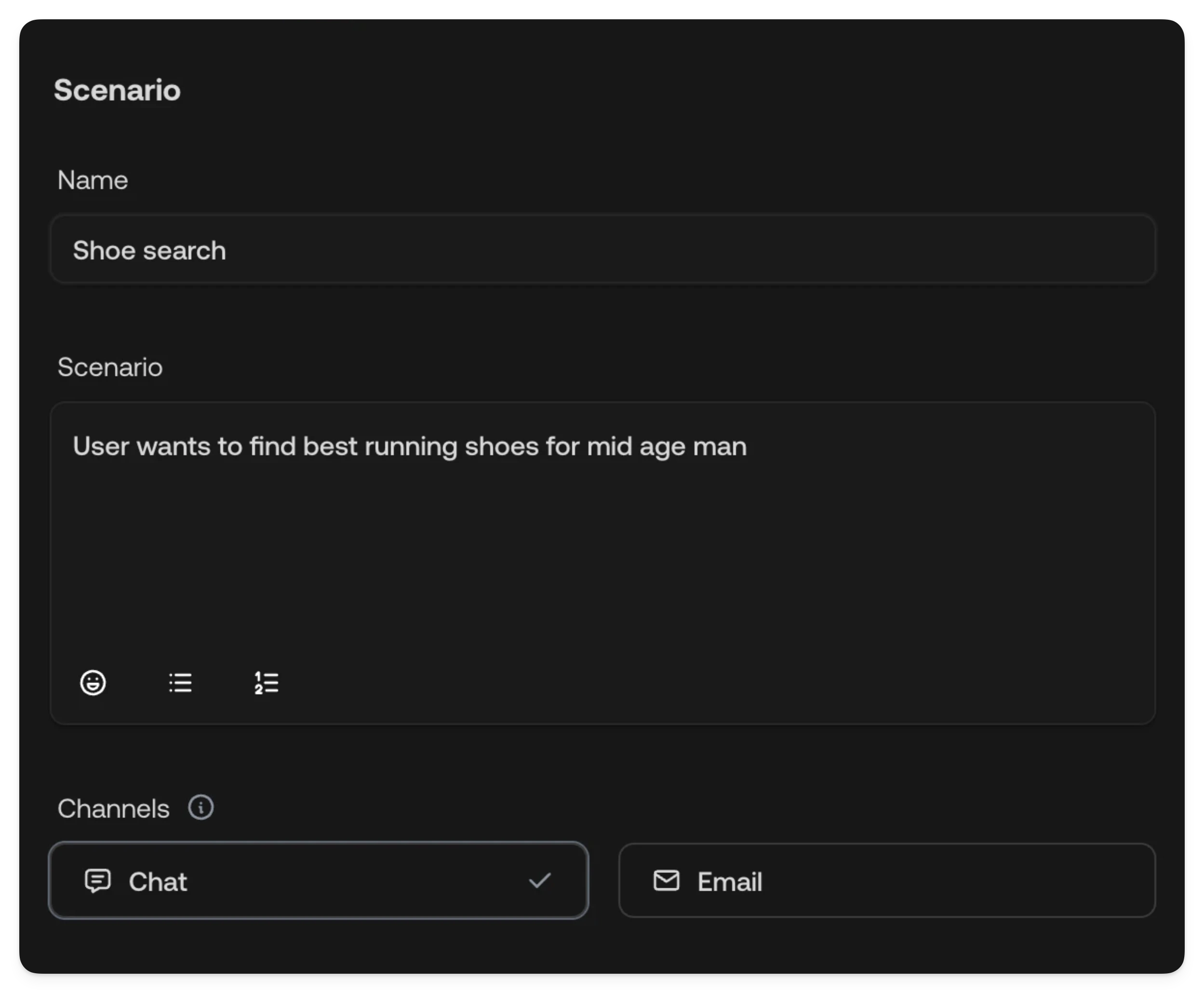
Assertions
Assertions define what you expect the AI Agent to do during the test. Each assertion is evaluated after the conversation completes.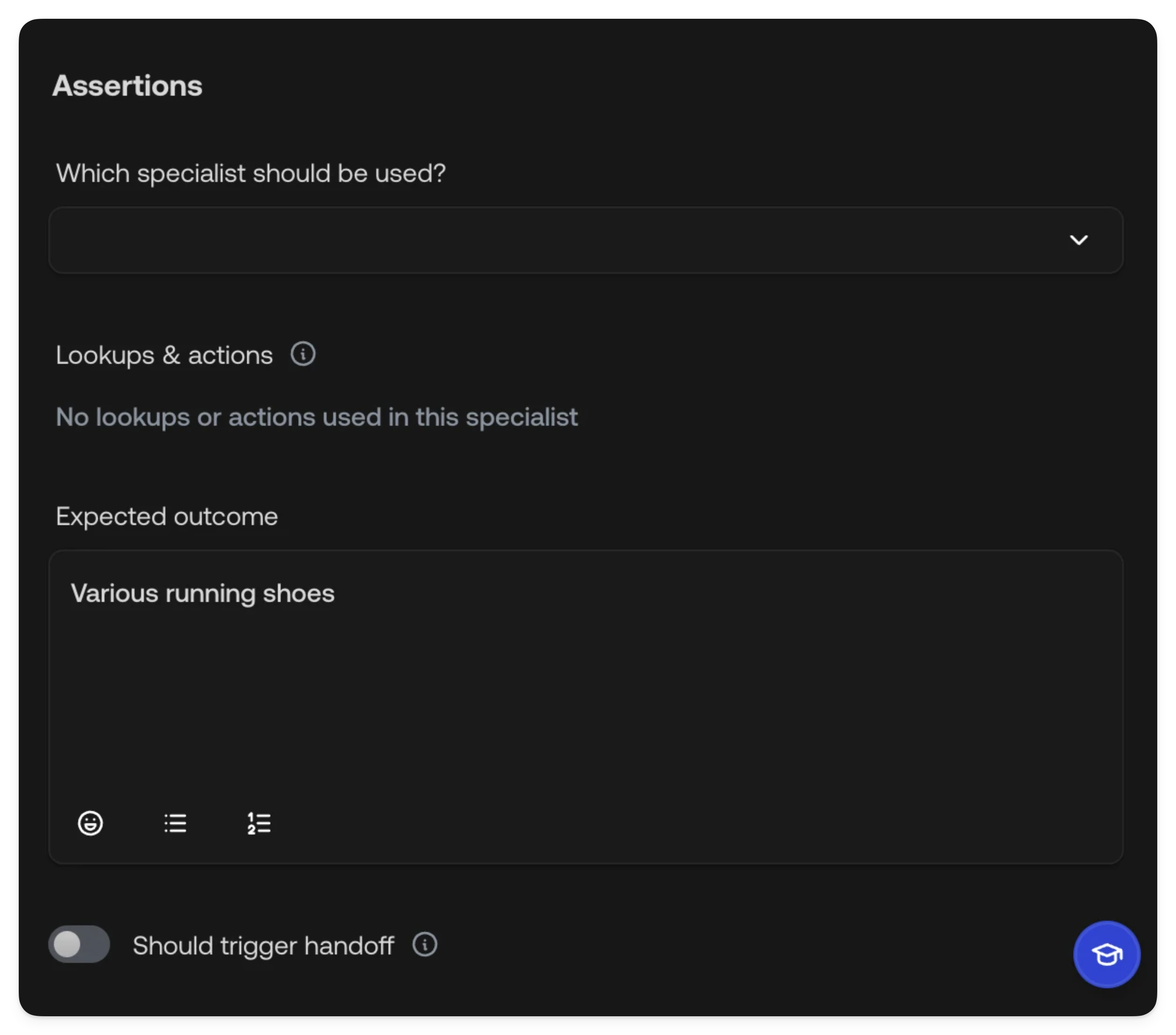
The available lookups and actions in the assertion dropdown depend on which
Specialist is selected. Choose the expected Specialist first, then configure
the tool assertions.
Tool mocking
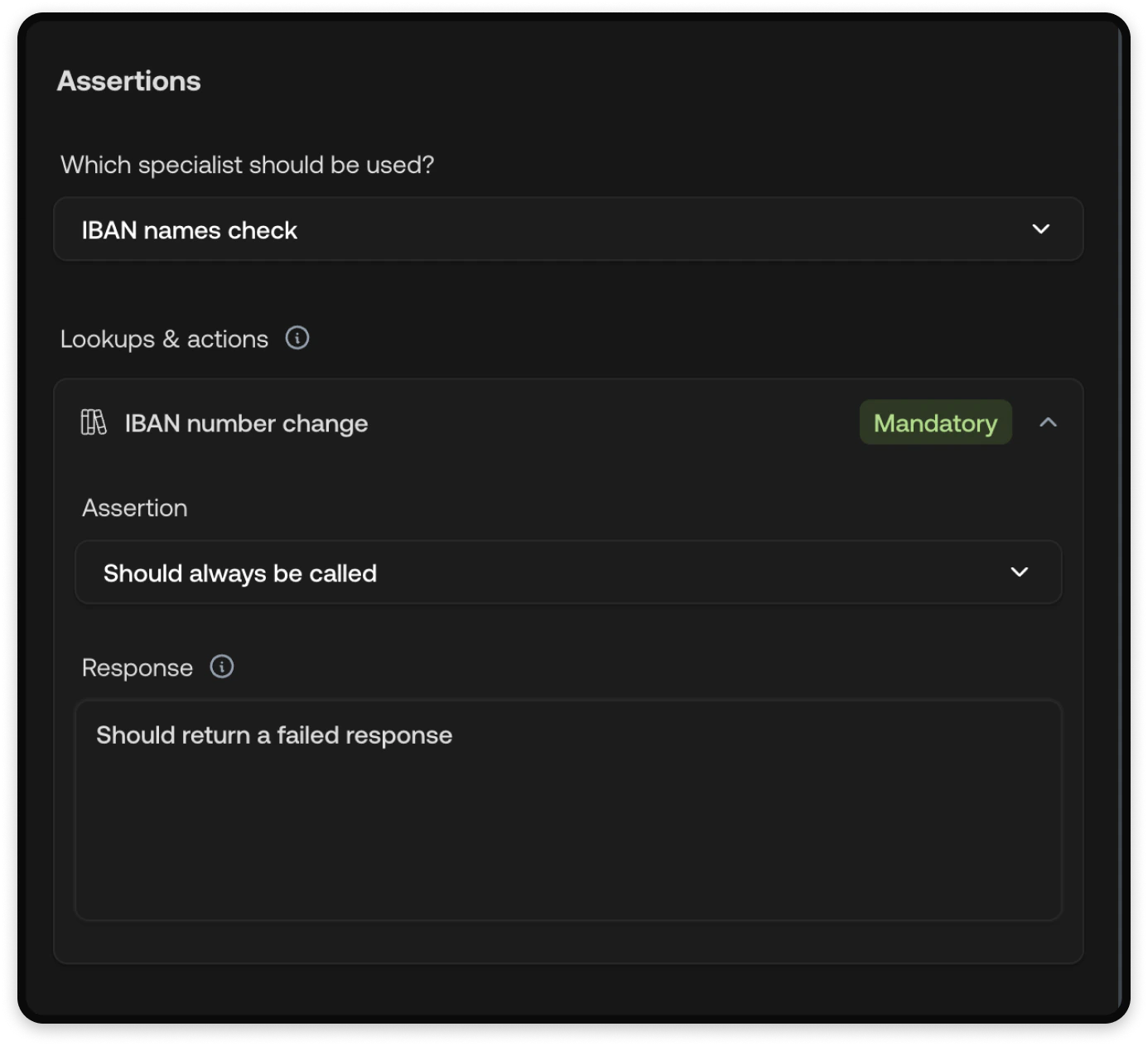
During test runs, tool calls are mocked so your tests don’t affect real systems. The mocking behavior depends on the tool type:
Use the Response field to provide a specific mocked return value. Write a natural-language description of the expected output, for example, “Order #12345, status: shipped, estimated delivery: March 5, 2025”.
Running tests
You can run tests individually or all at once:- Single test: Click the Run button next to a test in the list.
- Run all tests: Click Run all tests at the top of the test list to execute every test in sequence.
Tests run against your current configuration, including any unpublished
changes. This makes them useful for validating changes before
publishing.
Reviewing results
After a test run completes, switch to the Runs tab to review results. Each run is numbered and shows an overall pass/fail status. Within a run, each conversation (one per channel) shows its own pass/fail status. Failed assertions are displayed as badges so you can quickly identify what went wrong, hover over a failure badge to see more detail.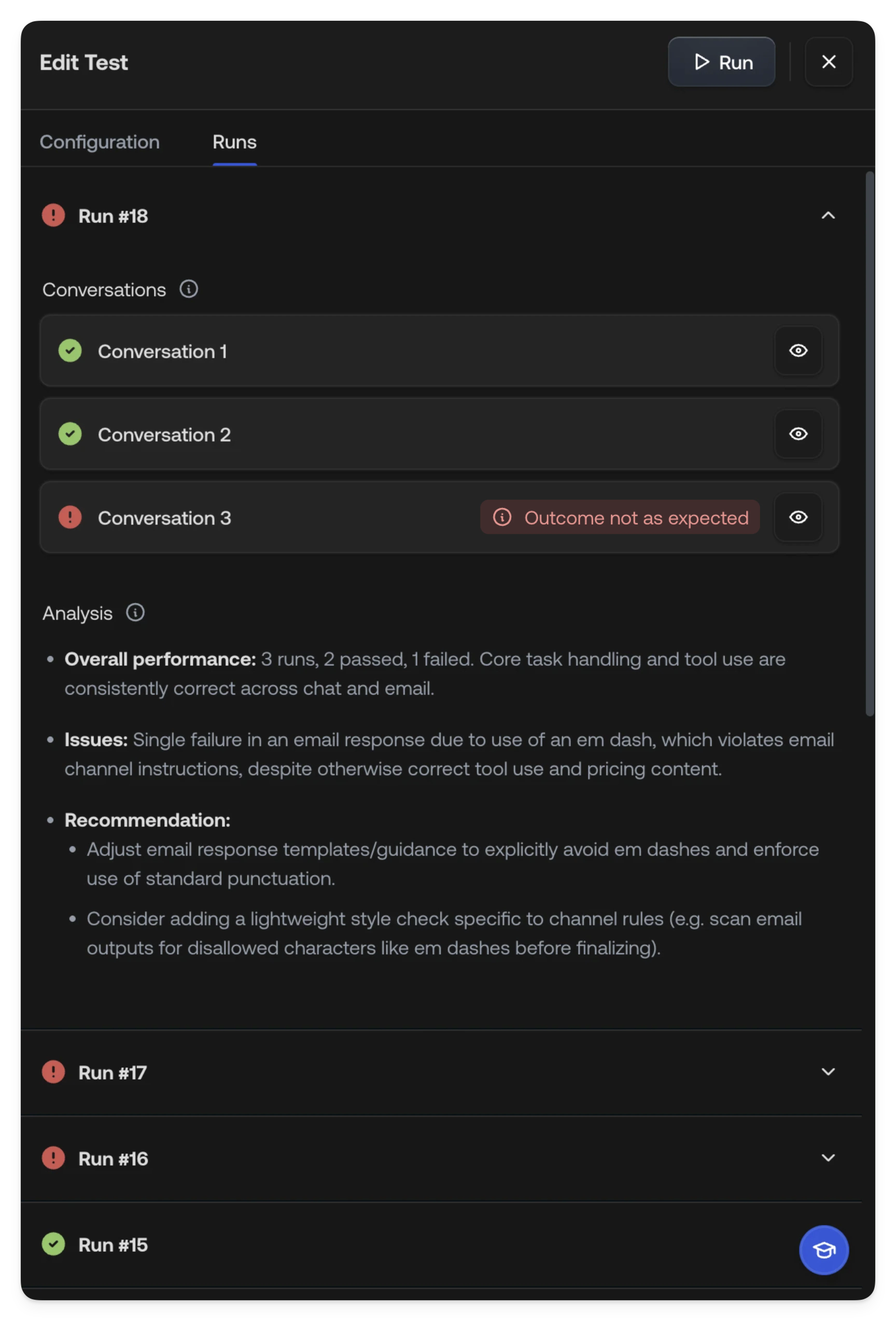
Conversation detail
Click into a conversation to see the full message exchange. The detail view includes:- The complete conversation between the simulated customer and the AI Agent
- Metadata showing which Supervisor and Specialist handled the conversation
- Knowledge sources that were referenced and actions that were called
How tests work
When you run a test, the system:- Simulates a customer: A simulated customer is created from your scenario description. It sends messages to your AI Agent and continues the conversation back and forth until it considers the scenario complete.
- Runs the AI Agent in production mode: Your AI Agent behaves exactly as it would in production: the Supervisor routes to a Specialist, the Specialist follows its instructions, and tools are called as normal. The AI Agent does not have access to the scenario description.
- Evaluates assertions: Only once the conversation is finished are
assertions evaluated:
- Deterministic checks for Specialist routing, tool usage, and handoff behavior
- AI semantic evaluation for the expected outcome, comparing what happened against your description
- Aggregates results into the run report with pass/fail status and AI analysis
See also
- Playground: Test conversations manually
- Specialists: Create topic-specific AI behavior
- Actions: Configure automated and manual actions
- Knowledge: Add knowledge sources for the AI
- Publishing: Publish changes to your AI Agent