

Notification categories
Typewise sends notifications for the following events:
Each category can be toggled on or off independently.
How notifications are delivered
Notifications reach you through three channels, depending on whether the Typewise tab is active or in the background.Browser notifications
When the tab is in the background, you receive native OS notifications. Click a notification to bring Typewise into focus and navigate to your Inbox.Sound alerts
A sound plays each time a notification arrives. The sound varies by context:- Subtle tone when the Typewise tab is visible
- Stronger tone when the tab is in the background
Visual indicators
- Tab-title badge: the browser tab shows an unread count, e.g. “(3) Typewise”
- Inbox dot: a red dot appears on the Inbox sidebar item
- Unread tickets: tickets with new activity are highlighted in the inbox list
Configure notification preferences
1
Open notification settings
Click your avatar in the bottom-left corner of the sidebar to open the user
menu, then select Notifications.
2
Toggle Do Not Disturb
Enable Do not disturb to pause all notifications. While active, no
sounds, browser popups, or visual indicators are triggered. Disable it to
resume.
3
Toggle sound
Use the Sound toggle to control whether a sound plays when notifications
arrive. This toggle is disabled while Do Not Disturb is active.
4
Enable or disable categories
Toggle each notification category on or off based on your workflow.
Categories are disabled while Do Not Disturb is active.
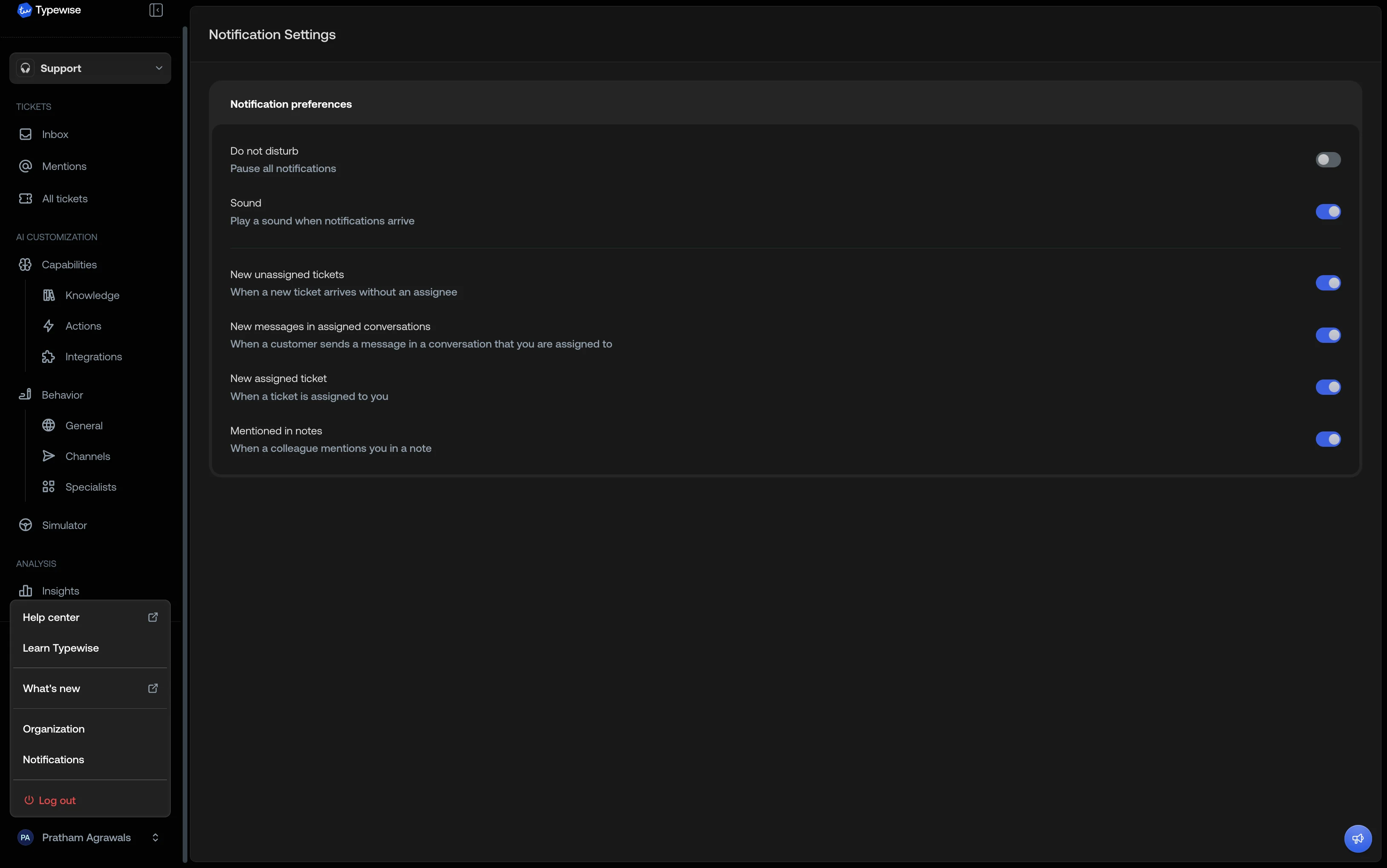
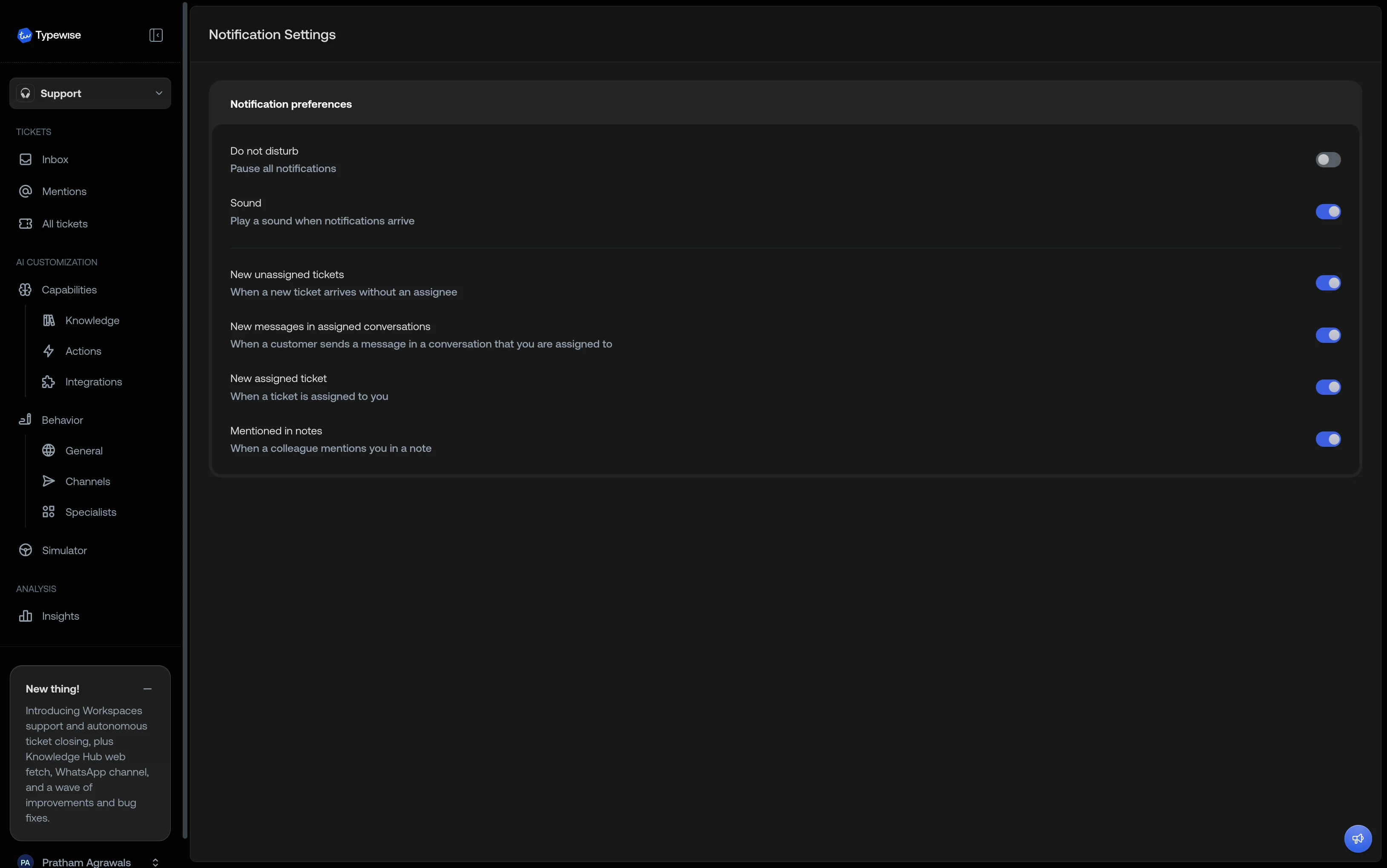
Notification preferences are saved per user and sync across sessions. Changes
take effect immediately.
Enable browser notifications
The first time you visit the Notification Settings page, a banner appears if browser notifications aren’t enabled yet.- Permission not yet requested: click Enable on the banner to allow notifications. Your browser shows a permission prompt.
- Permission denied: the banner explains that notifications are blocked.
Open your browser’s site settings for
platform.typewise.appand change notifications to Allow, then reload the page.
Browser notifications only fire when the Typewise tab is in the background. If
the tab is active, you’ll still hear sounds and see visual indicators.
Troubleshooting
I'm not receiving any notifications
I'm not receiving any notifications
Check the following in order:
- Open Notification Settings and confirm Do not disturb is off
- Verify the relevant category is toggled on
- Ensure browser notifications are allowed (see “Enable browser notifications” above)
- Check that your browser or OS isn’t suppressing notifications (e.g., Focus mode on macOS, Quiet hours on Windows)
I hear sounds but don't see browser popups
I hear sounds but don't see browser popups
Sound alerts don’t require browser permission, but popups do. Open your
browser settings for
platform.typewise.app and set notifications to
Allow. Reload the page after changing the setting.The red dot on Inbox won't go away
The red dot on Inbox won't go away
The dot clears when you visit the Inbox. Navigate to Inbox and the dot
resets. Individual ticket highlights clear when you select that ticket.
See also
- Inbox: Understanding the Inbox and its sections
- Mentions: Mention colleagues in internal notes
- User Management: Manage user access and roles