

On this page
Connect
1
Log in as an admin and go to the admin section
You need permissions to access the admin section and create OAuth clients.
2
Open the OAuth clients page
Navigate to 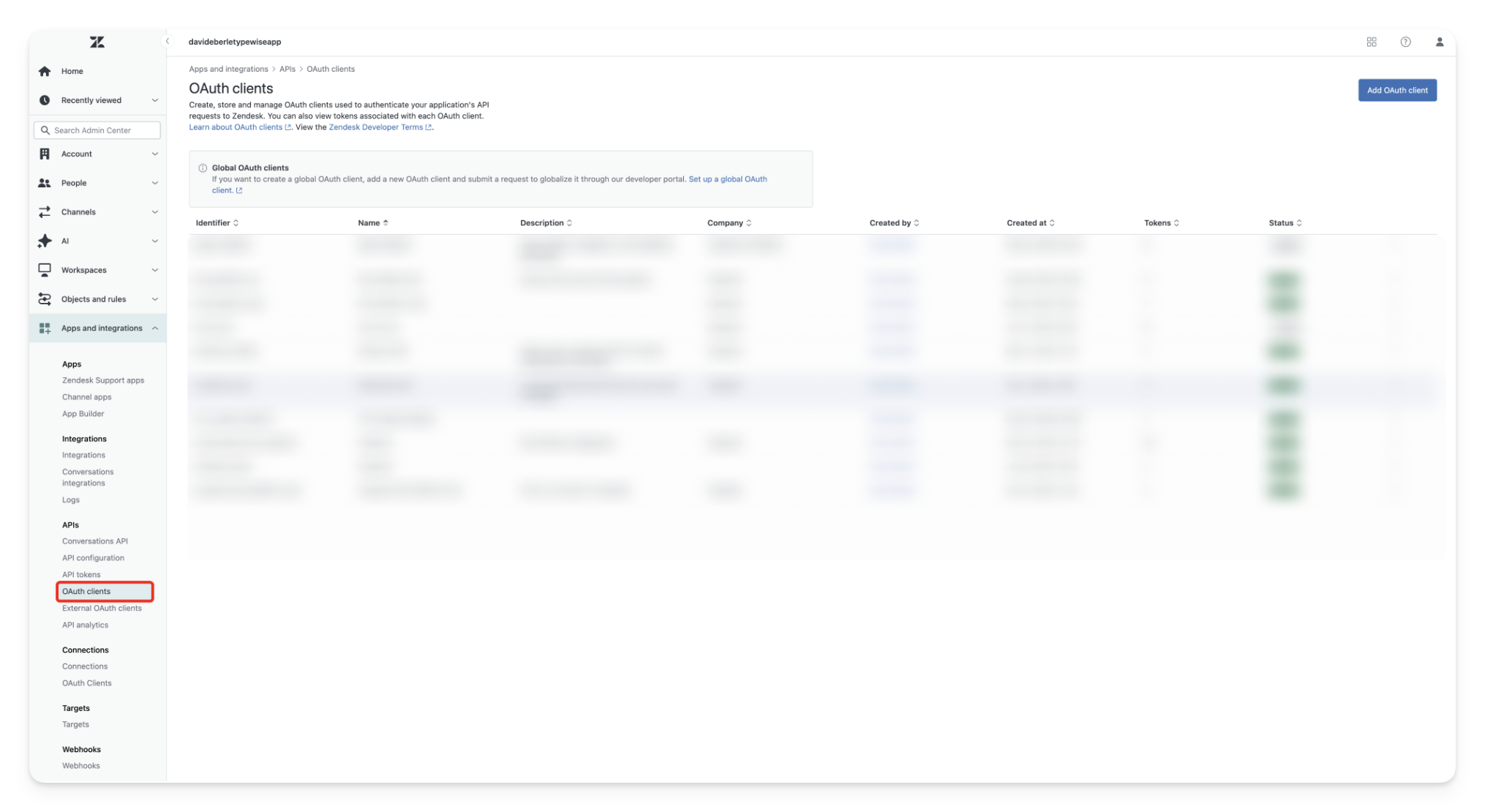
Apps and Integrations → APIs → OAuth clients3
Create a new OAuth client
Click After you click
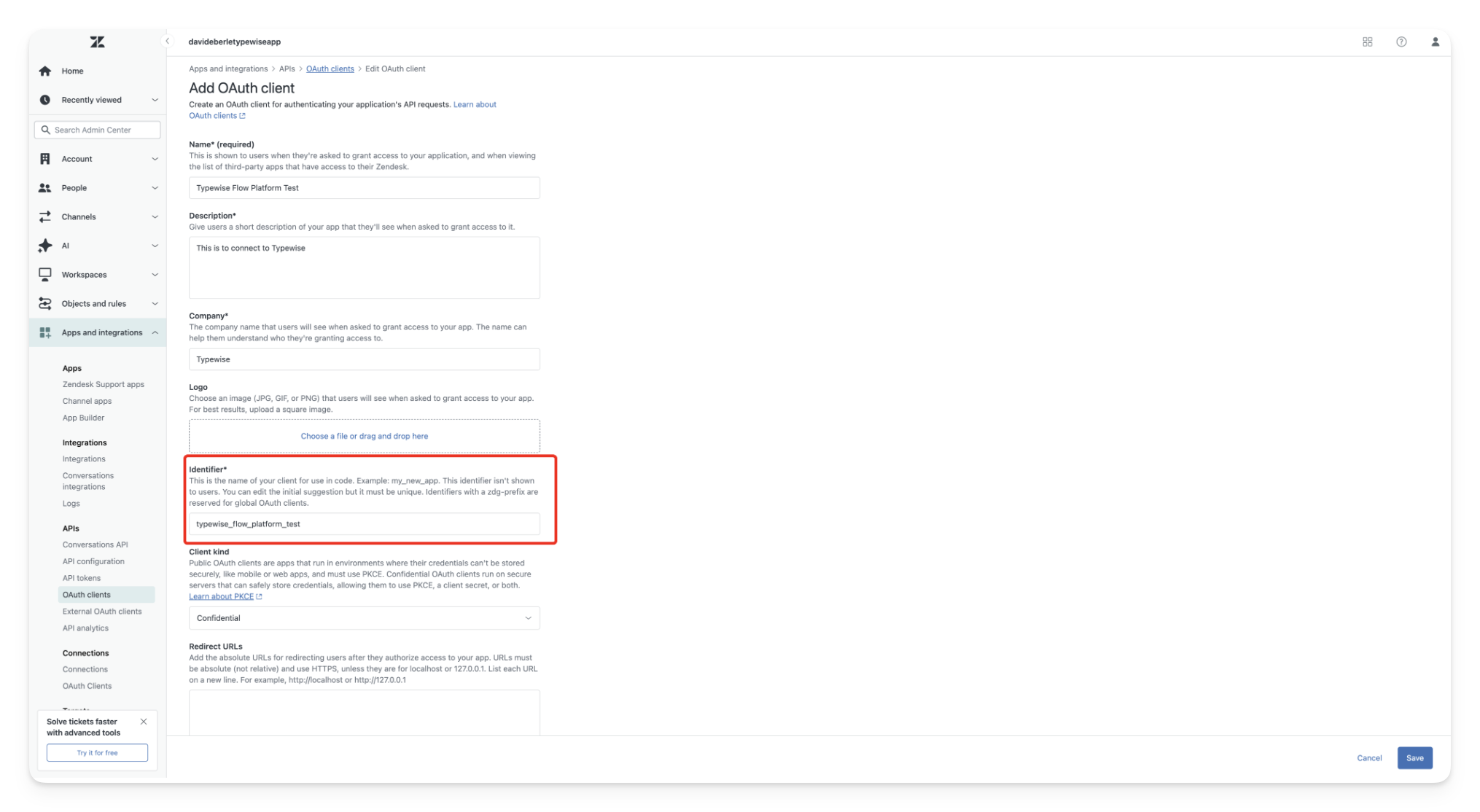
Add OAuth client and fill out the details.Make sure to set Client kind to Confidential.
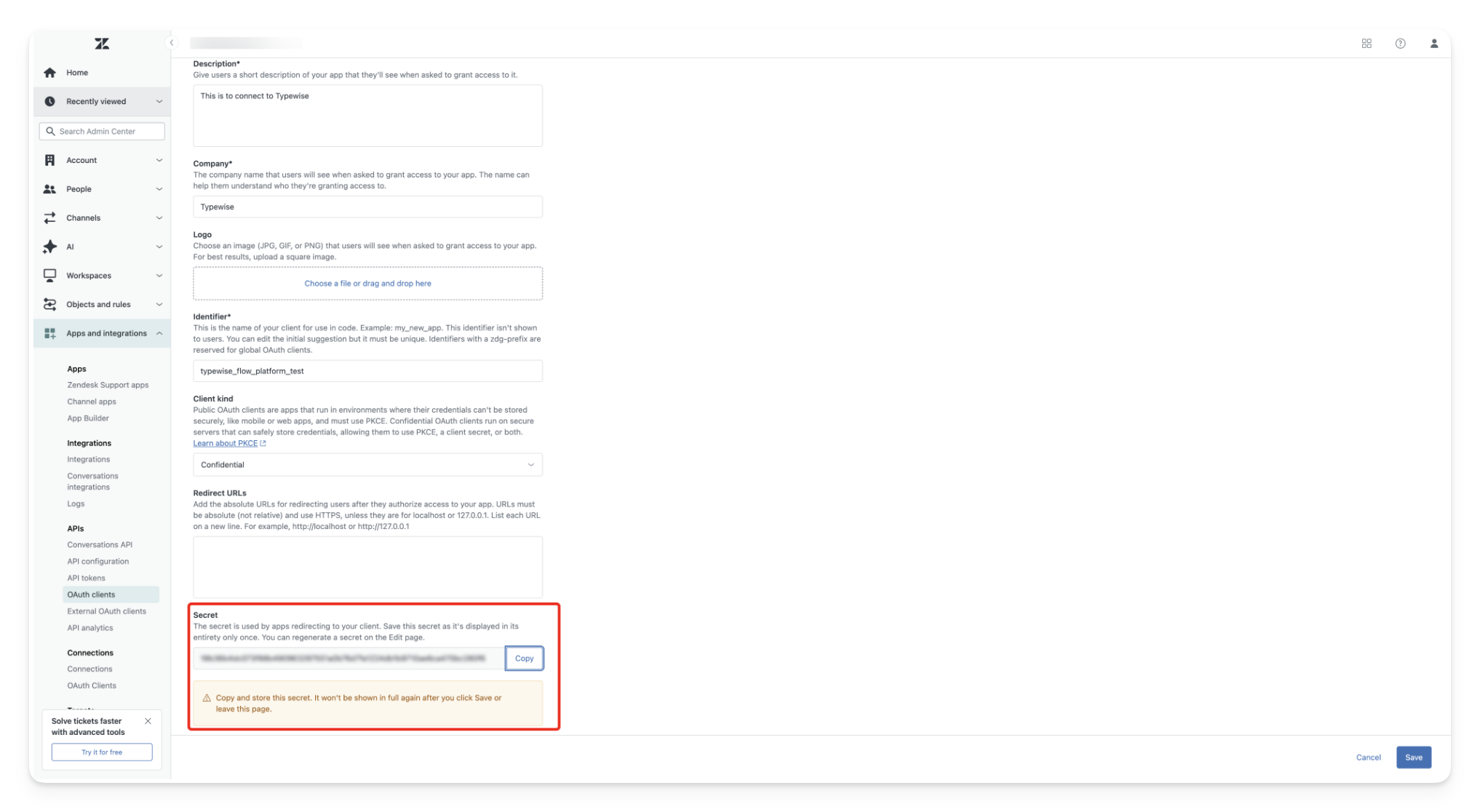
Save, you’ll be shown a secret at the end of the page. It’s only shown once, so copy and store it securely.4
Connect Zendesk in Typewise
In Typewise, go to Integrations, find Zendesk, and click Connect. You’ll need: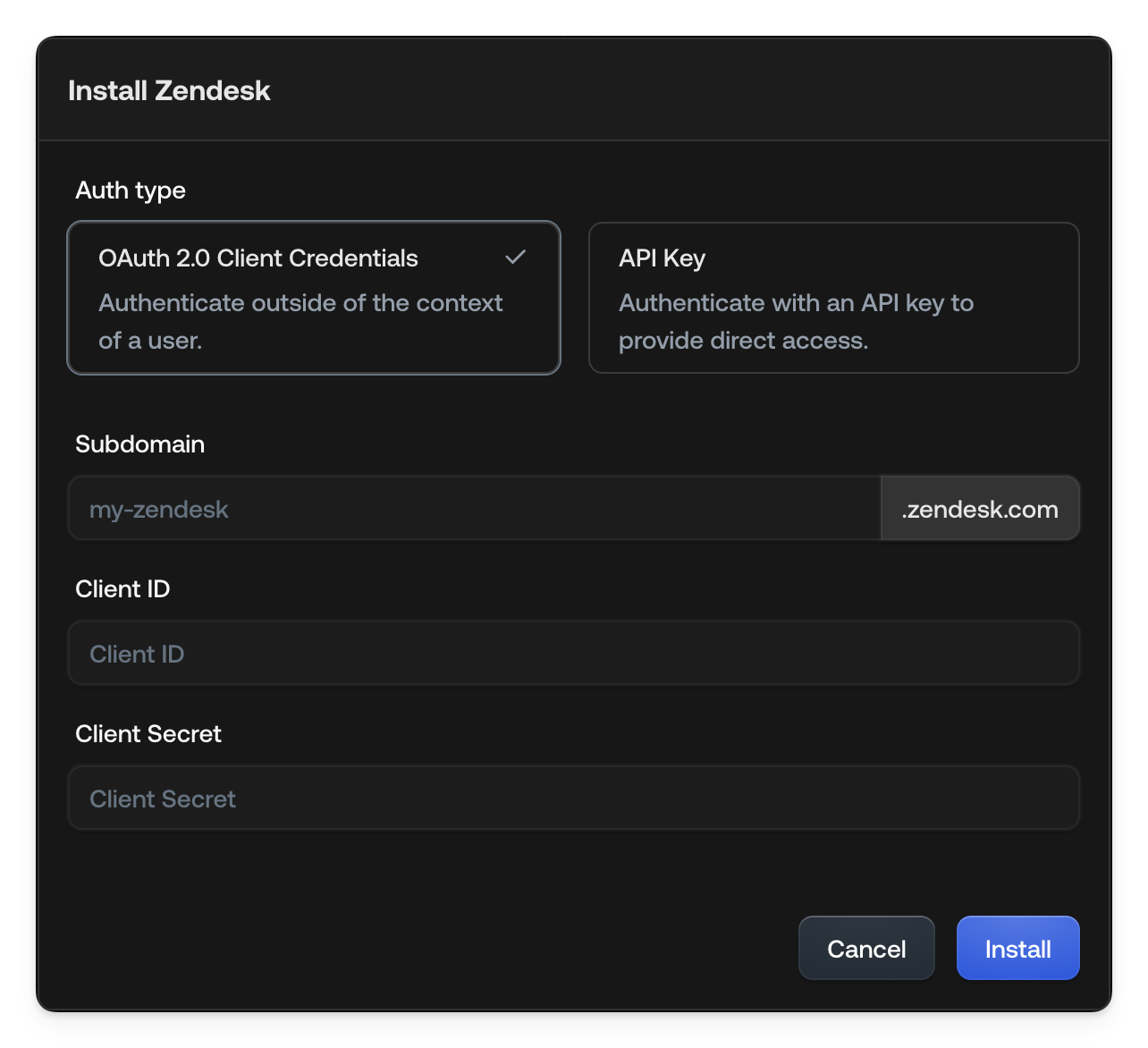
-
Subdomain: The first part of your Zendesk URL. For example, for
https://acme.zendesk.com/admin/home, the subdomain isacme. -
Client ID: The identifier you set when creating the OAuth client.
-
Client Secret: The secret shown once after saving the OAuth client.
Install, Zendesk should be connected successfully.Supported tools
The following is a selection of commonly used tools available through the Zendesk integration. Additional lookups and actions are available. Contact us if you need a tool that isn’t listed here.Lookups
get_ticket_by_id
get_ticket_by_id
Retrieve a Zendesk ticket by its ID.
get_ticket_comments
get_ticket_comments
Retrieve all comments for a Zendesk ticket.
search_articles
search_articles
Search for Zendesk Help Center articles.
get_user_info
get_user_info
Get information about a Zendesk user.
More lookups available
More lookups available
Additional Zendesk lookup tools are available. Contact us to enable lookups not listed here.
Actions
update_sender_email
update_sender_email
Update the email address of a Zendesk sender.
More actions available
More actions available
Additional Zendesk action tools are available. Contact us to enable actions not listed here.