

Lookups and actions are configured by your admins. Nova offers you the sources
in the Knowledge Hub and the
actions in the Action Hub, once they’re
published. A lookup that a connected integration offers but that nobody has
added to the Knowledge Hub isn’t on your list, even though the AI Agent may
use it as an unauthorized lookup. Nova can’t add or change tools; ask an admin
for that.
Start a lookup or an action
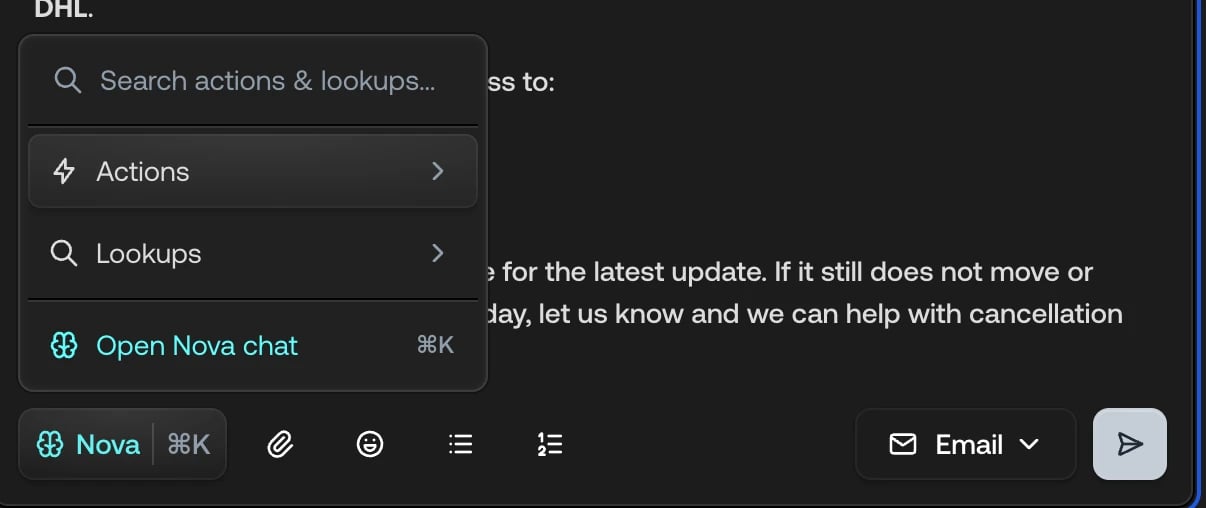
There are two ways in, and they end in the same place: the Nova panel.From the composer menu
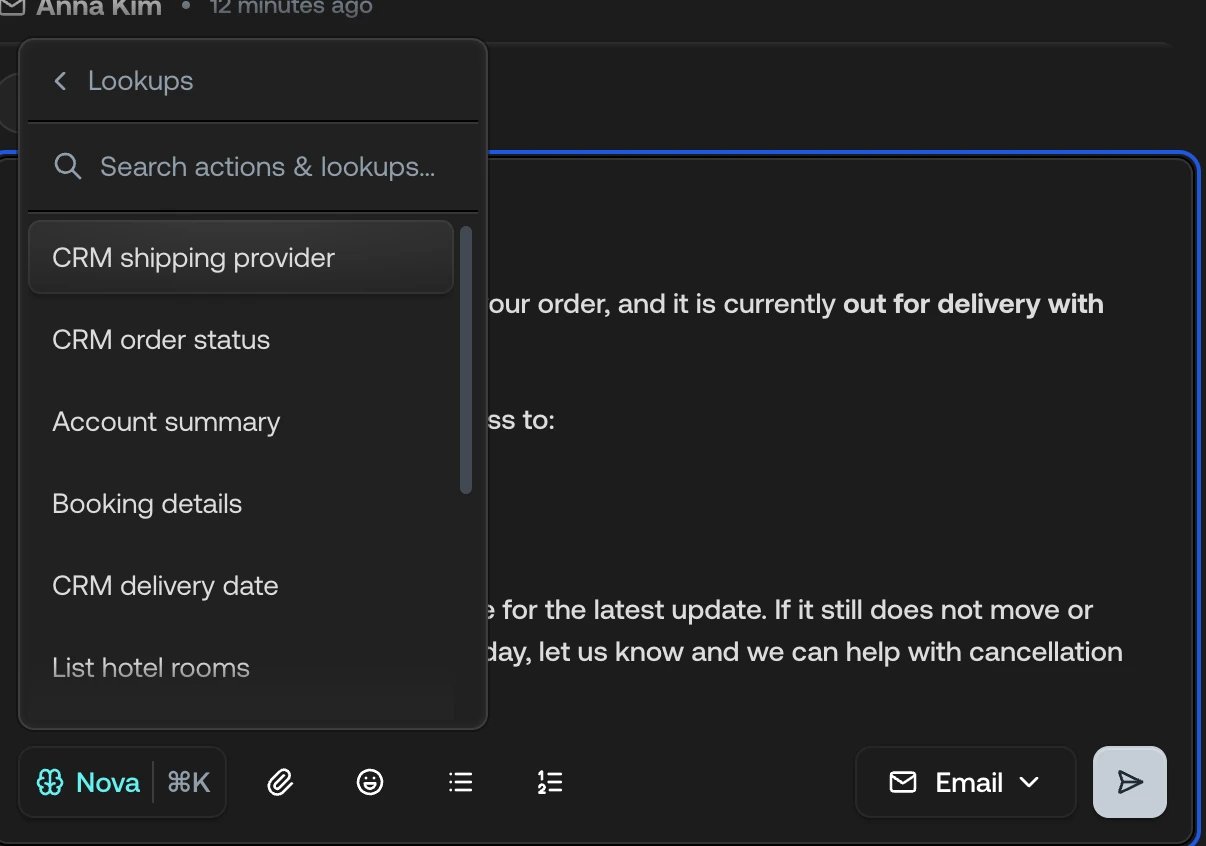
Click Nova in the composer toolbar, or pressCtrl/Cmd + K while writing. A
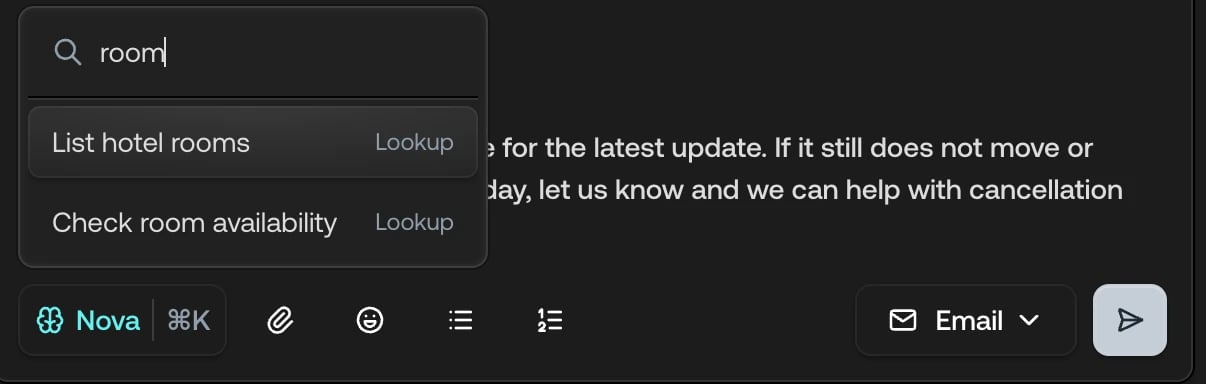
menu lists your workspace’s Actions and Lookups, with a search box to
find one by name.
By asking
Describe what you want in the panel, in your own words. Nova picks the matching lookup or action from your workspace:- “What’s the status of this customer’s order?”
- “Is there a CRM record for this email address?”
- “What does our policy say about returns after 30 days?”
- “Update the delivery address on her order to Bahnhofstrasse 12.”
Lookups
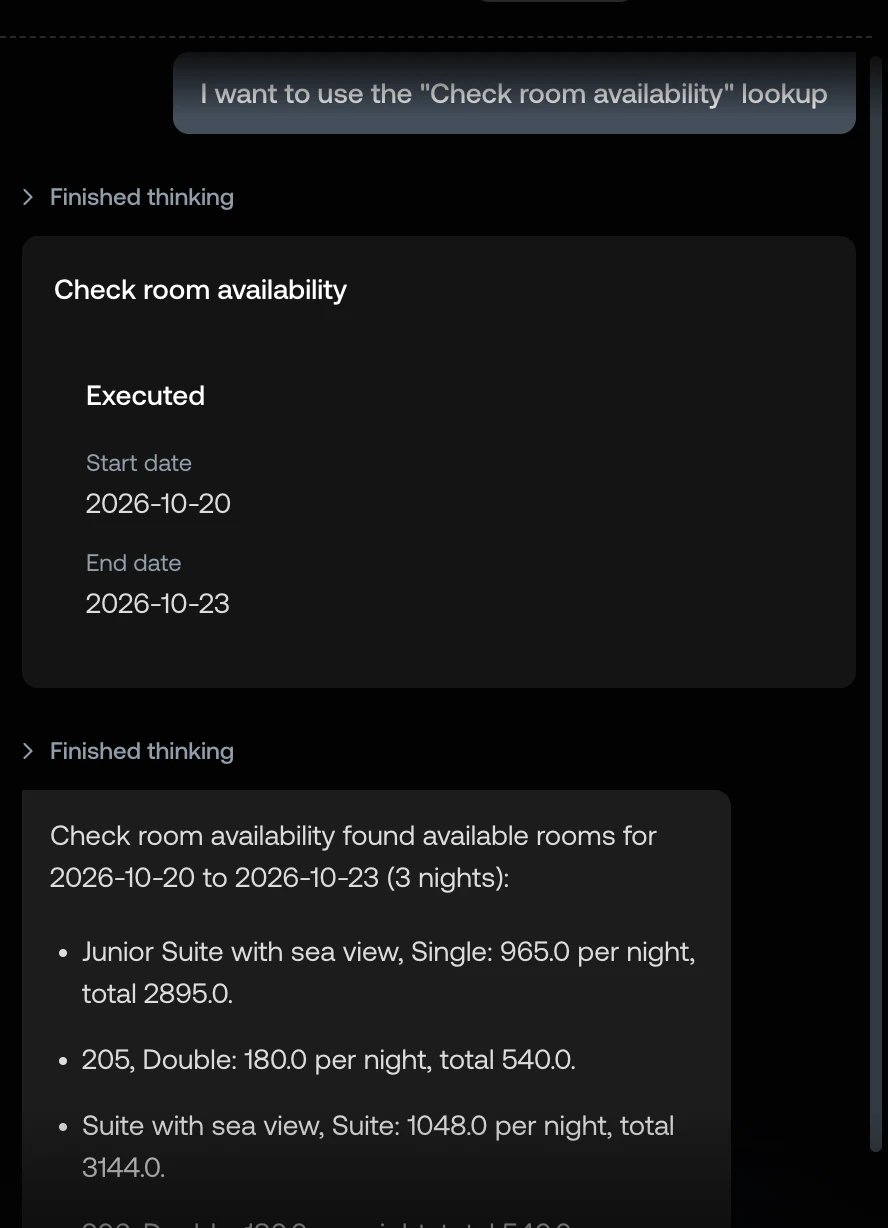
Nova fills a lookup’s inputs from the ticket and from your conversation, runs it, and sums up the result in a couple of sentences, the way it reads on screen rather than as raw data. Ask “What’s the status of her order?” on a ticket, and Nova takes the customer’s email address from the ticket, runs the order lookup, and answers with the status and the carrier. When a lookup needs a value Nova doesn’t have, such as a date range or an order number the customer never mentioned, it shows a short form with what it does know filled in. Add the rest and click Look up. The button stays greyed out until every required field, marked with an asterisk, has a value. Nova never guesses an ID, an email address, an order number, or a date.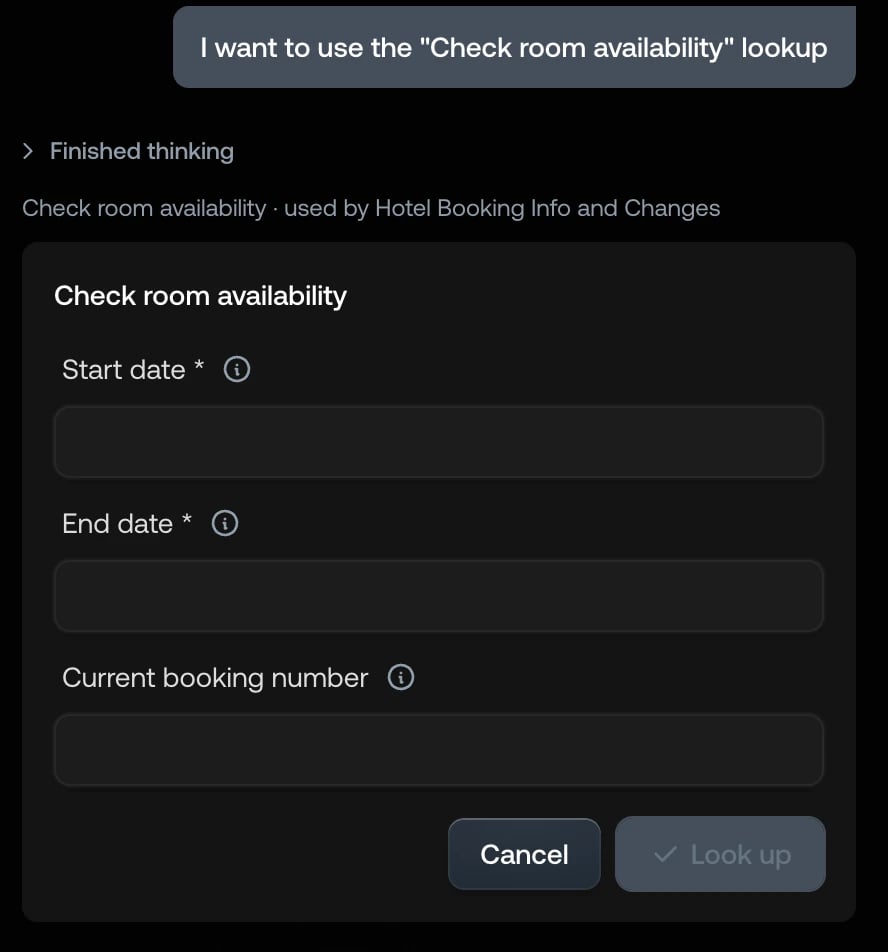
Actions
An action changes something outside Typewise, so Nova always stops and shows you exactly what it’s about to do.1
Ask for the action
Pick it from the composer menu or ask for it in the panel. Nova reads the
ticket and your conversation for the details.
2
Check the form
A form appears in the panel, headed with the action’s name. Under it,
Nova notes which integration the action belongs to. Admins also see which
Specialists use it.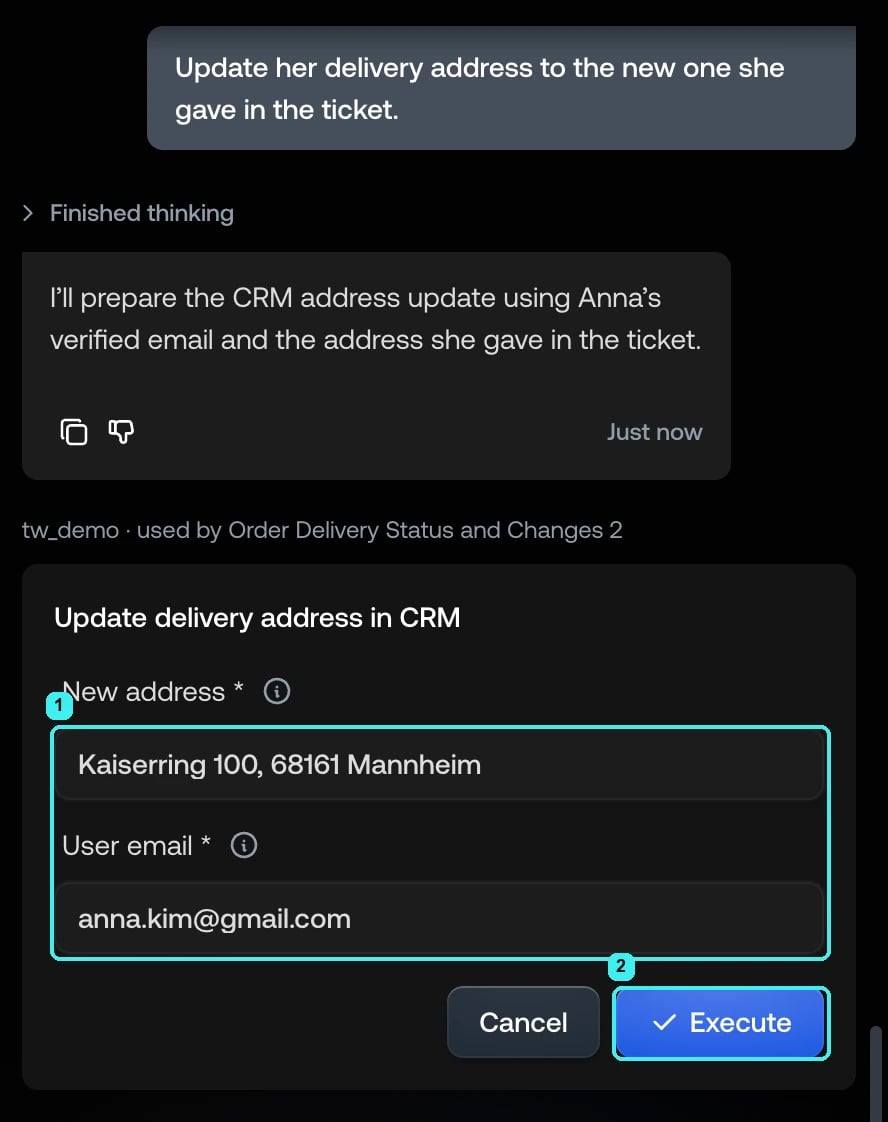
- The fields, prefilled with what Nova found: here the new address from the customer’s message and her verified email address
- Execute, next to Cancel
3
Execute or cancel
Click Execute to run the action with the values in the form, or Cancel
to run nothing. The action runs with your values, not the ones Nova
proposed.
4
Read the outcome
The form turns into a card. Executed lists the values that ran and the
result the connected system returned. Failed shows the reason the
system gave, in everyday words, and Nova suggests what to try next.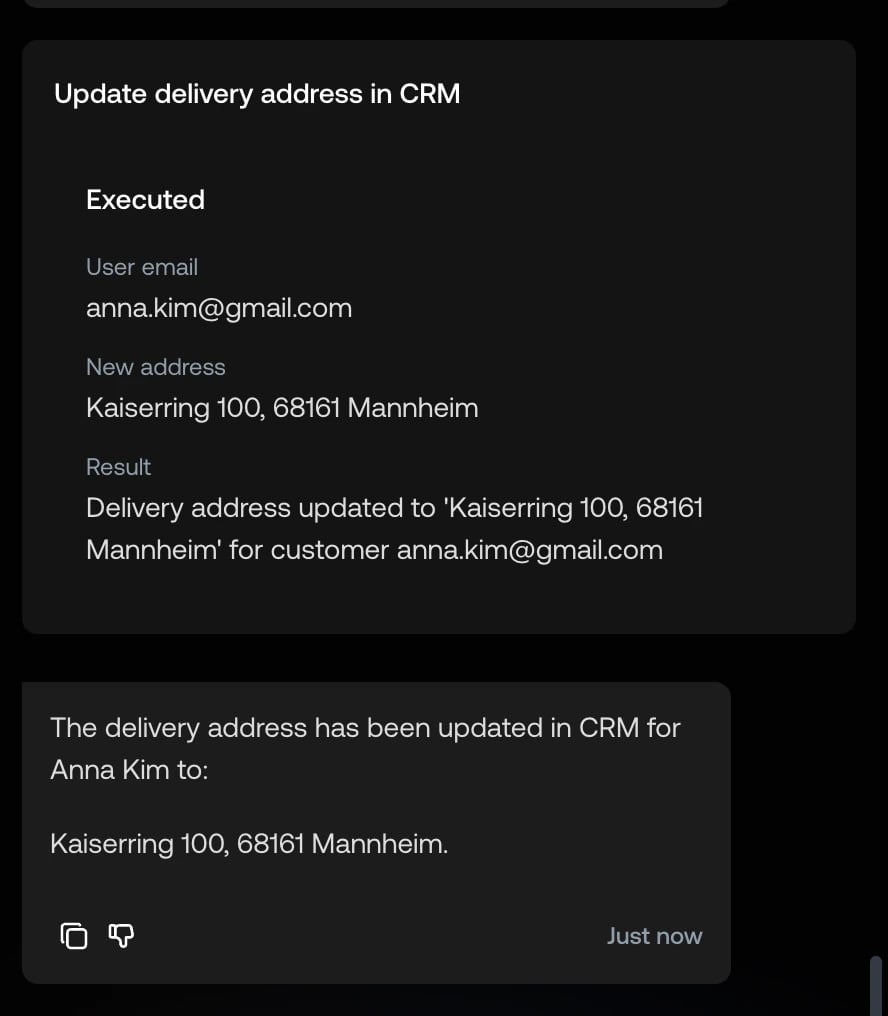
Cancelling is final for that proposal: the card reads Cancelled. Nothing was
run., and Nova asks how you want to proceed rather than trying again. Nova
proposes one action at a time and waits for your decision before anything
else. If you give Nova new details while a form is still open, it replaces the
form with a fresh one and marks the old one Inputs revised.
What Nova can’t run
- Manual actions. A manual action is a task for a person, not a system. Nova explains what it is and where your team handles it.
- Lookups nobody has added to the Knowledge Hub. A connected integration can offer more lookups than your admins have added as sources. The AI Agent may run those as unauthorized lookups; Nova offers you only the sources in the Knowledge Hub.
- Unpublished changes. Nova uses the workspace’s published configuration. A lookup or action an admin added but hasn’t published yet isn’t available, and Nova says so when it matters.
- Anything in your workspace’s setup. Creating or editing lookups, actions, Specialists, or knowledge sources is an admin’s job.
Example: from question to reply
A customer on an email ticket asks where her order is, and mentions she has moved.1
Ask
In the panel: “What’s the status of her order, and who is delivering it?”
2
Nova looks it up
Nova takes the customer’s email address from the ticket, runs the order status
and shipping provider lookups, and answers in one line: the order is out for
delivery with DHL.
3
Act, if needed
“Update her delivery address to the new one she gave in the ticket” brings up
the Update delivery address form with the new address and her email
address filled in. Check it and click Execute. The card turns to
Executed and shows the result the system returned.
4
Reply
“Draft a reply with that.” Nova writes the reply in the customer’s
language, with the delivery status and the address change, ending in
Insert. Insert it, read it over, and send.
Troubleshooting
Nova says it can't find a lookup or action
Nova says it can't find a lookup or action
It isn’t configured in your workspace, it’s a lookup nobody has added to
the Knowledge Hub, or it hasn’t been published yet. Nova names what does
exist. Ask an admin to add or publish the tool.
Nova asks me for a value I expected it to know
Nova asks me for a value I expected it to know
Nova fills in what the ticket, your conversation, and earlier lookups give it.
An order number the customer never wrote, or an ID that only lives in another
system, has to come from you. Nova never guesses one.
A lookup didn't answer
A lookup didn't answer
Nova tells you it couldn’t check that just now and carries on with what it
has. Ask again in a moment. If the same lookup keeps failing, tell your admin,
who can check the integration under
Troubleshooting.
An action failed
An action failed
The card shows the reason the connected system gave, for the values that
ran. Fix the value it names and ask Nova to propose the action again, or
handle it in the system directly.
Related
- Nova for Agents
- Write replies with Nova
- Lookups and Actions, for how admins configure them
- Manual lookups and Manual actions