

Before you start
- The composer, and Nova’s tools in it, appear once you’ve taken over the ticket.
- The tools work in reply mode and in notes mode. In notes mode, Draft reply writes an internal note for a colleague instead of a message to the customer. They aren’t available on the Forward tab.
- Nova runs one request at a time. While a draft or a rewrite is on its way, the chips and the menu wait for it to finish. Cancel stops a run you no longer want.
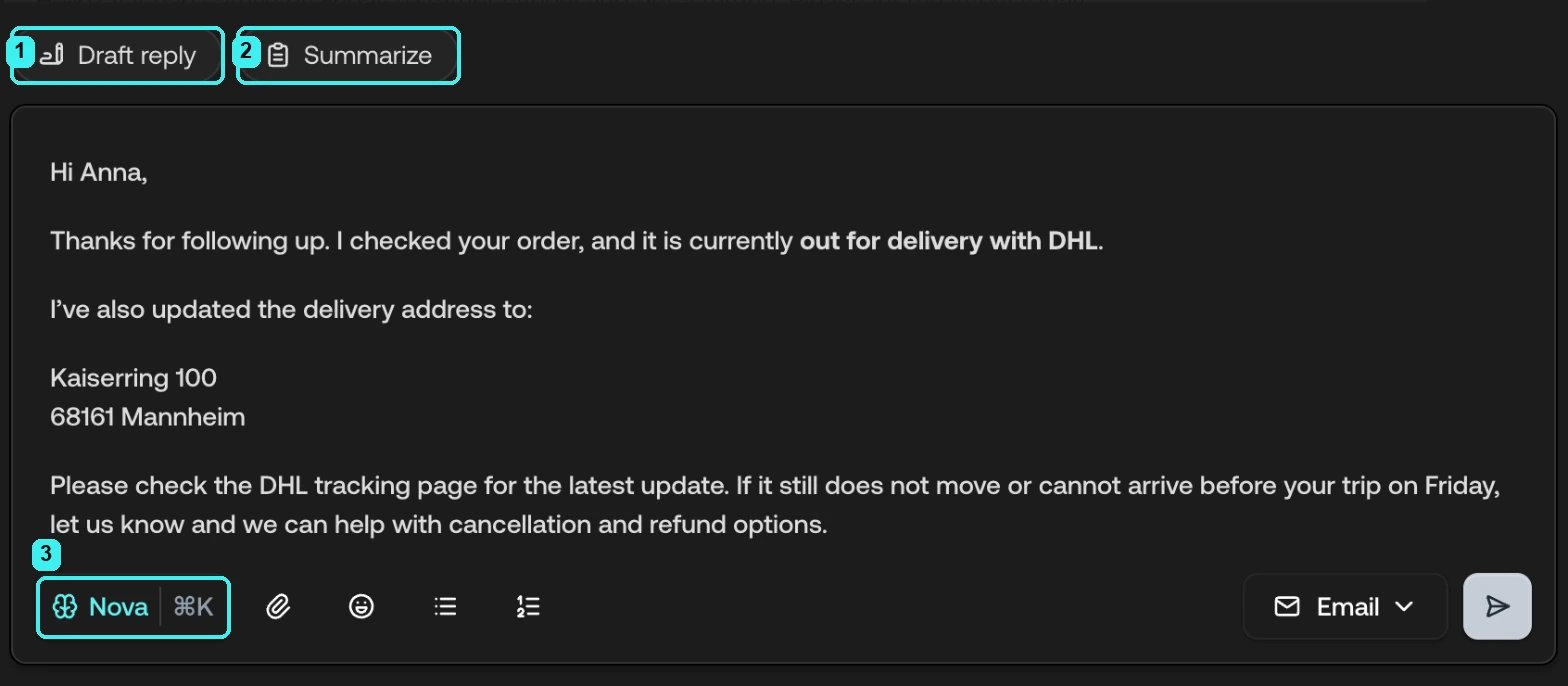
- Draft reply writes the whole message
- Summarize appears on longer tickets
- Nova opens the menu of your team’s actions and lookups
Draft a reply
1
Click Draft reply
Click Draft reply above the reply box. Anything you’ve already typed
is kept: Nova continues where you were going rather than starting over.
2
Read the draft
The draft appears in a popover headed Draft reply.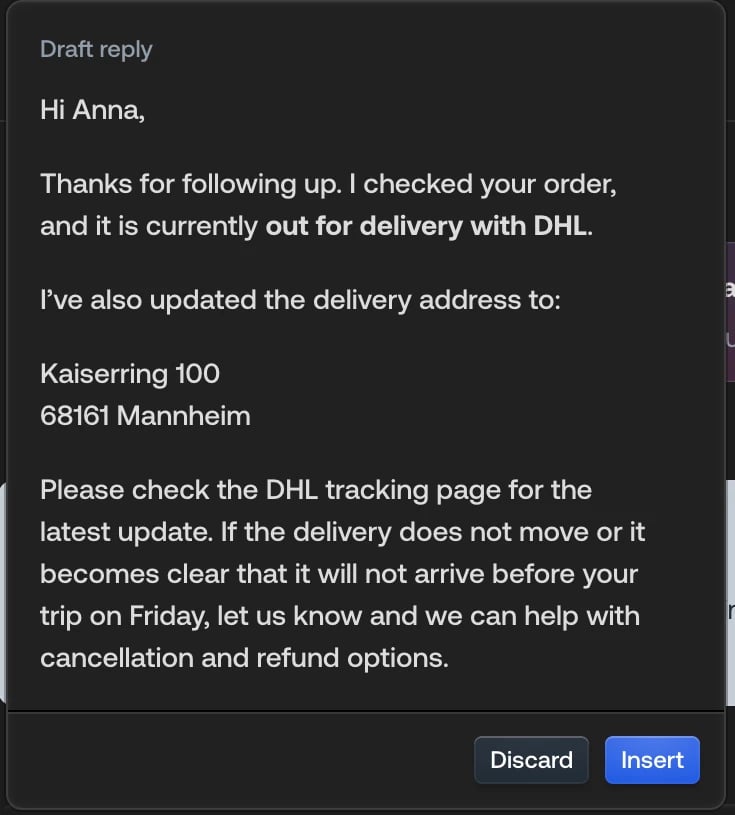
3
Insert or discard
Insert (or
Enter) puts the draft in the composer, replacing what was
there. Discard (or Esc) throws it away. Then edit as you like and
send the reply yourself.What goes into a draft
Nova doesn’t write blind. Before it drafts, it reads:- The conversation, and answers the customer’s latest message in the context of everything before it.
- Your workspace’s guidelines, the company and channel instructions your admins wrote: form of address, words to use or avoid, tone, and a required sign-off if there is one.
- The customer’s earlier conversations, when one of them plainly bears on what they’re asking now. Nova uses them for context and never brings them up unprompted.
- What you’d started typing, which it keeps and builds around.
Rework a passage
Select any text in your draft, from a word to the whole reply. The formatting toolbar appears with Nova’s menu under it.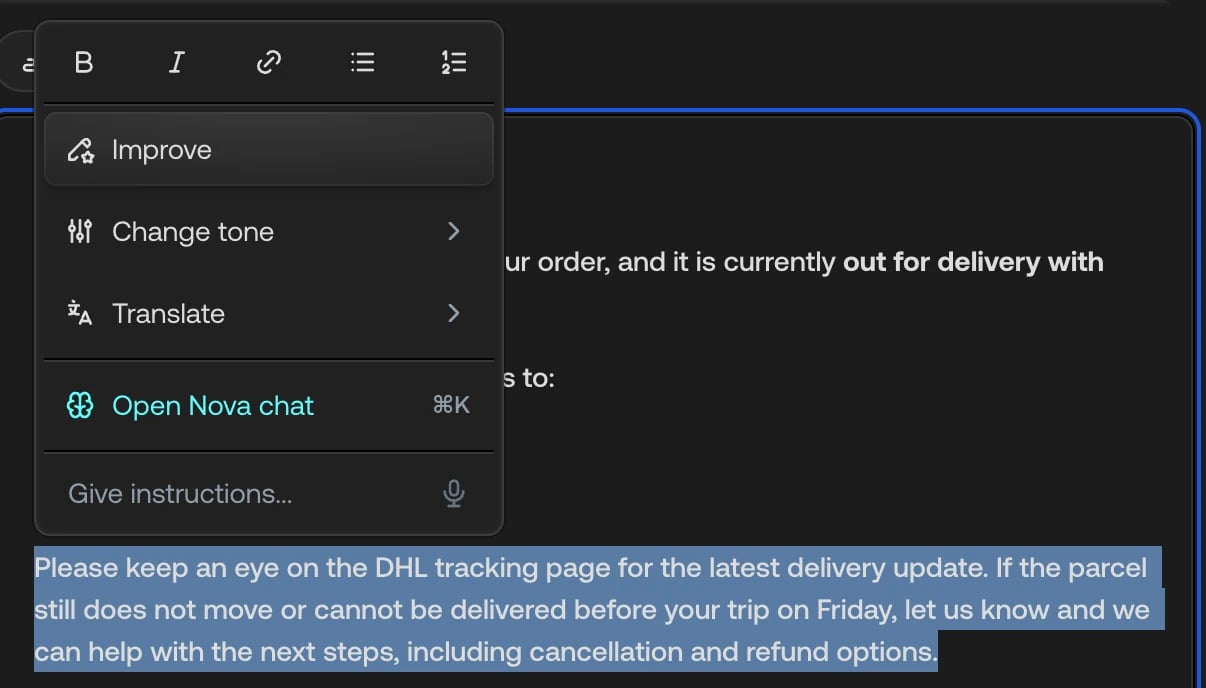
Whatever you pick, Nova changes only the passage you selected and only in the
way you asked. The facts stay the facts: a rewrite never invents a promise, a
date, or a refund that the passage didn’t contain, and never drops one. What you
ask for is different: “Say the replacement ships Monday” adds that date, the
Apologetic tone adds an apology, and “drop the apology” removes one.
Formatting, links, and placeholders such as
{{firstName}} stay where they
were.
Improve
Improve is the second pass a careful writer would make. It also reads your workspace’s guidelines, so a required form of address or sign-off is applied: under a guideline that asks for a formal last-name greeting, “Hi Elena” becomes “Guten Tag Frau Elzesser”, with the name taken from the ticket. If the passage is already fine, it comes back unchanged.Change tone
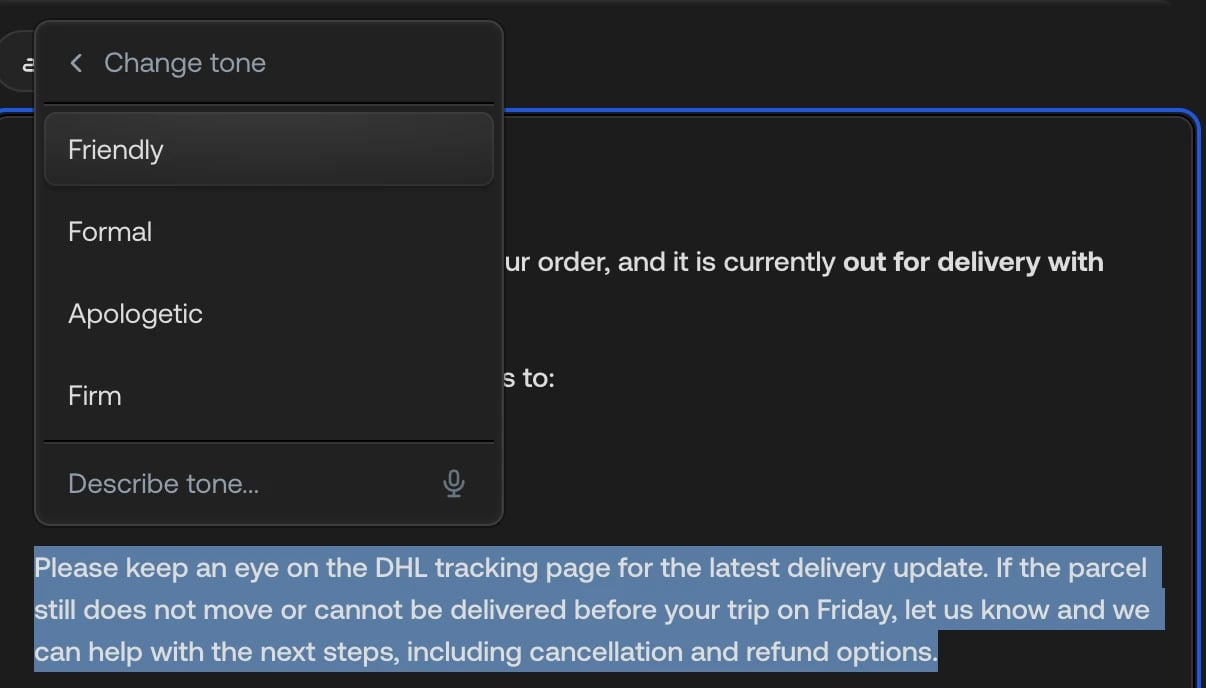
Pick one of the four tones, or type your own in Describe tone… and pressEnter. The result says the same thing in a different register. A firm tone is
still one you could send to a customer.
Translate
The customer’s language is listed first, marked Customer language, followed by English, German, French, and Italian. Type any other language in Another language….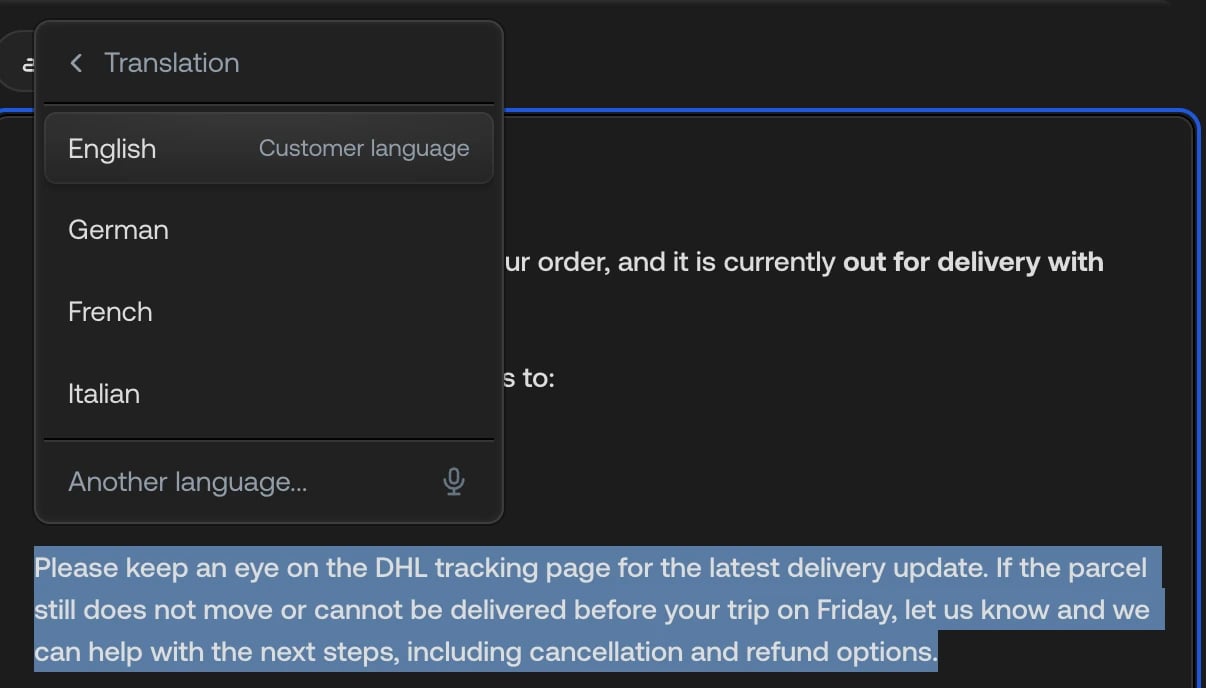
Sie unless the thread has clearly moved to du.
Give instructions
Type what you want in Give instructions… and pressEnter, or click the
microphone to dictate it. Shift + Enter adds a line, Esc goes back to the
menu. The instruction can be anything about the passage:
- “Make it shorter”
- “Say the replacement ships Monday”
- “Less apologetic, but keep the refund”
- “Turn this into a bulleted list”
Accept, discard, or iterate
Every rewrite except a translation waits in a popover beside your selection. The heading says what you asked for: Text improved, Friendly tone, or the instruction you wrote.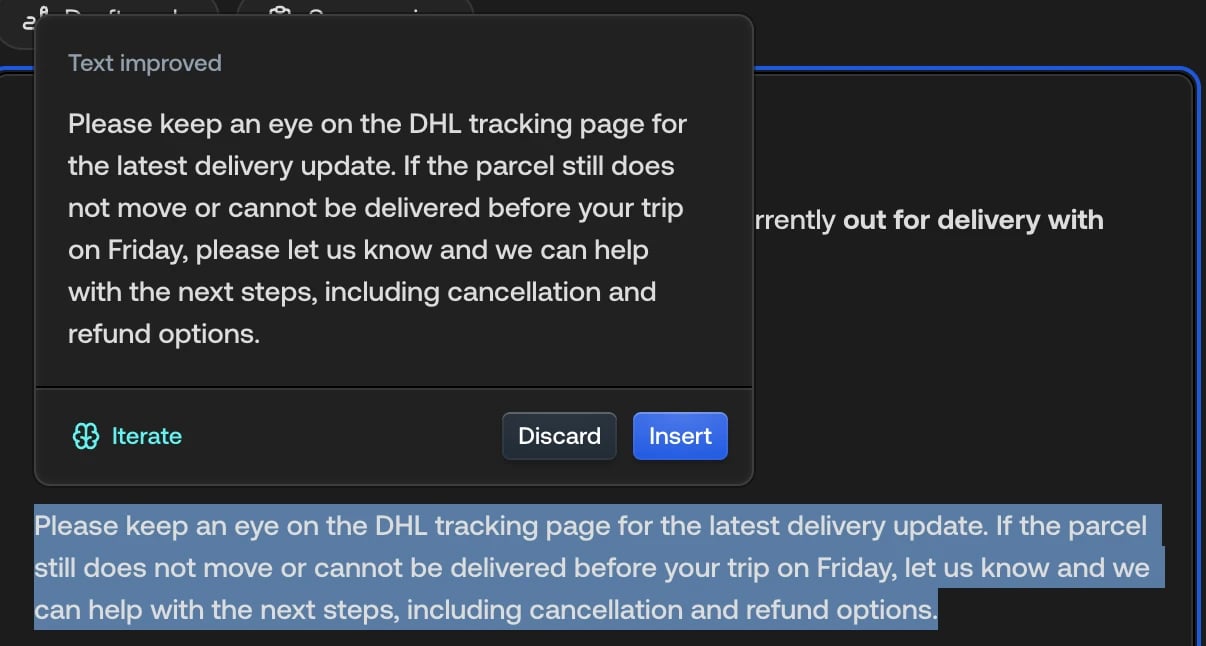
- Insert (or
Enter) replaces the selected passage with the rewrite. The rest of your draft is untouched. You can keep typing elsewhere while the popover is open. - Discard (or
Esc) closes it and leaves your text as it was. - Iterate takes the rewrite to the panel, where you can keep shaping it in conversation.
Iterate on a draft in the panel
The panel is where you shape a reply over several rounds. You get there with Iterate from a rewrite, with Open Nova chat from the selection menu, or by asking for reply text directly.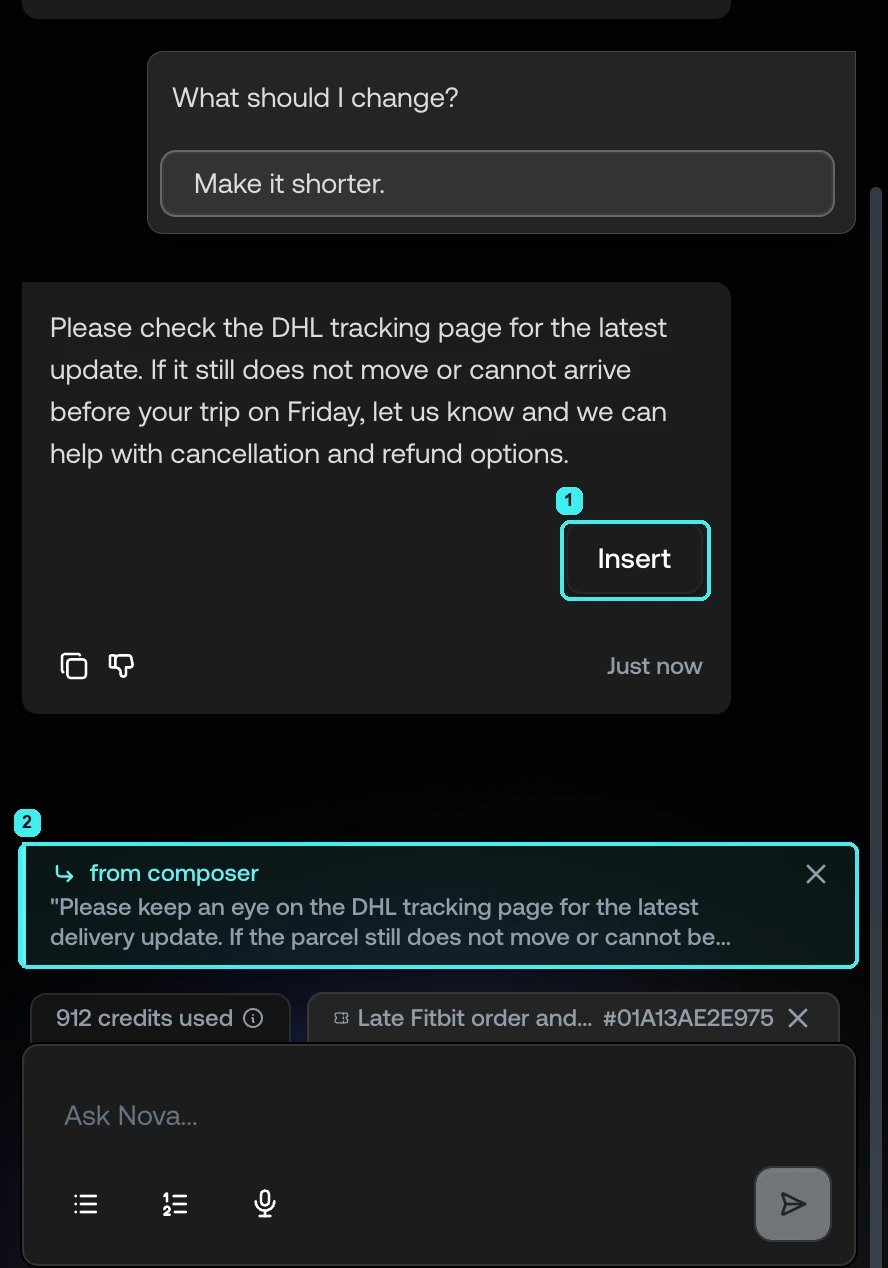
- Insert on the new version
- The passage this conversation is about, marked from composer
- After Iterate, Nova shows the text under discussion and asks What should I change?, with a few changes that fit this text, such as “Make it shorter” or “Acknowledge the urgency more clearly”, and room to type your own.
- After Open Nova chat, the selected passage is shown above the message box, marked from composer, and you say what you want done with it.
- Asking directly works too: “Draft a reply that confirms the refund”, “give me two versions, one warmer”, “say it in Italian”. After a lookup or an action, “draft a reply with that” writes the reply around what Nova just found out.
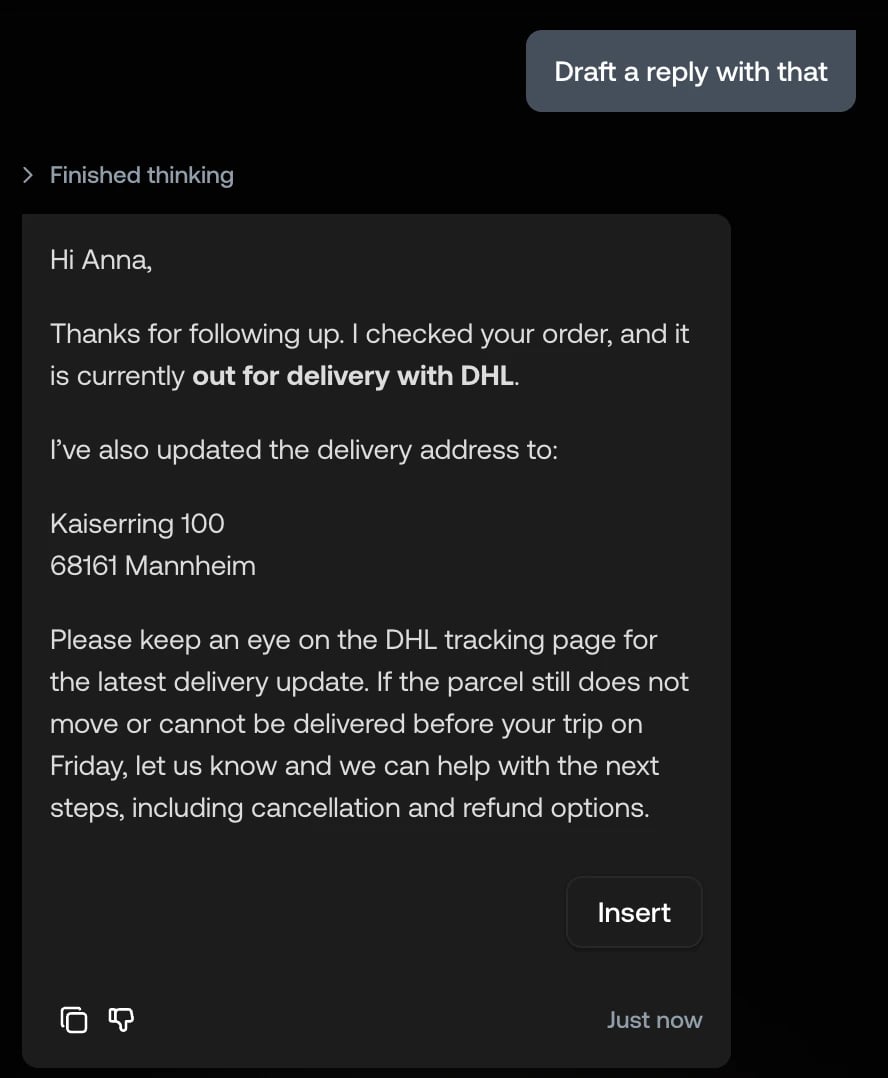
Insert is greyed out if you’ve edited the passage the conversation was
opened on, because the text no longer matches. Select the passage again and
press Iterate. The button disappears altogether when the composer is no
longer open, for example on another ticket; the text is still there to copy.
Troubleshooting
Insert is greyed out in the panel
Insert is greyed out in the panel
You’ve edited the passage this draft was written for, so the text no longer
matches. Select the passage again and press Iterate, or copy the draft
across by hand.
Nova could not draft a reply, or could not rewrite this
Nova could not draft a reply, or could not rewrite this
Something went wrong on the way. Close the popover and try again. If it keeps
happening, report it with the feedback button on a Nova reply or through Bug
reports.
The draft has square brackets in it
The draft has square brackets in it
That’s a placeholder for something Nova couldn’t find in the conversation,
such as
[order number]. Fill it in before you send, or ask Nova to look
it up. See
Lookups and actions.