

Nova is rolling out gradually. If you don’t see the rail, the chips, or the
menu described on this page, Nova isn’t switched on for your workspace yet.
Ask your admin or your Typewise contact.
What Nova does for you
Where to find Nova
Nova lives in three places. They all open the same panel and the same conversation.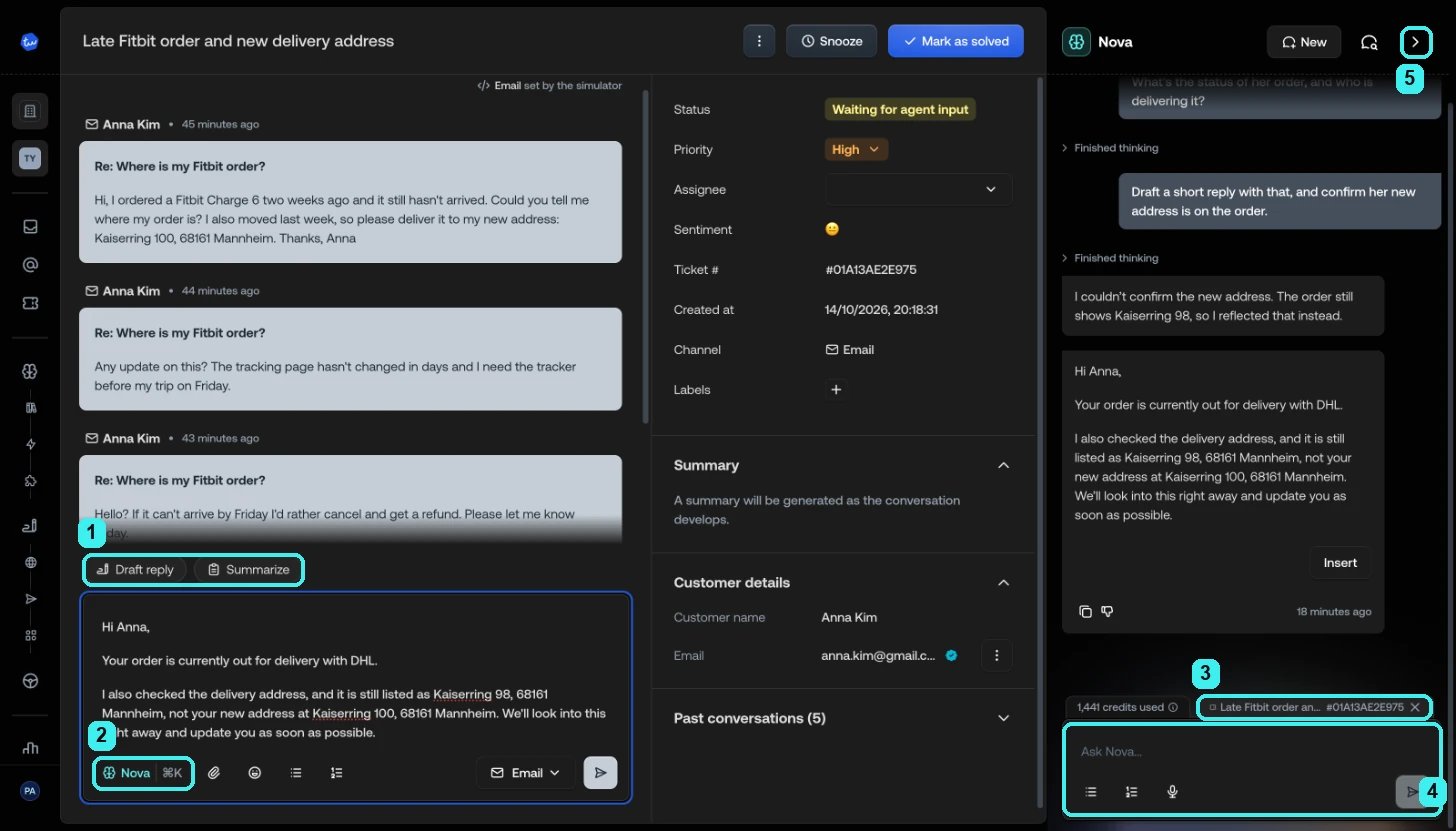
- Draft reply and Summarize chips above the reply box
- The Nova button in the composer toolbar, with its keyboard shortcut
- The ticket Nova is looking at
- The message box, Ask Nova…, with the conversation’s credit usage beside it
- Collapse, which closes the panel and brings back the rail
The rail on the right edge
The rail on the right edge
A thin rail on the right edge of the platform holds three buttons: Nova
opens the panel, Past conversations lists your earlier conversations,
and New conversation opens the panel on a fresh one.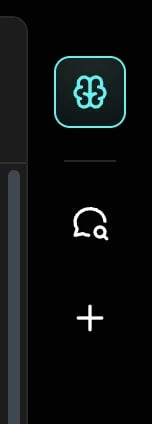
The keyboard shortcut
The keyboard shortcut
Press
Ctrl/Cmd + K from anywhere to start a new conversation. In a reply
composer the same shortcut opens Nova’s menu first, where Open Nova chat
takes you to the panel. See keyboard
shortcuts.The composer
The composer
Once you’ve taken over a ticket, two chips sit above the reply box: Draft
reply and, on longer tickets, Summarize. The Nova button in the
composer toolbar opens the menu of your team’s actions and lookups, and
selecting text in your draft opens Nova’s writing tools. See
Write replies with Nova.
Nova knows which ticket you’re on
While a ticket is open, a reference to it sits above the message box in the panel, with the ticket’s title and number. That’s the ticket Nova means when you say “this ticket”, “this customer”, or “her”. You never need to paste an ID.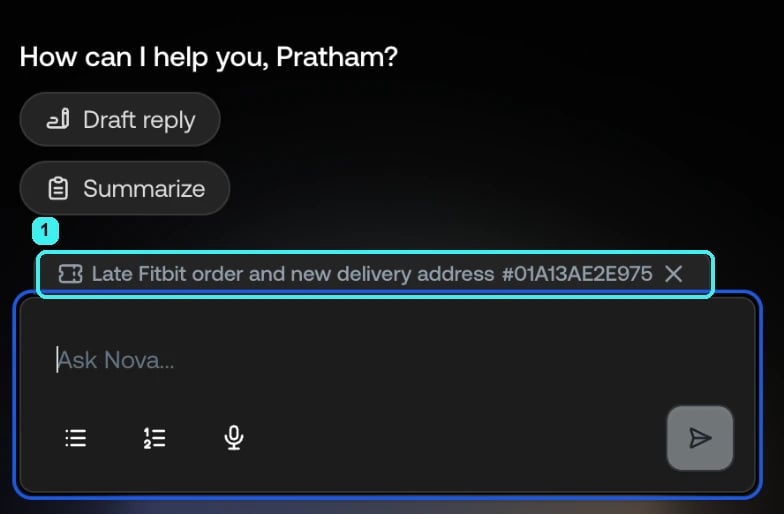
Catch up on a ticket
When a ticket has a long history, Nova offers a summary before you read a word.1
Click Summarize
Click Summarize above the reply box. The chip appears once a ticket
has enough back-and-forth to be worth summarizing. On shorter tickets, or
with no composer open, click Summarize in the panel instead, or ask
for one.
2
Read the summary
A popover headed Conversation summary lists, in a few bullets: what
the customer wants, what has been answered, offered, or promised so far,
what they’re waiting on, and anything that changes how you should reply,
such as a deadline or an unhappy customer.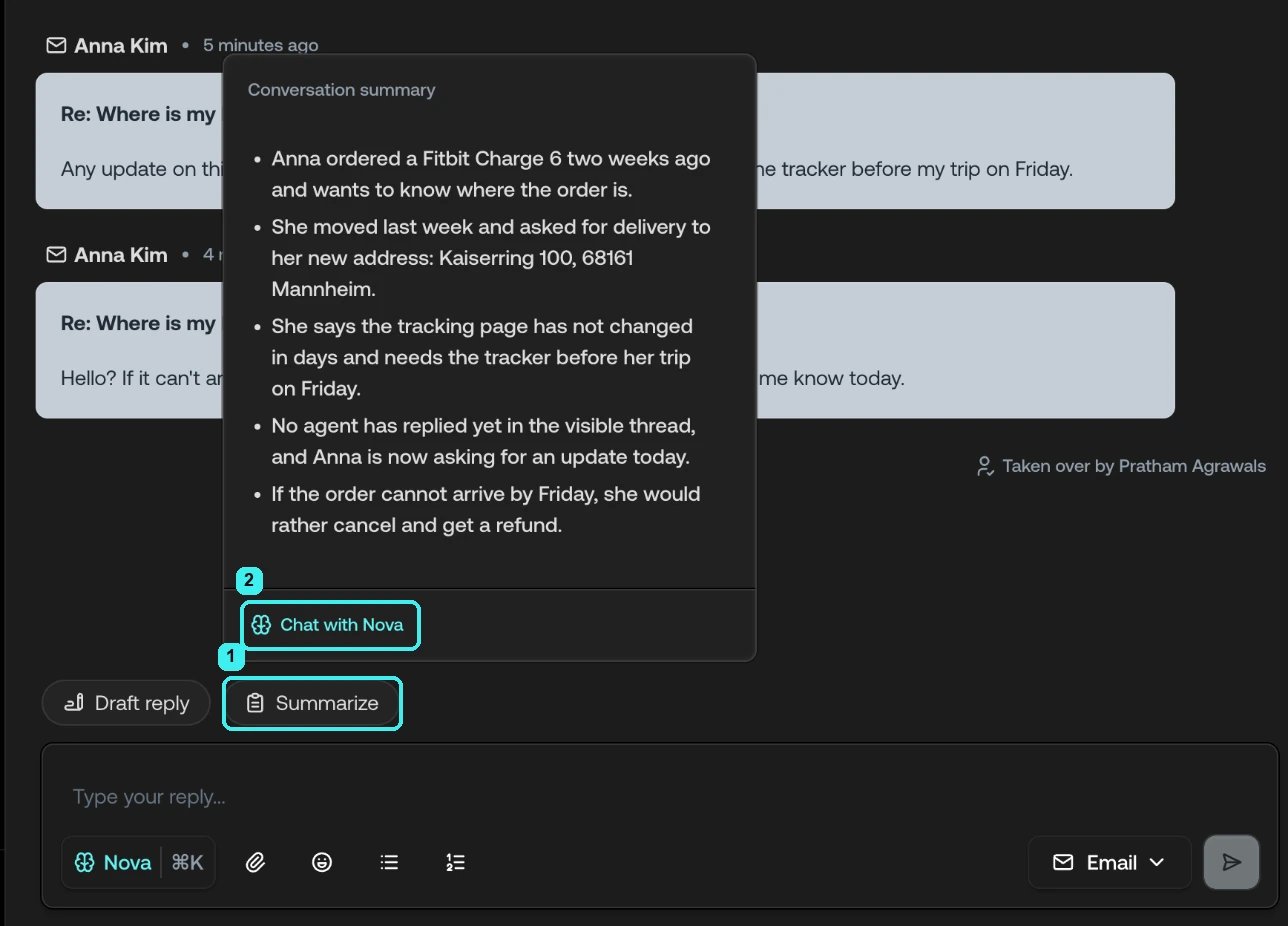
- The Summarize chip the summary came from
- Chat with Nova, which takes the summary into the panel
3
Carry on in the panel, or close it
Chat with Nova opens the panel with the summary as context, so you can
ask follow-up questions straight away. Press
Esc or click anywhere else
to close the popover.From the chip, the summary is written in the ticket’s language, because you’re
about to reply in it. Asked for in the panel, it’s written in the language you
asked in. If the customer writes in German and you don’t, ask in the panel.
Chat with Nova about a ticket
The message box at the bottom of the panel reads Ask Nova…. Write in plain language and pressEnter (Shift + Enter adds a line). With a ticket open,
the panel greets you with two shortcuts, Draft reply and Summarize, but
you can ask for anything:
- “What has this customer been promised so far?”
- “Has she contacted us before about this?”
- “What’s the status of her order?”
- “What would the AI Agent answer here?”
- “Draft a reply that confirms the refund and apologizes for the delay.”
- “Take me to the Inbox.”
Read a reply
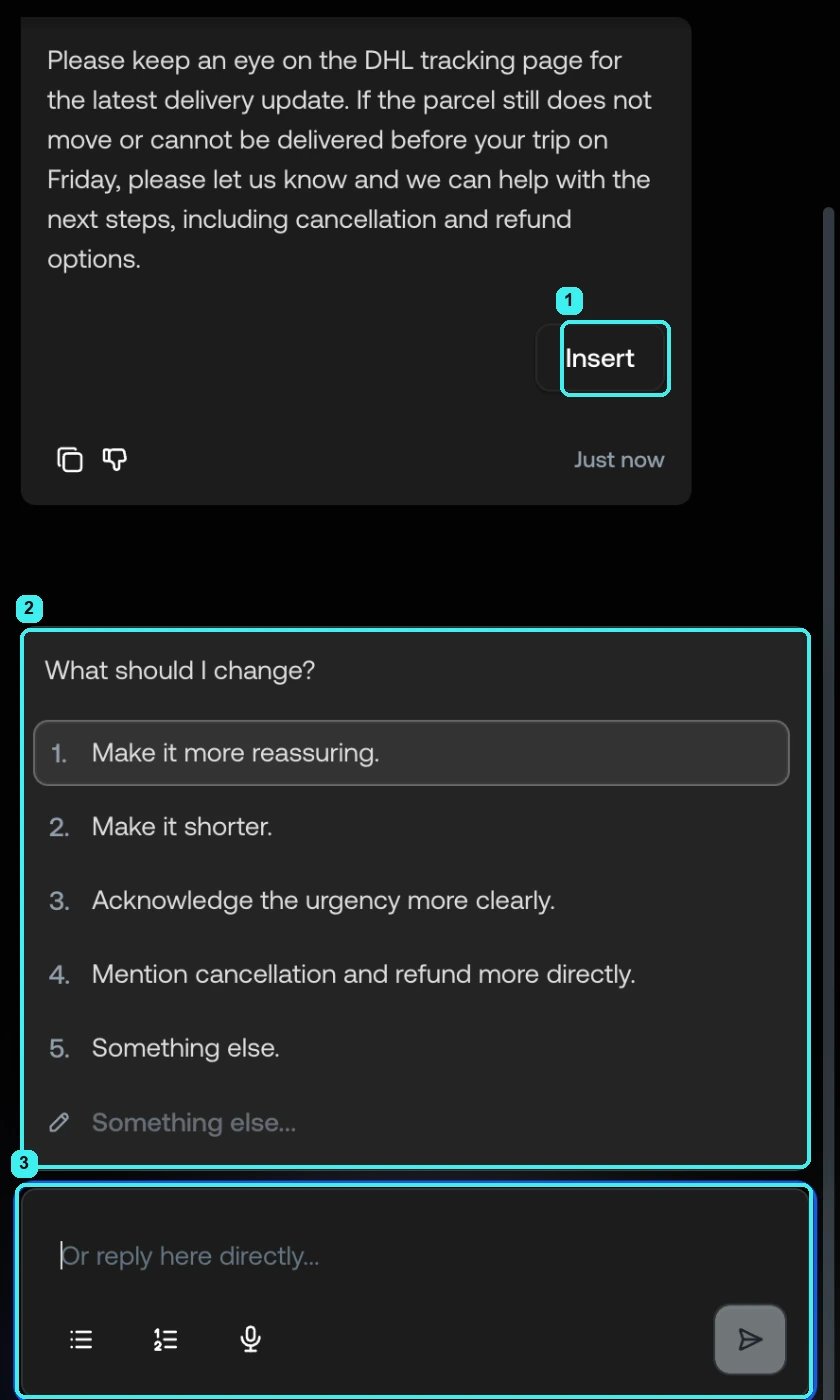
- Insert under text Nova wrote for your customer
- A question with options to pick from, or Something else… to type your own
- The message box, which reads Or reply here directly… while a question is open
While Nova is working, the send button turns into a stop button. Stopping ends
the reply but doesn’t undo a lookup that already ran.
Two languages, one conversation
Nova answers you in the language you write to it in. Text it writes for your customer stays in the customer’s language, whatever language you asked in. Ask in English for a reply to a Spanish customer, and the reply comes back in Spanish with a note to you in English. Only naming a language, “say it in French”, changes that.Manage conversations
New in the panel header starts a fresh conversation. Start one when you switch to another ticket or another task, so old context doesn’t pull answers off course. Past conversations lists your history, grouped by day, with a search box. Your conversations are private to you. You can also dictate instead of typing: click the microphone in the message box and speak.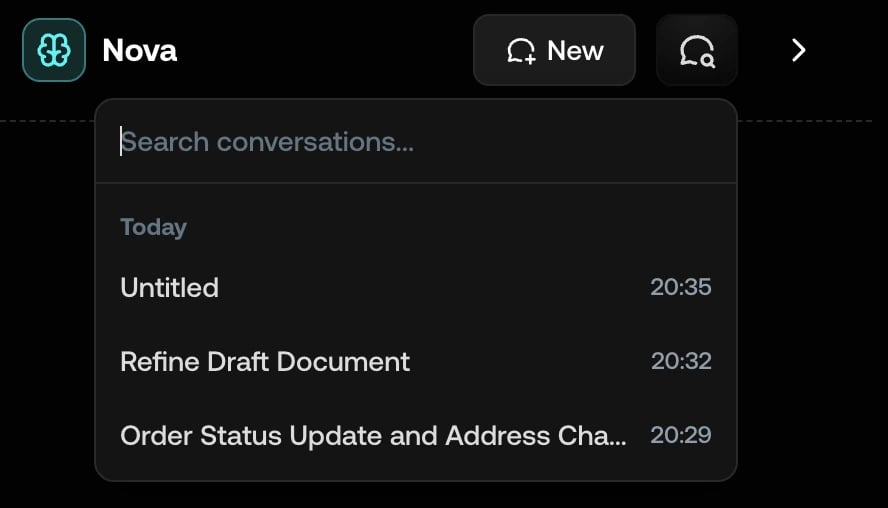
What Nova won’t do
- Send anything to a customer. Nova writes. You read, insert, and send.
- Run an action on its own. Every action shows you a form with its details first, and only runs when you press Execute, with the values you see.
- Change how the AI Agent is set up. Specialists, knowledge sources, actions, channels, and company settings are an admin’s job. Nova says so and offers what it can do instead.
- Run manual actions. Those are tasks for a person. Nova explains what they are and where your team handles them.
- Use unpublished changes. Lookups and actions run against the published configuration. A tool an admin added but hasn’t published yet isn’t there.
- Share what your admins marked as not shareable. A result from a knowledge source set to No sharing allowed stays in the panel for you to read. Nova never pastes it into a reply to the customer.
Credits
Nova runs on your workspace’s AI credits. A badge above the message box shows what the current conversation has used so far. If the allowance runs out, the panel says so and Nova pauses. Only an admin can add credits or change the plan, so ask them. The AI Agent keeps answering customers meanwhile. See Nova conversations and credits.If you’re an admin
Everything on these pages works for admins too. On top of it, admins can ask Nova to configure the workspace: create and edit Specialists, add knowledge sources, set up actions, write tests, and pull reports. See What Nova can do.Where to go next
Write replies with Nova
Draft, improve, retone, translate, and iterate on a reply
Lookups and actions
Check your systems and act in them, with you in control
Nova conversations
History, dictation, feedback, and credits
Keyboard shortcuts
Every Nova shortcut